Easy Touch Screen Gestures for Windows 11

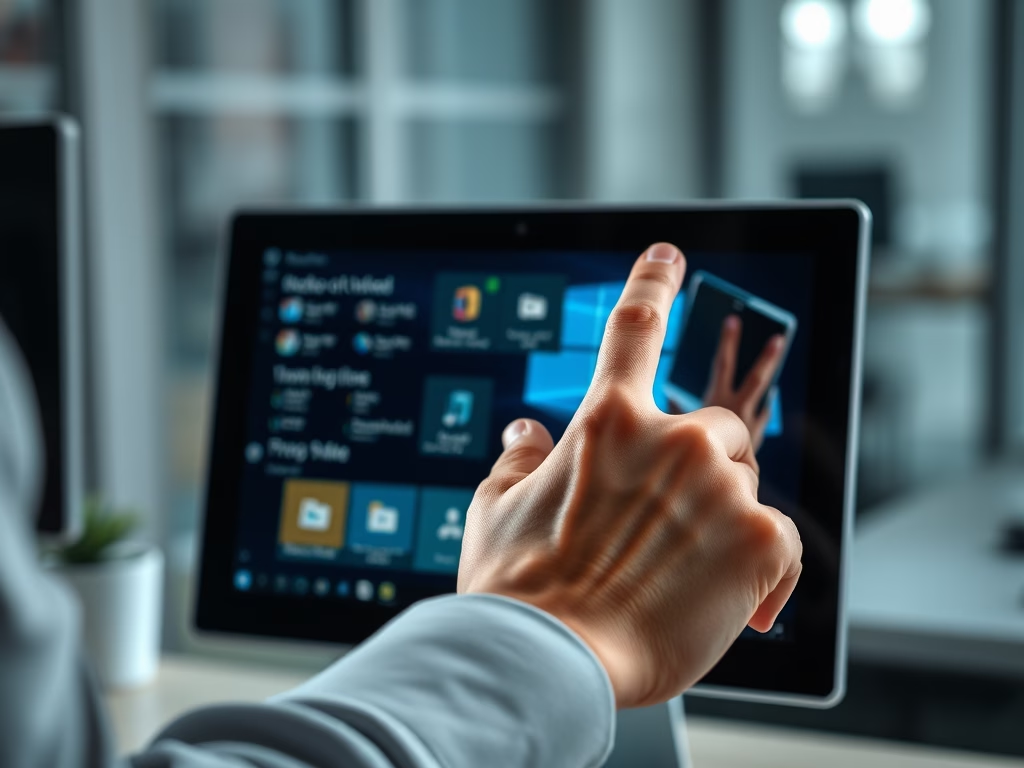
Windows 11 touch screen gestures are specific finger movements you use to interact with your PC. They make navigation and tasks quicker.
These intuitive gestures, like swiping and pinching, turn your touch screen into a powerful way to control things, much like your smartphone.
Windows 11 supports a variety of gestures, from simple taps and swipes to more complex multi-finger actions. These can really boost your productivity.
For example, a three-finger swipe up instantly reveals your Task View, showing all your open applications and desktops.
Windows 11 touch gestures are finger movements to navigate your PC. Tap to select, swipe to scroll or switch apps, and pinch to zoom. Access gesture settings via Settings > Bluetooth & devices > Touch.
Why Use 🪟 Windows 11 Touch Gestures?
Windows 11 touch gestures make using your PC much faster and more natural, letting you skip reaching for the mouse.
What Happens When You Use Gestures?
When you make a gesture, Windows 11 acts instantly. For instance, a three-finger swipe down will minimize all your windows. This lets you switch between tasks or open the Action Center without fumbling for small on-screen buttons.
Touchscreen vs. Touchpad Gestures
It’s good to know the difference. Touchscreen gestures happen right on your screen. Precision Touchpad gestures are for your laptop’s trackpad, which is that sensitive rectangular area you move your cursor with. They use similar movements, but you’ll find their settings in different places within the Settings app.
How to Configure Your Gestures
You can easily change how your Windows 11 device responds to touch by adjusting settings in your PC.
- Click the Start button and select Settings.
- Navigate to Bluetooth & devices > Touch.
- Here, you can toggle Three- and four-finger touch gestures.
- For advanced control, go to Bluetooth & devices > Touchpad to adjust sensitivity and specific swipe actions.
Note: Changing system-wide input settings may require admin privileges if your account is restricted.
Edge Swipe Functionality
Windows 11 supports edge swipes to reveal hidden menus. Swiping from the left edge opens the Widgets board. Swiping from the right edge opens the Action Center and notification panel. This is a quick way to check your calendar or system alerts.
Advanced Multi-Finger Gestures
Windows 11 lets you use advanced multi-finger gestures to quickly switch between apps or open Task View with a simple swipe.
| What You Want to Do | How to Do It |
|---|---|
| Select an item (like open a file or app) | Tap the screen once with one finger |
| Scroll up/down or left/right | Place two fingers on the screen and slide them up, down, left, or right |
| Zoom in or zoom out | Put two fingers on the screen and pinch them together to zoom out, or spread them apart to zoom in |
| Open more options (like right-click) | Press and hold your finger on the item until options appear |
| See all open windows | Swipe up with three fingers |
| Show your desktop | Swipe down with three fingers |
| Switch to the last app you used | Swipe left or right with three fingers |
| Open the notification center | Swipe in from the right edge of the screen with one finger |
| See your widgets | Swipe in from the left edge of the screen with one finger |
| Switch between different desktops | Swipe left or right with four fingers |
| Open or close the Start menu (Windows 11 build 22557 and newer) | Swipe up from the middle of the taskbar to open Start, swipe down to close it |
| Switch between Pinned apps and All apps in Start | In Start, swipe left or right to move between Pinned and All apps |
| Open or close Quick Settings | Swipe up from the bottom right of the taskbar to open Quick Settings, swipe down to close |
Summary
- Efficiency: Use multi-touch gestures to speed up your daily tasks.
- Customization: Visit Settings to enable or disable specific finger movements.
- Navigation: Use edge swipes to quickly access Widgets and the Action Center.
- Updates: Keep your system updated to ensure you have the latest gesture support from Microsoft.
- Troubleshooting: If gestures fail, check your driver settings or restart your device.
Windows 11 touch gestures help you work faster, let you customize how they work, and offer quick ways to access features like Widgets.
How do I fix touch gestures not working in 🪟 Windows 11?
If your Windows 11 touch gestures aren’t working, try updating your drivers first, then restart Windows Explorer.
Can I disable specific touch gestures?
Yes, you can. Navigate to Settings, then Bluetooth & devices, and select Touch or Touchpad. You will see a list of individual gestures. You can uncheck the boxes for any specific movement you do not want to use, giving you full control over your navigation experience.
Are touch gestures available on all 🪟 Windows 11 devices?
No, touch gestures require a device with a touchscreen or a Precision Touchpad. If your hardware does not support multi-touch input, these options will be hidden or grayed out in your Settings menu. Always check your manufacturer specifications to confirm your hardware supports these advanced features.
Was this guide helpful?

About the Author
Richard
Tech Writer, IT Professional
Richard, a writer for Geek Rewind, is a tech enthusiast who loves breaking down complex IT topics into simple, easy-to-understand ideas. With years of hands-on experience in system administration and enterprise IT operations, he’s developed a knack for offering practical tips and solutions. Richard aims to make technology more accessible and actionable. He's deeply committed to the Geek Rewind community, always ready to answer questions and engage in discussions.

No comments yet — be the first to share your thoughts!