View Full Notification Details in Windows 11

- 18 steps
- Needs administrator rights
Click the notification to open its full message. The banner only shows a short preview, so the app that sent it has to show the rest. When a message says “click here to view the notification details.”, click the notification banner itself, or press Win+N and click it in Notification Center.
The banner is a short preview. The complete message, attachment, or alert lives in the sending app, so clicking is what takes you there. This works the same way on Windows 11 version 21H2 and later, and it needs no administrator rights.
Click the notification banner itself, or press Win+N and click the message in Notification Center. Click the message text, not the X. Windows passes the click to the app that sent the alert, and that app opens the full message, conversation, or window. The banner only shows a short preview, so the complete content lives in the sending app.
What “Click Here to View the Notification Details” Means
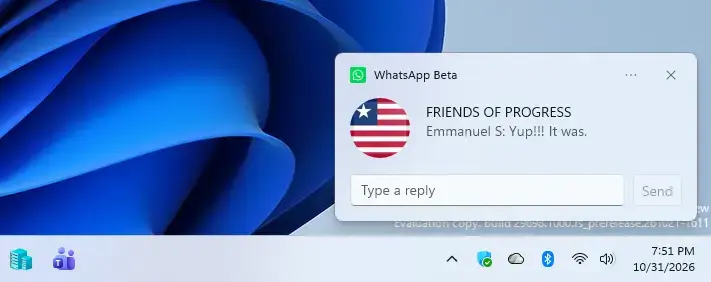
Windows 11 shows alerts as toast notifications (small banners that slide in above the taskbar, near the clock). A toast has a title, a line or two of text, and the name of the app that sent it. Windows cuts anything longer to fit.
The wording “click here to view the notification details.” comes from the app or website that sent the alert, not from a Windows setting. It is an instruction to click the notification so the sender can open the full message. Windows passes that click to the app, which decides what to show.
Because the sender controls the result, the outcome varies. An email app opens the message, a chat app opens the conversation, and Windows Security opens its own window. A browser alert opens the website that sent it.
How to View Full Notification Details in 🪟 Windows 11
These steps cover what to do when a notification tells you to “click here to view the notification details.”, whether the banner is still on screen or has already disappeared. Follow these steps in order. They start with the banner and fall back to Notification Center, the panel that stores recent alerts.
- Click the notification banner while it is on screen. Click the text itself, not the X or the three dots. The sending app opens, usually at the item the notification refers to. If the banner fades before you click, go to the next step.
- Press Win+N to open Notification Center. A panel slides in from the right edge of the screen. On Windows 11 version 22H2 and later, a calendar appears below the notifications.
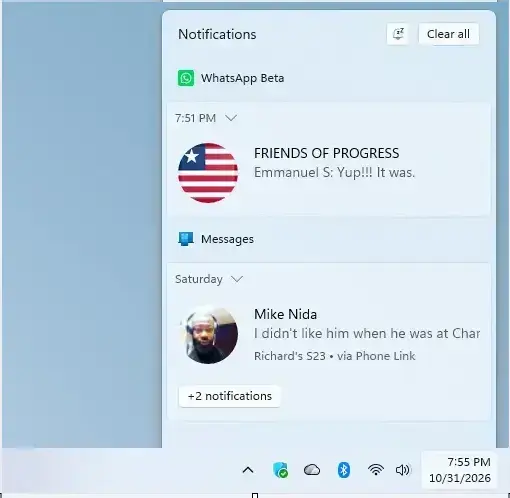
- Find the notification in the list. Notifications are grouped by app, with the newest at the top. The app name appears at the top of each notification, which helps if several arrive close together.
- Expand the group if the notification is hidden. When an app sends several alerts, Windows stacks them. Click the arrow beside the app name, if one appears, to show every notification in the stack.
- Click the notification you want. Click the message text, not the X, which clears it. The sending app opens and shows the details. If it was already running, it comes to the front.
- Read the details in the app window. This is the full content of the notification. Copy text, open attachments, or reply from here, depending on the app.
- Close Notification Center. Press Win+N again, or click an empty area of the desktop. The panel slides away.
If you are not sure how to open the panel, this guide to accessing the Windows 11 Notification Center lists every route, including touch.
Other Ways to Open Notification Center
Win+N is the fastest route, but it is not the only one. Use whichever suits how you work.
- Taskbarclick the date and time at the right end of the taskbar. Notification Center opens in the same place as with the shortcut.
- Touchscreenswipe in from the right edge of the screen.
Win+A opens Quick Settings (the panel with Wi-Fi, Bluetooth, and brightness controls), not Notification Center. If you see toggles instead of notifications, press Win+N.
If the Notification Does Not Open Anything
Sometimes a click does nothing, or the app opens without showing the item. Several things cause this, and each has a different fix.
- The app was uninstalled or is broken. The notification has nowhere to send the click. Open the app from the Start menu and look for the item there. If the app will not open, reinstall it from Microsoft Store or the developer’s website.
- The item no longer exists. The app may have deleted the message, or the link in the alert expired. Search inside the app for the original item.
- The app opens to its home screen. Some apps do not support jumping to a specific item. Check the app’s own inbox, activity list, or history.
- The notification came from a website. Clicking it opens your browser to the page that sent it. If the page is gone, the browser shows an error. If the notification came from a website, read the safety section below before you click it.
Check the Sender Before You Click
Look at the app name at the top of the notification before you click. Alerts from websites show the name of your browser, such as Microsoft Edge. Check the name before you click. If you did not expect an alert from a site, clear it without clicking.
To stop a sender, hover over the notification, open its three-dot menu, and choose the option that turns off notifications for that app. For website alerts, you can also remove the site’s permission in your browser’s site permissions settings.
Why the Notification Disappears Before You Can Read It
A banner stays on screen for a few seconds and then moves to Notification Center. That is normal. If you keep missing the details, you can lengthen the time the banner stays visible.
Make Notification Banners Stay Longer
This setting controls how long banners remain before they dismiss themselves. It lives in the Accessibility settings, not in the Notifications page.
- Open Settings. Press Win+I.
- Go to Accessibility Visual effects. Click Accessibility in the left pane, then Visual effects.
- Find Dismiss notifications after this amount of time. It is a drop-down list.
- Choose a longer time. The list offers several options, ranging from seconds to minutes. New banners now stay on screen for the time you picked.
To undo the change, open the same setting and choose the shorter time you used before. The full walkthrough is in How to Extend Windows 11 Notification Duration.
Why Notifications Do Not Appear or Show Limited Details
If no banner appears at all, or Notification Center is empty when you expect an alert, one of three settings is usually responsible. Check them in this order, because it is the setting most often left on by mistake.
Check Do Not Disturb
Do not disturb is a mode that silences banners and sounds. Alerts still arrive, but they go straight to Notification Center without a pop-up. This explains the common case where you open the panel and find notifications you never saw.
- Open Settings. Press Win+I.
- Go to System Notifications. Click System, then Notifications.
- Check the Do not disturb toggle. If it is on, switch it off. Banners will appear again for new alerts.
On older versions of Windows 11, the same page shows Focus assist instead of Do not disturb. The setting does the same job under the older name. Windows can also turn this mode on by itself in some situations, such as when you duplicate your screen or play a game full screen. The Notifications page in Settings (System Notifications) lists these automatic rules.
Check Settings for the Individual App
Each app has its own notification switches. If the app is set to stay quiet, you never see its banner or its entry in Notification Center.
- Open Settings System Notifications. Scroll to the Notifications from apps and other senders list.
- Click the app name. Find the app that sent the alert, or the one that should have. A page of options for that app opens.
- Turn on Notifications for the app. If this switch is off, the other options below it are hidden or unavailable.
- Check Show notification banners and Show notifications in notification center. Turn both on if you want a pop-up and a saved copy.
If an app is missing from the list, it has not sent a notification yet, or it does not use Windows notifications. Open the app once and trigger an alert, then check the list again. For more detail on these app switches, see how to turn on or off Show notifications in Notification Center.
Check Whether Notification Center Is Turned Off
On a work or school PC, an administrator can turn Notification Center off. In that case, the panel may not open, or may appear without your alerts. A personal PC is unlikely to have this problem unless someone changed it deliberately.
If you manage the PC and want to check or change this, this guide to turning Notification Center on or off covers it. On a PC managed by your organization, ask your IT department, because a rule set by your organization can change the setting back.
What Happens After You Clear a Notification
If you cleared one by mistake, open the sending app and look for the item inside it, such as the inbox or an activity feed. The alert was only a pointer to that item. For a closer look at what Windows does keep, read How to Check Your Notification History in Windows 11.
What to Do Next
If you open notifications often, a distinct sound for each alert helps you notice them before the banner fades. Turning notification sounds on or off is the closest related setting. If the banners themselves are the problem, you can also silence one noisy app from the Notifications page without touching the rest.
Have a question about this guide?
Answered by AI from this guide. Good questions may be added to this page — please don't include personal details.
Did this guide fix your problem?

About the Author
Richard
Tech Writer, IT Professional
Richard is a writer at Geek Rewind who turns complex IT tasks into clear, step-by-step guides. He draws on years of hands-on experience in system administration and enterprise IT operations, focusing on Windows, Linux and WordPress: the problems people actually run into, and the fixes that work. His server and WordPress guides come from systems he runs himself. Richard builds and maintains the platform behind Geek Rewind, from its Ubuntu servers and Nginx configuration to its custom WordPress plugins. Many new tutorials start with readers' questions, and he's always glad to answer them in the comments.
No comments yet — be the first to share your thoughts!