Turn Off Network Connectivity in Sleep on Windows 11

- 30 steps
- Needs administrator rights
Stop your Windows 11 PC from staying connected to Wi-Fi or Ethernet while it sleeps. The fastest reliable way is to open Device Manager, open your network adapter’s properties, and clear Allow this device to wake the computer on the Power Management tab. If your PC still stays online, switch the lid and sleep button actions to Hibernate.
Many Windows 11 laptops use Modern Standby (a sleep mode that keeps the network alive so email and notifications can arrive). Older sleep, called S3, cuts power to most hardware instead. Which one your PC uses decides which fix works.
The steps apply to currently supported Windows 11 versions (25H2 or 26H2), on both Home and Pro editions. Changing adapter power settings needs an administrator account.
To turn off network connectivity in sleep on Windows 11, open Device Manager, double-click your Wi-Fi or Ethernet adapter under Network adapters, select the Power Management tab, and clear Allow this device to wake the computer. Run powercfg /a in Terminal first: if it lists Standby (S0 Low Power Idle) Network Connected, your PC uses Modern Standby and may still stay online.
How Network Connectivity Works During Sleep
A PC in classic S3 sleep draws very little power, and the network adapter is normally off unless you allow it to wake the PC. A PC with Modern Standby behaves more like a phone. The screen is off, but Windows can wake briefly in the background and keep the network connected.
That background connection explains why a laptop in a bag can run warm or lose battery overnight. It also explains why a PC can wake up because of network traffic.
Windows does not give every PC a single switch for this. The setting you use depends on your sleep type, so check that first.
Check Which Sleep Type Your PC Uses
This check shows whether your PC uses Modern Standby or classic S3 sleep. It takes under a minute and shows which method below will work for your PC.
- Right-click the Start button. A menu of system tools opens.
- Select Terminal. A Windows Terminal window opens with a command prompt.
- Type the command below and press Enter.
powercfg /a - Read the first lines of the result. They list the sleep states your PC supports and the ones it does not.
If you see “Standby (S0 Low Power Idle) Network Connected”, your PC uses Modern Standby and keeps the network connected during sleep. If you see “Standby (S3)”, your PC uses classic sleep. Some PCs list both, with one marked as not available.
How to Turn Off Network Connectivity in Sleep on 🪟 Windows 11
These steps turn off network connectivity in sleep on Windows 11 by changing the power rules for your network adapter, the hardware that connects the PC to Wi-Fi or Ethernet. This method requires administrator privileges. When finished, the adapter can no longer wake the PC, and Windows can power the adapter down to save energy.
- Right-click the Start button. A menu of system tools opens.
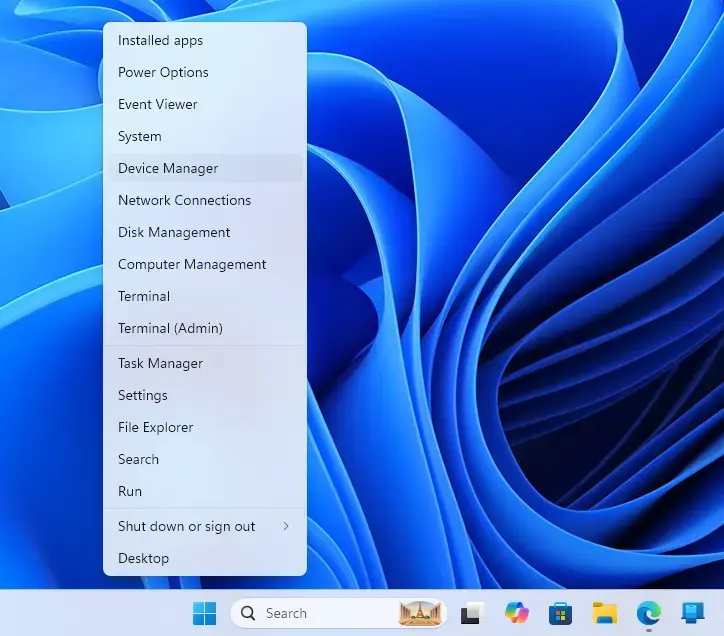
Device Manager - Select Device Manager. If a User Account Control prompt appears, select Yes or enter an administrator password.
- Expand Network adapters. Click the arrow beside the name. A list of adapters appears.
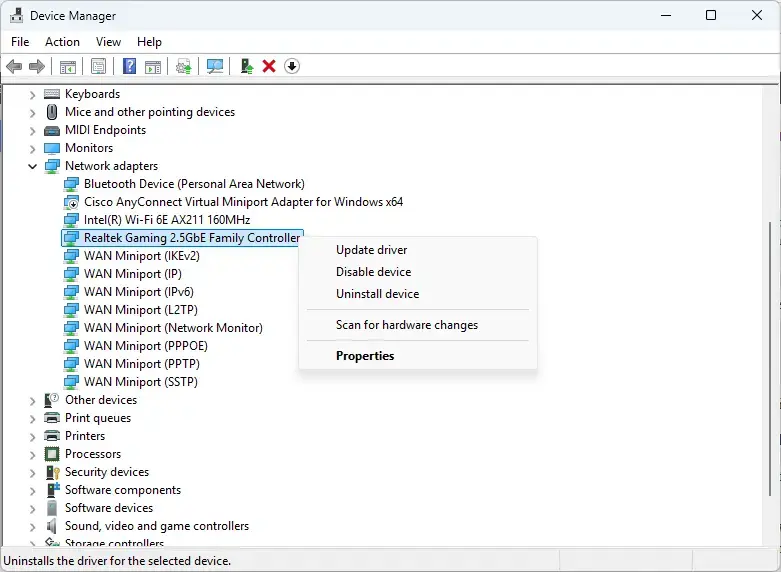
Network Connections - Double-click your active adapter. Choose the Wi-Fi adapter on a wireless connection, or the Ethernet adapter on a cable. Names often include “Wi-Fi”, “Wireless”, “Ethernet” or “GbE”.
- Select the Power Management tab. If the tab is missing, the driver does not expose power options. See the troubleshooting section below.
- Select the Allow the computer to turn off this device to save power check box. This lets Windows switch the adapter off during sleep.
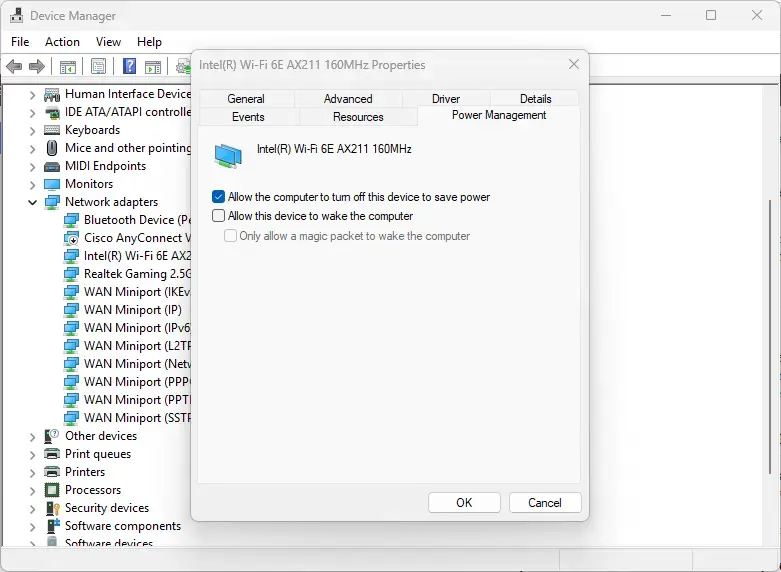
- Clear the Allow this device to wake the computer check box. Clearing it also greys out Only allow a magic packet to wake the computer.
- Select OK. The properties window closes and Windows saves the change.
- Repeat steps 4 to 8 for any other adapter that is active, such as a second Ethernet port or a USB network adapter.
- Put the PC to sleep and wake it. Check that the connection returns, because some adapters take several seconds to reconnect.
A magic packet is a special network message that tells a sleeping PC to wake up. If you use Wake-on-LAN (remote wake from another device), keep Allow this device to wake the computer selected and select Only allow a magic packet to wake the computer instead. Wake-on-LAN and a sleep with the network fully off do not go together.
No restart is needed. The change takes effect the next time the PC sleeps.
For the basics of putting the PC to sleep, see How to Put Your Windows 11 PC to Sleep.
Use Hibernate Instead of Sleep for a Fully Offline PC
The lid and button actions below choose what Windows does when you close the lid or press the sleep button. Desktop PCs without a lid do not show the lid option.
- Open Settings. Press
Windows key + I.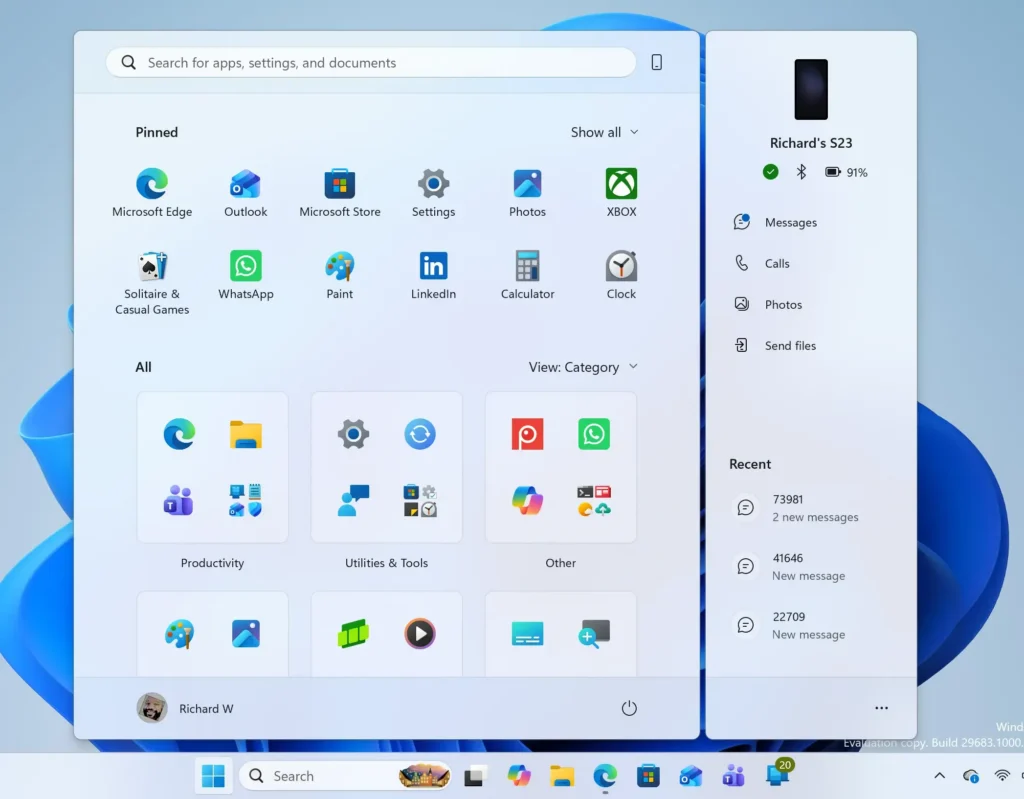
Windows 11 Start menu search panel for opening OpenSSH Client settings - Select System, then select Power & battery.
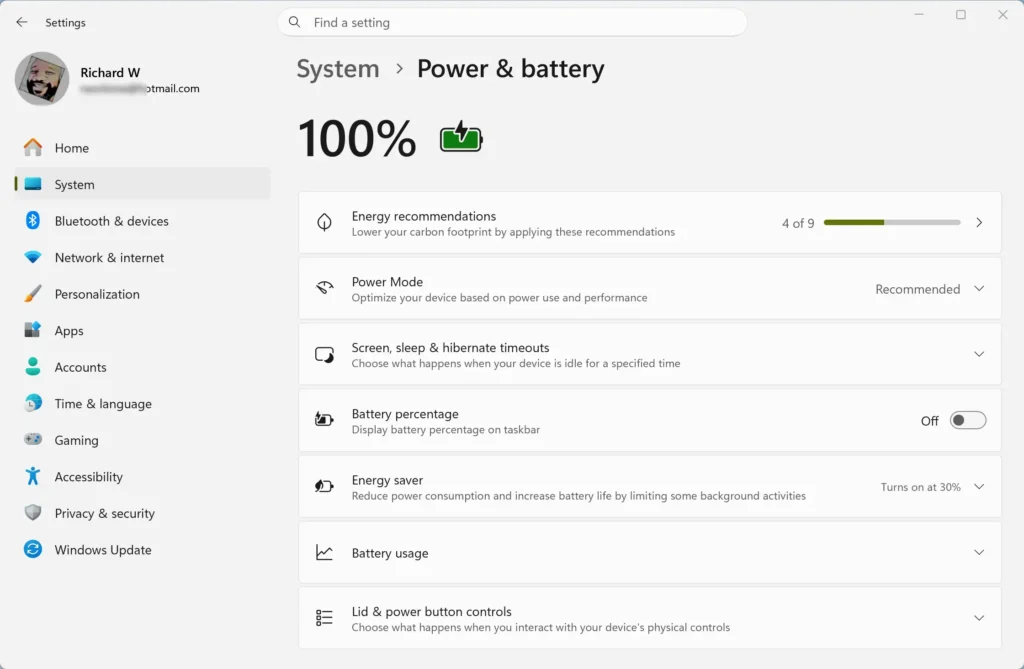
- Expand Lid, power & sleep button controls. Three actions appear on a laptop.
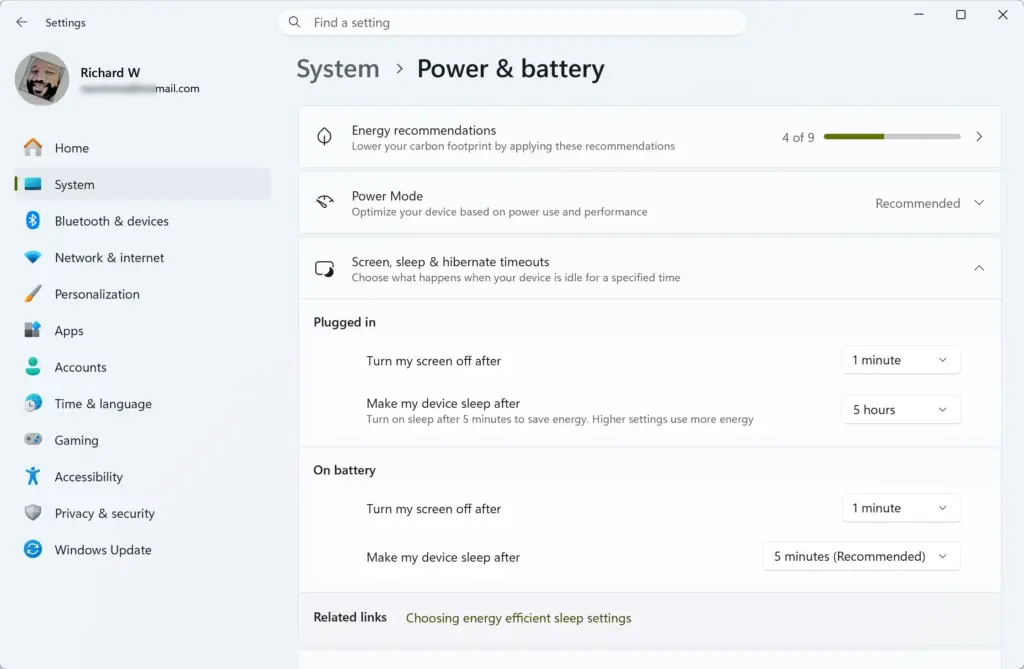
- Open the list beside Closing the lid will make my PC. Choose Hibernate.
- Open the list beside Pressing the sleep button will make my PC. Choose Hibernate if you want that button to hibernate too.
- Close Settings. The new action applies the next time you close the lid or press the button.
The exact layout of this page can differ slightly between Windows 11 versions. The option names stay the same.
If Hibernate does not appear in the lists, hibernation is turned off on your PC. Turn it on from an elevated Terminal (a Terminal window opened with administrator rights). This step requires administrator privileges. Right-click Start, select Terminal (Admin), and run the command below.
powercfg /hibernate on
Reopen Settings. The Hibernate option appears in the lists. If it still does not, the PC maker or your organisation may have disabled hibernation. For the difference between all three modes, read Windows 11 Hibernate vs Sleep vs Fast Startup Explained.
To make the PC hibernate after it has been asleep for a while, use the timers in Power Options. How to Adjust Power and Sleep Settings in Windows 11 covers where those sit.
Turn Off Wi-Fi Before Sleep
Switching Wi-Fi off by hand works when you only need the PC offline occasionally, such as in a bag or on a flight. It needs no administrator rights.
- Click the network, volume and battery icons at the right end of the taskbar. Quick Settings opens.
- Select the Airplane mode tile. It turns on, and Wi-Fi and Bluetooth switch off.
- Put the PC to sleep.
If the tile is missing, select the pencil icon in Quick Settings, choose Add, and pick Airplane mode. When you wake the PC, select the tile again to reconnect.
Airplane mode does not stop an Ethernet cable from staying connected. For wired PCs, use the Device Manager steps above or hibernate.
Reduce Wi-Fi Power Use with Wireless Adapter Settings
Control Panel has a Wireless Adapter Settings group in the advanced power options. It controls how aggressively Windows saves power on the Wi-Fi adapter. It lowers the adapter’s power draw but does not disconnect it, so treat it as a supporting change, not a fix on its own.
- Press
Windows key + R. The Run box opens.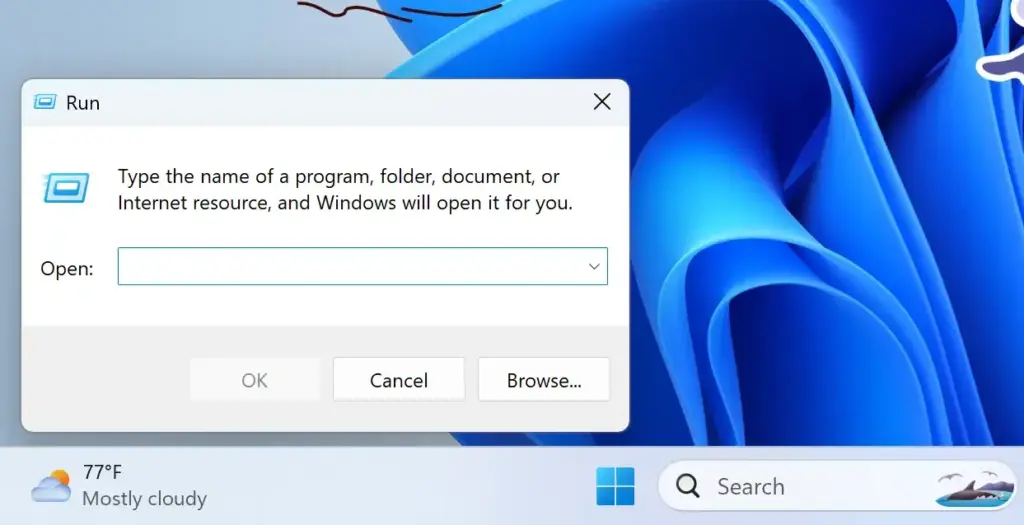
Run dialog - Type
control powercfg.cpland press Enter. The Power Options window opens. - Select Change plan settings beside your active plan.
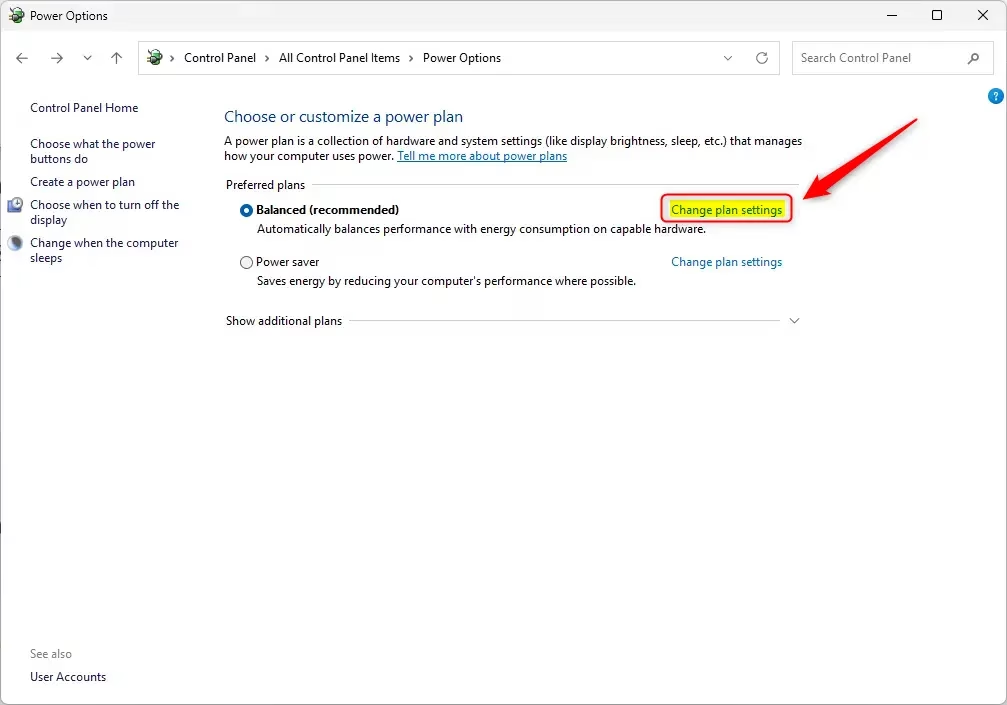
Settings > System > Power - Select Change advanced power settings. A small Power Options window opens.
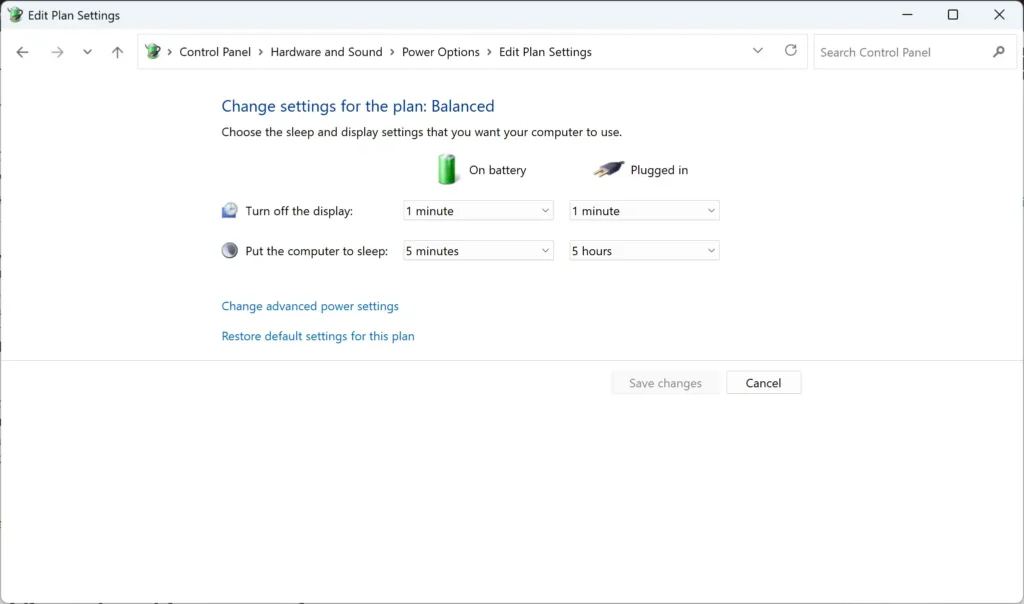
Settings > System > Power - Expand Wireless Adapter Settings, then expand Power Saving Mode.
- Set On battery and Plugged in to Maximum Power Saving.
- Select OK. The setting saves right away.
Some PCs also list a networking option for standby in this window. I could not confirm which Windows 11 builds or devices show this option. Check whether it appears on your PC. If it does, its effect may differ from one PC to another. If it does, treat it as a PC-specific extra. The Device Manager and hibernate methods above work on all PCs.
If the Option Is Missing or Greyed Out
These are the usual reasons the steps above do not match what you see.
- No Power Management tab. The adapter driver does not expose power options. Open Settings Windows Update Advanced options Optional updates and install any driver update for the adapter, or install the driver from your PC maker’s support page.
- Check boxes are greyed out. You opened Device Manager without administrator rights, or your workplace has set a rule that controls the setting. Sign in with an administrator account, or ask your IT team.
- The PC still goes online during sleep. On Modern Standby, Windows is designed to keep the connection alive and may override adapter settings. Use hibernate instead.
- The PC wakes by itself. Something else may be waking it. Check for a network device, a scheduled task, or another device that can wake the PC. Clear Allow this device to wake the computer on each active adapter and test again.
- Wi-Fi or Ethernet fails to reconnect on waking. Re-select Allow the computer to turn off this device to save power and test again. Some drivers do not recover reliably from being powered off.
Home vs Pro, and Whether a Restart Is Needed
Device Manager, Settings and Control Panel work the same on Home and Pro, so none of the steps in this post depend on your edition. Workplace-managed PCs may be locked by policy, which shows as greyed-out options.
No restart is needed for any method here. Test each change by putting the PC to sleep for a minute or two and waking it.
How to Undo the Changes
To reverse the Device Manager change, open the adapter’s properties again, return to the Power Management tab, and select Allow this device to wake the computer. Clear Allow the computer to turn off this device to save power if you want the adapter to stay powered.
To return to normal sleep, set Closing the lid will make my PC and Pressing the sleep button will make my PC back to Sleep in Settings System Power & battery. To turn off hibernation entirely, an administrator can run the matching command, powercfg /hibernate off, in an elevated Terminal. Turn Airplane mode off from Quick Settings whenever you want a connection.
What to Do Next
If the PC loses its connection after waking, work through What to Do When Windows 11 Loses Internet After Waking from Sleep, since powering the adapter down can cause that. If the PC does not wake at all after these changes, see What to Do When Windows 11 Fails to Wake from Sleep. To control how long the PC waits before sleeping, use How to Change When Your Windows 11 Computer Goes to Sleep.
Have a question about this guide?
Answered by AI from this guide. Good questions may be added to this page — please don't include personal details.
Did this guide fix your problem?

About the Author
Richard
Tech Writer, IT Professional
Richard is a writer at Geek Rewind who turns complex IT tasks into clear, step-by-step guides. He draws on years of hands-on experience in system administration and enterprise IT operations, focusing on Windows, Linux and WordPress: the problems people actually run into, and the fixes that work. His server and WordPress guides come from systems he runs himself. Richard builds and maintains the platform behind Geek Rewind, from its Ubuntu servers and Nginx configuration to its custom WordPress plugins. Many new tutorials start with readers' questions, and he's always glad to answer them in the comments.
No comments yet — be the first to share your thoughts!