How to Change Sleep Button Function in Windows 11

The sleep button setting in Windows 11 decides what happens when you press the sleep button or key on your computer or laptop. Windows keeps a matching setting for the physical power button, and you change both in the same place. By default the sleep button puts your system to sleep. Windows lets you change it to shut down, hibernate, turn off the screen, or do nothing.
The change takes less than one minute. Setting the button to shut down gives you a quick physical way to turn off your PC without opening the Start menu . This guide uses the Settings app . The classic Control Panel still has the same options under Control Panel Hardware and Sound Power Options Choose what the power buttons do.
Open Settings , go to System Power & battery, scroll to Lid, power & sleep button controls, and click the dropdown next to Pressing the sleep button will make my PC. Select your preferred action: Sleep, Shutdown, Hibernate, Display Off, or Do Nothing. Changes save automatically.
What Is the Sleep Button?
Sleep is a low-power state that pauses your computer’s activity instead of shutting it down. Your open apps and files stay in memory exactly where you left them, and the PC uses very little electricity while it waits. Press a key, move the mouse, or press the power button to wake it. You are back at your work in a few seconds.
Pressing the sleep button pauses the device without a full shutdown, which saves power. Windows lowers system activity while it keeps your session in memory. Nothing is closed, so nothing needs to be reopened.
How to Change What the Sleep Button Does
You can change the sleep button action in the Settings app, so you don’t need to dig through the old Control Panel menus. The steps below work on Home and Pro editions alike. You don’t need administrator rights on most PCs, although a work or school PC may lock these settings through policy.
Follow These Simple Steps:
- Open Settings
Press the Win+I, or right-click the Start button and choose Settings. The Settings window opens with a list of categories on the left.
Older guides send you to the Control Panel for this. You don’t need it in Windows 11, because the Settings app now has the same controls. The Control Panel route is still there if you prefer it.
- Find System Settings
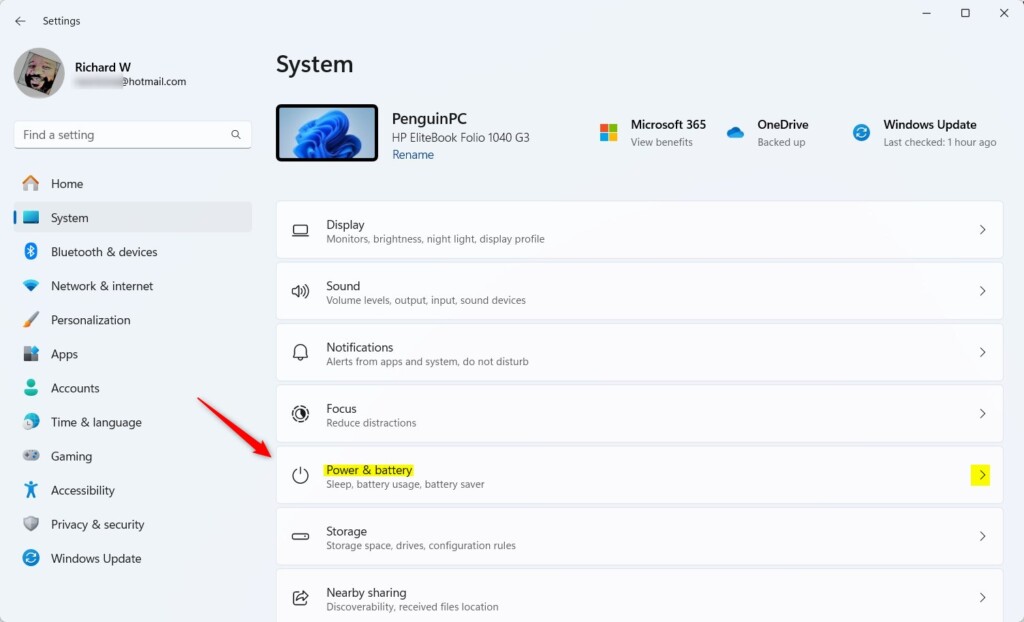
In the Settings window, click System on the left side. The System pages open on the right.

Windows 11 System button in Settings - Go to Power Settings
Click Power & battery on the right side. On a desktop PC with no battery, the entry is called just Power. The page shows your power mode, screen and sleep timers, and battery details if you have a battery.
Windows 11 Power and Battery settings - Find the Sleep Button Controls
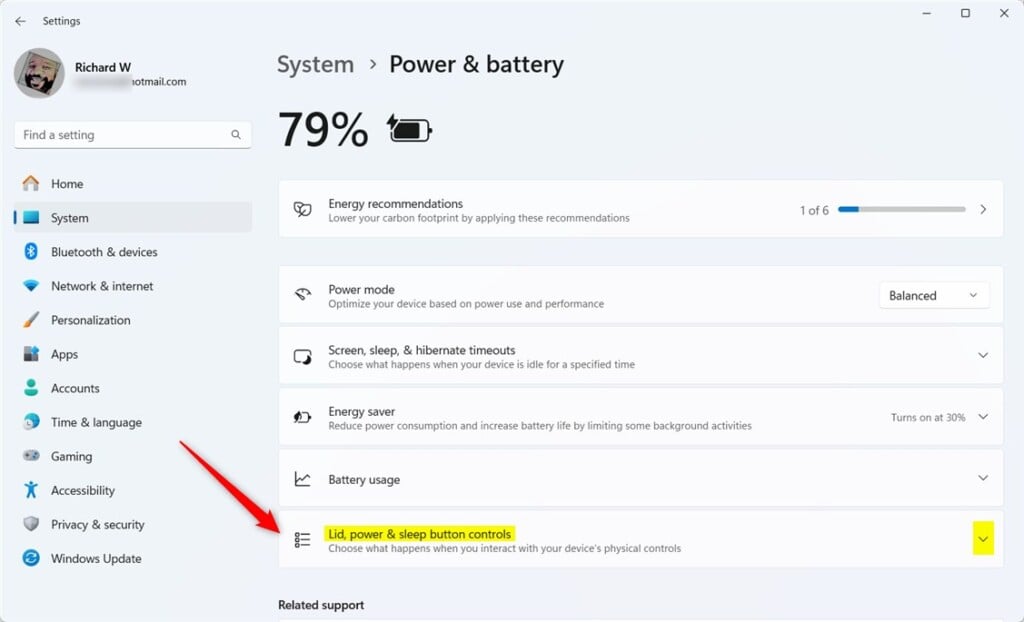
Scroll down to the section called Lid, power & sleep button controls. Click it to expand the options. On some Windows 11 builds the name is slightly shorter, for example “Lid, power & sleep controls”. It is the same section.
The lid option only appears on laptops. If you see nothing at all, check that you are on the Power page and scroll all the way down.
Lid, power & sleep button settings - Select Your Preference
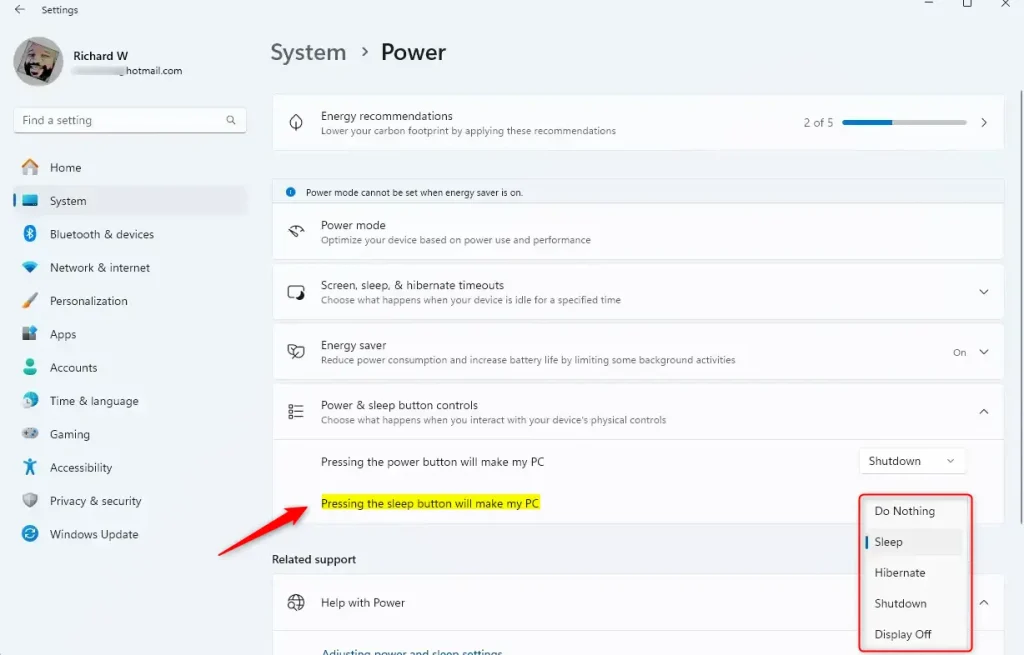
Look for the option that says Pressing the sleep button will make my PC. The nearby Pressing the power button will make my PC option controls the physical power button. Make sure you edit the one you actually want to change.
On a laptop, each option has two dropdowns: Plugged in and On battery. Desktops show only one. Click the dropdown to see your choices.
- Pick What You Want
Choose one of these options:
- Do Nothing — pressing the button won’t do anything
- Sleep — puts your PC to sleep (this is the default)
- Hibernate — saves your work and turns off the PC
- Shutdown — turns off your PC completely
- Display Off — turns off the screen only (shown as Turn off the display on some builds)
⚠️WarningIf Hibernate is missing from the list, it is switched off on your PC.Some systems ship that way. Shutdown closes your apps, so save your work first. Do Nothing is handy if you keep bumping the button by accident.
Sleep button behavior options in Windows 11 - Close Settings
Close the Settings app when you’re done. Your changes save automatically, and you don’t need to restart. To test, press the button once and check that the PC does what you picked. To undo the change, go back to the same dropdown and select Sleep.
Why Change the Sleep Button?
Changing the button is helpful if your desktop or laptop often freezes or fails to wake properly from sleep. You can avoid problems tied to modern standby by switching the button to Hibernate, which is a safer state on many machines. You can also turn off the screen without putting the rest of the hardware to sleep. Any of these can make daily use more reliable.
What happens when you customize it? The button now does exactly what you chose, and it does it every time you press it. If you set separate actions for Plugged in and On battery, the PC switches between them on its own depending on how it is powered. You can come back and change it whenever your needs change.
Summary
To change your sleep button function in Windows 11, open Settings System Power & battery and expand the lid, power and sleep button controls. Then choose Sleep, Hibernate, Shutdown, Display Off, or Do Nothing for the sleep button. Choose separately for plugged in and on battery if your PC offers both.
Have questions or tips to share? Leave a comment below!
Have a question about this guide?
Answered by AI from this guide. Good questions may be added to this page — please don't include personal details.
Did this guide fix your problem?

About the Author
Richard
Tech Writer, IT Professional
Richard is a writer at Geek Rewind who turns complex IT tasks into clear, step-by-step guides. He draws on years of hands-on experience in system administration and enterprise IT operations, focusing on Windows, Linux and WordPress: the problems people actually run into, and the fixes that work. His server and WordPress guides come from systems he runs himself. Richard builds and maintains the platform behind Geek Rewind, from its Ubuntu servers and Nginx configuration to its custom WordPress plugins. Many new tutorials start with readers' questions, and he's always glad to answer them in the comments.
No comments yet — be the first to share your thoughts!