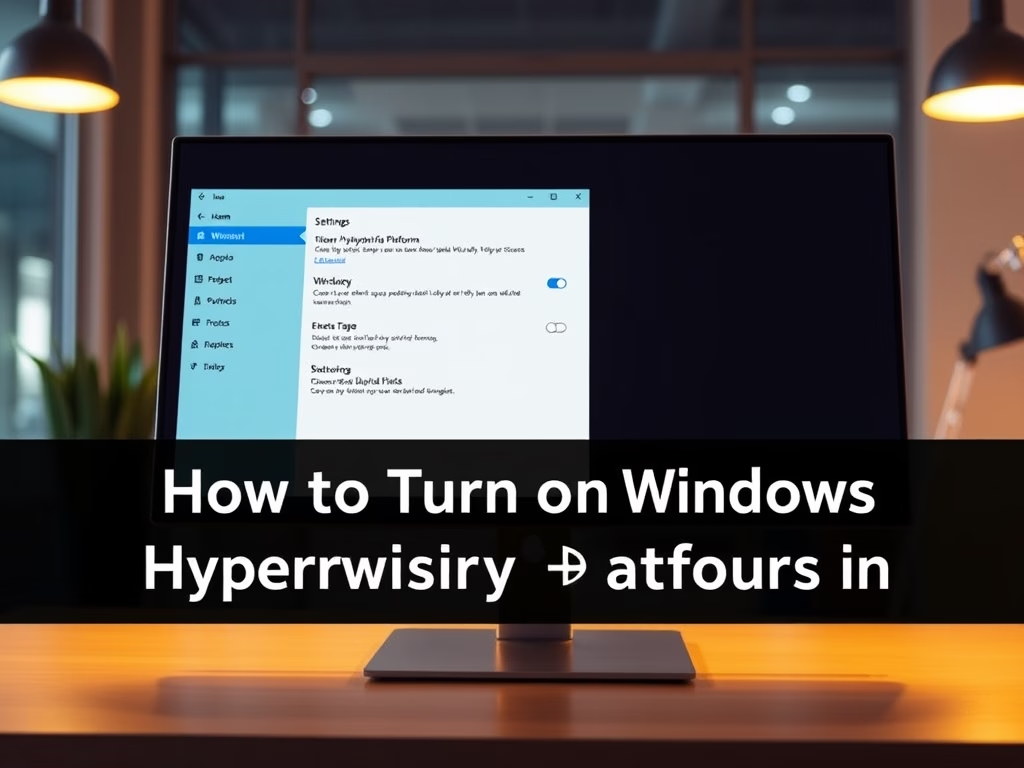
The guide explains how to enable or disable the Windows Hypervisor Platform on Windows 11, a feature that allows users to run virtual machines. It details four methods: through Settings, Control Panel, Command Prompt, and PowerShell. After activation, users can manage virtual machines using Hyper-V Manager for safe software testing.
Windows 11
2,371 tutorials · page 94
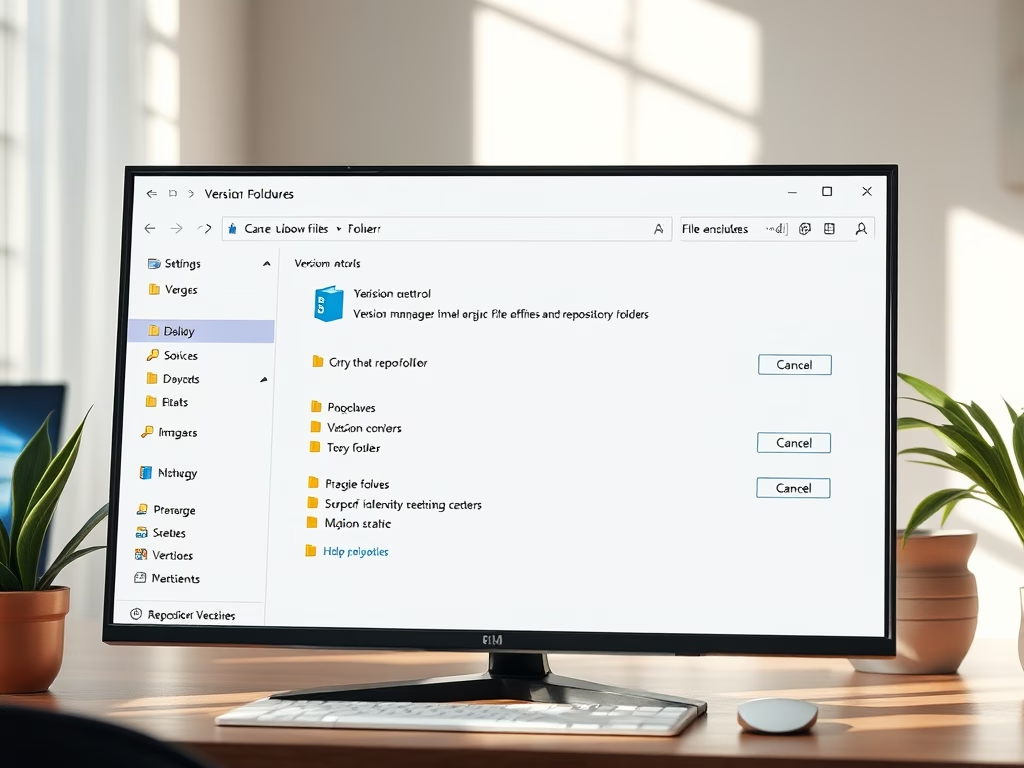
This guide explains how to add or remove repository folders in Windows 11's File Explorer, allowing users to view version control details like Git branch names directly within the tool. The process involves navigating through the Settings app and facilitates easier project management and collaboration without needing separate applications.
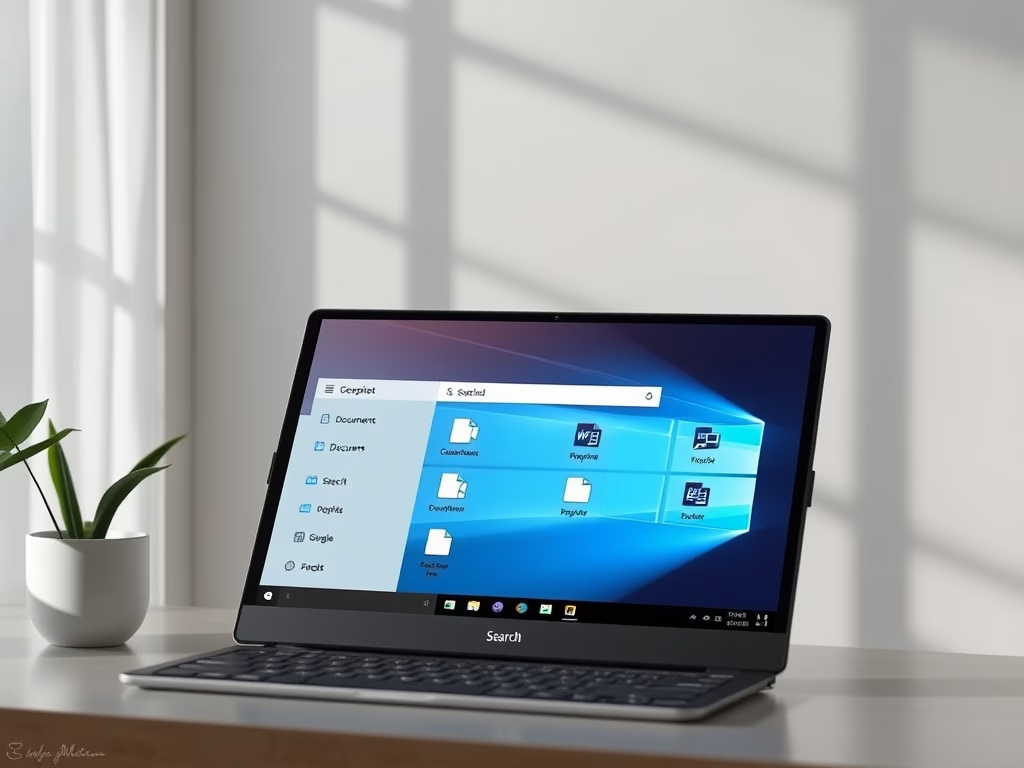
The Copilot app in Windows 11 enables quick file searches by allowing users to type or ask questions in simple language. The latest update enhances its capability to search various file types, including images and documents. Users must activate file search and read permissions for optimal functionality.
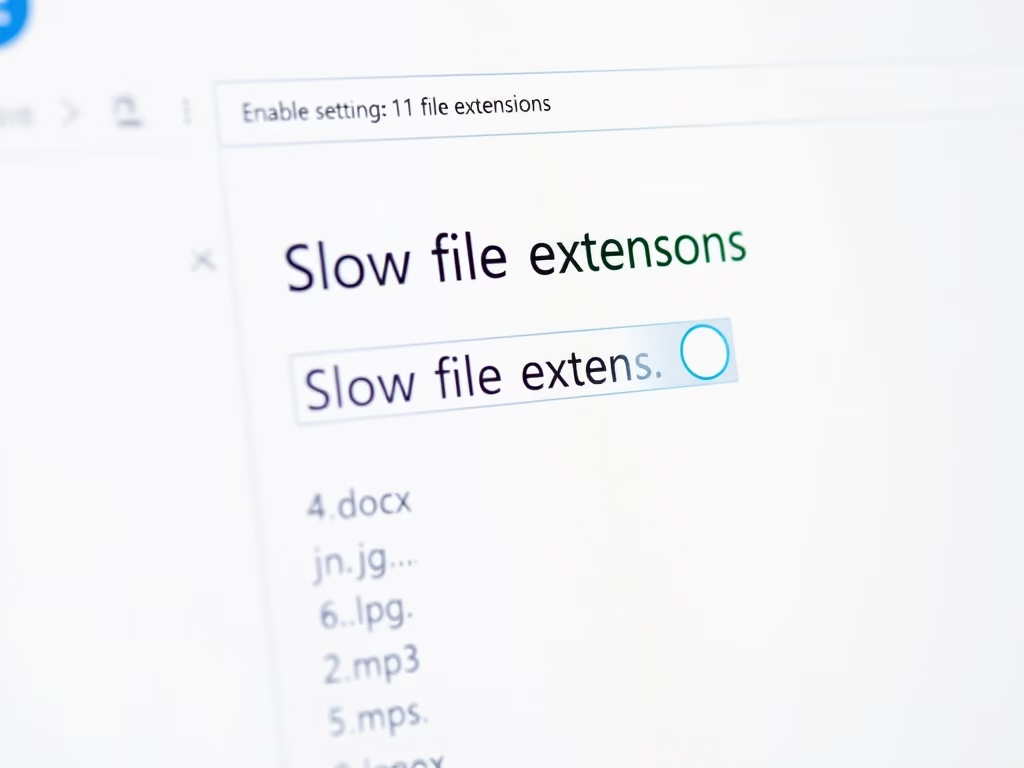
This guide explains how to enable file extensions in Windows 11, helping users identify file types more easily. By navigating to Settings, users can turn on the "Show file extensions" option under the File Explorer settings. This feature enhances file management and prevents confusion when opening files.
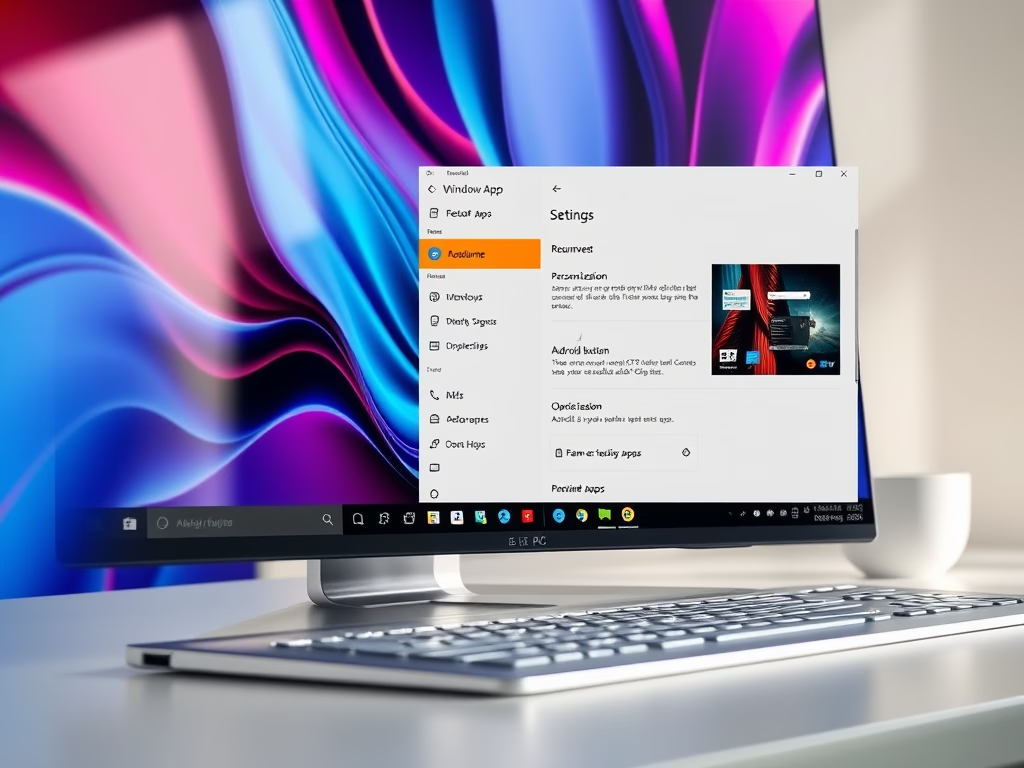
This guide explains how to enable or disable the Resume app button on the Windows 11 taskbar. The feature allows users to continue using Android apps on their PC seamlessly. Steps include linking the phone to the PC, adjusting settings in Windows, and toggling the Resume button visibility.
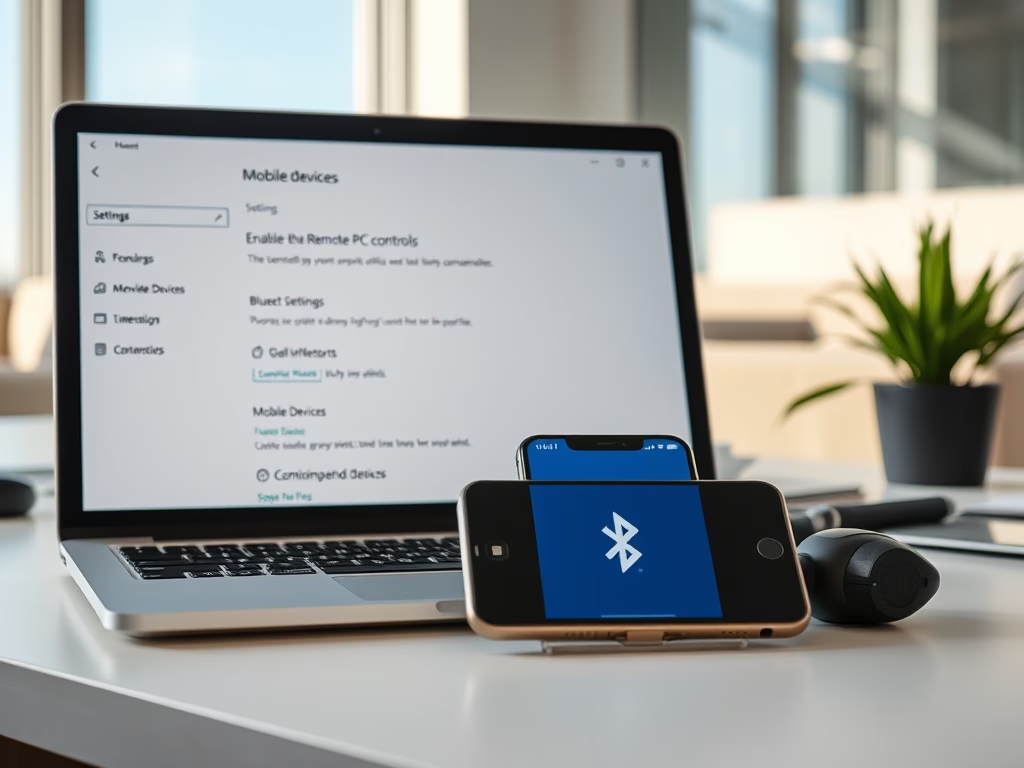
This guide explains how to enable or disable Remote PC controls on Windows 11, allowing users to control their PC from their phone. By signing in with a Microsoft account, users can manage their mobile devices, transfer files, send messages, and enhance security by locking their PC remotely.
Windows 11 introduces the "Ask Copilot" button on the Taskbar, allowing users to quickly seek help by typing or talking. This feature helps find apps or files efficiently while ensuring user privacy. The guide provides steps to show or hide the button via Settings, enhancing the overall user experience.
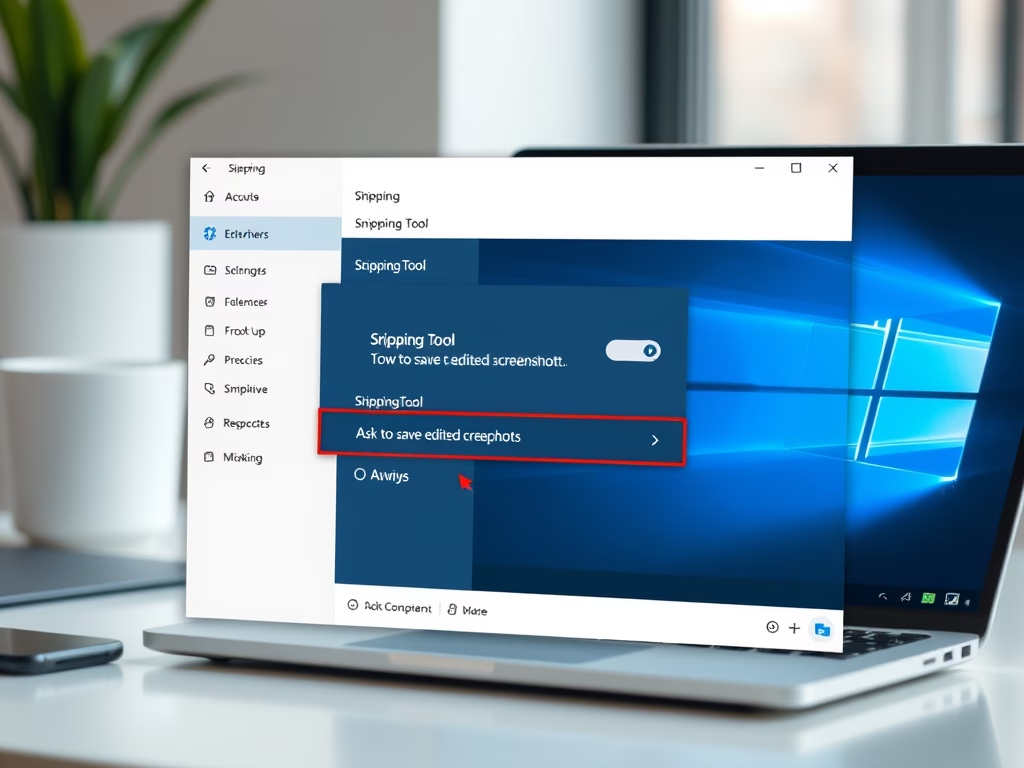
This guide explains how to toggle the "Ask to save edited screenshots" feature in the Snipping Tool on Windows 11. Users can customize screenshot-saving preferences, choosing between prompts for saving edits or automatic saving. This functionality enhances the efficiency of managing screenshots within the application.
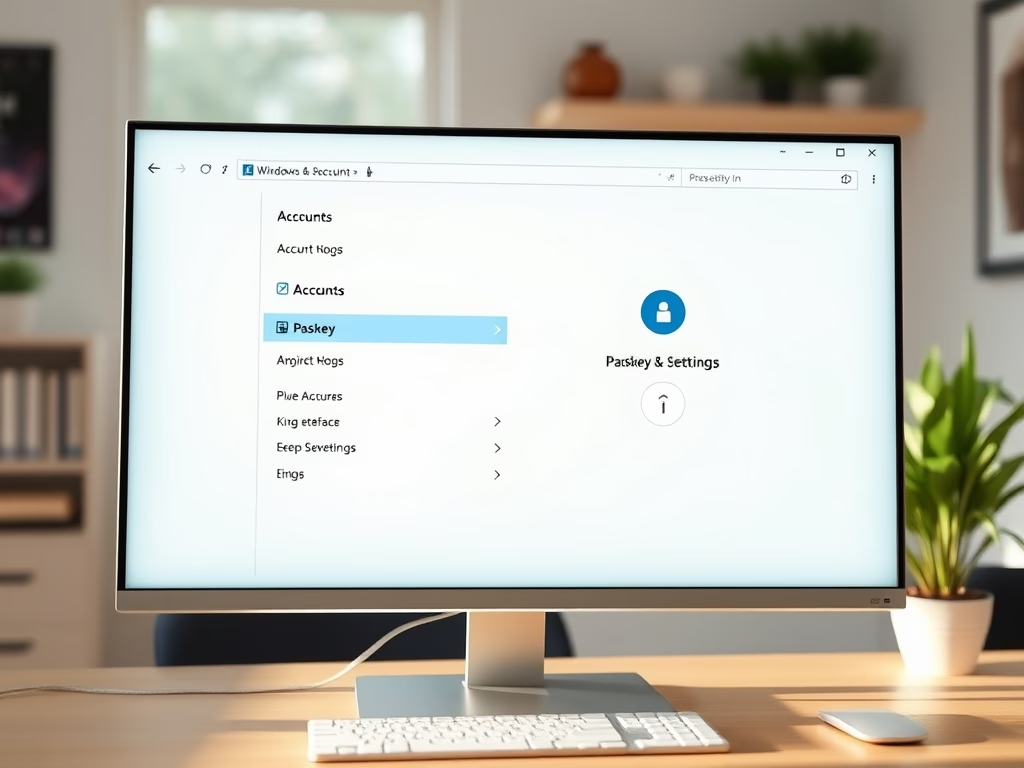
This guide explains how to manage Passkey Managers on Windows 11, a feature that allows for password-free sign-ins using biometrics or a PIN. It discusses the benefits of using passkeys, such as enhanced security and ease of access, and provides step-by-step instructions to enable or disable saving passkeys on the device.
This guide explains how to enable or disable Passkey access for apps on Windows 11, offering a secure alternative to passwords through Windows Hello features like facial recognition, fingerprints, and a PIN. Users maintain control over which apps can use these passkeys, enhancing both security and convenience.
This guide explains how to manage passkey autofill on Windows 11 for improved security and convenience. Passkeys allow users to sign in with biometric options like facial recognition or fingerprints rather than passwords. The article provides step-by-step instructions to enable or disable this feature through the Privacy & Security settings.
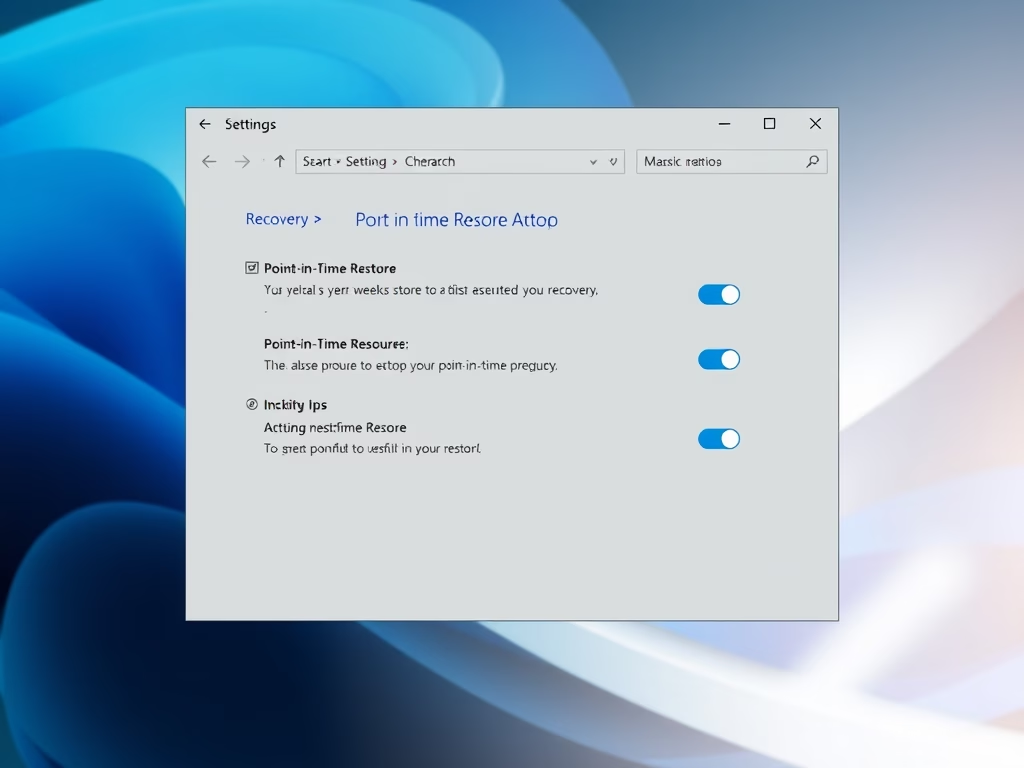
This guide explains how to enable or disable the Point-in-Time Restore feature in Windows 11, allowing users to revert their PC to a working state from the past 72 hours. It details automatic restore point creation, space management, and provides instructions for both Settings and Registry Editor methods. Always back up before editing the Registry.
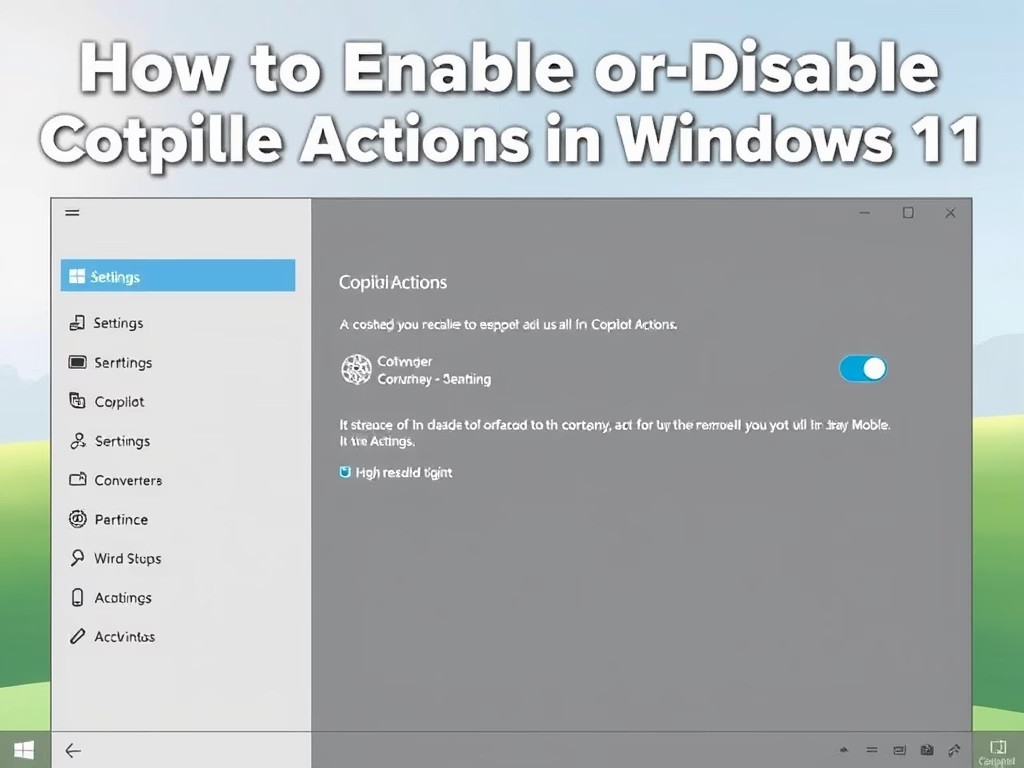
This guide explains how to enable or disable the Copilot Actions feature in the Windows 11 Copilot app. Users can easily toggle this feature through the settings after signing in with their Microsoft account. Copilot Actions simplifies tasks by automatically working with desktop and web applications to enhance productivity.
Windows 11 users can now control whether apps installed from the Microsoft Store create desktop shortcuts automatically. By adjusting the setting in the Microsoft Store, users can choose to keep their desktop organized or enable quick access to new apps. This feature enhances desktop management for better user experience.
This guide explains how to adjust the "Reducing Protections for Agent Connectors" setting in Windows 11, allowing AI agents to connect to apps with more access while potentially lowering security. Users can change this setting via the Settings app or the Registry Editor, ensuring to back up their system first.