How to Add Repository Folders in Windows 11

Repository folders in Windows 11 are project directories managed by a version control system such as Git. Once you add them, File Explorer can show details like the current branch name and commit dates as you browse, so you don’t have to open a terminal or editor to check.
The original guide says this works on Windows 11 build 22621 and later. In practice, the Advanced page in Settings and the version control option only appear on recent, fully updated builds. If you can’t find them, run Windows Update first. You choose the folders yourself, and the change takes effect without a restart.
Open Settings System Advanced File Explorer , click Choose folder under File Explorer + version control, select your project’s top-level folder, then click Select Folder. The repository folder appears in File Explorer with Git status details visible.
How to Add or Remove Repository Folders in File Explorer
You do this in the Settings app , and the folders you pick show up in File Explorer alongside your normal files, with their Git status next to them. Only the folders you choose are tracked, so the rest of your drive is left alone.
- Open the Settings app. Either method works, and you should see the Settings window with a list of categories on the left:
- Click the Start menu and choose Settings, or
- Press Win+I on your keyboard to open Settings quickly.
- In Settings, click System on the left side. The System options will appear on the right.
- On the right, scroll down to the bottom of the list and click the Advanced tile to open it. If you can’t find this tile, your build of Windows 11 is probably too old, so check Windows Update and install the latest updates.
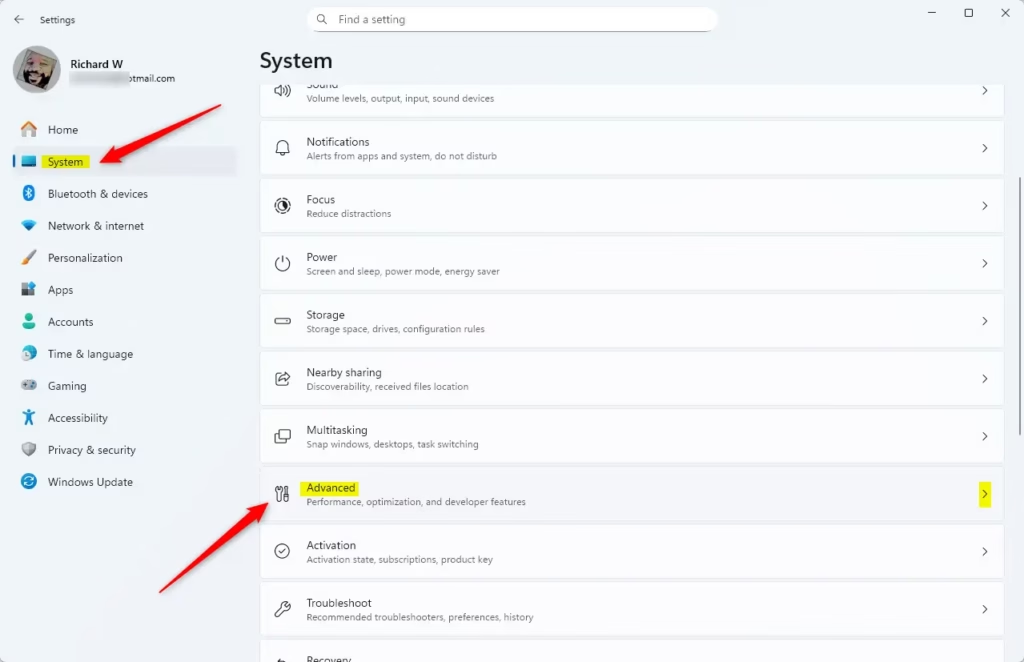
Windows 11 Settings: System > Advanced screen for WSL uninstall. - Now, click the File Explorer tile under Advanced settings. You will see the File Explorer options, including the version control section.
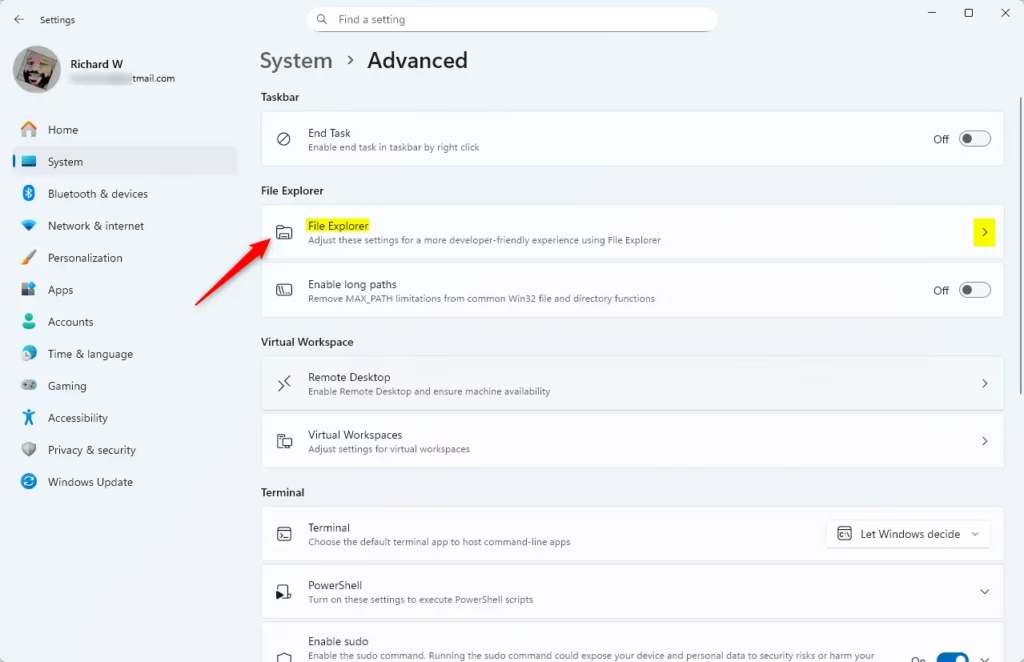
File Explorer tile in Advanced settings - Look for the section called File Explorer + version control. Click the Choose folder button. A standard folder picker will open.
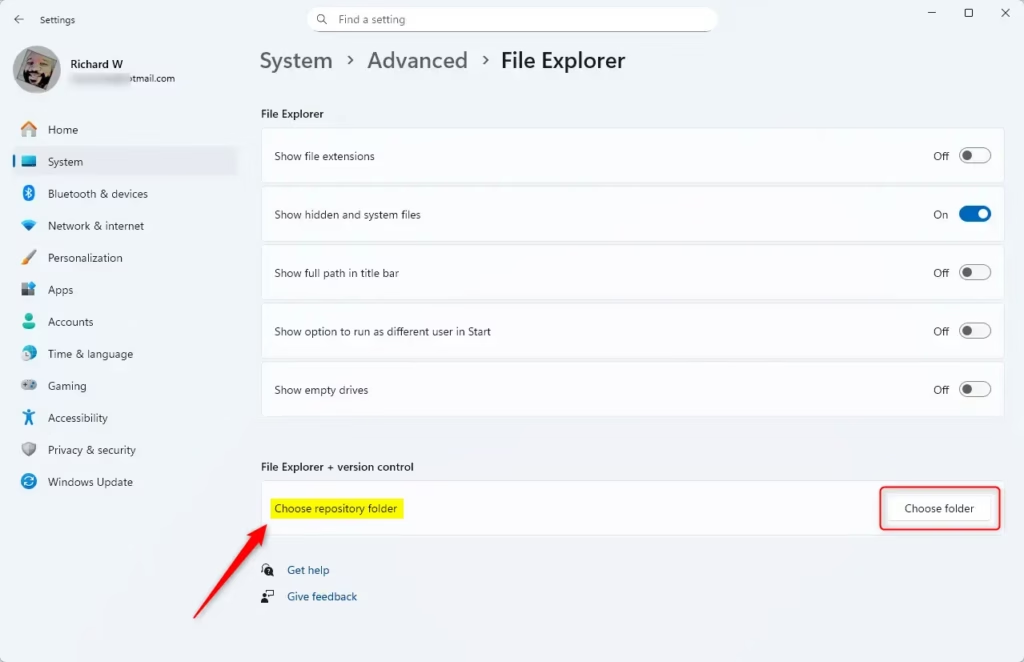
File Explorer choose folder - In the window that opens, find and select the folder where your project (repository) is stored, then click Select Folder. Pick the top-level folder of the project, not a subfolder inside it. To add more projects, repeat this step and the previous one.
- Check that your chosen folders show up in the list. To remove one, click the three dots (More options) next to the folder name, then click Remove. Removing a folder only stops Windows from tracking it. Your files and the repository itself are not deleted.
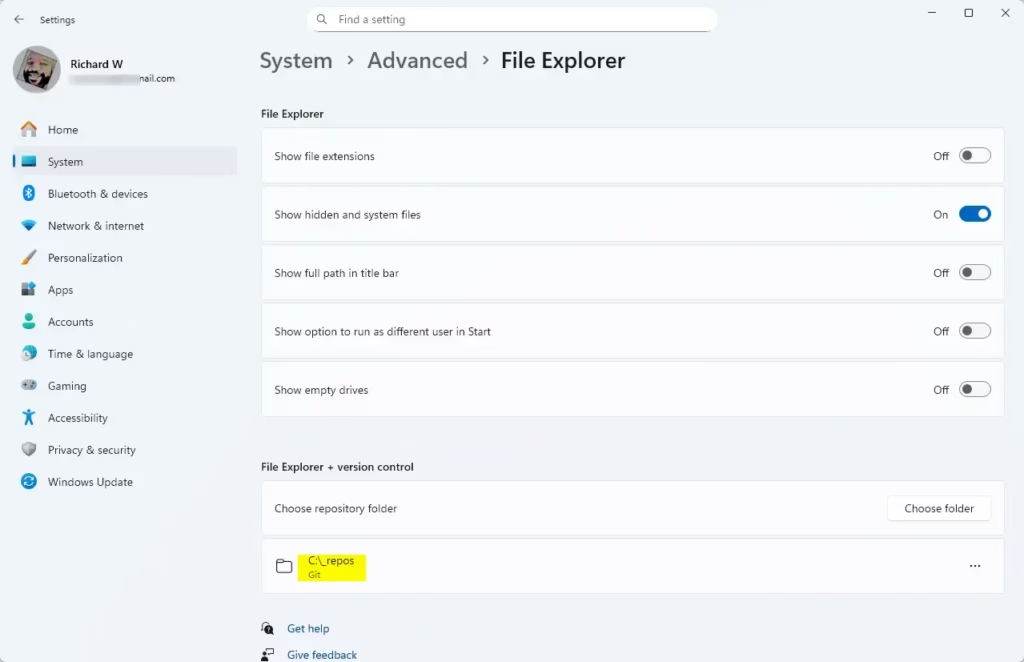
File Explorer folder selected - When you’re done, close the Settings app. Changes are saved as you make them, so there is no Apply or Save button and no restart is needed.
That’s it. Open File Explorer and browse to one of your repository folders. It should now show version control info directly, which makes it easier to see where a project stands. If nothing appears, go back to the list in Settings and confirm the folder is there, then make sure you selected the project’s top-level folder.
Why Use This Feature?
- See Git info right inside File Explorer : No need to open separate apps to check branches or last changes.
- Easy folder access: Your project folders are easy to find and manage alongside other files, so you spend less time hunting through drives.
- Customize your list: Add or remove folders anytime to keep things organized. Removing a folder from the list never touches the project files.
- Simple interface: It’s all done in the familiar File Explorer and Settings app , with nothing extra to install.
- Better teamwork: Quickly check commit messages and author info, which helps when you’re working with others and need to see who changed what.
You can check your Git branches and recent changes at a glance, without opening a command prompt or coding app each time you sit down to work.
Setup takes a minute or two, and you can change the list whenever your projects change.
Summary
Adding repository folders to Windows 11 File Explorer lets you see version control details right where you browse your files, so you don’t need extra apps just to check project information. Go to Settings System Advanced File Explorer , use Choose folder to add a project, and use Remove to take it off the list.
Have a question about this guide?
Answered by AI from this guide. Good questions may be added to this page — please don't include personal details.
Did this guide fix your problem?

About the Author
Richard
Tech Writer, IT Professional
Richard is a writer at Geek Rewind who turns complex IT tasks into clear, step-by-step guides. He draws on years of hands-on experience in system administration and enterprise IT operations, focusing on Windows, Linux and WordPress: the problems people actually run into, and the fixes that work. His server and WordPress guides come from systems he runs himself. Richard builds and maintains the platform behind Geek Rewind, from its Ubuntu servers and Nginx configuration to its custom WordPress plugins. Many new tutorials start with readers' questions, and he's always glad to answer them in the comments.
No comments yet — be the first to share your thoughts!