How to Enable or Disable Microsoft Store Desktop Shortcuts

Microsoft Store desktop shortcuts are the app icons that appear on your desktop when you download an app or game from the Store. Windows 11 version 22H2 and later has a built-in switch to stop these extra icons from showing up.
Turning the feature off keeps your desktop clean, so clutter doesn’t build up every time you install something. You change it in the Microsoft Store app in a few clicks, and you can switch it back whenever you like. No restart is needed, and you don’t need administrator rights for this setting.
Open the Microsoft Store, click your Profile picture, select Settings, and toggle the Desktop shortcuts option on or off. This allows you to control automatic shortcut creation for Store apps.
What is the Microsoft Store?
The Microsoft Store is already installed on your Windows computer. Think of it as an app shop: you can find and install apps and games from one place, and Microsoft vets what’s listed there. It is also where this shortcut setting lives, so you don’t need to dig through Windows Settings or the registry.
How to Turn Desktop Shortcuts On or Off
You turn Microsoft Store shortcuts for new apps on or off with a single setting inside the Microsoft Store app. Off stops new downloads from adding icons to your desktop. On makes sure every new app gets a shortcut automatically.
Two things to know before you start:
- The setting only affects apps you install after you change it. Shortcuts already on your desktop stay where they are.
- The option was added in Windows 11 version 22H2, so older builds won’t show it. To check your version, open Settings System About
To get started, open the Microsoft Store from its taskbar icon or from the Start menu .
- Open the Microsoft Store app. Click the Microsoft Store icon on your taskbar, or type "Microsoft Store" in the Start menu search and press Enter. The Store window should open on its home page. Need help opening the Microsoft Store? Click here.
- Click your Profile picture. It sits at the top right of the Store window, next to the search bar. If you aren't signed in, you'll see a generic person icon instead. Click that. A menu opens below it.
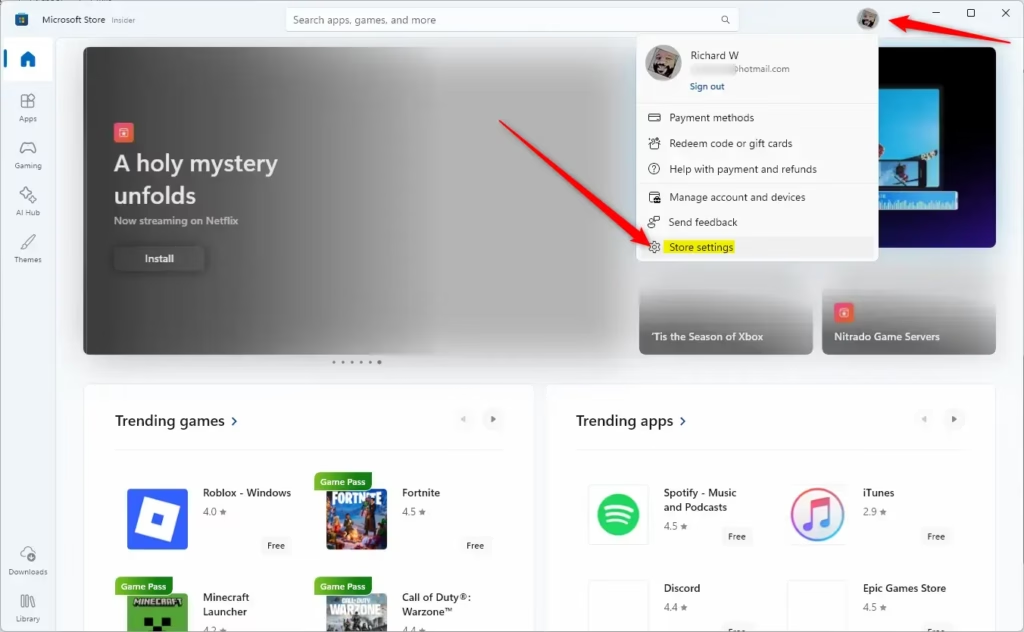
Microsoft Store Profile and Settings menu - Click Settings in that menu. In some Store versions this entry is labeled App settings. The Store's settings page opens with a list of options.
- Find the Desktop shortcuts option. You'll see a toggle switch next to it. If you can't find it, your Windows 11 is probably older than 22H2, or the Store app is out of date. Update Windows first. Then open Library in the Store and click Get updates.
- Set the switch. Toggle it On if you want shortcuts to appear automatically. Toggle it Off if you don't want them. The change applies straight away, and there is no Save button.
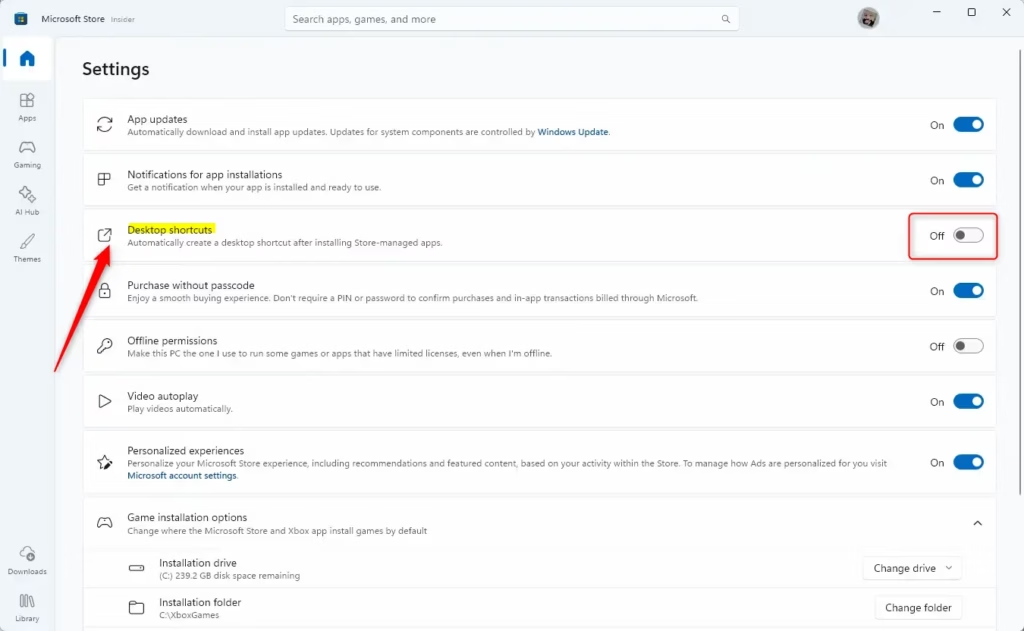
Toggle Desktop Shortcuts option in Microsoft Store settings
That's it. You now control whether new Store apps create shortcuts on your desktop. To test it, install a small free app and check your desktop. To undo the change, go back to the same page and flip the switch the other way.
Turning the setting off does not remove icons that are already there. To clear those, right-click the shortcut on your desktop and choose Delete. That removes only the shortcut, not the app. The app stays installed and still appears in the Start menu.
Why is this useful?
- Turning shortcuts off keeps your desktop clean and tidy. This helps most on shared or work PCs, and on machines where you install many apps and games.
- If you like quick access to your apps, turning shortcuts on saves you time. New apps are one double-click away, with no trip through the Start menu.
- This option puts you in control of how your computer looks and works. You can change your mind at any time, and nothing is lost either way.
Managing Microsoft Store shortcuts keeps your computer organized by stopping new apps from filling your screen with icons you didn't ask for. Turning them off keeps the desktop clean. Leaving them on gives you instant access to your favorite programs from the main screen, without opening the Start menu each time. Either way, the setting takes a few seconds to change.
Summary
To enable or disable automatic desktop shortcuts for Microsoft Store apps in Windows 11, open the Store, click your profile picture, open Settings, and flip the Desktop shortcuts toggle. The change only affects apps you install afterward, it needs no restart, and you can reverse it at any time.
Have a question about this guide?
Answered by AI from this guide. Good questions may be added to this page — please don't include personal details.
Did this guide fix your problem?

About the Author
Richard
Tech Writer, IT Professional
Richard is a writer at Geek Rewind who turns complex IT tasks into clear, step-by-step guides. He draws on years of hands-on experience in system administration and enterprise IT operations, focusing on Windows, Linux and WordPress: the problems people actually run into, and the fixes that work. His server and WordPress guides come from systems he runs himself. Richard builds and maintains the platform behind Geek Rewind, from its Ubuntu servers and Nginx configuration to its custom WordPress plugins. Many new tutorials start with readers' questions, and he's always glad to answer them in the comments.
No comments yet — be the first to share your thoughts!