See a Folder Size in OneDrive on the Web

- 16 steps
- Needs administrator rights
To see a folder size in OneDrive on the web without opening the Activity feed, open OneDrive in a browser, switch to List view, and read the File size column next to the folder. You do not need the Details pane or its Activity feed, and you do not need to sync anything to your PC.
OneDrive on the web shows the total size of each folder, including everything in its subfolders. Use onedrive.live.com for personal accounts, or the OneDrive page in Microsoft 365 for work and school accounts. This works in any modern browser on Windows 11, so you do not need the OneDrive app installed.
To see a folder size in OneDrive on the web without the Activity feed, open onedrive.live.com (or office.com for work or school accounts), select My files, switch the view to List, and read the File size column on the folder’s row. The figure includes every subfolder.
What the folder size in OneDrive on the web shows
The number next to a folder is the combined size of every file stored inside it, including files inside subfolders, at any depth. It reflects what the folder uses in your OneDrive storage, not what it uses on your PC’s drive.
Nothing in these steps changes, moves or deletes anything. You are only reading information, so there is no risk to your files. You do not need administrator rights on the PC.
How to see a folder size in OneDrive on the web
These steps show how to see a folder size in OneDrive on the web without opening the Activity feed, by using List view and the file size column instead of the Details pane.
- Open a web browser and go to onedrive.live.com. For a work or school account, sign in at office.com and open OneDrive from the app launcher instead.
- Sign in with your Microsoft account. If you are already signed in to Microsoft in that browser, OneDrive opens without asking.
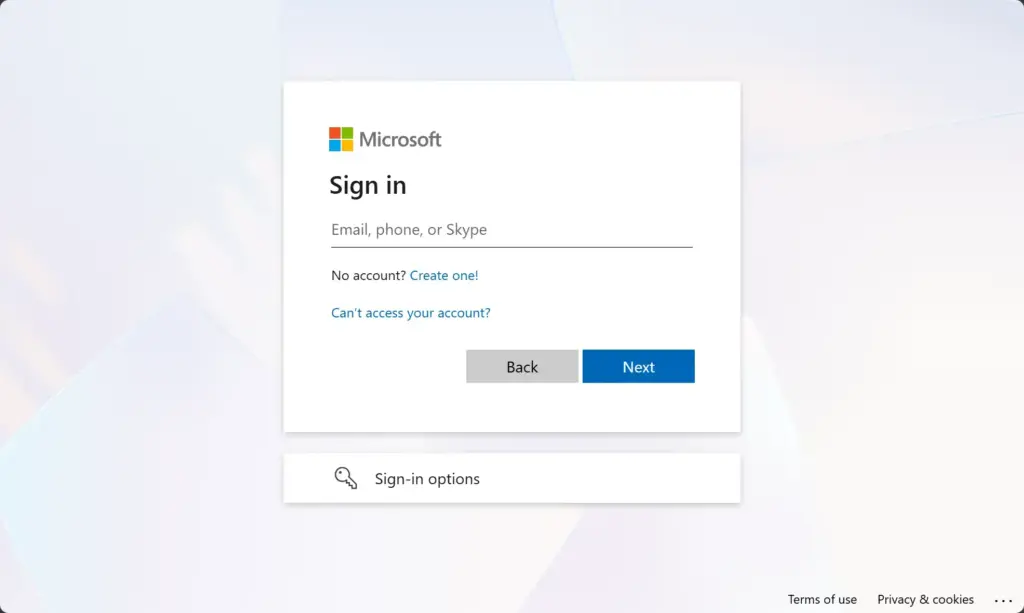
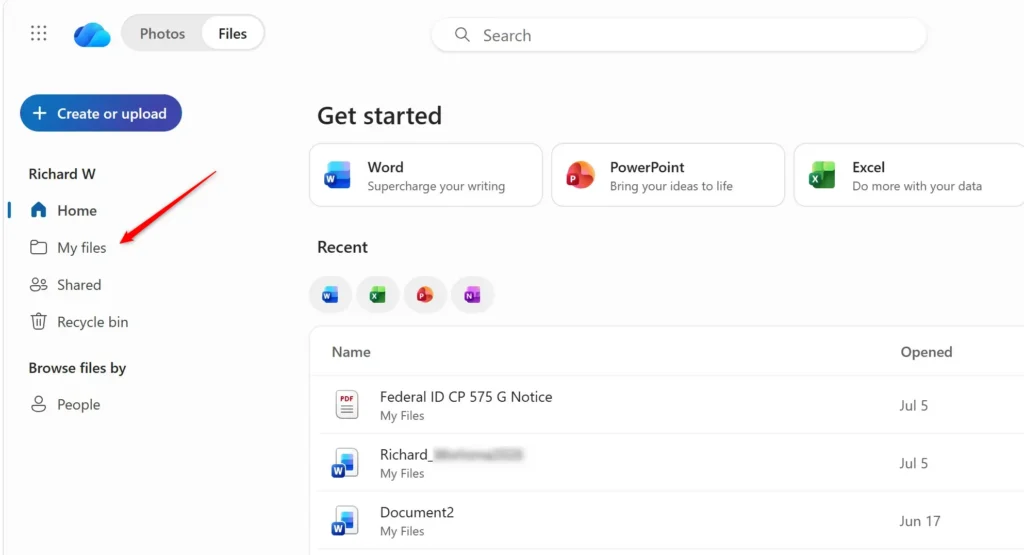
Microsoft account login page for signing in with email and password. - Select My files in the left pane. You should see all your top-level folders and files. The Home page shows recent items rather than folders, so it is the wrong place to look.
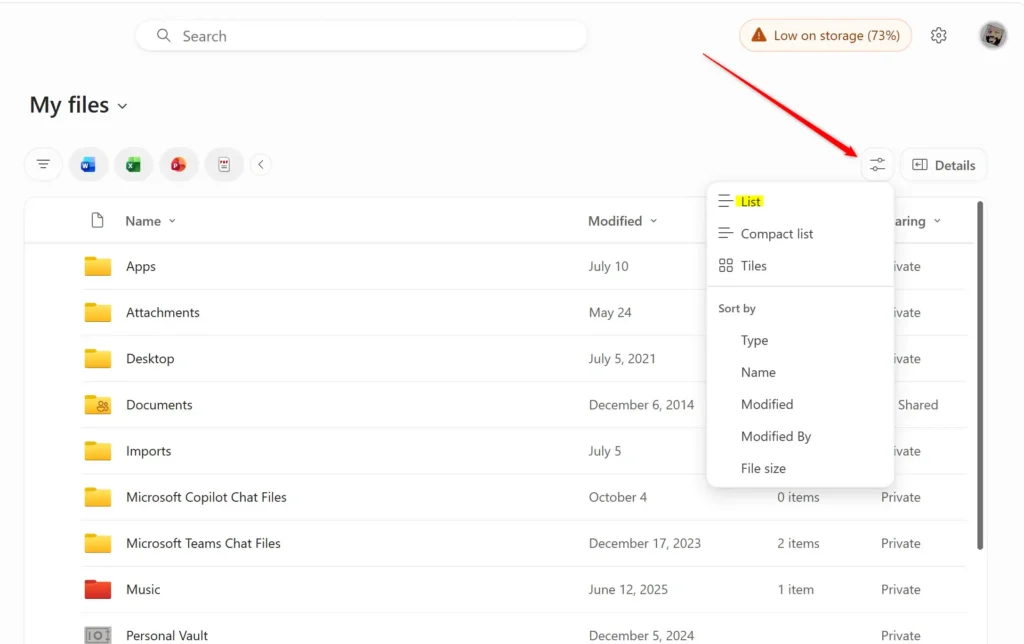
- Open the view menu in the top-right corner of the file area. It shows the name of the current view, such as Tiles or Photos, with a small arrow.
- Choose List. The files and folders now appear as rows with column headings above them, such as Name, Modified, File size and Sharing.
- Find your folder in the Name column. Scroll down if you have many items.
- Read the figure in the File size column on that folder’s row. It appears in KB, MB or GB, for example 2.4 GB.
Column names can differ slightly between personal and work or school accounts, and Microsoft changes the web layout from time to time. If you see Size instead of File size, it is the same column.
Check the size of a subfolder
The top-level figure tells you the total. To find which subfolder takes the space, open the folder and repeat the same check one level down.
- Select the folder name to open it. The breadcrumb path (the clickable trail of folder names above the list) updates to show where you are.
- Read the File size column for each subfolder. OneDrive keeps List view when you open a folder, so the columns stay in place.
- Select My files in the breadcrumb path to go back to the top level.
Sort folders to find the largest one
- Select the File size column heading. OneDrive sorts the list and shows a small arrow on the heading.
- Select the heading again to reverse the order. One direction puts the largest items first, the other puts the smallest first.
Sorting applies to the folder you are in. Folders and files are mixed together by size, so a large single file can appear above a large folder.
Check the size in the Details pane (optional)
The Details pane is a side panel that shows information about the selected item. It is not needed for the steps above, and it is where the Activity feed lives, which is why many people want to avoid it. If you want the Details pane anyway, follow these steps to open it.
- Select the folder by clicking its row or its circular checkbox. Do not open it.
- Select the Details icon, the small circled “i”, in the top-right corner of the page.
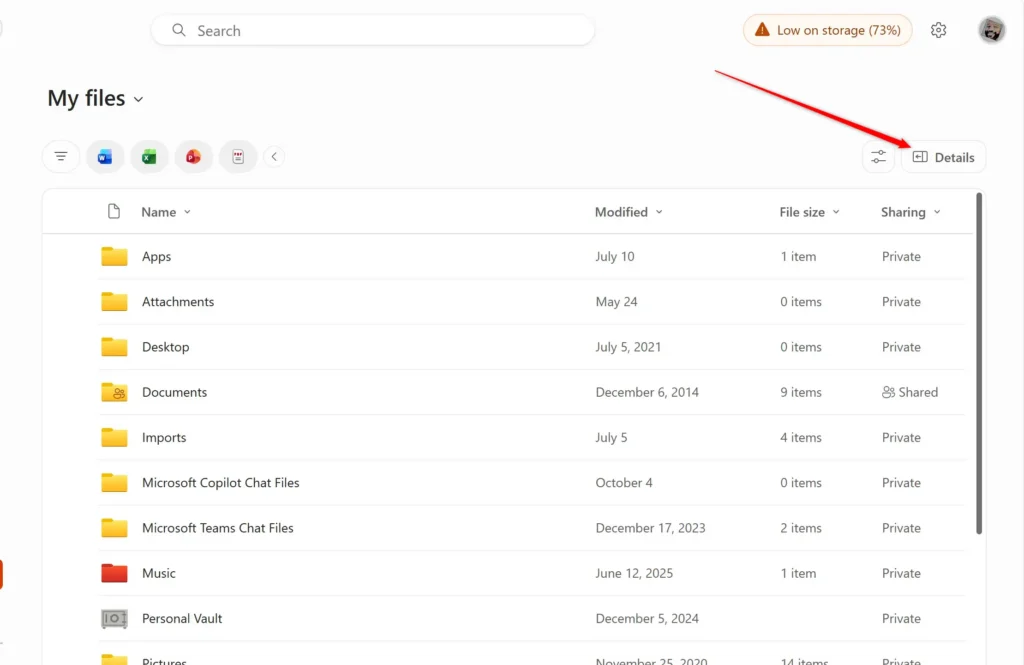
- Look at the top of the panel for the folder’s properties. Depending on your account type, the panel may also show an Activity section underneath. You can ignore it.
- Select the Details icon again to close the panel.
The panel layout varies by account type and by the date your account last received an update. If you do not see a size in it, use the File size column instead. That column is the reliable method.
Why the folder size is missing or looks wrong
Most problems come from the view, not from OneDrive itself. Check these first.
The File size column is not there
Only List view shows size columns. Tiles and Photos views hide them completely. Go back to the view menu and choose List.
A narrow browser window can also hide columns to make room for the file names. Maximise the window, or zoom out with Ctrl + minus, until the columns come back.
The size is blank for a folder
A dash or empty cell can appear for a folder that OneDrive is still processing, such as one you uploaded or synced a moment ago. Wait a minute, then refresh the page with F5. If it stays blank, sign out, sign back in, and open the folder again.
Shortcuts to folders that other people shared with you can behave differently from folders you own. They point to someone else’s storage, and the size shown may be missing or may not match what you expect. For background on how these shortcuts work, see how to add a shared folder shortcut to your OneDrive.
The size does not match File Explorer
This is normal. It usually has one of three causes:
- Files On-DemandOnline-only files count toward the OneDrive total but take no space on your PC, so File Explorer can report a much smaller Size on disk.
- Sync delayFiles you added or deleted a moment ago may not be counted yet, either in OneDrive or on your PC.
- Different measureOneDrive reports the size of the files. File Explorer can also report how much disk space they occupy, which is usually slightly higher.
For the Windows side of the comparison, read how to check folder size in Windows 11.
Personal Vault folders
Personal Vault is a locked area of OneDrive that needs extra identity verification to open. Its contents stay hidden until you verify your identity, so you cannot read sizes inside it before then. Open the vault from My files, then follow the same steps.
The total storage figure looks different
The size of one folder does not tell you how much of your plan you have used. Your total storage covers every OneDrive file. It can also include other Microsoft account items, such as email attachments or Outlook data, if they share the same plan. Folder sizes tell you where your files are, not where all of your storage went.
Check folder sizes from your PC instead
If the folder is synced to your PC, File Explorer gives you a second way to see the same information. Right-click the folder, select Properties, and read Size and Size on disk on the General tab. For an online-only folder, Size on disk can be zero or very low because the files are not downloaded.
The web method is better when the PC is not at hand, when the folder is not synced, or when you want the cloud figure rather than the local one. If you are not sure where your synced OneDrive folder lives on the PC, how to move your OneDrive folder in Windows 11 explains the location and how to change it.
Switch back to your usual view
OneDrive remembers the view you pick. There is nothing to undo, but you may prefer your old layout afterwards. Open the same view menu in the top-right corner and choose Tiles or Photos to go back. Sorting resets when you change folders or reload the page in most cases, so you do not need to clear it.
What to do next
If you found a folder that takes up too much space, you can move files out or delete what you no longer need. You can also share the folder from OneDrive rather than keeping copies. For sharing, see how to share a OneDrive folder with other people. To manage the rest of your OneDrive setup without losing files, read Windows 11 OneDrive management without losing data.
Have a question about this guide?
Answered by AI from this guide. Good questions may be added to this page — please don't include personal details.
Did this guide fix your problem?

About the Author
Richard
Tech Writer, IT Professional
Richard is a writer at Geek Rewind who turns complex IT tasks into clear, step-by-step guides. He draws on years of hands-on experience in system administration and enterprise IT operations, focusing on Windows, Linux and WordPress: the problems people actually run into, and the fixes that work. His server and WordPress guides come from systems he runs himself. Richard builds and maintains the platform behind Geek Rewind, from its Ubuntu servers and Nginx configuration to its custom WordPress plugins. Many new tutorials start with readers' questions, and he's always glad to answer them in the comments.
No comments yet — be the first to share your thoughts!