How to Use Multitasking in Windows 11

- 20 steps
- Needs administrator rights
Multitasking in Windows 11 means keeping several apps open and moving between them without losing your place. The fastest route is three tools. Alt+Tab switches windows, Snap layouts arrange them on screen, and virtual desktops (separate desktops that group apps by task) keep work and personal windows apart.
Snap layouts are a menu of window arrangements that appears when you hover over a window’s Maximize button. Keyboard users can press Win+Z instead. All of these features work in Windows 11 Home and Pro, and none needs administrator rights.
Press Win+Tab to open Task View, then hold Alt and tap Tab to cycle through open windows. For side-by-side work, hover over a window’s Maximize button to open Snap layouts and click a zone, or press Win+Z from the keyboard. Virtual desktops are created with Win+Ctrl+D. None of these needs administrator rights.
What you need before you start
Open at least two apps, such as File Explorer and Microsoft Edge, so you can see each feature work. A second monitor is optional. The keyboard shortcuts below use the Win, written as Windows in this guide.
How to use multitasking in 🪟 Windows 11
These steps cover how to switch between windows, arrange them side by side, and split your work across virtual desktops in Windows 11. Follow them in order the first time, then keep the shortcuts that suit you.
- Open two or three apps. Start File Explorer, Microsoft Edge, and Notepad, or any apps you use together. Each one gets its own button on the taskbar.
- Press Alt+Tab to switch windows. Hold Alt and tap Tab to move through thumbnails of your open windows. Release both keys to switch to the highlighted window.
- Press Win+Tab to open Task View. Task View shows every open window as a large thumbnail, with your virtual desktops along the bottom. Click a window to bring it to the front and close Task View.
- Hover over a window’s Maximize button. Wait about a second. The Snap layouts menu appears, showing grids of two, three, or more zones.
- Click a zone in a layout. The window fills that zone. The other zones stay empty for now.
- Click a thumbnail to fill the next zone. Snap assist (the prompt that offers your other open windows) shows thumbnails of everything else you have open. Each click places one window. Repeat until every zone is filled.
- Press Win+← arrow or Win+→ arrow to snap without the mouse. The active window fills the left or right half of the screen. Snap assist then offers a window for the other half.
- Press Win+↑ arrow to maximize, or Win+↓ arrow to restore a window. Press Win+↓ arrow again on a restored window to minimize it.
- Press Win+Z to open Snap layouts from the keyboard. The layouts appear over the active window. Choose a layout and a zone using the numbers shown on screen.
- Press Win+Ctrl+D to create a virtual desktop. Windows switches to a new, empty desktop. Your original windows stay on the first desktop.
- Open the apps for your second task. Use this desktop for a separate job, such as email and chat while the first desktop holds a report you are writing.
- Press Win+Ctrl+← arrow or Right arrow to switch desktops. The screen slides to the neighbouring desktop. If nothing happens, you have only one desktop.
- Press Win+Tab and drag a window onto another desktop. Drop it on the desktop thumbnail at the bottom of Task View. You can also right-click the window thumbnail and choose Move to, then pick a desktop.
- Press Win+Ctrl+F4 to close the current desktop. Closing a desktop does not close its apps. Windows moves them to an adjacent desktop.
Switch between windows faster
The taskbar works too. Hover over an app’s icon to see thumbnails of its open windows, then click the one you want. If an app has several windows, the thumbnails make it clear which is which before you commit.
Two shortcuts help when the screen gets crowded:
- Win+D shows the desktop. Press it again to bring your windows back.
- Win+Home minimizes every window except the one you are using. Press it again to restore the rest.
With two monitors, press Win+Shift+← arrow or Right arrow to move the active window to the other screen.
Arrange windows with Snap layouts and Snap assist
Snap layouts replace the manual resizing you would otherwise do to line up windows. The layouts on offer depend on your screen. A smaller or lower-resolution display shows fewer, simpler layouts than a large monitor. That is normal, not a fault.
After you snap windows, Windows remembers them as a group (called a snap group). Hover over one of the snapped apps on the taskbar and the group appears as a single thumbnail, so you can bring the whole arrangement back at once. If you minimize the group by accident, this is the quickest way to recover it.
Drag the divider between two snapped windows to resize both at the same time. The neighbouring window grows as the other shrinks. Some apps set a minimum window size, so they may not fit a small zone. If a window overlaps its neighbour, choose a layout with larger zones.
For layout options and how to turn individual snap features on or off, read how to configure multitasking Snap layouts for multiple windows in Windows 11.
Split a browser window in Microsoft Edge
Edge has its own split screen feature, which puts two pages side by side inside one browser window. It is separate from Windows Snap layouts. [Verification Required: Edge split screen shortcut should be stated] See how to customize Edge split screen for better multitasking for the details.
Organise tasks with virtual desktops
Virtual desktops suit anyone who keeps too many windows open. Each desktop holds its own set of windows, and Alt+Tab and the taskbar can show only the current desktop’s windows, depending on your settings. Use one desktop per activity, such as research, communication, and a project.
To name a desktop, open Task View (the screen that shows your open windows and desktops) with Win+Tab. Click the desktop’s current name, such as Desktop 2, and type a new one. Descriptive names make it faster to pick the right desktop when you have four or five. Right-click a desktop thumbnail to see other options, such as moving it left or right. The exact options vary by build.
You can also click the Task View button on the taskbar instead of using the shortcut. If the button is missing, you may have hidden it in taskbar settings. Open Settings Personalization Taskbar and turn on Task view under Taskbar items.
Change multitasking settings
The Multitasking page in Settings controls how snapping, Alt+Tab, and desktops behave. Open it when a feature is off, or when you want it to act differently. This does not need administrator rights.
- Open Settings. Press Win+I.
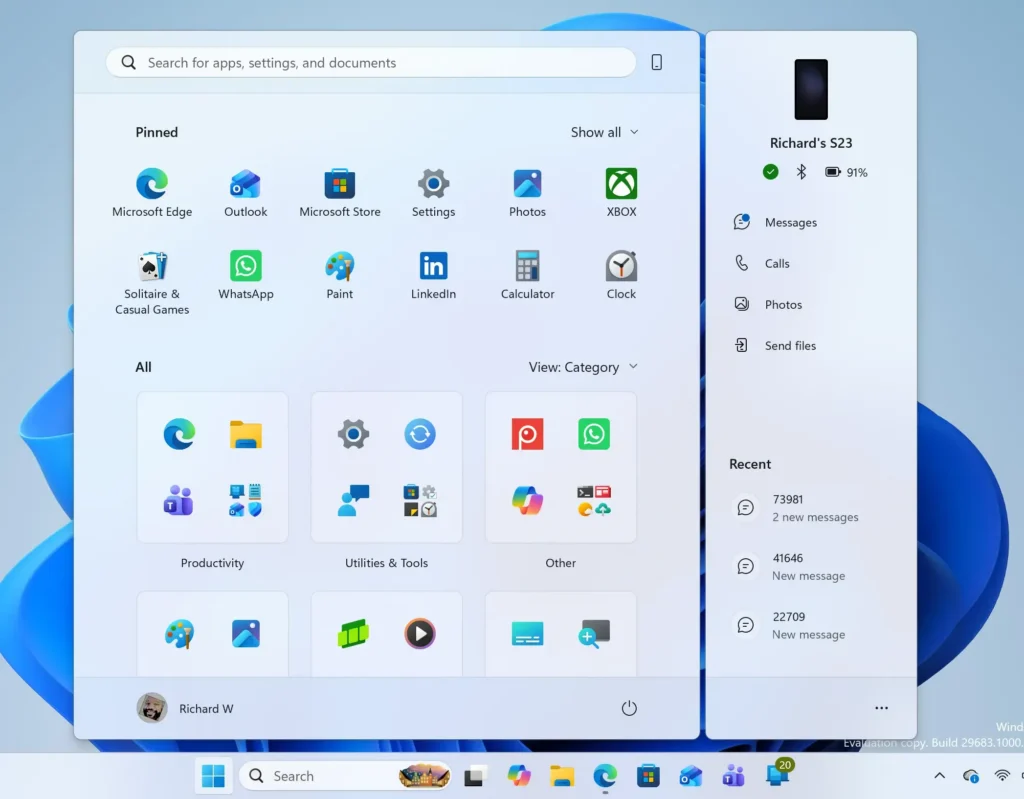
Windows 11 Start menu search panel for opening OpenSSH Client settings - Select System. It is in the left pane.
- Select Multitasking. The page lists snapping, desktop, and Alt+Tab options.
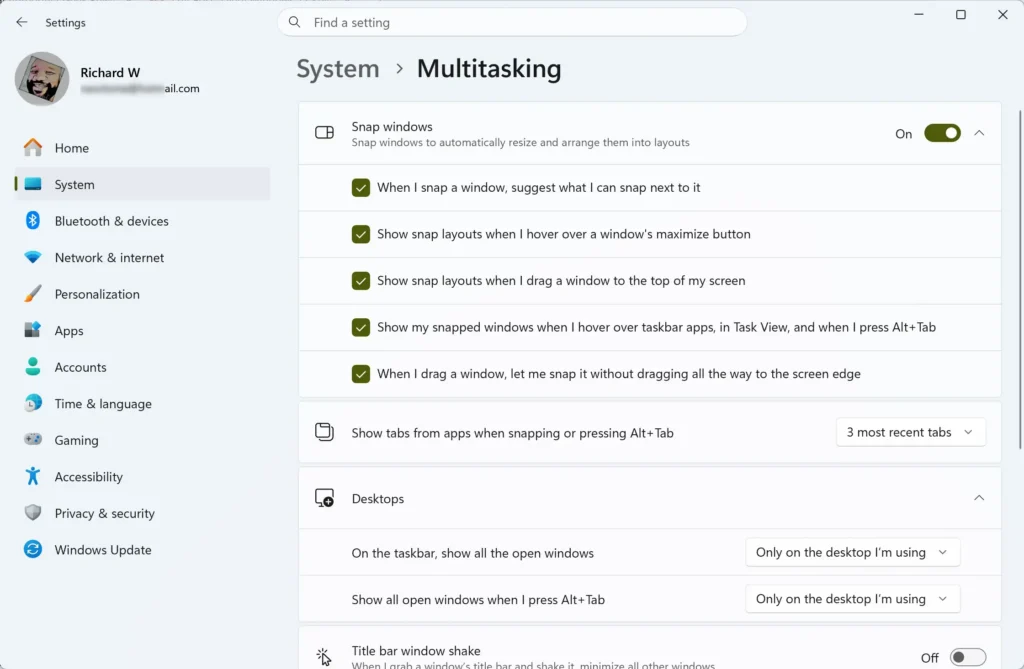
- Turn Snap windows on. This is the main switch for snapping. When it is off, the other snap options are unavailable.
- Expand Snap windows to see its options. These include showing Snap layouts when you hover over the Maximize button and when you drag a window to the top of the screen. Turn on the ones you want.
- Review the Desktops section. Here you choose whether the taskbar and Alt+Tab show windows from all desktops or only the desktop you are using.
Some builds also include a setting that controls how many recent Microsoft Edge tabs appear in Alt+Tab and Snap assist (the panel of windows that offers to fill the empty space after you snap one). If you see browser tabs mixed in with your windows and do not want them, look for that option on the same page and set it to not show tabs. If it is missing, your build does not include it.
To undo any change, return to the same page and flip the toggle back. Nothing here is permanent, and no restart is needed.
Why a multitasking feature is missing or not working
Most problems come from a few common causes. Each one below lists the symptom and the fix.
- The Snap layouts menu does not appear on hover. Open Settings System Multitasking and check that Snap windows and the hover option are on. If the menu does not appear, press Win+Z to open it. Windows with a fixed size, such as some dialog boxes, have no Maximize button and cannot use the hover menu.
- Alt+Tab shows more or fewer windows than expected. Check the Desktops options on the same page. They decide whether windows from every desktop are listed.
- Windows + Ctrl + arrow keys do nothing. You have only one virtual desktop. Press Win+Ctrl+D to create a second one.
- A window will not snap to a zone. The app may have a minimum size larger than the zone. Try a layout with bigger zones or snap it to half the screen.
- The shortcuts do nothing at all. Some keyboards need a function key (labelled Fn) pressed along with the Win before shortcuts respond. Check your keyboard’s documentation if none of the shortcuts respond.
- What to do next
- Pick two or three shortcuts from the list above and use them for a week. Alt+Tab, Win+← arrow or Right arrow, and Win+Ctrl+D cover most daily work. If you use a browser heavily, try Edge split screen next, and refine your window arrangements with the Snap layouts guide.
Have a question about this guide?
Answered by AI from this guide. Good questions may be added to this page — please don't include personal details.
Did this guide fix your problem?

About the Author
Richard
Tech Writer, IT Professional
Richard is a writer at Geek Rewind who turns complex IT tasks into clear, step-by-step guides. He draws on years of hands-on experience in system administration and enterprise IT operations, focusing on Windows, Linux and WordPress: the problems people actually run into, and the fixes that work. His server and WordPress guides come from systems he runs himself. Richard builds and maintains the platform behind Geek Rewind, from its Ubuntu servers and Nginx configuration to its custom WordPress plugins. Many new tutorials start with readers' questions, and he's always glad to answer them in the comments.
No comments yet — be the first to share your thoughts!