How to Turn On the New Run Dialog in Windows 11

- 10 steps
- Needs administrator rights
- Includes a restart or sign-out
The New Run dialog in Windows 11 turns on at Settings System Advanced, but only on Windows Insider preview builds (test versions of Windows 11 that Microsoft gives to volunteers before a wider release). Here is how to check whether your PC has it.
It is a redesigned version of the Run box that opens when you press Win+R. Microsoft describes it as having a more modern design and improved usability.
Microsoft announced the option in the release notes for update KB5132057 (a Windows update number you can look for in Update history), dated Nov 13, 2026. It is available only in Insider preview builds so far, and Microsoft may change it before a wider release.
To turn on the New Run dialog in Windows 11, open Settings System Advanced and switch on New Run dialog. This setting appears only on Windows Insider preview builds, so first check that Update history lists KB5132057 or a newer update. Press Win+R to confirm the redesigned Run box opens.
Before you start: what you need
The New Run dialog is a preview feature, so a normal Windows 11 installation may not show the setting yet. Check three things before you go looking for the switch.
- A Windows Insider preview build. Microsoft lists the feature in its Windows Insider release notes, not in the notes for general releases.
- A supported version of Windows 11. The PC should run a currently supported version of Windows 11, which is 25H2 or 26H2. Windows 11 24H2 Home and Pro reached end of updates on October 13, 2026. Confirm this date on Microsoft’s official lifecycle page.
- The update that adds the option. Microsoft’s release notes tie the New Run dialog setting to KB5132057, so that update or a later one should be installed.
Check which Windows version you are running
Open the classic Run box with Win+R, type winver, and press Enter. The About Windows window shows your version (such as 25H2) and the OS build number. Select OK to close it.
This tells you which release you are on. It does not tell you whether the build includes the New Run dialog, so also check the update history in the next section.
Check whether the update is installed
Open Settings Windows Update Update history. Look for KB5132057 or a newer update in the list. If you do not see it and the PC is on a preview build, run Check for updates on the Windows Update page and install what it offers.
How to turn on the New Run dialog
The six steps below turn on the Windows 11 new Run dialog from the Settings app. The whole process takes less than a minute once the option is present on your build.
- Open Settings. Press Win+I, or right-click the Start button and select Settings.
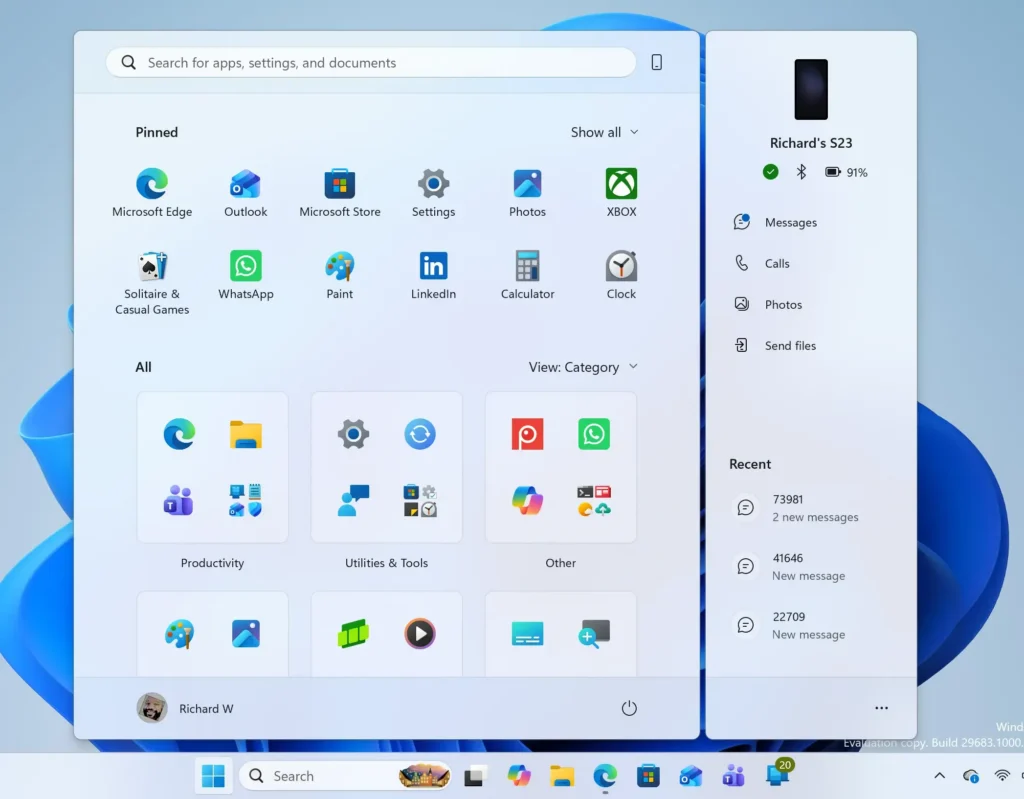
Windows 11 Start menu search panel for opening OpenSSH Client settings - Select System. It is in the left-hand list of the Settings window, and the System page opens on the right.
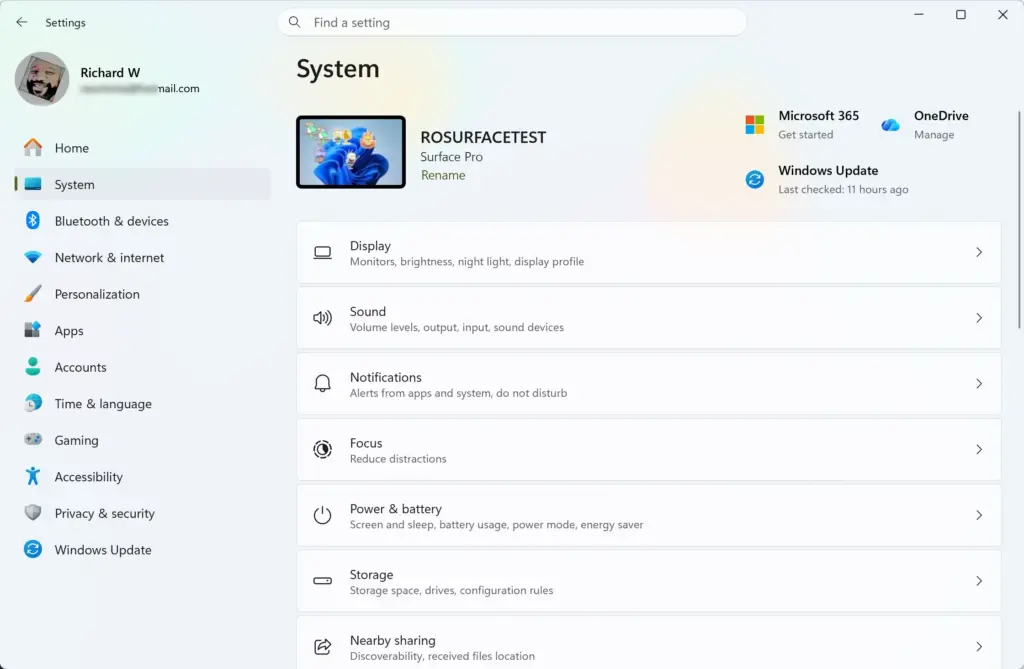
Settings › System - Select Advanced. Look for it in the list of sections on the System page. The path is Settings System Advanced, and the page that opens holds more specialised options.
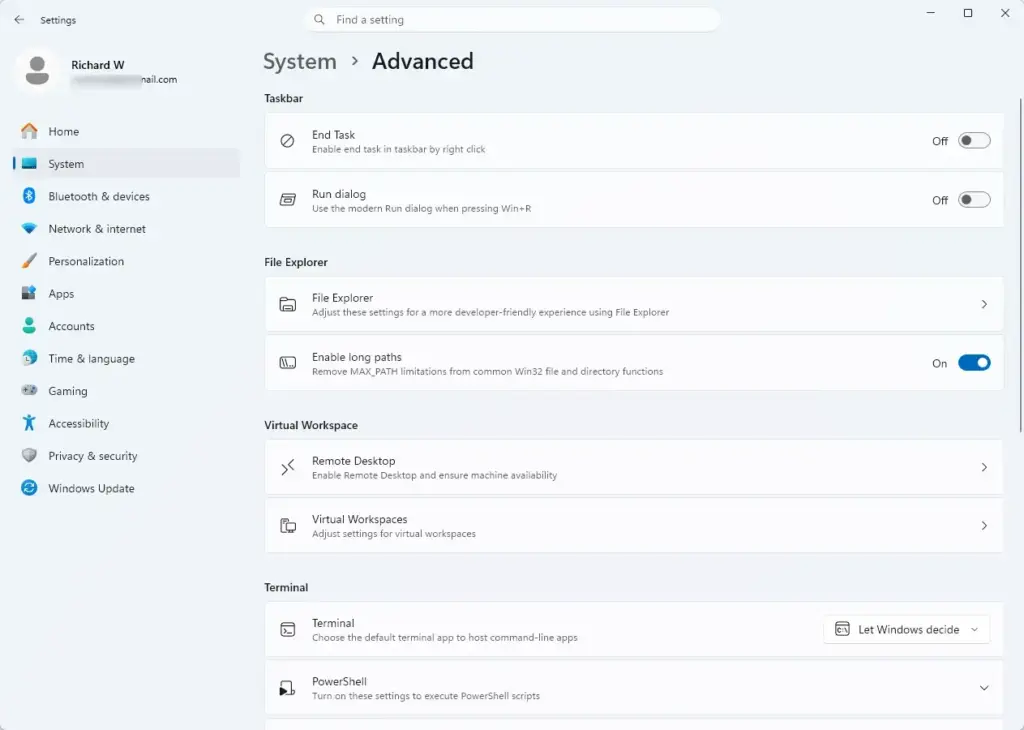
Settings › System › Advanced - Find the New Run dialog setting. It is listed by that exact name on the Advanced page. If you cannot see it, go to the troubleshooting section below.
- Turn on New Run dialog. The setting should now show as on.
- Press Win+R to test the change. The Run box that appears should have the more modern design Microsoft describes, instead of the older small box.
If the old Run box still appears, close Settings and press Win+R again. Microsoft’s release notes do not say whether a restart is required, so if the old box still shows, restart the PC once and test again.
What changes in the New Run dialog
Microsoft’s release notes say only that the Run dialog has a more modern design and improved usability. They do not list individual changes, such as new buttons, layout details or extra features, and I cannot confirm any beyond that statement.
The Run dialog is the small box that lets you open a program, folder, document or website by typing its name or address. It has been part of Windows for decades, and most people open it with Win+R.
Because preview features change between builds, what you see today may look different after the next update. Treat any screenshot or description of the new design as a snapshot of one build.
Do older Run habits still work?
That includes running a command with administrator rights from the Run box. In the classic dialog, you do this with a keyboard shortcut, which this guide does not describe. Test the habits you rely on after you turn the setting on, and switch back if something is missing.
If you use Run to start programs under another account, the guide to using the Run as command in Windows 11 covers the related command-line method. For apps you launch from Start or the desktop, see how to run apps as administrator in Windows 11.
If the New Run dialog setting is missing
A missing setting is the most likely problem, and it almost always means your build does not include the feature yet. Go back to the three checks near the start of this guide, in order, beginning with your Windows version. Then work through the steps below.
- Confirm you are on a Windows Insider preview build. Microsoft lists the New Run dialog in its Insider release notes only. A standard release build of 25H2 or 26H2 may not have the option.
- Open Settings Windows Update and select Check for updates. Install any update the page offers, then restart if Windows asks.
- Open Settings Windows Update Update history and look for KB5132057 or a later update. If it is not listed, your PC has not received the update that adds the option.
- Open Settings System Advanced again after the update finishes. Check the whole page, not only the top of it.
If the setting is still missing after the update, Microsoft has not documented another way to turn the dialog on. I am deliberately leaving out registry edits (changes to Windows’ settings database) and third-party tools, because neither has been verified for this feature. Waiting for the feature to reach your build is the safe choice.
If the setting is there but the old dialog still opens
First, check that the setting is on. Open Settings System Advanced and confirm New Run dialog is turned on. Then close any open Run box and press Win+R again, since an already-open window keeps its old look.
If it still opens the classic box, restart the PC and try once more. Microsoft’s notes do not list any other cause.
How to turn the New Run dialog off again
Switching back is low risk, because the feature is a setting you can turn on and off. Go to Settings System Advanced, then turn off New Run dialog. Press Win+R to confirm the classic Run box returns.
Turning it off does not remove the update that added it. To go back to a released Windows build rather than a preview, you would need to change your Windows Insider enrollment (the setting that keeps your PC receiving preview builds). That is a separate task.
Why the feature may change or move
Insider builds let Microsoft test features with a smaller group before it releases them widely. A feature can change in design, move to a different Settings page, or be dropped.
That matters for this setting in two ways. Microsoft’s current release notes name the feature New Run dialog and place it under Settings System Advanced. If your screen differs, check the notes against your build. Also, the date of KB5132057 (Nov 13, 2026) marks when Microsoft documented the option, not when it will reach every PC.
Microsoft’s release notes for this update are on Microsoft Learn, under the Windows Insider release notes for builds 26200.10066 and 26300.10066. Check there for any later changes to how the option works.
Related Run and launch tasks
The Run box is one of several ways to start things quickly in Windows 11. If you want to control how programs open, these guides cover related tasks:
- How to run apps as administrator in Windows 11 explains how to start an app with administrator rights, which is the permission to make system-wide changes.
- Run File Explorer as administrator in Windows 11 covers the same idea for the file manager.
- How to run Windows Terminal in the background helps if you launch command-line tools often.
What to do next
If the New Run dialog works the way you want, leave it on and check Settings System Advanced after major updates, since preview settings can be renamed, moved or reset. If you dislike it or a habit from the classic box no longer works, turn the setting off and the older box returns. For related launch tasks, start with how to use the Run as command in Windows 11.
Have a question about this guide?
Answered by AI from this guide. Good questions may be added to this page — please don't include personal details.
Did this guide fix your problem?

About the Author
Richard
Tech Writer, IT Professional
Richard is a writer at Geek Rewind who turns complex IT tasks into clear, step-by-step guides. He draws on years of hands-on experience in system administration and enterprise IT operations, focusing on Windows, Linux and WordPress: the problems people actually run into, and the fixes that work. His server and WordPress guides come from systems he runs himself. Richard builds and maintains the platform behind Geek Rewind, from its Ubuntu servers and Nginx configuration to its custom WordPress plugins. Many new tutorials start with readers' questions, and he's always glad to answer them in the comments.
No comments yet — be the first to share your thoughts!