How to Turn On or off Hardware Accelerated GPU Scheduling in Windows 11

Hardware-accelerated GPU scheduling (HAGS) in Windows 11 lets your graphics card manage its own video memory directly, instead of leaving that work to the CPU. It can improve game performance and speed up video editing. It can also reduce input lag, the delay between a mouse click and the action on your screen. How much you notice depends on your hardware, drivers and workload. On some systems the difference is small, and a few apps or games run better with it off.
To turn it on, you need a graphics card that supports the feature and a WDDM 2.7 (Windows Display Driver Model) or newer driver. The setting is in the Settings app, and you need administrator rights to change it. It is available in both Windows 11 Home and Pro. If the option is missing, see the note in step 5.
Open Settings , go to System Display Graphics Change default graphics settings, then toggle the Hardware-accelerated GPU scheduling switch on or off. Restart your computer for the change to take effect.
Turn On or Off Hardware Accelerated GPU Scheduling in Settings
- Press Win+I to open Settings .
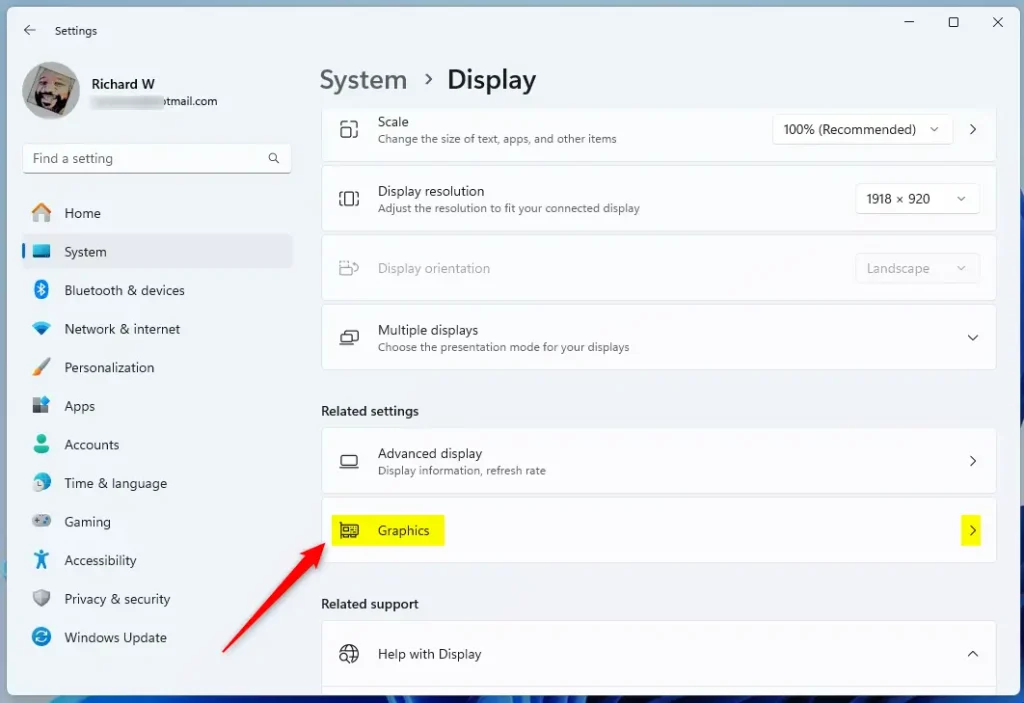
- Click System on the left side, then click Display on the right side. The display options for your monitors should now be showing.
- Scroll down to the Related settings section and click Graphics. The Graphics page lists your apps and their graphics preferences.
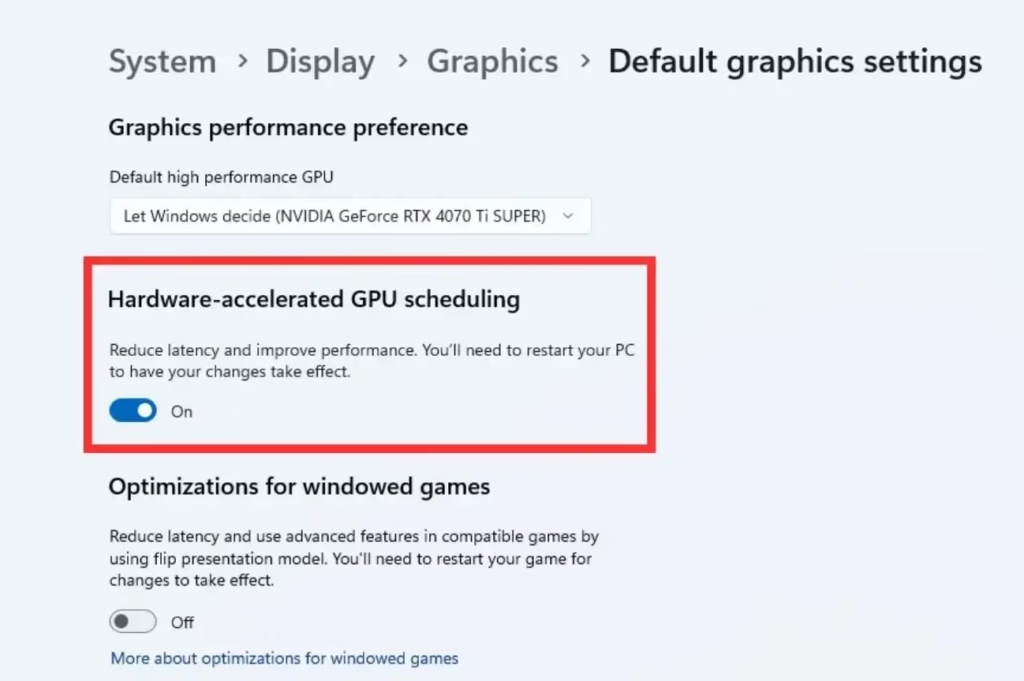
Open Graphics settings - Click the Change default graphics settings link. A page opens with the system-wide graphics options. The path to this page is Settings System Display Graphics Change default graphics settings
- Set the Hardware-accelerated GPU scheduling switch to On or Off. Off is the default. If you don’t see this option, your device doesn’t support it. The usual causes are an older graphics card or a driver older than WDDM 2.7. Updating your graphics driver from the GPU maker or from Windows Update is the first thing to try.
- ⚠️ Requires Admin: Restart your computer to apply the change. The switch may look changed straight away, but the new setting does not take effect until you restart. To undo the change, set the switch back to its previous position and restart again.
Option 2Using Registry Editor
Turn On or Off Hardware Accelerated GPU Scheduling Using Registry
⚠️ Requires Admin: Open the Terminal app with administrator privileges, then enter the commands shown below. To do this, right-click the Start button , choose Terminal (Admin), and click Yes if the User Account Control prompt appears. Running as administrator gives the commands the permission they need to change system settings. Without it, they will fail with an access error.
To Turn On Hardware Accelerated GPU Scheduling
reg add "HKLM\SYSTEM\CurrentControlSet\Control\GraphicsDrivers" /v HwSchMode /t REG_DWORD /d 2 /f
To Turn Off Hardware Accelerated GPU Scheduling
This is the default setting.
reg add "HKLM\SYSTEM\CurrentControlSet\Control\GraphicsDrivers" /v HwSchMode /t REG_DWORD /d 1 /f
Summary
Hardware-accelerated GPU scheduling helps your graphics card work more efficiently, which can cut delays and make games and apps run more smoothly. To use it, you generally need a newer graphics card and up-to-date drivers. If you turn it on and notice stutter, crashes or odd behavior in a particular game or app, turn it off again and restart. Then check whether a newer graphics driver fixes the problem before you try again.
Frequently asked questions
Should hardware acceleration GPU scheduling be on or off?
Turn it on if your graphics card and driver support it, because it can improve game performance, speed up video editing and reduce input lag. Turn it off if a game or app stutters, crashes or runs slower with it enabled. Test both settings, since results vary by hardware and workload.
(function(){ var DEBUG = false; var MARGIN = "600px 0px"; var t0 = (window.performance && performance.now) ? performance.now() : 0; function log(){ if (DEBUG && window.console) console.log.apply(console, arguments); } function fill(box){ if (box.dataset.grFilled) return; box.dataset.grFilled = '1'; if (DEBUG) { var ms = ((window.performance && performance.now ? performance.now() : 0) - t0) | 0; var name = (box.className.match(/gr-ad--([a-z0-9]+)/) || [])[1] || '?'; log('%c[gr-ads] hydrated "' + name + '" at +' + ms + 'ms after page load', 'color:#0b6bcb;font-weight:600'); box.style.outline = '2px dashed #d97706'; box.style.outlineOffset = '2px'; } // Move the unit out of into the live DOM FIRST, so the // push that follows lands on this and not some other one. var tpl = box.querySelector('template.gr-ad-tpl'); if (tpl) { box.appendChild(tpl.content.cloneNode(true)); tpl.parentNode.removeChild(tpl); } try { (adsbygoogle = window.adsbygoogle || []).push({}); } catch(e) {} } function start(){ var boxes = document.querySelectorAll('.gr-ad[data-gr-lazy]'); if (DEBUG) { var eagerLive = document.querySelectorAll('.gr-ad:not([data-gr-lazy]) ins.adsbygoogle').length; log('%c[gr-ads] ' + eagerLive + ' eager unit(s) live in DOM, ' + boxes.length + ' deferred unit(s) waiting in . Lead margin: ' + MARGIN + (MARGIN === '0px' ? ' (STRICT — units fill exactly as they enter view)' : ' (production — units fill before you reach them)'), 'color:#0b6bcb;font-weight:600'); } if (!boxes.length) return; if (!('IntersectionObserver' in window)) { // No observer support — load them all rather than show blanks. for (var i = 0; i < boxes.length; i++) fill(boxes[i]); return; } var io = new IntersectionObserver(function(entries){ entries.forEach(function(en){ if (en.isIntersecting) { fill(en.target); io.unobserve(en.target); } }); }, { rootMargin: "600px 0px" }); for (var j = 0; j < boxes.length; j++) io.observe(boxes[j]); } if (document.readyState === 'loading') { document.addEventListener('DOMContentLoaded', start); } else { start(); } })();How do I turn off hardware acceleration on 🪟 Windows 11?
Press Win+I to open Settings, then go to System Display Graphics. Click Change default graphics settings, switch off Hardware-accelerated GPU scheduling, and restart your PC. You need administrator rights to make the change. Turning it off is reversible, so you can switch it back on at any time.
Is it safe to enable hardware acceleration?
Yes, for most PCs. Hardware-accelerated GPU scheduling is a built-in Windows setting, and you can switch it off at any time. The main risk is a faulty graphics driver, which can cause crashes, black screens or flickering. Update the driver first. If problems start, turn the setting off in Settings System Display Graphics
Should hardware accelerated GPU scheduling be on or off for Valorant?
Test it both ways and keep whichever runs Valorant more smoothly. Leave Hardware-accelerated GPU scheduling on if your frame rate is steady and input feels responsive. Turn it off if you notice stutter, frame drops or crashes. Update your graphics driver before you compare, so the results are fair.
Still have a question?
Answered by AI from this guide. Good questions may be added to this page — please don't include personal details.
Did this guide fix your problem?

About the Author
Richard
Tech Writer, IT Professional
Richard is a writer at Geek Rewind who turns complex IT tasks into clear, step-by-step guides. He draws on years of hands-on experience in system administration and enterprise IT operations, focusing on Windows, Linux and WordPress: the problems people actually run into, and the fixes that work. His server and WordPress guides come from systems he runs himself. Richard builds and maintains the platform behind Geek Rewind, from its Ubuntu servers and Nginx configuration to its custom WordPress plugins. Many new tutorials start with readers' questions, and he's always glad to answer them in the comments.
No comments yet — be the first to share your thoughts!