How to Restart Your Computer in Windows 11

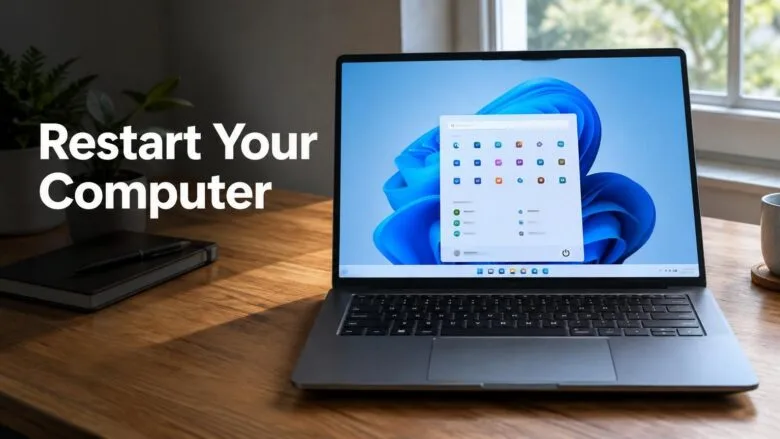
- 6 ways to do it
- Needs administrator rights
- Includes a restart or sign-out
Restarting a Windows 11 PC closes every app, shuts Windows down, and starts it again from scratch. The quickest way is to select Start, then the Power button in the lower-right corner of the Start menu, then Restart.
Windows 11 offers several other routes: a right-click menu on the Start button, a keyboard shortcut, the sign-in screen, and a command. This guide covers each one, and what to do when the PC refuses to restart.
None of these methods needs administrator rights. Any account on the PC can restart it, though Windows may warn you if another person is still signed in.
To restart your computer in Windows 11, select Start, then the Power button in the lower-right corner of the Start menu, then Restart. Windows closes your open apps, shuts down, and starts again. You can also right-click the Start button, choose Shut down or sign out, then Restart. Save your work first.
Restart vs. Shut Down in 🪟 Windows 11
A restart and a shutdown are not the same thing, even though both end with the screen going dark. Knowing the difference tells you which one to pick.
Fast Startup is a feature that saves part of Windows to disk when you shut down, so the PC boots faster. When it is turned on, a shutdown does not fully clear Windows from memory. A restart skips that shortcut and loads Windows fresh. Restart is the right choice when an app misbehaves, a driver (the software that runs a piece of hardware) acts up, or an installer asks for a restart.
Use Shut down when you are finished for the day. Use Restart when you want a clean start right away.
How to Restart Your Computer in 🪟 Windows 11 From the Start Menu
- Save your work in every open app. Windows tries to close the apps for you, but unsaved changes in some programs can be lost.
- Select the Start button. It sits on the taskbar, usually in the center. You can also press the
Windowskey. The Start menu opens.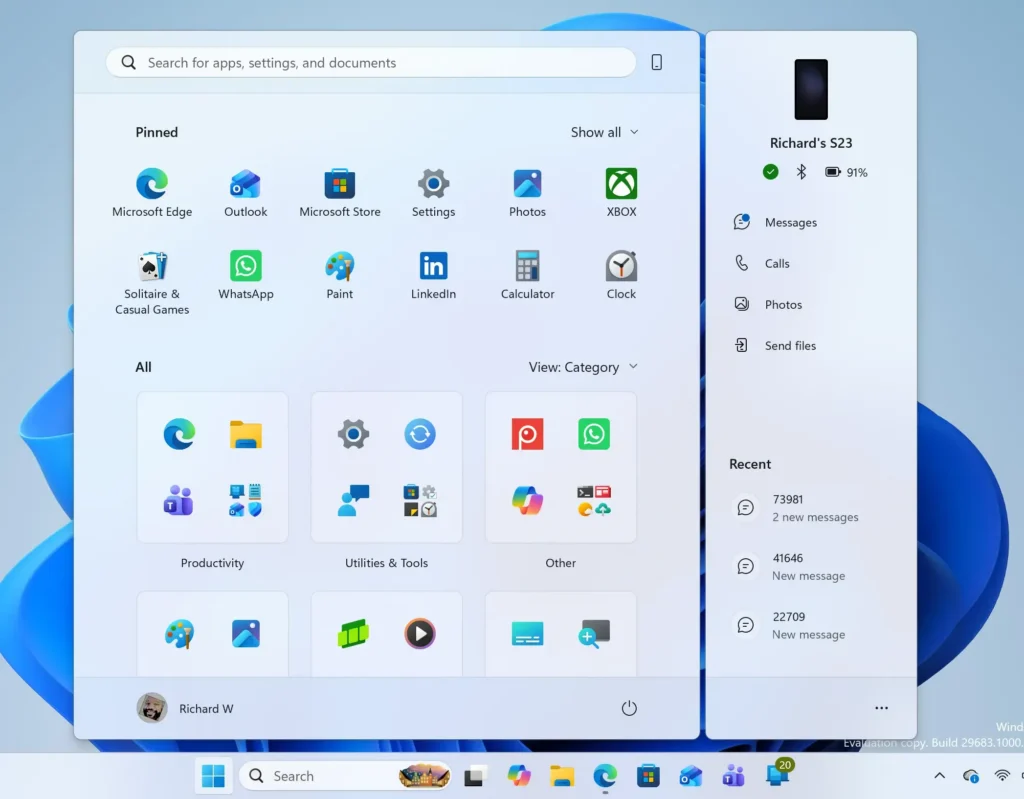
Windows 11 Start menu search panel for opening OpenSSH Client settings - Select the Power button. It is the circle with a vertical line, in the lower-right corner of the Start menu. A small menu opens with the available power options.
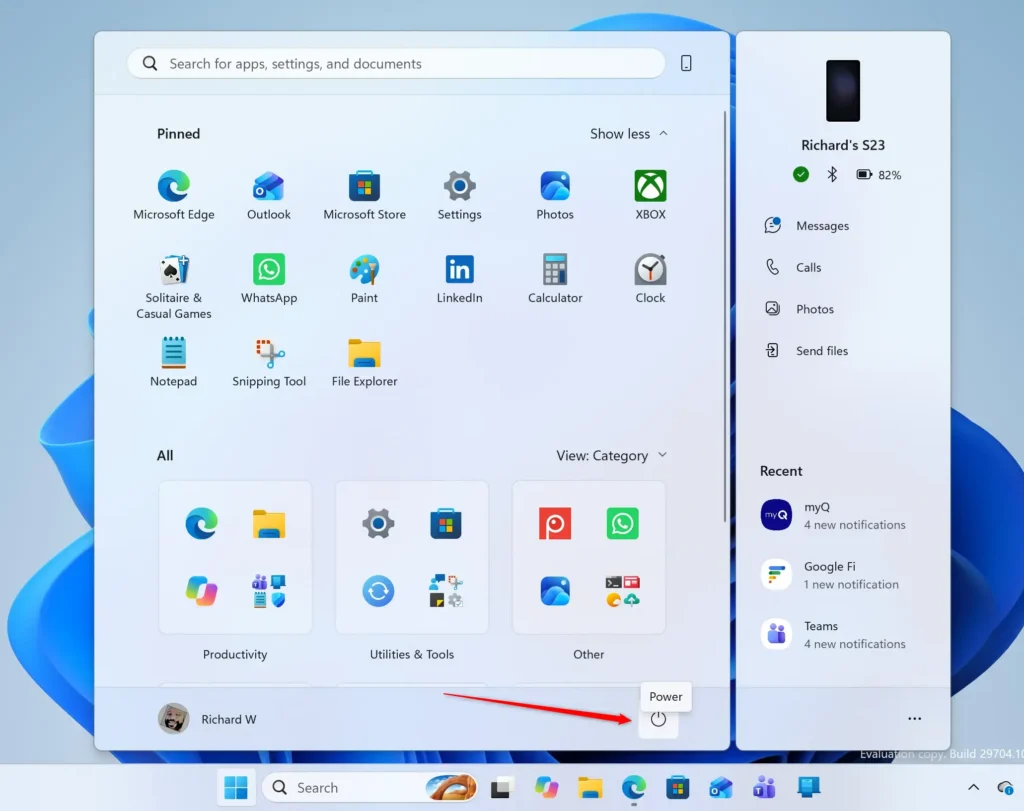
Start Menu - Select Restart. The screen goes dark, Windows closes your apps and services, and the PC starts again.
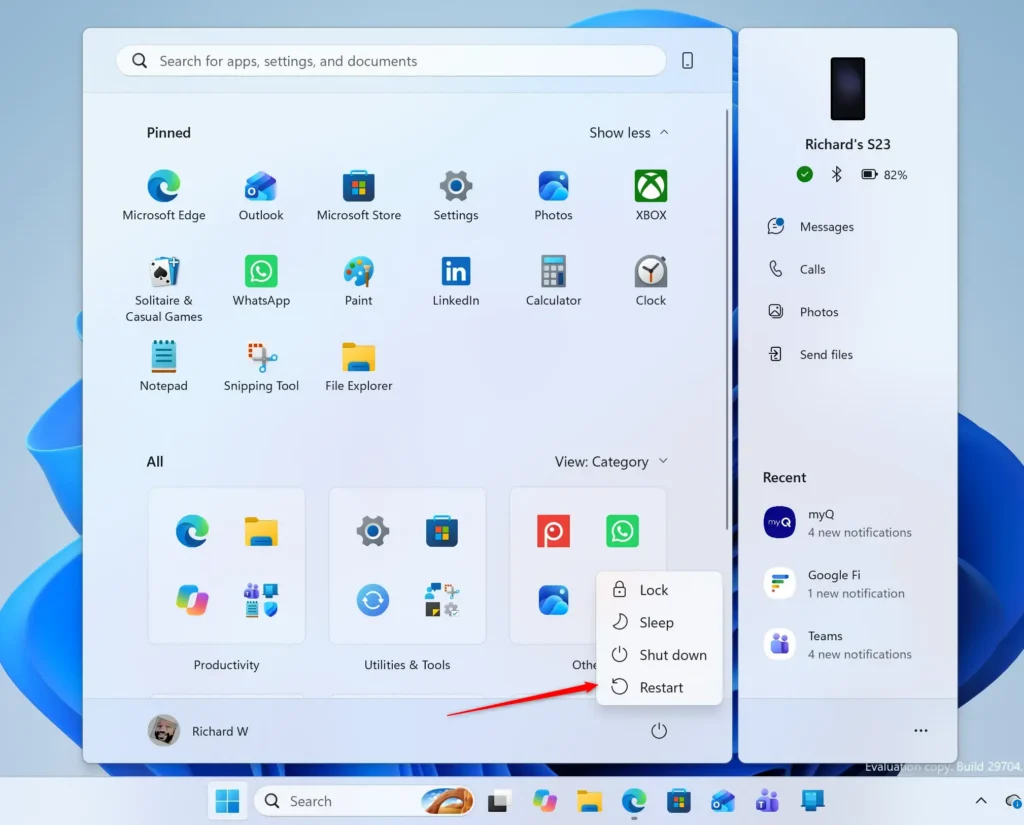
Start Menu - Sign in when the sign-in screen appears. Your desktop loads as normal.
If Windows has updates waiting, the Power menu shows Update and restart and Update and shut down instead of the plain options. Choosing Restart still works and skips the install. Choose Update and restart to install the updates now, which makes the restart take longer.
Other Ways to Restart 🪟 Windows 11
The Start menu is not always the best option. If the taskbar is frozen, the Start menu will not open, or you prefer the keyboard, one of these methods works better.
Method 1Use the Power User Menu
The Power User menu is a hidden shortcut menu with system tools. It reaches the Restart command in three clicks: right-click, Shut down or sign out, then Restart. It works even when the Start menu is slow to open.
- Right-click the Start button. You can also press
Windows + X. The Power User menu opens.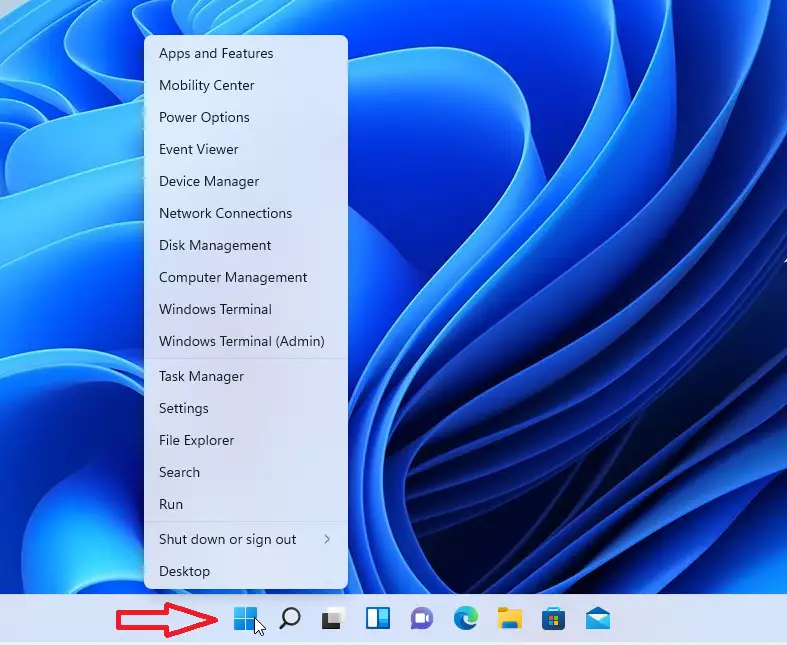
windows 11 power user menu right click - Select Shut down or sign out. A submenu slides out beside it.
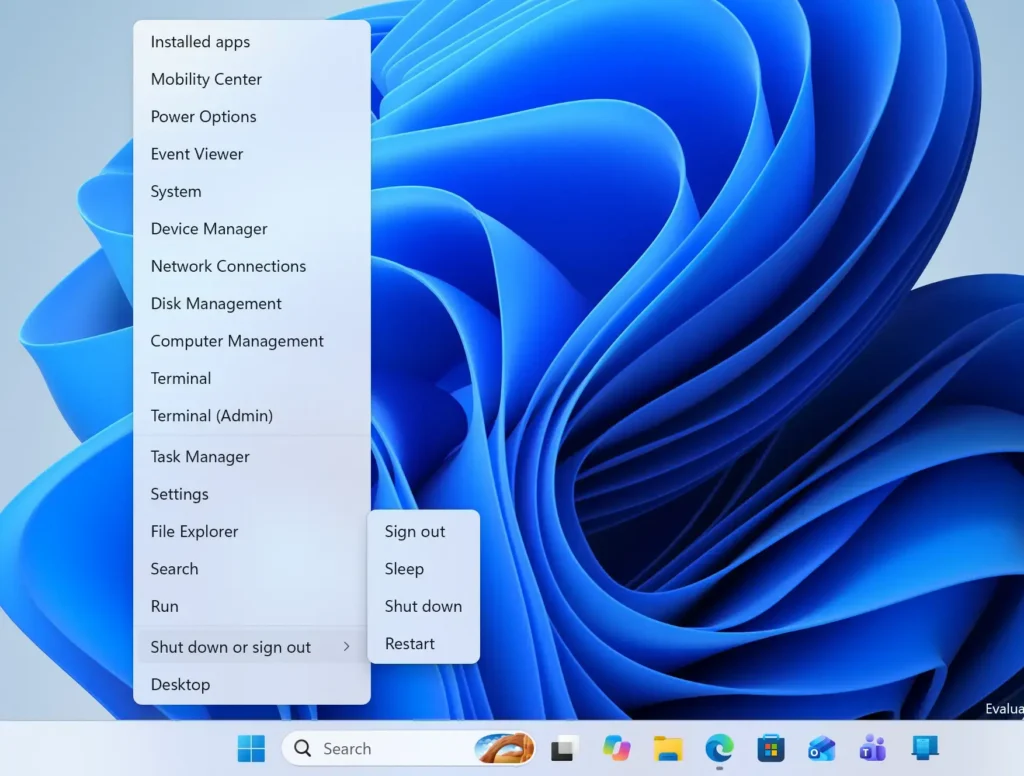
Start Menu - Select Restart. Windows closes your apps and restarts the PC.
Method 2Use Alt+F4 on the Desktop
The Alt+F4 shortcut closes the active window. When no window is active, it opens the classic Shut Down Windows dialog. This is the fastest keyboard-only route if you are already at the desktop.
- Press
Windows + D. This minimizes everything and shows the desktop. - Press
Alt + F4. The Shut Down Windows box opens. If an app window closes instead, the desktop was not the active window. PressWindows + Dagain and retry. - Open the drop-down list under What do you want the computer to do? and select Restart. Use the arrow keys if you prefer.
- Select OK. You can also press
Enter. The PC restarts.
Method 3Use Ctrl+Alt+Delete
Windows handles Ctrl+Alt+Del itself, so it still works when an app freezes. It often responds when the desktop is slow or an app has stopped answering. Use it when the Start menu will not open.
- Press
Ctrl + Alt + Delete. A full-screen menu appears with Lock, Switch user, Sign out, and Task Manager. - Select the Power icon in the lower-right corner of the screen. A small menu opens.
- Select Restart. The PC restarts.
Method 4Restart From the Sign-In Screen
The sign-in screen has its own power button. This helps when you cannot sign in, forgot to restart before locking the PC, or a sign-in problem needs a fresh start.
- Wake the PC or lock it with
Windows + L. The lock screen appears. Press any key or click to reach the password or PIN prompt. - Select the Power icon in the lower-right corner. A menu opens with Sleep, Shut down, and Restart.
- Select Restart. If other people are signed in on the PC, Windows warns you that restarting may cause them to lose unsaved work. Select Restart anyway to continue.
Method 5Restart With a Command
The shutdown command restarts the PC from the Run box, Command Prompt, PowerShell, or Windows Terminal. It is useful in scripts, shortcuts, and when the mouse does not work. It does not need administrator rights for a restart of your own PC.
- Press
Windows + R. The Run dialog opens. You can also open Command Prompt, PowerShell, or Windows Terminal instead. - Type the command below. The
/rswitch tells Windows to restart rather than shut down. The/t 0switch sets the delay to zero seconds.Command Promptshutdown /r /t 0 - Press
Enter. The PC restarts right away, with no confirmation prompt.
Change the number after /t to delay the restart by that many seconds. For example, shutdown /r /t 60 restarts after 60 seconds and shows a warning on screen. To cancel a delayed restart before the timer ends, run this command:
shutdown /aOlder guides sometimes use WMIC (an older Windows command-line tool) to restart a PC. Microsoft removed WMIC from Windows 11, version 24H2 and later, so those commands fail on current versions. Use shutdown instead.
Method 6Restart From Windows Update
When Windows finishes downloading an update, it needs a restart to complete the install. This method restarts the PC and applies the update in one step.
- Press
Windows + I. Settings opens. - Select Windows Update in the left sidebar. The page shows the update status.
- Select Restart now. This button appears only when an update is waiting for a restart. Windows restarts and finishes the install.
The restart takes longer than normal because Windows applies the update before it loads the desktop. Keep the PC plugged in, and do not hold the power button while it shows “Working on updates”. If no restart is pending, the page shows You’re up to date and no button appears.
If Windows restarts at times you do not want, see how to manage update restart schedules in Windows 11.
What to Do If 🪟 Windows 11 Will Not Restart
Most restarts work the first time. When one does not, the cause is usually a stuck app, a missing menu option, or a frozen desktop.
A Message Says Apps Are Preventing the Restart
Windows sometimes stops at a blue screen listing apps that have not closed, often because they hold unsaved work. Select Cancel to go back to the desktop, save your work, and close those apps. Then try again.
Select Restart anyway only if you are sure nothing important is open. Those apps lose any unsaved changes, so save your work in each one first.
The Restart Option Is Missing or Greyed Out
On a work or school PC, an administrator can hide the Restart command. On a PC you manage yourself, the setting may have been changed by a tweak or a policy. Two guides cover this: how to add or remove the Restart button in Windows 11 and how to hide Restart on the Windows 11 Power menu.
In the meantime, the shutdown /r /t 0 command from Method 5 may still work. If your organization manages the PC, ask your IT team before trying to bypass the restriction.
The Screen Is Frozen and Nothing Responds
Try Ctrl + Alt + Delete first (Method 3). If the security screen appears, use the Power icon from there.
Windows Opens a Blue Menu Instead of Restarting
Holding Shift while you select Restart opens the Windows recovery menu instead of restarting normally. The blue screen is titled Choose an option. Select Continue to exit to Windows, or select Turn off your PC to shut down. Release the Shift key before you click next time.
Restart Part of Windows Instead of the Whole PC
Not every problem needs a full restart. If only the taskbar, desktop icons, or Start menu are acting up, restarting that one piece is faster and keeps your apps open. Two guides cover this: how to restart Windows Explorer in Windows 11, which refreshes the taskbar and File Explorer, and how to restart the Start menu process in Windows 11.
If the problem returns after those, a full restart using any method above is the next step.
What to Do Next
If updates keep forcing restarts at bad times, set active hours and schedules with the guide on managing update restart schedules in Windows 11. If the Restart command is missing from your Power menu, the guide on adding or removing the Restart button shows how to bring it back.
Have a question about this guide?
Answered by AI from this guide. Good questions may be added to this page — please don't include personal details.
Did this guide fix your problem?

About the Author
Richard
Tech Writer, IT Professional
Richard is a writer at Geek Rewind who turns complex IT tasks into clear, step-by-step guides. He draws on years of hands-on experience in system administration and enterprise IT operations, focusing on Windows, Linux and WordPress: the problems people actually run into, and the fixes that work. His server and WordPress guides come from systems he runs himself. Richard builds and maintains the platform behind Geek Rewind, from its Ubuntu servers and Nginx configuration to its custom WordPress plugins. Many new tutorials start with readers' questions, and he's always glad to answer them in the comments.
No comments yet — be the first to share your thoughts!