Disable Automatic App Restart in Windows 11 Resume Settings

- 23 steps
- Needs administrator rights
- Includes a restart or sign-out
Automatic app restart in Windows 11 reopens your open programs after you sign back in or restart your PC. Windows saves your session state and relaunches those apps, so you can pick up where you left off after a reboot or update.
This helper can slow your startup and clutter the screen with windows you no longer need. Turning it off gives you a faster, cleaner desktop each time you power on. The sections below cover the main setting, the places where Windows can still bring apps back, and how to undo each change.
To disable automatic app restart in Windows 11, open Settings, go to Accounts Sign-in options, scroll to Additional settings, and turn off the toggle next to Automatically save my restartable apps and restart them when I sign back in. The change takes effect immediately without requiring a restart.
Why You Might Want to Disable Automatic App Restart
Disabling automatic app restart stops your computer from reopening old programs and browser tabs every time you turn it on. Boot time improves, memory use drops, and your private documents stay off the screen when someone else is looking at it.
- Faster Startup TimesYour computer does not spend time launching old programs, so you can start working sooner. The gain is most noticeable on older PCs and machines with a hard drive.
- Better PrivacyPrivate documents or sensitive web pages will not pop up if someone else is near your monitor when you sign in.
- Reduced Resource UsageApps that would otherwise load right away do not take up memory and processor time from the first minute.
- Cleaner DesktopYou start each session with a clear screen instead of yesterday’s leftover windows.
How to Disable Automatic App Restart via 🪟 Windows 11 Settings
The main switch lives in the Settings app under Accounts Sign-in options. Turning off Automatically save my restartable apps and restart them when I sign back in stops Windows from saving your open work when you sign out, restart, or shut down. Restartable apps are programs that tell Windows they can reopen with their previous windows.
If you cannot find the option on your build, type its name into the search box at the top of Settings. Windows will take you to the right page.
- Click the Start button on your taskbar and select Settings, the gear icon. You can also press Win+I to open it directly. The Settings window opens.

- Click Accounts in the left-hand menu. The account options appear on the right.
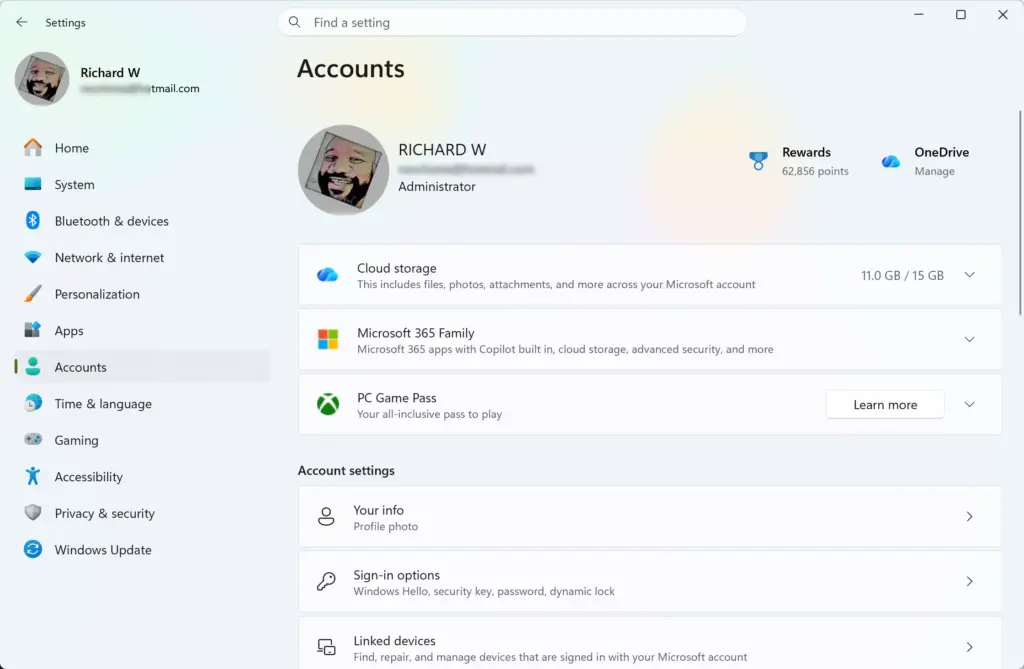
- Scroll down the right-hand side and click Sign-in options. The sign-in settings for your account open.
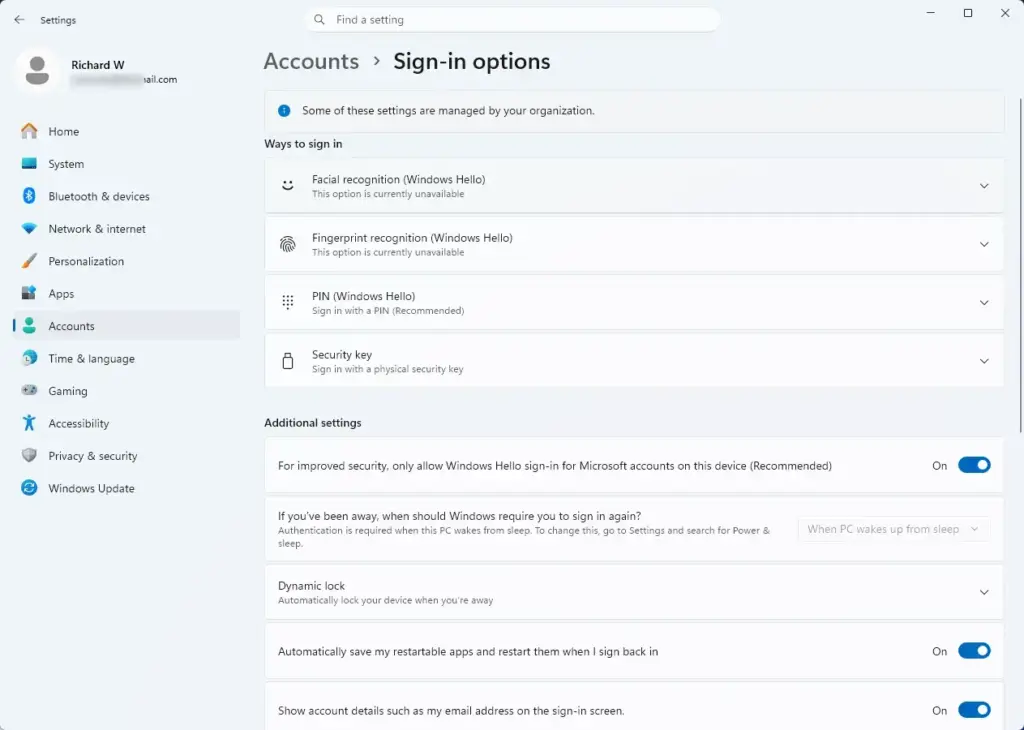
- Scroll down to the section labeled Additional settings.
- Find the option Automatically save my restartable apps and restart them when I sign back in.
- Click the toggle switch next to it so it reads Off.
That’s it. The change takes effect immediately, and you do not need to restart. From now on Windows will not save your open applications when you sign out, restart, or shut down, so your next sign-in should give you a clean desktop.
If you ever want the feature back, return to the same page and switch the toggle to On. This option is a different setting from Use my sign-in info to automatically finish setting up my device after an update or restart, which sits nearby. That one controls sign-in after updates, not which apps reopen, so you can leave it alone for this purpose.
Keep in mind that some restarts can still bring apps back. A restart from the Start menu or one that Windows Update triggers may reopen apps, especially if the nearby sign-in setting is on or an app registers itself to restart. Pending updates also change the Start Power menu. It can show Update and restart and Update and shut down in place of the plain options, and Windows may restore apps after those.
To avoid resumption, close your apps manually before you restart or shut down. For a full shutdown, run shutdown /s /t 0 from a Command Prompt or the Run box. With Fast startup turned off, this shuts the PC down completely and apps do not resume on the next boot. Fast startup is a power feature that saves part of the system state to speed up the next start.
Alternative Method: Using Sign-In Options for Local and Microsoft Accounts
If you share the computer with family members or use several accounts, repeat the change in every profile on the machine.
- Open the Settings app by pressing Win+I.
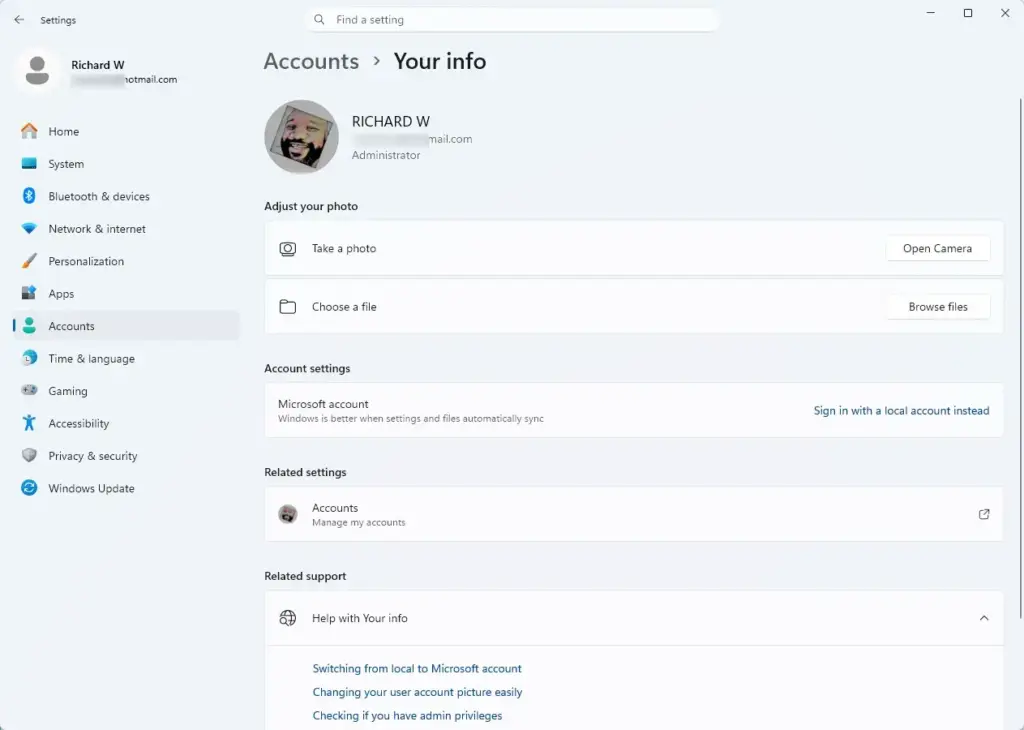
- Go to Accounts, then choose Your info. Check which account you are signed in with, so you know which profile you are changing.
- Return to the Sign-in options page.
- Confirm that the toggle for Automatically save my restartable apps and restart them when I sign back in is still Off.
- Sign out, then sign into each of the other user accounts on the system and repeat the same steps. Switching to another account may require that person’s password or PIN, or administrator approval, depending on how the PC is set up.
You should now have the toggle switched off in every profile on the PC. If it has flipped back to On, a feature update or a profile reset may have restored the default. Switch it off again and check it after your next restart.
Advanced Tip: Controlling Startup Apps via Task Manager
Task Manager controls a different mechanism. Startup apps are programs that launch by themselves when you sign in, regardless of the restartable apps setting. If a program still appears after every boot, disable it here.
- Right-click an empty space on your taskbar and select Task Manager. You can also press Ctrl+Shift+Esc. Task Manager opens.

- If Task Manager opens in a compact view, click More details at the bottom to show the full window.
- In the left-hand sidebar, click the Startup apps icon, which looks like a dashboard gauge. A list of programs appears.
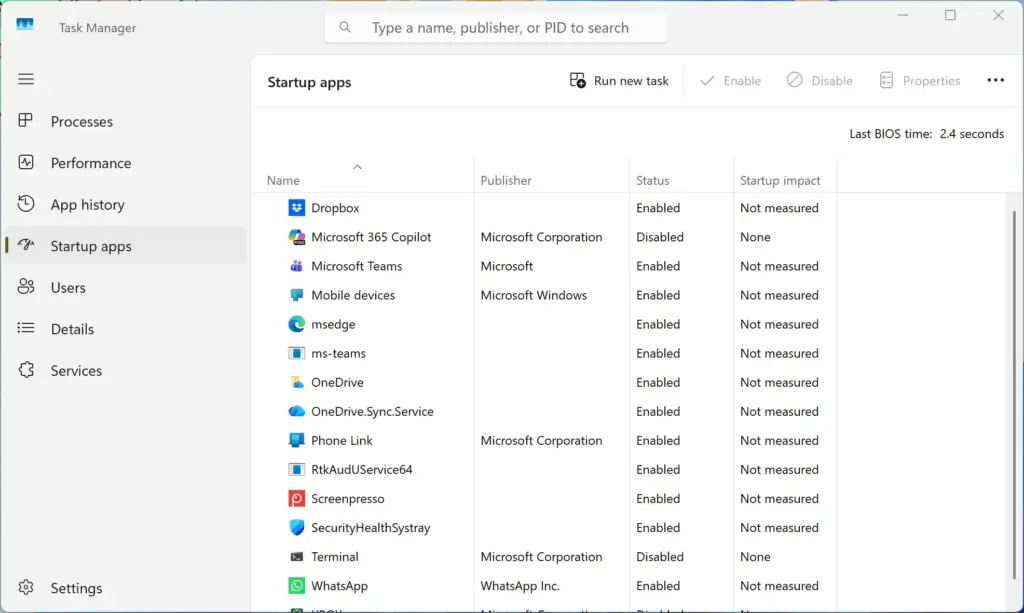
- Review the list of programs set to run when the computer boots.
- Check the Startup impact column. Items marked High slow your sign-in the most. If the column is empty, wait a moment, since Windows measures it over a few boots.
- Click a program you do not want to run automatically, then click the Disable button in the top right corner. The status changes to Disabled.
That’s it. The program will no longer start on its own at sign-in. Disabling an entry does not uninstall it, and you can still open it manually. To undo it, select the entry again and click Enable.
Only disable items you recognize. Security software and hardware drivers, such as touchpad or audio utilities, usually need to start with Windows. Combining the resume toggle with a trimmed startup list gives you a quicker boot and fewer unwanted windows.
Unique Expert Tip: Managing Folder Windows and File Explorer Restarts
File Explorer has its own option for reopening folder windows after you sign in. If open folders keep coming back after every reboot, turn this option off in Folder Options.
- Open File Explorer by pressing Win+E. A File Explorer window opens.

- Click the three horizontal dots at the top of the window and select Options. The Folder Options window opens.
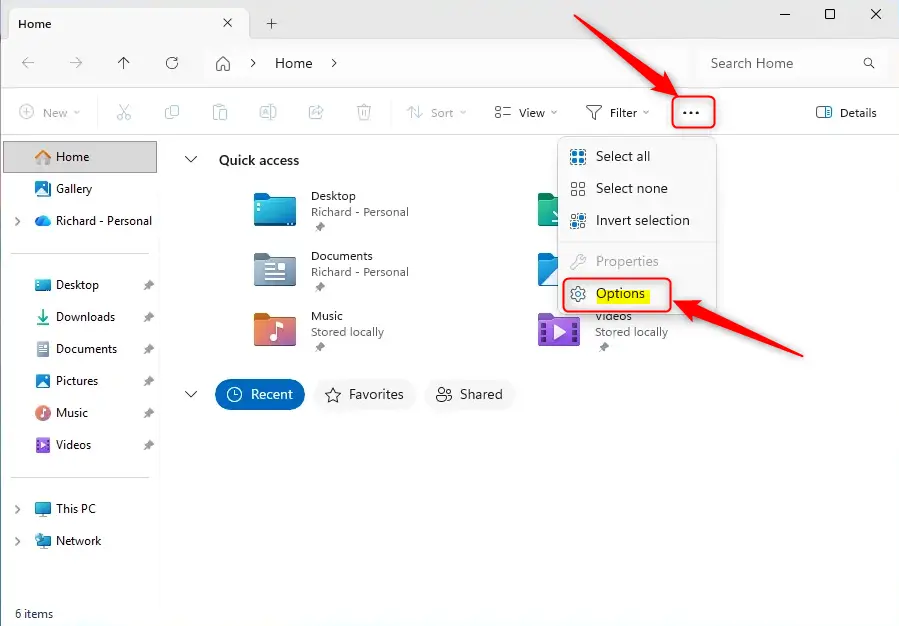
- Click the View tab at the top.
- Scroll down the Advanced settings list until you find Restore previous folder windows at logon.
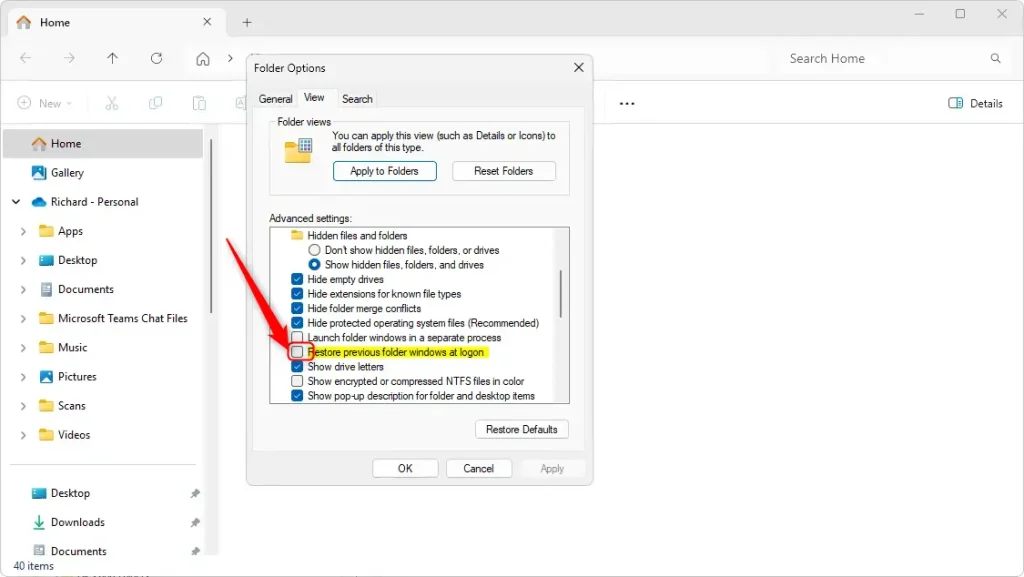
- Clear the check box next to it.
- Click Apply, then click OK to save the change.
You should now see folder windows stay closed after you restart. To undo this, open the same dialog and tick the box again. Like the sign-in toggle, this option is saved per user account, so repeat it for any other profiles on the PC.
Summary
Disabling automatic app restart in Windows 11 is a quick way to speed up your boot time and protect your privacy. Turn off restartable apps, clean up your startup list, and stop folders from reopening, and your computer will start fresh each time.
Remember that restarts from the Start menu and update restarts can still reopen apps, so close your programs first or use a full shutdown when you want a clean start. Each change can be reversed in the same place you made it.
Have a question about this guide?
Answered by AI from this guide. Good questions may be added to this page — please don't include personal details.
Did this guide fix your problem?

About the Author
Richard
Tech Writer, IT Professional
Richard is a writer at Geek Rewind who turns complex IT tasks into clear, step-by-step guides. He draws on years of hands-on experience in system administration and enterprise IT operations, focusing on Windows, Linux and WordPress: the problems people actually run into, and the fixes that work. His server and WordPress guides come from systems he runs himself. Richard builds and maintains the platform behind Geek Rewind, from its Ubuntu servers and Nginx configuration to its custom WordPress plugins. Many new tutorials start with readers' questions, and he's always glad to answer them in the comments.
No comments yet — be the first to share your thoughts!