How to Access Power User Tasks Menu in Windows 11


The Power User menu in Windows 11 lets you open system tools instantly with a single keyboard shortcut, without digging through the main Settings app. Pressing the Win and the X key together (Win+X) opens this hidden menu on your screen in any version of Windows 11.
You can use this menu to jump straight to Device Manager, Task Manager , Disk Management, and other advanced settings in seconds.
Press Win+X, or right-click the Start button to open the Power User Tasks menu. This menu provides quick access to advanced system tools like Command Prompt and Device Manager.
How to open the Power User menu
Here are two ways to open this menu:
- Keyboard Shortcut: Press the Win+X at the same time.
- Mouse Method: Right-click on the Start button on your taskbar.
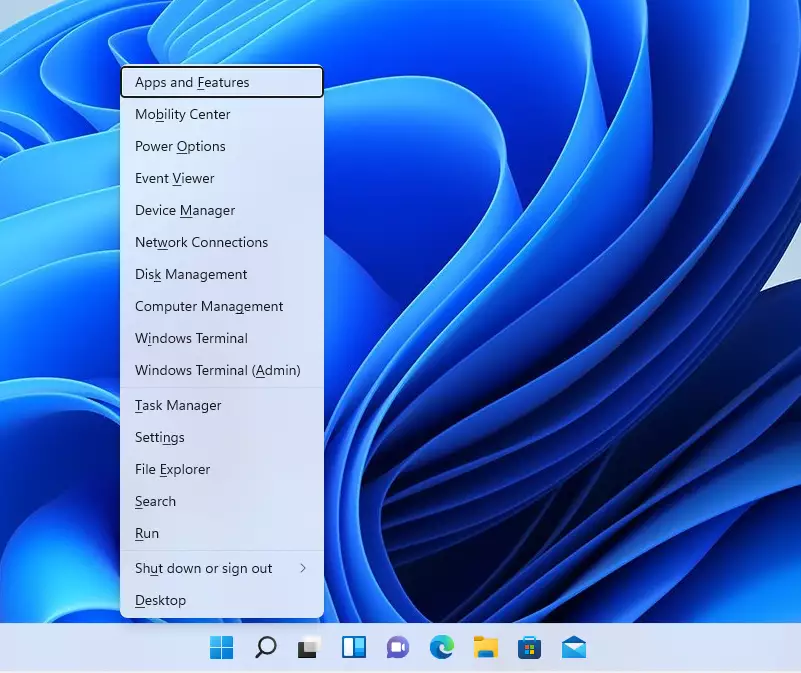
Default Commands in the Win+X Menu
The Power User Menu Windows 11 contains essential shortcuts that let you jump straight to advanced system tools without digging through the main Settings app . Default commands in the Win+X menu include Apps & Features for managing installed software, Event Viewer for checking system logs, Disk Management for partitioning drives, Task Manager for stopping frozen apps, and the classic Control Panel for deeper system tweaks.
- Apps & Features: Manage installed software.
- Event Viewer: Check system logs for errors.
- Disk Management: Partition and format drives.
- Task Manager : Monitor running processes.
- Control Panel : Access legacy settings.
- File Explorer : Browse your files.
- Run: Execute commands directly.
- Terminal (Admin): Run advanced scripts.
If you pick an option like Terminal (Admin), a prompt will ask for your approval. You need an administrator account to proceed.
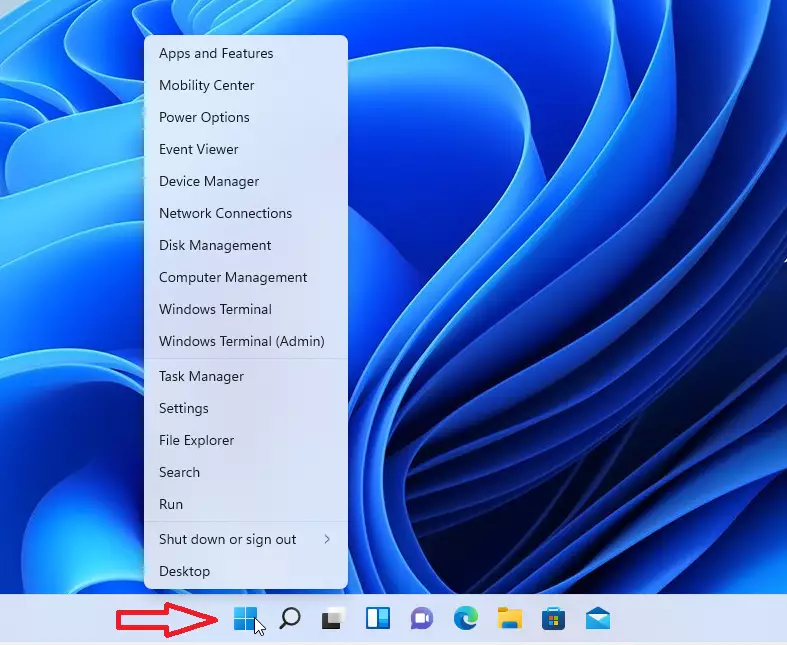
Can I customize the Power User menu?
Yes, you can customize the Power User Menu in Windows 11 by adding or removing shortcuts.
Troubleshooting the Win+X Menu
If your Power User Menu in Windows 11 isn't opening, it might be due to corrupted files, but there are ways to fix it.
Summary
The Power User Tasks menu in Windows 11 is a handy shortcut for accessing advanced settings quickly.
Why is the Power User menu not opening in 🪟 Windows 11?
The menu might not open if the shortcut files in the WinX folder are missing or corrupted. It can also be turned off by system policies. Try restarting Windows Explorer through Task Manager or check your system files using the System File Checker tool to fix these common problems.
Is it safe to edit the WinX folder in File Explorer?
Editing the WinX folder in File Explorer to change your Power User Menu is generally safe if you're careful.
Was this guide helpful?

About the Author
Richard
Tech Writer, IT Professional
Richard, a writer for Geek Rewind, is a tech enthusiast who loves breaking down complex IT topics into simple, easy-to-understand ideas. With years of hands-on experience in system administration and enterprise IT operations, he’s developed a knack for offering practical tips and solutions. Richard aims to make technology more accessible and actionable. He's deeply committed to the Geek Rewind community, always ready to answer questions and engage in discussions.

[…] Right-click the Start button and select System on the Power User menu. […]
[…] Right-click on the Start button to launch the Power User menu. […]
[…] first open Windows Task Manager. You can do that by right-clicking on the Start menu to launch the Power User Menu, which is the Task Manager […]
[…] First, you must launch or open the Windows Terminal app as administrator. Or press the Windows key + X to open the Power User Menu. […]
[…] way to access the Settings app in Windows 11 is to use the Power User menu. To do that, right-click on the Start button and select […]
[…] more method in Windows 11 is through the Power User Menu. First, press the keyboard short: Windows key + X or right-click on the Start menu to launch the […]
[…] do so, select and hold (or right-click) the Start button to launch the Power Users task Menu, and then select Disk […]
[…] use the Power User menu to put a computer to sleep, right-click on the Start button or press the Win + X keys on your […]
[…] CTRL + X > to open Power User Tasks menu, then select Task […]
[…] use the Power User menu to hibernate a Windows computer, right-click the Start button or press the Win + X keys on your […]
[…] File Explorer, Power User Menu […]