How to Force Close a Window That Is Not Responding in Windows 11

- 37 steps
- Needs administrator rights
Force closing a window that is not responding in Windows 11 ends the frozen program without restarting your PC. The quickest method is to press Ctrl+Shift+Esc to open Task Manager (the built-in tool that lists every running program), select the frozen app, and click End task.
This guide starts with that method, then covers keyboard shortcuts, a taskbar option, a command-line option, and what to do when the frozen window will not close. Unsaved work in the frozen app is usually lost, so the first section also covers how long to wait before you act.
Press Ctrl+Shift+Esc to open Task Manager, select the frozen app under Apps, and click End task. The window closes within a few seconds without restarting your PC. Any unsaved changes in that app are lost, so wait 30 to 60 seconds first to make sure it is really frozen.
How to Tell a Window Is Frozen and Not Just Busy
A window that is working hard looks the same as a frozen one for the first few seconds. Large file copies, big spreadsheets, and apps that are starting up can all make a window stop responding briefly and then recover. Force closing too early throws away work that Windows would have saved.
Look for these signs of a real freeze:
- The title bar says (Not Responding), or the window turns pale or white.
- The mouse pointer shows a spinning circle when it moves over the window.
- Buttons and menus do not react, and the window does not repaint when you drag another window across it.
- Windows shows a message that the program is not responding, with options such as Close the program and Wait for the program to respond.
Give the app 30 to 60 seconds. If the disk light is flashing or the PC fan is loud, wait longer, because the app may still be working. If nothing changes after a minute or two, close it.
Force Close a Window That Is Not Responding with Task Manager
Task Manager is the most reliable way to force close a window that is not responding in Windows 11, because it works even when the frozen app ignores every click. These steps end the app’s process (the running copy of the program) so Windows removes it from memory.
Ending a process closes the app immediately and does not offer to save. You lose any changes you have not saved in that app. You do not need administrator rights for this method unless the frozen app itself runs as administrator (see the troubleshooting section below).
- Press Ctrl+Shift+Esc. Task Manager opens in its own window, even if the frozen app sits on top of everything else.

Task Manager - Click More details if Task Manager shows only a short list of apps. The full view opens with a menu on the left.
- Click Processes in the left menu. On Windows 11 version 21H2, the same list sits on a Processes tab across the top. Windows 11 version 22H2 and later use the left menu.
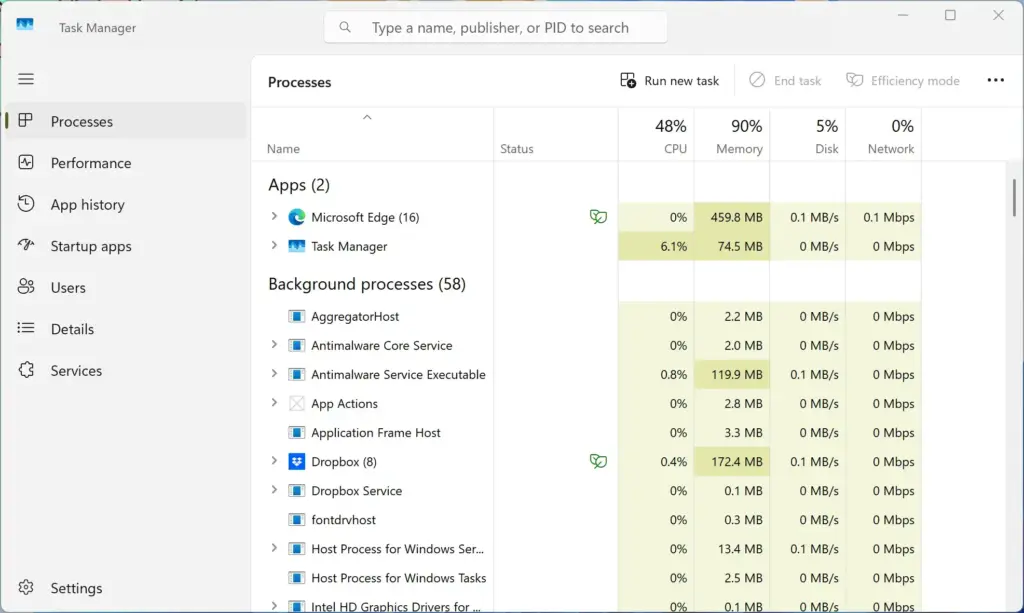
Task Manager › Processes - Find the frozen app under Apps. The Status column may show Not responding next to it, and its CPU or Memory numbers often sit at 0% or stay frozen at a high value.
- Click the app’s name to select it. The row highlights.
- Click End task at the top right of Task Manager. You can also right-click the app and choose End task. The window closes within a few seconds.
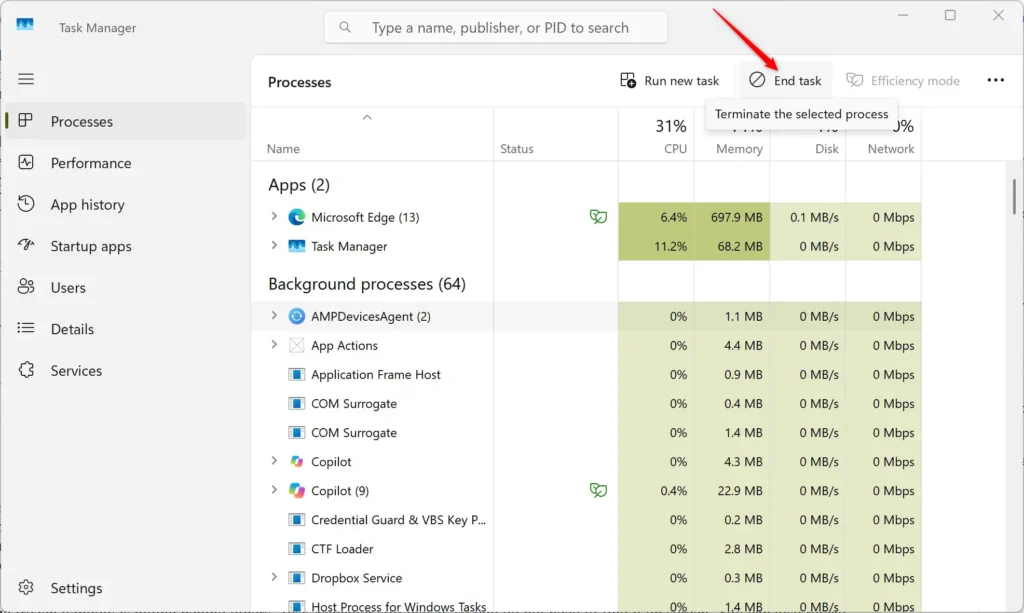
Task Manager - Check that the app disappears from the Apps list. If it stays, wait about ten seconds, then repeat the step.
- Reopen the app when you are ready. Many apps, including Microsoft Word and Excel, offer to recover your last saved or autosaved version on the next start.
Some apps, such as Google Chrome, Microsoft Edge, and Microsoft Teams, appear as a single entry with a small arrow beside the name. Click the arrow to expand the group and see each window or process inside. Choosing End task on the main entry closes every window in that group. To close only one frozen browser tab or window, select the specific item under the expanded entry instead.
If the frozen window is hiding behind others, Task Manager still lists it, so you do not need to find it on screen. You can also reveal a hidden window with Title bar window shake in Windows 11. Shaking a healthy window by its title bar minimizes all the others, which can uncover the frozen one.
Other Ways to Force Close a Frozen Window
Task Manager is not the only route. Each method below suits a different situation, from a window that only needs a nudge to a stubborn app that starts several processes at once.
Press Alt + F4 on the Frozen Window
Alt+F4 is the keyboard shortcut that tells Windows to close the window that is currently active. It is the fastest option when the app is only partly stuck.
- Click the frozen window once. The title bar highlights to show the window is active.
- Press Alt+F4. Windows asks the app to close.
- Wait up to 30 seconds. A frozen app may show a dialog with Close the program and Wait for the program to respond.
- Select Close the program if the dialog appears. The window closes and the app ends.
If you press Alt+F4 while the desktop is active instead of the frozen window, Windows opens the Shut Down Windows box. Press Esc to cancel it and click the frozen window first.
The same dialog often appears when you click the X in the corner of a frozen window. Windows waits a few seconds for the app to answer, then shows a Close the program option.
Use End Task from the Taskbar
The taskbar option adds an End task command to the right-click menu of every app icon on the taskbar. It saves you from opening Task Manager, and it is available on Windows 11 version 23H2 with recent updates and on later versions. It is off by default.
To turn it on:
- Open Settings. Press Win+I.
- Go to Settings System For developers. On Windows 11 version 24H2, this page may appear under Settings System Advanced instead.
- Switch the End Task toggle to On. The toggle changes to show it is on.
To use it:
- Right-click the frozen app’s icon on the taskbar. A menu opens above the icon.
- Click End task. Windows closes the app and its windows.
If you cannot find the toggle, your build is older. Run Windows Update (Settings Windows Update Check for updates) and look again after the update installs. To undo the change, return to the same page and switch End Task back to Off.
End the Process Tree from the Details Tab
Some apps run helper processes that keep a window alive after you end the main one. The Details page in Task Manager lets you end a process and everything it started. Use it when End task on the Processes page does not work.
- Press Ctrl+Shift+Esc. Task Manager opens.
- Click Details in the left menu. A list of every process appears, with file names such as notepad.exe.
- Click the column heading Status to sort the list. Processes marked Not responding group together. If you do not see that column, right-click any column heading and choose Select columns to add it.
- Right-click the frozen process. A menu opens.
- Click End process tree. Task Manager ends the process and every process it started.
- Select End process tree again if a confirmation box warns that unsaved data will be lost. The window closes.
Use the taskkill Command in Terminal
The taskkill command ends a process from a command line. It helps when the screen is crowded with windows, when you work over a remote session, or when you want to close several frozen apps at once. Windows Terminal (the built-in command-line app) runs it.
The /f option closes the app without asking you to save, and you cannot undo it. The targeted apps lose any unsaved data.
- Right-click the Start button. A menu opens.
- Click Terminal. A command window opens.
- Type
tasklist /fi "status eq not responding"and press Enter. The list shows every app Windows marks as not responding, with its image name (the program’s file name, such as notepad.exe) and PID (process ID number). - Type the next command, replacing notepad.exe with the image name from your list, and press Enter.
taskkill /f /im notepad.exe- Look for the line SUCCESS: The process “notepad.exe” with PID 1234 has been terminated. The number will differ on your PC, and the frozen window disappears.
To close every app that Windows marks as not responding in one go, use the command below. Review the list from step 3 first, because this command ends all of them.
taskkill /f /fi "status eq not responding"What to Do When the Window Will Not Close
A few situations stop the standard methods from working. Each has a specific fix.
Task Manager Will Not Open
When the whole PC is sluggish, Ctrl+Shift+Esc may take half a minute to respond. Wait a moment before pressing it again, because repeated presses can open several copies. If nothing appears, press Ctrl+Alt+Del.
Windows shows a blue security screen with a list of options. Click Task Manager there. You can also press Win+X and choose Task Manager from the menu.
Access Is Denied or the End task Option Does Nothing
An app that runs as administrator (with more permissions than a normal user account) cannot always be closed from a standard session. Task Manager may show nothing happening, and taskkill returns ERROR: The process could not be terminated with Access is denied. This step needs an account with administrator rights. [Verification Required: confirm the exact command for this step]
- Right-click the Start button. A menu opens.
- Click Terminal (Admin). Windows asks for permission.
- Click Yes in the User Account Control prompt, and enter an administrator password if asked. An elevated command window opens.
- Run the taskkill command from the previous section. The process ends.
If you do not have an administrator account on the PC, ask whoever manages it to run the command.
The Frozen Window Is File Explorer or the Taskbar
If File Explorer, the desktop, or the taskbar stops responding, ending the task is the wrong move. Restart Windows Explorer (the process that draws the taskbar, desktop, and file windows) instead. Every open File Explorer window closes during this restart, and the taskbar disappears for a second or two.
- Press Ctrl+Shift+Esc. Task Manager opens.
- Click Processes in the left menu. The list of apps and background processes appears.
- Find Windows Explorer under Apps. If you do not see it, scroll down to Windows processes.
- Right-click Windows Explorer. A menu opens.
- Click Restart. The screen flickers, and the taskbar and desktop reload.
A Window Is Frozen on Another Virtual Desktop
If you use more than one virtual desktop (a separate workspace for a group of windows), a frozen app may sit on a desktop you are not looking at. Task Manager lists it anyway, so the steps above still work. To see which desktop holds it, press Win+Tab and look through the thumbnails.
When you close a desktop, Windows moves its open windows to another desktop instead of closing them, so closing a desktop does not fix a frozen app. The post on how to create and close a desktop on Windows 11 explains how that works.
A Background App Keeps Freezing or Comes Back
Some apps relaunch themselves after you end them, because they start with Windows or run as a background service. OneDrive is a common example, since it runs from the notification area and can stall during a large sync. If OneDrive is the app that freezes, follow the steps to quit and close OneDrive in Windows 11 rather than ending it repeatedly from Task Manager.
The Whole PC Is Frozen
Use this only as a last resort. Holding the power button can leave files half-written, and every open app loses its unsaved work. If you still want to continue, hold the physical power button for about ten seconds until the PC turns off, wait a few seconds, then turn it on again.
Reduce the Chance of Losing Work to a Freeze
A force close always carries a risk of lost changes, so a few habits make the next freeze less costly. Save often with Ctrl+S, especially before opening a large file or starting a long task. Turn on autosave in apps that offer it, such as Word, Excel, and PowerPoint when files are stored in OneDrive. Keep apps and Windows updated, because many freezes come from bugs that later updates fix.
Notice which app freezes. If the same program stops responding every day, that usually means a problem with that app, a faulty add-in, or a driver, rather than with Windows as a whole. In that case, check for an app update first, then try repairing or reinstalling the app.
What to Do Next
If the same app keeps freezing after you reopen it, update or reinstall that app, since closing the app again and again only hides the underlying fault. To reduce clutter that can lead to freezes, review which apps start with Windows under Settings Apps Startup. If you turned on the taskbar End task option and no longer want it, switch it off from the same page in Settings where you enabled it.
Have a question about this guide?
Answered by AI from this guide. Good questions may be added to this page — please don't include personal details.
Did this guide fix your problem?

About the Author
Richard
Tech Writer, IT Professional
Richard is a writer at Geek Rewind who turns complex IT tasks into clear, step-by-step guides. He draws on years of hands-on experience in system administration and enterprise IT operations, focusing on Windows, Linux and WordPress: the problems people actually run into, and the fixes that work. His server and WordPress guides come from systems he runs himself. Richard builds and maintains the platform behind Geek Rewind, from its Ubuntu servers and Nginx configuration to its custom WordPress plugins. Many new tutorials start with readers' questions, and he's always glad to answer them in the comments.
No comments yet — be the first to share your thoughts!