How to Change When Your Windows 11 Computer Goes to Sleep

- 27 steps
- Needs administrator rights
Changing the sleep settings in Windows 11 controls how long your PC sits idle before it goes to sleep. Sleep is a low-power state that keeps your open apps and documents in memory, so you can pick up where you left off. A good timeout stops the PC from sleeping while you are still reading, and from draining the battery after you walk away.
In Settings System Power & battery you can pick a time from 1 minute up to 5 hours, or choose Never so the PC doesn’t sleep on its own. Windows 11 sets this separately for battery power and for when the PC is plugged in. The steps below show how to adjust power and sleep settings four ways: the Settings app, Control Panel, advanced power plan settings and Command Prompt.
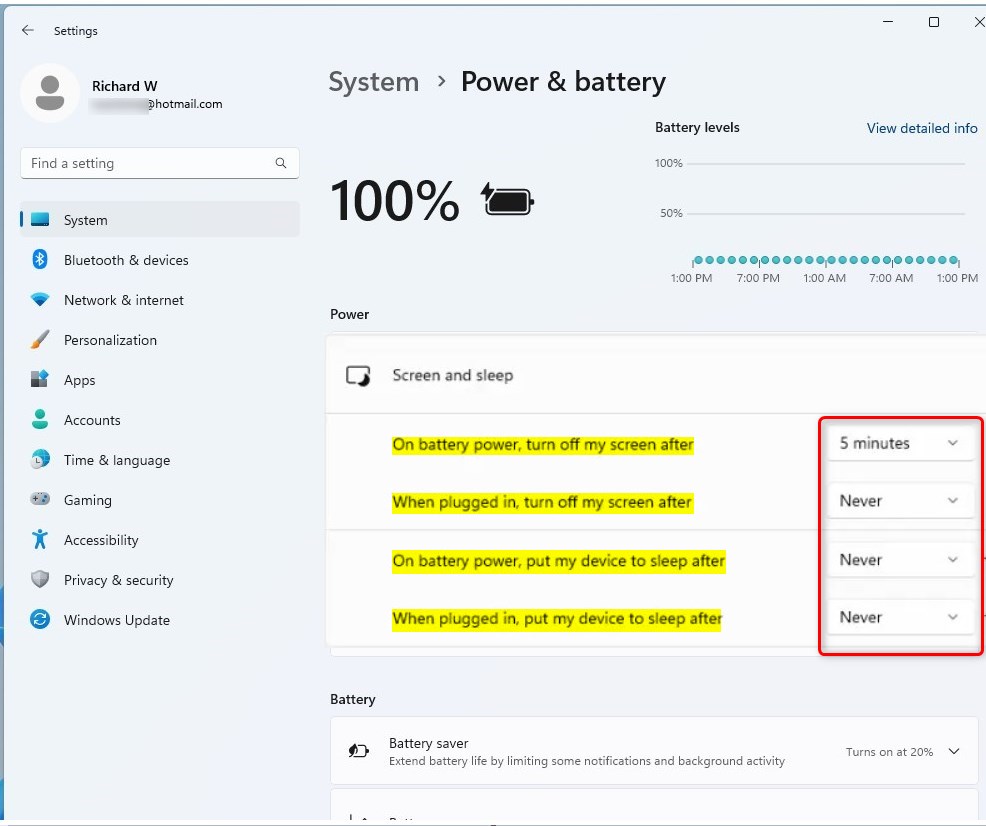
Open Settings with Win+I, then go to System Power & battery and expand Screen and sleep. Set “On battery power, put my device to sleep after” and “When plugged in, put my device to sleep after” to any time from 1 minute to 5 hours, or choose Never. The change applies immediately, with no Save button needed.
How to Change Sleep Timeout – The Easy Way
This is the quickest method and works the same on Windows 11 Home and Pro. Follow these steps to change the sleep time on Windows 11 from the Settings app:
- Press Windows key + I on your keyboard. The Settings app opens.
- Click System in the left-hand menu. The System pages appear on the right.
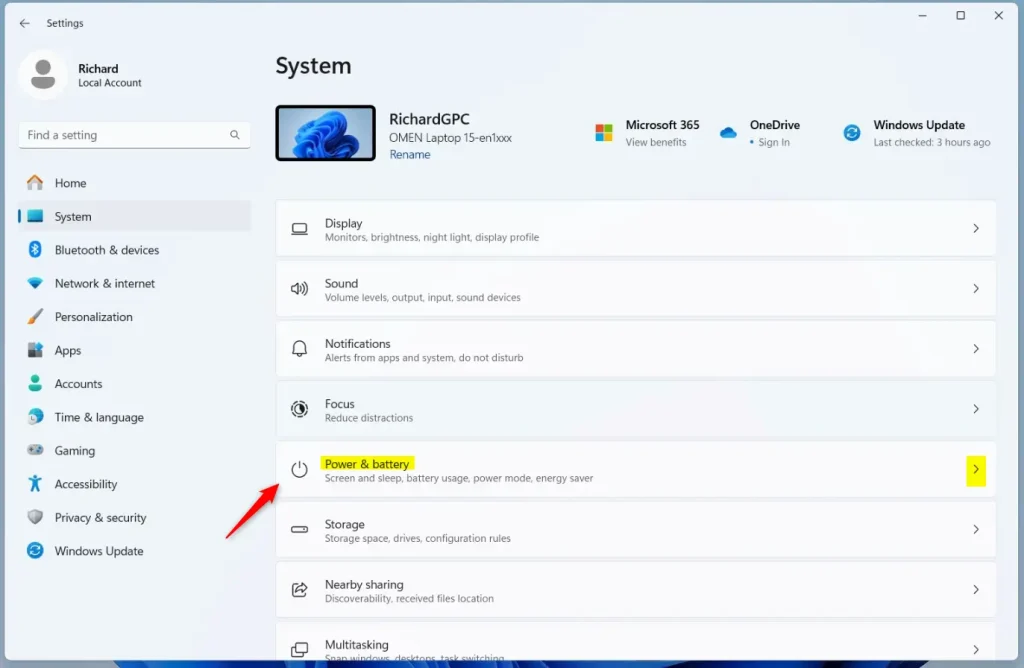
- Click Power & battery. On a desktop PC with no battery, this page may be called Power instead.
- Expand Screen and sleep. On newer builds of Windows 11 (24H2 and later) this section is named Screen, sleep, & hibernate timeouts. You should now see a list of drop-down menus.
- Set the battery sleep timer under On battery power, put my device to sleep after. This controls how long a laptop waits before sleeping while it runs on battery. Pick a time from 1 minute up to 5 hours, or choose Never.
- Set the plugged-in sleep timer under When plugged in, put my device to sleep after. This controls how long the PC waits before sleeping while it is connected to power. The same choices apply, and the change takes effect immediately because there is no Save button.
- Close Settings.
That’s it. Your PC now sleeps after the times you chose, and Windows uses the battery value when unplugged and the plugged-in value when connected to power.
If you only see the When plugged in options, you are on a desktop or a PC without a battery. Windows hides the battery options when there is no battery. To undo any change, reopen this page and choose your previous values. On a work PC, organization policies may override what you set here.
Alternative: Change Sleep Settings Using Control Panel
The classic Control Panel is useful if you prefer the older layout. It also gives you a Save changes button, so nothing changes until you confirm. Use these steps to change power and sleep settings there:
- Change View by to Small icons or Large icons. You only need this if the view is set to Category. The option is in the top-right corner.
- Click Power Options. You should see your power plans listed.
- Click Choose when the computer sleeps on the left side. The Edit Plan Settings page opens.
- Set the sleep time next to Put the computer to sleep. Use the drop-down menus for both On battery and Plugged in. Choose Never if you don’t want automatic sleep. On a desktop, you will only see the Plugged in column.
- Click Save changes. If you skip this, your changes are lost when you leave the page.
- Close Control Panel.
That’s it. Your PC now uses the sleep times you saved, and you can return to this page at any time to change them back.
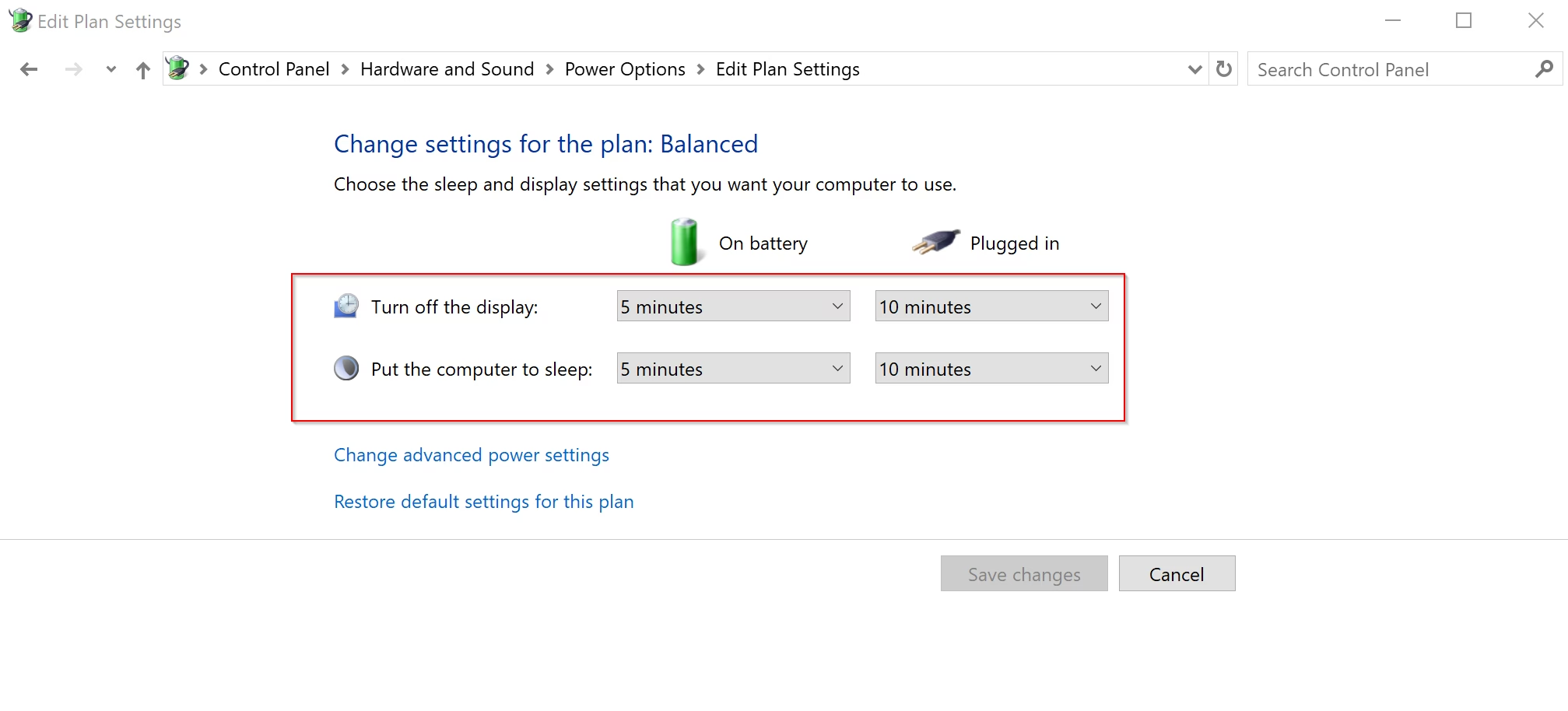
Changes made here and in Settings affect the same power plan (a saved group of power options), so they stay in sync. If you change the value in one place, the other shows the new value the next time you open it. To repeat the change later, open Power Options, click the option to choose when the computer sleeps, and use the drop-down menus to set your preferred idle time.
Advanced Option: Use Power Plan Settings
Use this method when you want to enter an exact number of minutes instead of choosing from a preset list. These steps work the same on Windows 11 Home and Pro.
- Open Control Panel and go to Power Options. Your power plans are listed.
- Click Change plan settings next to your current power plan. This is the plan with the selected radio button.
- Click Change advanced power settings. A small Power Options window opens.
- Expand Sleep by clicking the plus (+) next to it. You may need to scroll down to find it.
- Expand Sleep after. Two entries appear: On battery and Plugged in.
- Enter the number of minutes for On battery and Plugged in. Values here are in minutes, so for two hours enter 120. Enter 0 to choose Never.
- Click OK to save. The window closes and the new values apply.
- Close Control Panel.
That’s it. Your active power plan now sleeps after the exact number of minutes you entered.
This only changes the plan you selected. If you switch to a different power plan, it has its own sleep values. If you set a value and it doesn’t take effect, check that you edited the active plan.
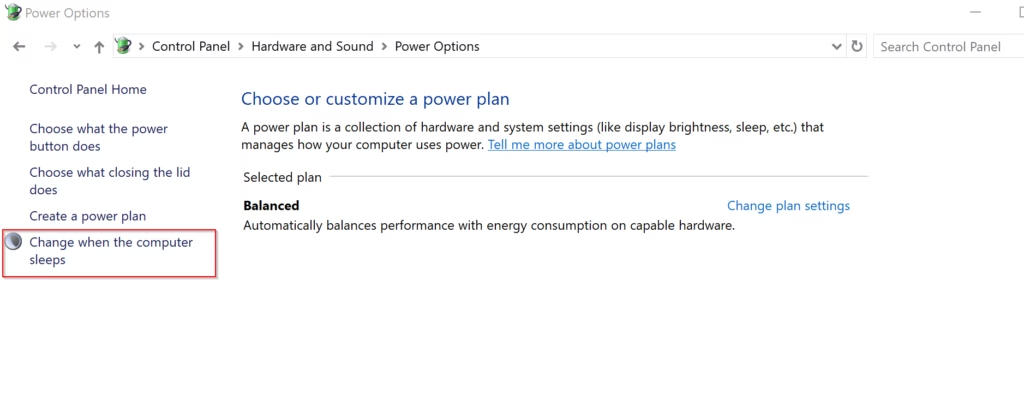
The advanced power plan settings let you set the Windows 11 sleep timeout down to the exact minute for both battery and plugged-in states. Open Control Panel, go to Power Options, click change plan settings next to your active plan, and open the advanced power settings window to enter your custom sleep durations.
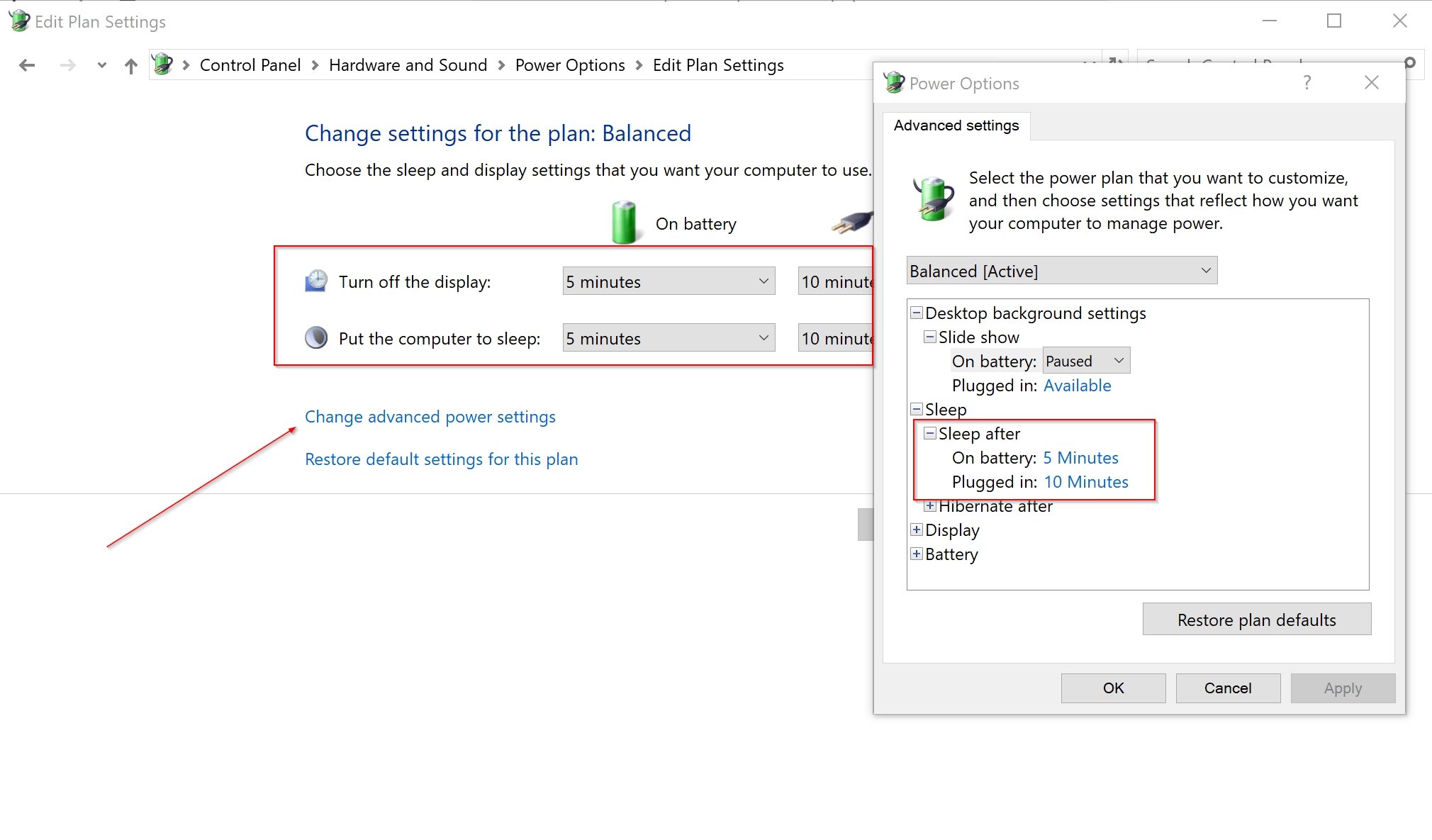
Traditional power plans offer deeper customisation. Expand the Sleep section here to fine-tune the sleep duration for both battery and plugged-in states. The same window also lists related options, such as hibernate and wake timers, which can affect when and how your PC sleeps or wakes.
Use Command Prompt to Change Sleep Timeout (For Advanced Users)
Command Prompt lets you change the sleep timeout, in minutes, with the built-in powercfg tool, without clicking through menus. It’s handy for scripts or for setting up several PCs. The commands change the active power plan. Follow these steps to set the sleep time from the command line:
- Open Command Prompt. Open the Start menu, type cmd and open Command Prompt. If a command later fails with an access error, close the window, right-click Command Prompt, choose Run as administrator, then try again.
- Enter the battery command. It sets the timeout for battery power. Type the command shown below, replacing the minutes value with the time you want.
The `powercfg /change standby-timeout-dc <minutes>` command sets the sleep time for Windows 11 laptops when they operate on battery power. For example, setting `<minutes>` to 30 means the laptop will go to sleep after 30 minutes of inactivity on battery. This command reduces power draw to extend battery life during idle periods.
- Enter the plugged-in command. It sets the timeout for when the PC is plugged in, using the command shown next.
powercfg -change -standby-timeout-ac <minutes>
- Replace <minutes> with the time you want. The value is in minutes. Enter 0 to disable automatic sleep entirely. For example, to enforce a 30-minute timeout while plugged in, type:Code
powercfg -change -standby-timeout-ac 30 - Press Enter. If it worked, Command Prompt shows no message and returns to the prompt. You can check the result in Settings.
That’s it. The active power plan now uses the sleep timeout you entered. To undo a change, run the command again with your previous value.
Summary
- Save EnergySleep mode helps your PC save power and protect your battery.
- CustomizeYou can pick how long your computer waits before sleeping, separately for battery and plugged-in use.
- Quick to ChangeChange sleep settings in Settings, Control Panel, advanced power settings, or with commands. No restart is needed.
- Protect Your WorkSleep keeps your session in memory so you can resume quickly. It’s still a good habit to save important files before you leave, in case the battery runs out while the PC is asleep.
- More HelpCheck Microsoft’s official guide if you want to learn more.
Adjusting your Windows 11 sleep timeout helps you balance battery life and convenience by controlling how long your computer stays awake while idle. You can change these standby intervals in the Settings app, Control Panel, the advanced power plan settings or Command Prompt, whichever suits you best.
Frequently asked questions
How do I disable sleep mode on 🪟 Windows 11?
Open Settings, then go to System Power & battery Screen and sleep. Set "When plugged in, put my device to sleep after" to Never. To stop sleep on battery too, set "When on battery power, put my device to sleep after" to Never. Choose a time instead if you want the PC to sleep after a set period of inactivity.
How do I adjust USB power settings in 🪟 Windows 11?
Open Device Manager and expand Universal Serial Bus controllers. Double-click each USB Root Hub, open the Power Management tab, and clear "Allow the computer to turn off this device to save power." For a broader change, open Power Options, then Change advanced power settings, and set USB selective suspend setting to Disabled.
What is the keyboard shortcut to sleep my Windows monitor?
Windows 11 has no built-in keyboard shortcut to turn off the monitor. Pressing Win+L locks the PC but doesn't turn the screen off. To make a one-click option, create a desktop shortcut with a third-party tool such as NirCmd, which can turn the display off with a single command.
Why doesn't my Windows computer have a sleep option?
Sleep is usually hidden from the Power menu in the Start menu because it was turned off in the power button settings. Open Control Panel, go to Hardware and Sound Power Options Choose what the power buttons do, click Change settings that are currently unavailable, and tick Sleep under Shut-down settings.
Still have a question?
Answered by AI from this guide. Good questions may be added to this page — please don't include personal details.
Did this guide fix your problem?

About the Author
Richard
Tech Writer, IT Professional
Richard is a writer at Geek Rewind who turns complex IT tasks into clear, step-by-step guides. He draws on years of hands-on experience in system administration and enterprise IT operations, focusing on Windows, Linux and WordPress: the problems people actually run into, and the fixes that work. His server and WordPress guides come from systems he runs himself. Richard builds and maintains the platform behind Geek Rewind, from its Ubuntu servers and Nginx configuration to its custom WordPress plugins. Many new tutorials start with readers' questions, and he's always glad to answer them in the comments.
No comments yet — be the first to share your thoughts!