How to Change Screen Timeout in Ubuntu Linux


Screen timeout in Ubuntu Linux controls how long your PC stays awake before the screen dims and locks. Ubuntu sets this timer to 5 minutes by default to save battery and protect your privacy, but you can change it to fit what you need.
Open the Settings app on Ubuntu 22.04 and newer to adjust this timer so your display stays on longer while you read or watch videos.
Adjust the Blank Screen Delay in System Settings under Privacy or Power. Navigate to Settings, then Privacy, and select Screen to find the Blank Screen Delay drop-down. You can also access this via Settings, then Power, and adjust the Screen Blank option.
How to change when your computer screen goes blank in Ubuntu Linux
You can change screen timeout Ubuntu settings by opening the Settings app, going to the Power or Privacy section, and choosing how long your computer waits before turning off the display. Adjusting this timer keeps your screen awake longer while you read or watch videos, or turns it off faster to save battery power on a laptop.

Click the system menu in the top-right corner of the top bar, then select Settings as shown in the image.
Highlight Settings on the system menu below.

Click the Privacy tile inside the Settings app to expand it.
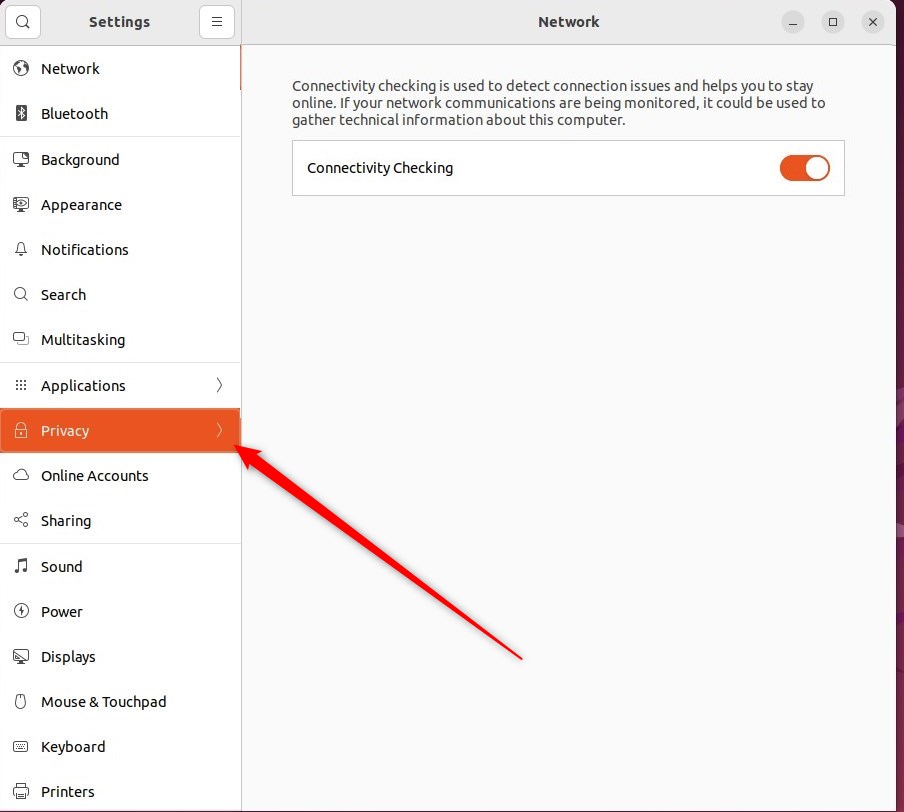
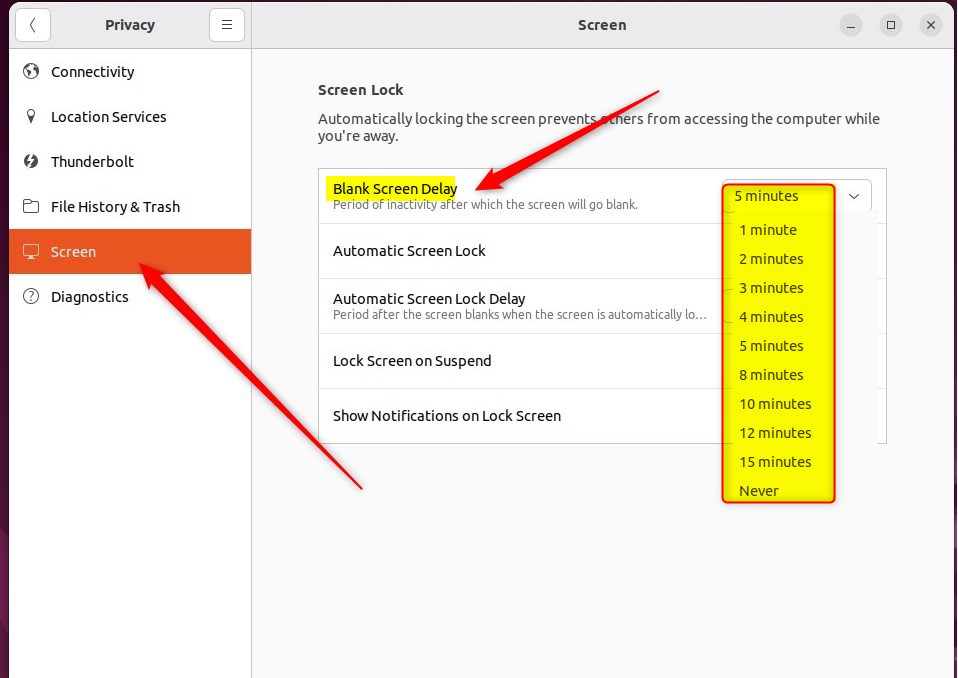
Open the panel by clicking Screen inside the System Settings -> Privacy settings pane.
Open System Settings - Privacy - Screen, then use the Blank Screen Delay drop-down menu to pick a new duration or turn blanking off entirely.
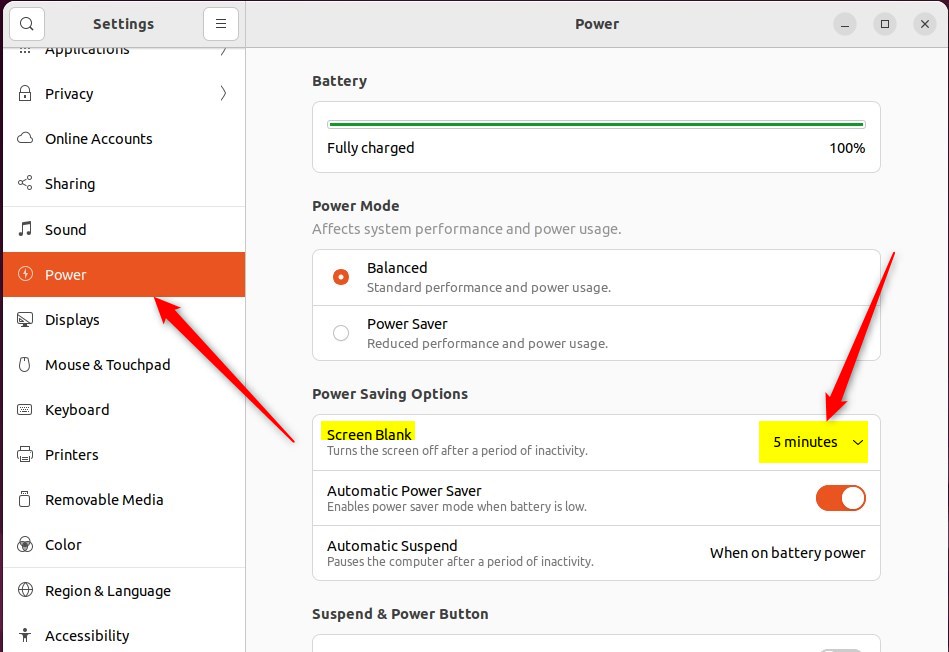
Alternatively, open System Settings - Power. Use the Screen Blank drop-down list under Power Saving Options to set the time until the screen blanks or disable the blanking altogether.
Ubuntu Linux allows adjusting the Blank Screen Delay independently of the Automatic Screen Lock.
Close the Settings app once finished.
Adjusting these settings helps balance privacy and energy use.
- Adjusting Blank Screen Delay and Automatic Screen Lock settings in Ubuntu Linux can enhance privacy and security.
- Modifying the Blank Screen Delay can also help save energy and extend device's battery life.
- Changing the Blank Screen Delay in Ubuntu Linux involves accessing the System Settings - Privacy - Screen or System Settings - Power panels.
- Ubuntu Linux's centralized location for settings makes it convenient to customize various aspects of the system.
Was this guide helpful?

About the Author
Richard
Tech Writer, IT Professional
Richard is a writer at Geek Rewind who turns complex IT tasks into clear, step-by-step guides. He draws on years of hands-on experience in system administration and enterprise IT operations, focusing on Windows, Linux and WordPress: the problems people actually run into, and the fixes that work. His server and WordPress guides come from systems he runs himself. Richard builds and maintains the platform behind Geek Rewind, from its Ubuntu servers and Nginx configuration to its custom WordPress plugins. Many new tutorials start with readers' questions, and he's always glad to answer them in the comments.



No comments yet — be the first to share your thoughts!