How to Choose App Icons for Windows 11 Taskbar

Choosing the right app icons for your Windows 11 taskbar streamlines your workflow by providing quick access to your most-used programs.
Your Windows 11 taskbar acts as a central hub for launching applications. You can customize it by pinning or unpinning icons, ensuring only the apps you need most are readily available.
A well-organized taskbar in Windows 11 reduces clutter and significantly speeds up launching your essential software. For instance, pinning Microsoft Edge to your taskbar ensures you can open it with a single click, anytime.
You control exactly which app icons appear, making your digital workspace uniquely yours and boosting your productivity.
Open Settings by pressing Windows key + I, then navigate to Personalization > Taskbar. Use the toggle switches within the Taskbar items, System tray icons, and Other system tray icons sections to show or hide specific app icons.
How to Open Your Settings
Opening the Settings menu in Windows 11 is simple and lets you manage your taskbar icons.
Once the window opens, click Personalization on the left side. Then, click Taskbar on the right.

Inside the Taskbar menu, you will see three main areas:
- Taskbar items
- System tray icons
- Other system tray icons
Click on each section to see your choices.
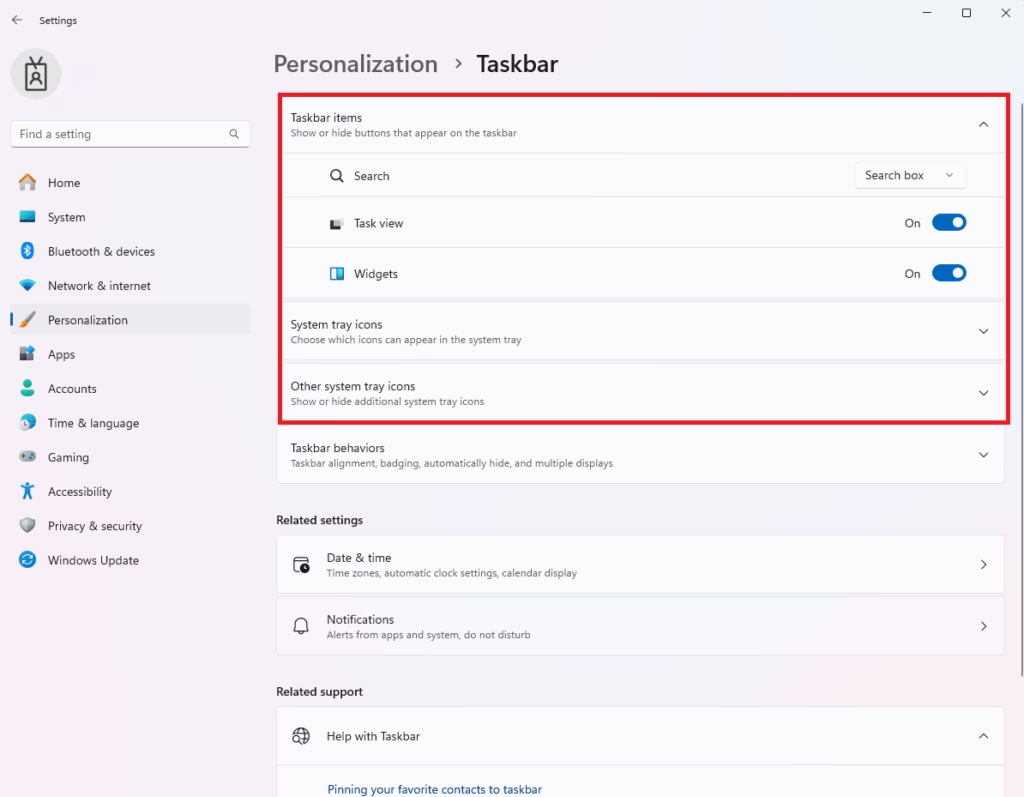
Show or Hide Buttons
Windows 11 starts with some buttons turned on by default. You can add or remove these to fit your needs.
To hide a button, find the switch next to the name and flip it to Off.
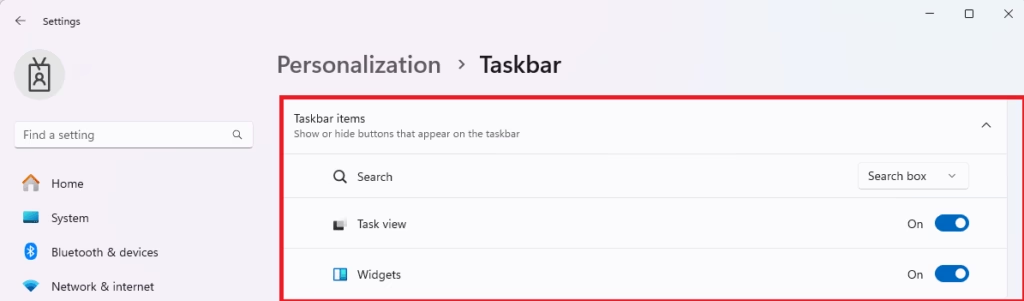
You can adjust these buttons to keep your bar simple.

Managing the System Tray
The system tray, found in the bottom right corner of your screen, is where icons for running apps often gather, and you can easily hide icons you don’t use often.
To stop an icon from showing here, flip the switch to Off in the system tray settings section.
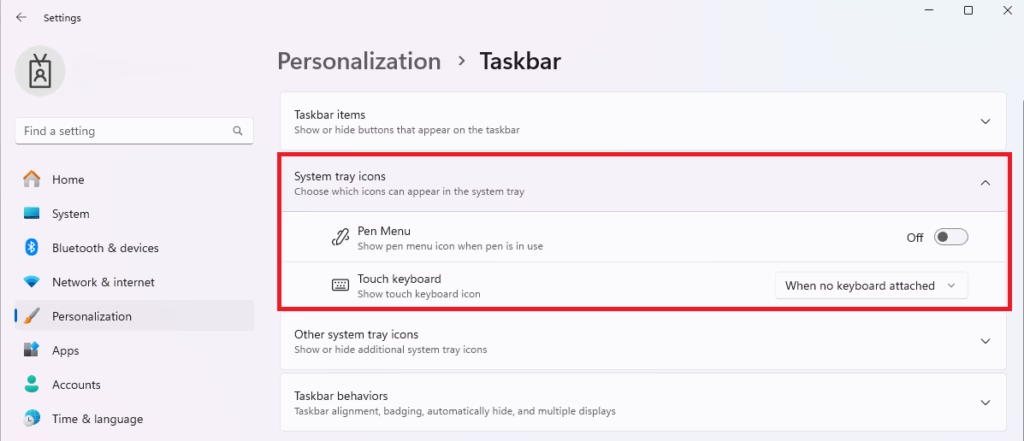
Hiding icons you don’t use will keep your corner area tidy.

Using the Overflow Area
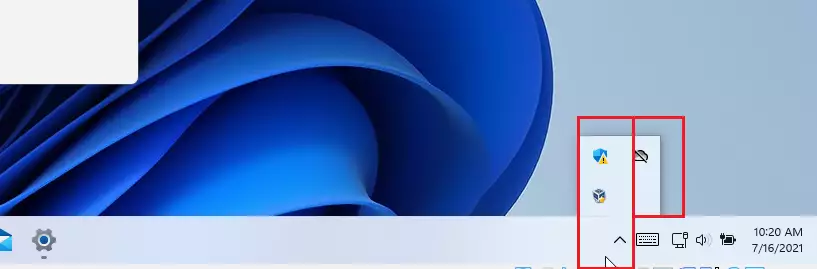
The taskbar’s overflow area acts like a hidden drawer, holding app icons that don’t fit on your main bar, and you can see them by clicking the small up-arrow icon.
When you click the small up-arrow icon, you’ll see all the extra apps you’ve tucked away. It’s like a hidden drawer for icons that don’t quite fit on the main bar.
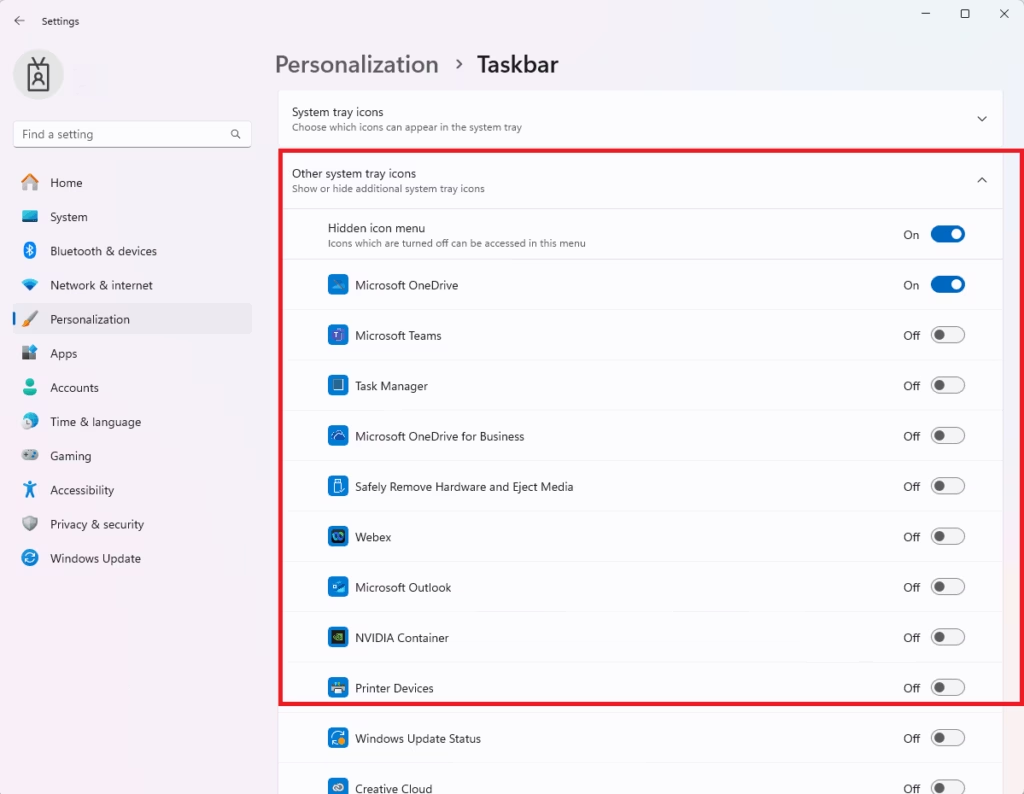
Click that arrow to access your hidden icons whenever you need them.
Summary
Customizing your Windows 11 taskbar helps you work faster by keeping things tidy and making important apps easy to find, and you can easily show or hide buttons and icons.
Hiding unneeded icons makes your taskbar less cluttered, letting important apps pop out.
- Open System Settings with Windows key + I.
- Go to Personalization and then Taskbar to see your options.
- Use the toggle switches to show or hide your buttons and icons.
- A tidy taskbar prevents you from missing notifications and improves your daily workflow.
Was this guide helpful?

About the Author
Richard
Tech Writer, IT Professional
Richard, a writer for Geek Rewind, is a tech enthusiast who loves breaking down complex IT topics into simple, easy-to-understand ideas. With years of hands-on experience in system administration and enterprise IT operations, he’s developed a knack for offering practical tips and solutions. Richard aims to make technology more accessible and actionable. He's deeply committed to the Geek Rewind community, always ready to answer questions and engage in discussions.



[…] pane. You can access the Settings page by clicking the OneDrive icon on the Taskbar (Taskbar overflow) and selecting the gear -> Settings on the context […]
[…] pane. You can access the Settings page by clicking the OneDrive icon on the Taskbar (Taskbar overflow) and selecting the gear -> Settings on the context […]
[…] user prints in Windows, a printer icon is usually displayed in the Windows notification area or the taskbar corner overflow […]
[…] pane. You can access the Settings page by clicking the OneDrive icon on the Taskbar (Taskbar overflow) and selecting the gear -> Settings on the context […]
[…] click the Phone Link background app icon on the Taskbar (Taskbar overflow) to […]
[…] You can also quickly access the OneDrive icon from the Taskbar overflow. […]
[…] When the “Minimize to system tray” option is selected, the Signal app will start and launch in the Taskbar app overflow pane. […]
[…] When the “Launch minimized” option is selected, the Telegram app will start and launch in the Taskbar app overflow pane. […]
[…] the Google Drive icon in the Taskbar overflow and select Settings -> Offline files to see all offline […]
[…] pane. You can access the Settings page by clicking the OneDrive icon on the Taskbar (Taskbar overflow) and selecting the gear -> Settings on the context […]
[…] pane. You can access the Settings page by clicking the OneDrive icon on the Taskbar (Taskbar overflow) and selecting the gear -> Settings on the context […]
[…] click the Phone Link background app icon on the Taskbar (Taskbar overflow) to […]
[…] settings pane. You can access the Settings page by clicking the OneDrive icon on the Taskbar (Taskbar overflow) and selecting the gear -> Settings on the context […]
[…] can also open the OneDrive app icon on the taskbar notification area (Taskbar overflow). When the app opens, click Get started if this is the first time you see Personal […]
[…] You can also quickly access the OneDrive icon from the Taskbar overflow. […]
[…] You can also quickly access the OneDrive icon from the Taskbar overflow. […]
[…] You can also quickly access the OneDrive icon from the Taskbar overflow. […]
[…] might need to click the Show hidden icons arrow next to the notification area to see the OneDrive icon. If the icon doesn’t […]
[…] might need to click the Show hidden icons arrow next to the notification area to see the OneDrive icon. If the icon […]
[…] settings pane. You can access the Settings page by clicking the OneDrive icon on the Taskbar (Taskbar overflow) and selecting the gear -> Settings on the context […]
[…] settings pane. You can access the Settings page by clicking the OneDrive icon on the Taskbar (Taskbar overflow) and selecting the gear -> Settings on the context […]
[…] settings pane. You can access the Settings page by clicking the OneDrive icon on the Taskbar (Taskbar overflow) and selecting the gear -> Settings on the context […]
[…] You can also quickly access the OneDrive icon from the Taskbar overflow. […]
[…] You can also quickly access the OneDrive icon from the Taskbar overflow. […]
[…] you turn on Bluetooth on Windows, a notification icon will show on the taskbar or corner overflow by default. If Bluetooth is turned off or disabled, you will not see its icon on the taskbar or […]
[…] do that, click the OneDrive icon on the Taskbar (Taskbar overflow) to open the menu. Then click the Lock Personal Vault button to lock your […]
[…] quickest way to open and use the touch keyboard is from the Taskbar corner icon’s […]
[…] click the Phone Link background app icon on the Taskbar (Taskbar overflow) to […]
[…] First, click on the Start menu -> All apps -> and select Phone Link. Alternatively, click the Phone Link background app on the Taskbar (Taskbar overflow). […]
[…] article explains how to hide (remove) or unhide (add) the Copilot button on the Taskbar in Windows […]
[…] click the Phone Link background app icon on the Taskbar (Taskbar overflow) to […]
[…] Other default icons added to the Taskbar in Windows 11 can not be removed easily by right-clicking and unpinning. You will have to use the Windows Settings app to hide these icons. […]
[…] might need to click the Show hidden icons arrow next to the notification area to see the OneDrive icon. If the icon doesn’t […]
[…] Open the Phone Link app on your computer. You can find it in your Start menu under All apps, or by clicking the icon in your Taskbar (Taskbar overflow). […]
[…] Look at the bottom right of your screen on the Taskbar. Click the little up-arrow icon. Then, click the OneDrive cloud icon. Taskbar or Taskbar overflow menu. […]
[…] To control your speeds, first set up OneDrive in Windows 11. If you have files you do not want to download, open the OneDrive app. You can find it in the Start menu or at C:Program FilesMicrosoft OneDriveOneDrive.exe. You can also click the OneDrive icon in the Taskbar overflow. […]