How to Toggle ‘Open at Computer Login’ in Signal Desktop

You toggle ‘Open at Computer Login’ in Signal Desktop to control whether the secure messaging app automatically launches when you sign into Windows.
This setting directly impacts your user experience and system performance by determining if Signal starts in the background with your operating system.
For example, enabling ‘Open at Computer Login’ means Signal is ready for instant use the moment your Windows desktop appears, ensuring you don’t miss messages.
Disabling this option can speed up your Windows login process and free up system resources, especially if you don’t need Signal running constantly.
Open Signal Desktop, go to Preferences > General, and check or uncheck the ‘Open at computer login’ box. This setting controls whether Signal automatically launches when you start your computer.
Steps to Toggle Open at Computer Login
You can easily change your Signal Desktop login settings to control if the app opens automatically when you start your computer.
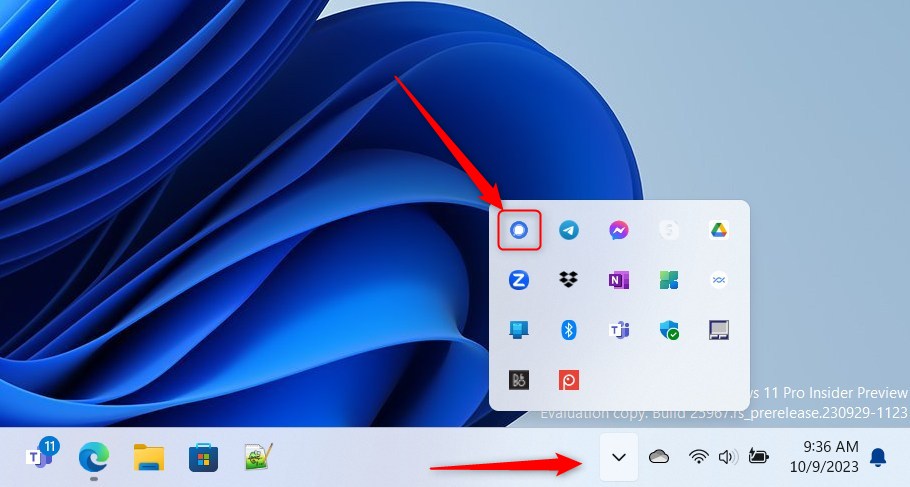
2. You can also launch it from the Taskbar or Taskbar overflow.
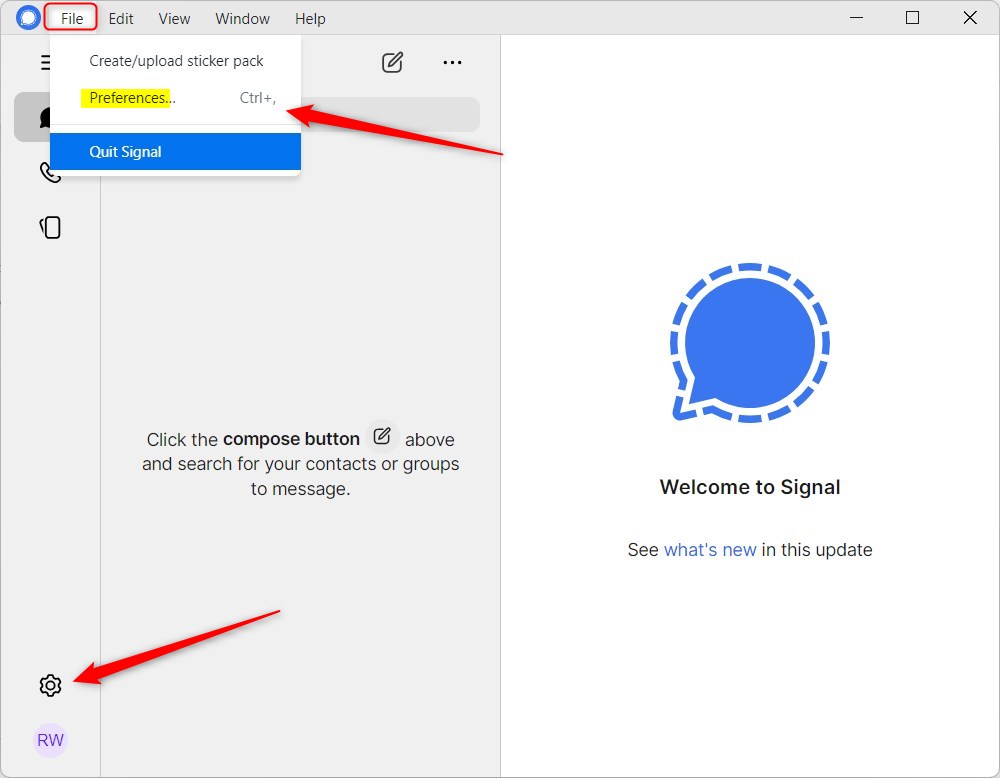
3. Once the app is open, click File and select Preferences. You can also press CTRL + , on your keyboard or click the Settings (gear) icon in the bottom left corner.
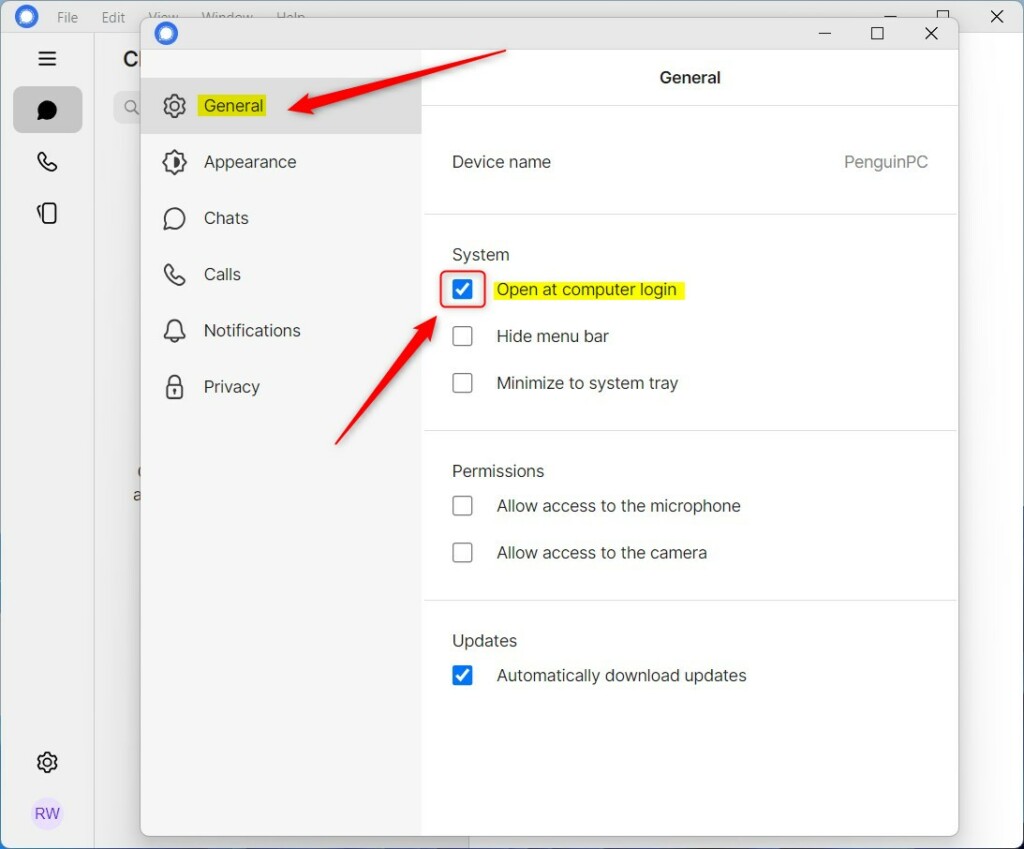
4. In the Preferences window, click General on the left side. Look for the System section on the right.
5. Check the box for Open at computer login to have it open automatically. Uncheck the box to stop it from opening.
6. If you want the app to run in the background without a window popping up, check the box that says Minimize to system tray.
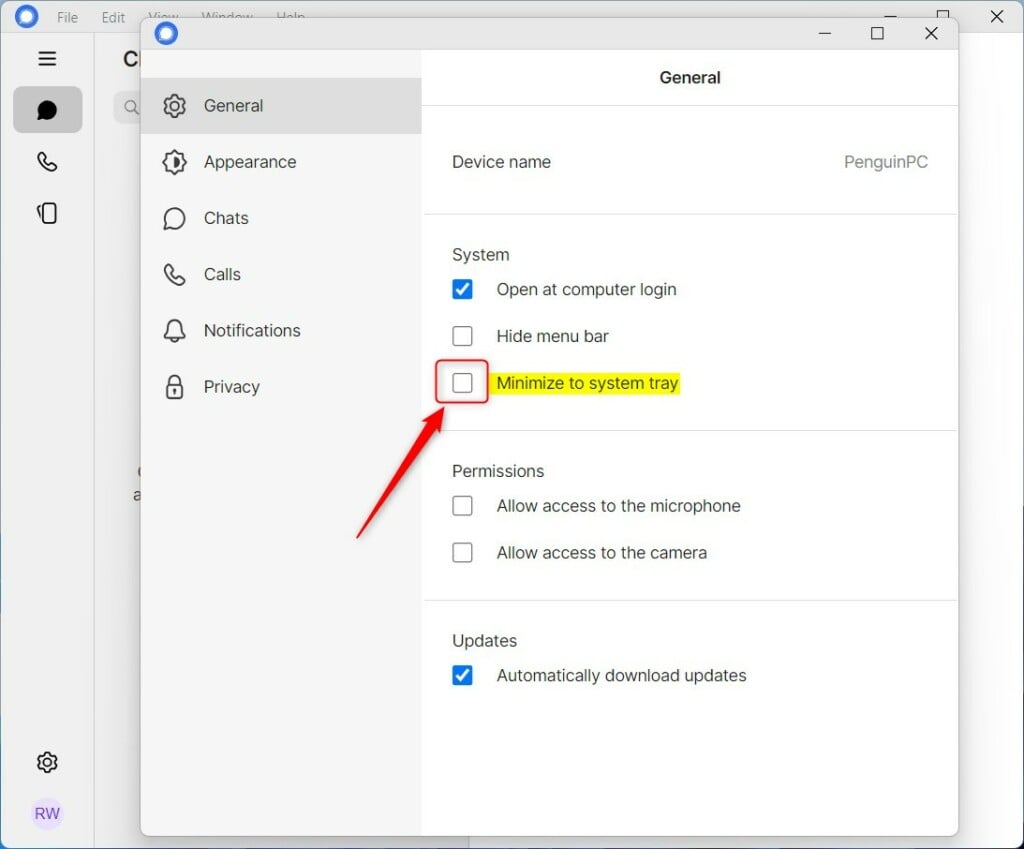
When you use the Minimize to system tray option, the app will run quietly in your Taskbar app overflow pane.
Troubleshooting Signal Startup Issues
If Signal isn’t opening when your computer starts, the first thing to check is your computer’s startup settings to fix Signal not opening at startup.
Summary
Managing your Signal Desktop login settings lets you decide if the app starts automatically when you log in, helping your computer run smoothly.
Why does Signal keep asking for a password on startup?
Signal asks for a password if you have enabled the app lock feature. This is a security measure to protect your chats. If you want to bypass this, you must disable the app lock in the Privacy settings, though this reduces the security of your local message database.
Does disabling ‘Open at Login’ stop Signal from receiving messages?
Yes. When Signal is not running in the background, it cannot connect to the server to fetch new messages. You will only receive notifications and updates for new messages once you manually open the application and it establishes a connection to the Signal servers.
How do I fix Signal not opening at login on 🪟 Windows 11?
To fix Signal not opening at login on Windows 11, first check the app’s preferences, and if that doesn’t work, look at your Windows startup folder.
Was this guide helpful?

About the Author
Richard
Tech Writer, IT Professional
Richard, a writer for Geek Rewind, is a tech enthusiast who loves breaking down complex IT topics into simple, easy-to-understand ideas. With years of hands-on experience in system administration and enterprise IT operations, he’s developed a knack for offering practical tips and solutions. Richard aims to make technology more accessible and actionable. He's deeply committed to the Geek Rewind community, always ready to answer questions and engage in discussions.



[…] you install and set up the Signal Desktop app, you can choose to have it open automatically when you log in to your computer. The app also allows you to turn on or off call relay through Signals’ servers to avoid […]
[…] you install and set up the Signal Desktop app, you can choose to have it open automatically when you log in to your computer. The app also allows you to turn on or off call relay through Signals’ servers to avoid […]
[…] you install and set up the Signal Desktop app, you can choose to have it open automatically when you log in to your computer. The app also allows you to turn on or off call relay through Signals’ servers to avoid […]
[…] you install and set up the Signal Desktop app, you can choose to have it open automatically when you log in to your computer. The app also allows you to turn on or off call relay through Signals’ servers to avoid […]