How to Enable or Disable Skype Background Running in Windows 11

You can enable or disable Skype from running in the background on Windows 11 to manage how it uses your PC’s resources and handles notifications.
Skype background running means the application stays active in your system tray even when its main window is closed, ensuring you get instant calls and messages. By default, Skype for Windows 11 starts automatically and runs in the background when your PC boots up.
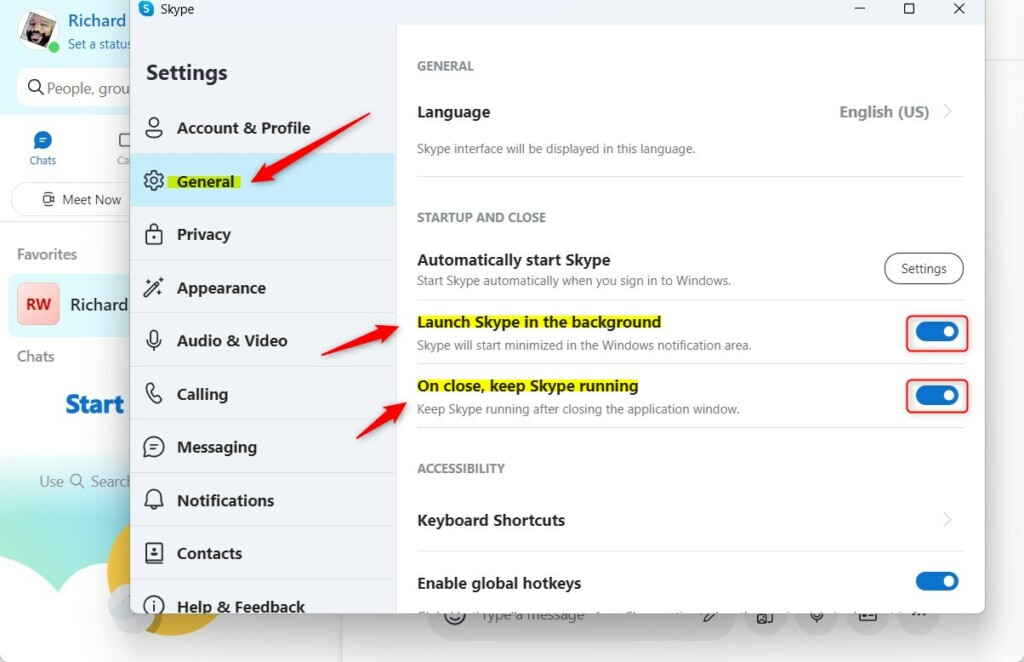
Open Skype, go to Settings > General, and toggle “Launch Skype in the background” and “On close, keep Skype running” to your preference. Alternatively, right-click the Skype icon in the system tray and select “Quit Skype” to temporarily stop it.
What happens when you disable background activity?
Disabling Skype background running in Windows 11 means the app will completely close when you hit the ‘x’ button, and you won’t get new messages or calls until you open it again yourself.
How to fully quit Skype via the System Tray
If you want to close Skype without changing settings, you can use the system tray icon. Look for the small arrow in the bottom right corner of your taskbar. Right-click the Skype icon and select Quit Skype. This stops the process entirely until you restart it.
Managing Skype Startup and Background Settings
You can easily manage Skype background running in Windows 11 right from the app itself, controlling if it starts with your computer or stays active after you close it.
First, open the Skype app using your Start menu.
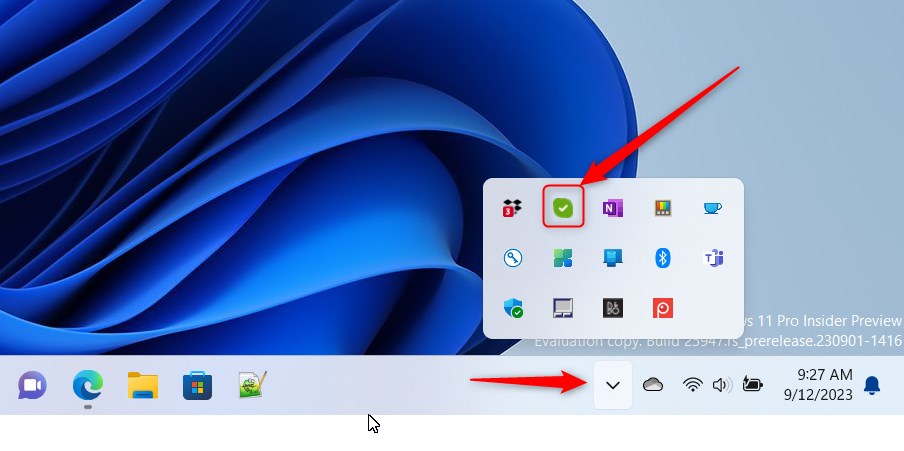
You can also launch the app from the Taskbar or Taskbar overflow.
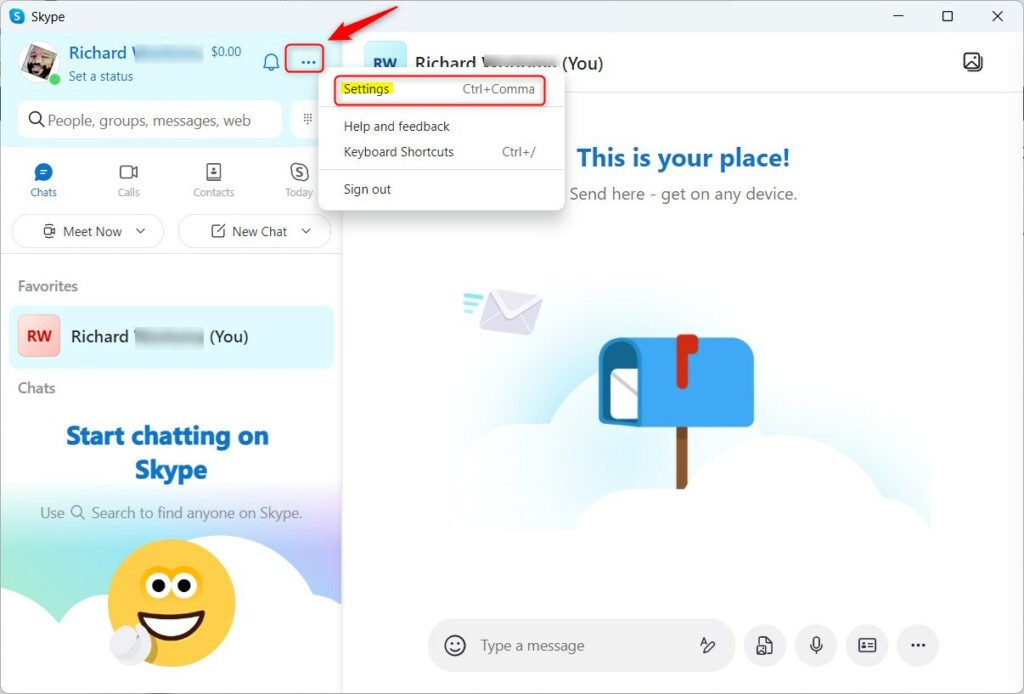
Click the Settings and more (…) button located near your profile picture. Select Settings from the menu.
Select the General tab on the left side. On the right, you will see the STARTUP AND CLOSE section. Toggle the switches to On or Off for these options:
- Launch Skype in the background
- On close, keep Skype running
Advanced 🪟 Windows 11 App Management
For more control over Skype background running in Windows 11, you can use the system’s app settings to manage its permissions and stop it from using resources when you’re not actively using it.
Power and Battery Impact
Keeping many apps running in the background can reduce your laptop’s battery life. You can monitor this by going to Settings > System > Power & battery. If Skype’s high on the list, turning off background activity is a smart way to optimize your Windows 11 performance.
Summary
Controlling Skype background running in Windows 11 lets you decide how much power your computer uses, ensuring you get calls and messages instantly or saving resources by keeping the app closed.
Does disabling background activity stop me from receiving calls?
Yes. If you disable background activity, Skype will not be able to alert you to incoming calls or messages while the app is closed. You must manually open the application to check for new activity or to receive incoming communication from your contacts.
How do I prevent Skype from launching on Windows startup?
You can stop Skype from starting automatically by opening Task Manager (Ctrl+Shift+Esc). Navigate to the Startup apps tab, find Skype in the list, right-click it, and select Disable. This prevents the app from launching every time you sign into Windows.
Is it safe to disable background permissions for Skype?
Yes, it is perfectly safe. Disabling background permissions will not harm your computer or the Skype application. It simply changes how the app behaves when you are not actively using it, giving you more control over your system resources and notification frequency.
Was this guide helpful?

About the Author
Richard
Tech Writer, IT Professional
Richard, a writer for Geek Rewind, is a tech enthusiast who loves breaking down complex IT topics into simple, easy-to-understand ideas. With years of hands-on experience in system administration and enterprise IT operations, he’s developed a knack for offering practical tips and solutions. Richard aims to make technology more accessible and actionable. He's deeply committed to the Geek Rewind community, always ready to answer questions and engage in discussions.




[…] can configure many settings with Skype, including stopping and starting background services, disabling auto start-ups, turning Global hotkeys on or off, and […]
[…] First, open Skype on Windows. […]
[…] Skype is a popular video chat and messaging application by Microsoft. It allows users to make voice and video calls, send instant messages, and share files with other Skype users for free over the internet. […]
[…] Skype is a popular video chat and messaging application by Microsoft. It allows users to make voice and video calls, send instant messages, and share files with other Skype users for free over the internet. […]
[…] Skype is a popular video chat and messaging application by Microsoft. It allows users to make voice and video calls, send instant messages, and share files with other Skype users for free over the internet. […]
[…] Skype is a popular video chat and messaging application by Microsoft. It allows users to make voice and video calls, send instant messages, and share files with other Skype users for free over the internet. […]