How to Hide or Show System Tray Icons in the Taskbar Overflow Menu on Windows 11

Want to tidy up your Windows 11 taskbar? You can choose which icons appear in the system tray or get tucked away.
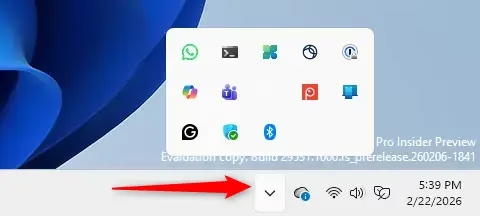
The system tray sits on the right side of your taskbar, showing icons for apps that are running and system functions. When your taskbar gets crowded, Windows 11 tucks away less-used icons into a hidden menu. You can open this menu by clicking the little upward-facing arrow.
This article guides you through controlling which icons appear directly on the taskbar and which ones head to the overflow menu. For example, you might want to hide an icon for a background app you don’t use often, helping to keep your main taskbar clear.
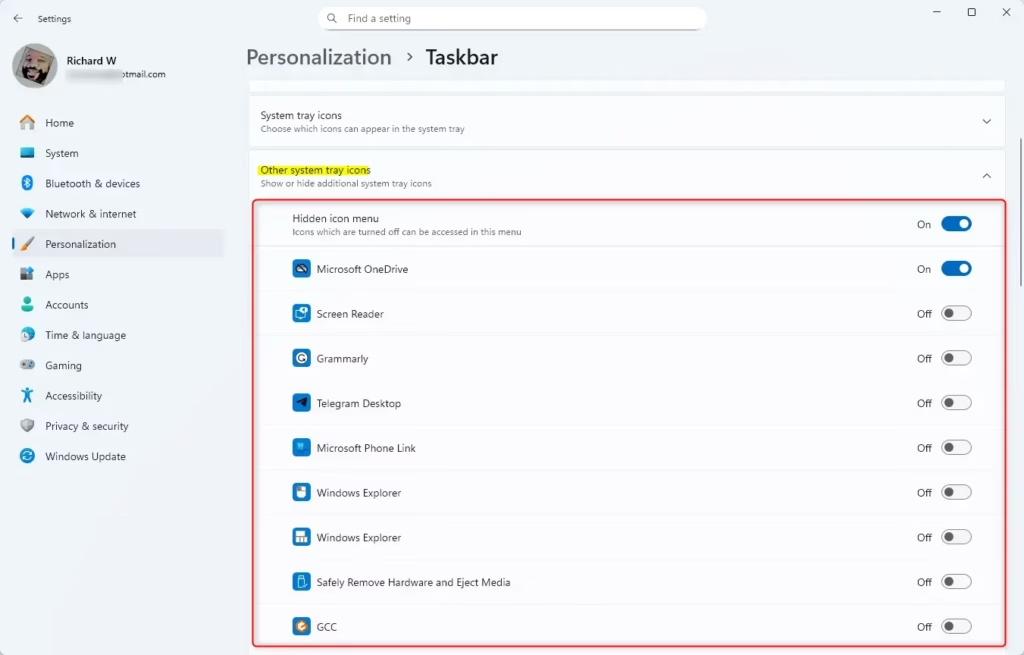
You can manage taskbar icons by dragging them directly onto or off the overflow menu arrow. Alternatively, go to Settings > Personalization > Taskbar > Other system tray icons to toggle icons on or off. This lets you control which icons appear on your taskbar.
What is the Taskbar Corner Overflow Menu?
On Windows 11, not all app icons appear directly on the taskbar all the time. Some get moved to a hidden spot called the taskbar corner overflow menu. You might also see it called the ‘Show hidden icons’ menu. Click the little up arrow (^) near the clock to open it.
You get to decide which icons show up directly on the taskbar and which ones stay hidden in this menu.
How to Move Icons Using Drag and Drop
Hide Icons (Move from Taskbar to Overflow Menu)
- Click and hold the icon you want to hide on the taskbar.
- Drag it upward away from the taskbar.
- Drop it into the overflow menu area (above the taskbar).
Show Icons (Move from Overflow Menu to Taskbar)
- Click the little up arrow (^) on the taskbar to open the overflow menu.
- Click and hold the icon you want to show on the taskbar.
- Drag it down onto the taskbar and release it.
Change Which Icons Appear Using Settings
- Press
Win + Ikeys to open Settings. - On the left, click Personalization, then select Taskbar on the right.
- Click on Other system tray icons to expand the list.
- Turn the switch On to show an icon on the taskbar, or Off to hide it in the overflow menu.

Note for Advanced Users
Windows saves your icon preferences in the system registry here:
HKEY_CURRENT_USER\Control Panel\NotifyIconSettings\App IDIsPromoted0means the icon is hidden (in overflow menu)1means the icon is shown on the taskbar
About “Always Show All Icons and Notifications”
Windows used to have an option in Control Panel called ‘Always show all icons and notifications on the taskbar.’ This setting doesn’t quite work as expected in Windows 11 anymore.
If you want to check it anyway:
- Press
Win + Rto open Run. - Type or paste
shell:::{05d7b0f4-2121-4eff-bf6b-ed3f69b894d9}and press Enter. - In the window that opens, check or uncheck Always show all icons and notifications on the taskbar, then click OK.
Summary
- The taskbar corner overflow menu holds hidden app icons and notifications.
- You can customize which icons show on the taskbar by dragging icons or using Settings.
- Settings are found under Settings > Personalization > Taskbar > Other system tray icons.
- Advanced users can tweak registry settings for more control.
- The “Always show all icons” option is outdated and may not work as expected.
- By following these simple steps, you can keep your taskbar clean and only show the icons you need.
How to fix taskbar overflow menu?
And then you have to choose the restart option in the menu. Now the taskbar will disappear momentarily. And then reappear. After that you have to restart your PC. And check if the overflow.
How to disable taskbar overflow menu and restore?
However, you can disable or hide the overflow menu by adjusting settings or using certain tweaks. Right-click on the taskbar and select "Taskbar settings." In the Taskbar settings, you can turn off or toggle off icons for apps you don't want to appear on the taskbar, which will reduce the overflow.
What is taskbar overflow?
The taskbar overflow area appears when the taskbar is full and the overflow apps are available from there.
How do I turn off taskbar overflow in 🪟 Windows 11?
Right click on the taskbar→Taskbar Settings→Disable Taskbar Overflow will show all icons.
Was this guide helpful?

About the Author
Richard
Tech Writer, IT Professional
Richard, a writer for Geek Rewind, is a tech enthusiast who loves breaking down complex IT topics into simple, easy-to-understand ideas. With years of hands-on experience in system administration and enterprise IT operations, he’s developed a knack for offering practical tips and solutions. Richard aims to make technology more accessible and actionable. He's deeply committed to the Geek Rewind community, always ready to answer questions and engage in discussions.


No comments yet — be the first to share your thoughts!