How to Use Sticky Notes in Windows 11


Sticky Notes in Windows 11 lets you digitally capture quick thoughts and reminders directly on your desktop.
Think of it as your virtual notepad, perfect for jotting down to-do lists, phone numbers, or important tasks without losing them.
This handy app, built into Windows 11, behaves much like traditional paper sticky notes, but with added digital convenience.
You can customize your notes with a variety of colors and, by signing into your Microsoft account, sync them across all your Windows 11 devices, ensuring your reminders are always at your fingertips.
Open Sticky Notes by clicking the Start menu, selecting All apps, and finding Sticky Notes. You can then type directly into the note that appears, create new notes with the ‘+’ button, and customize colors via the (…) menu.
How to Open Sticky Notes
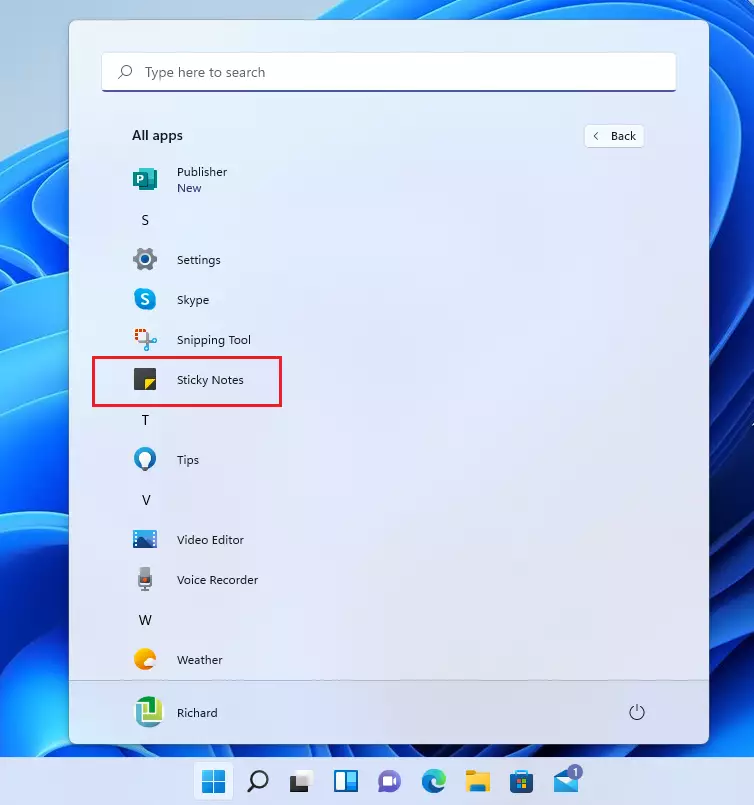
You can open Sticky Notes in Windows 11 by clicking the Start menu, then selecting ‘All apps’, and finally clicking on the Sticky Notes icon.
To keep the app handy, right-click the Sticky Notes icon on your Taskbar and select Pin to taskbar.
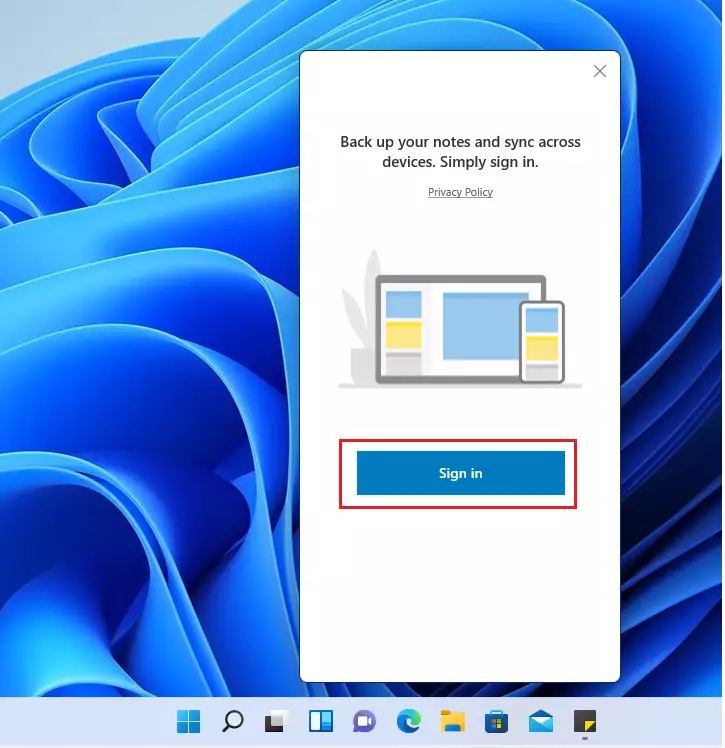
When you first open the app, it may ask you to sign in with your Microsoft account. Signing in allows your notes to back up and sync across all your devices. If you prefer not to use an account, you can close the sign-in window and start typing.
Managing Your Notes
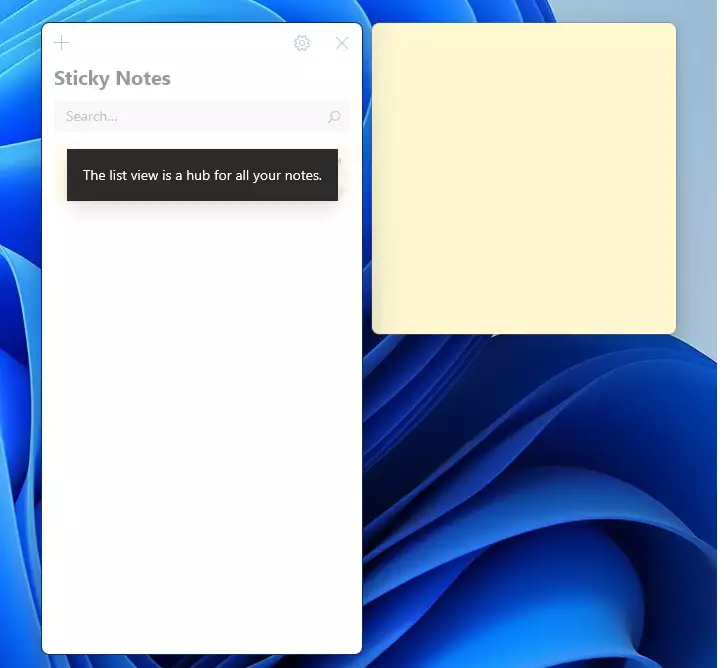
When Sticky Notes Windows 11 is open, a note appears ready for you to type, and your thoughts save automatically.
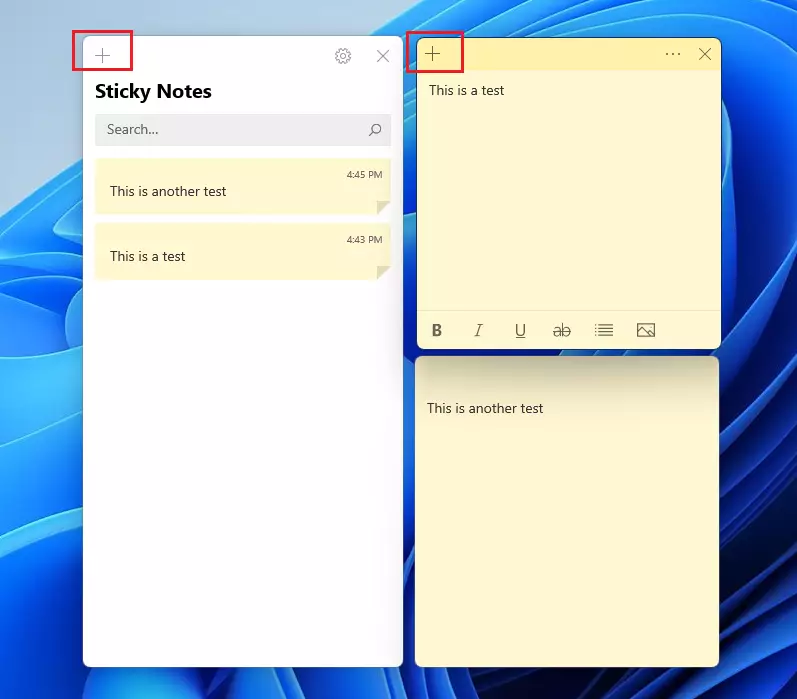
To create a new note, click the + button at the top of any open note.
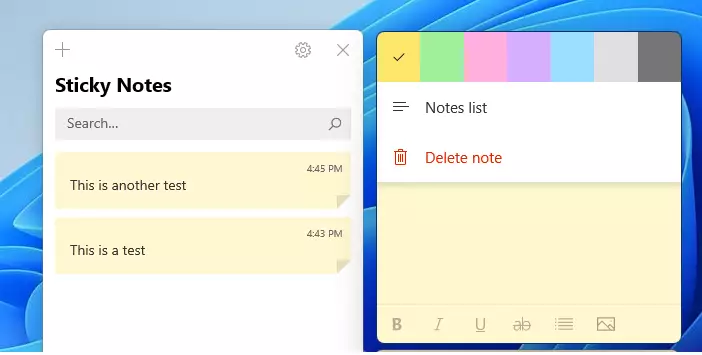
To change the color of a note, click the three dots (…) menu button. Choose a color from the palette to help organize your tasks.
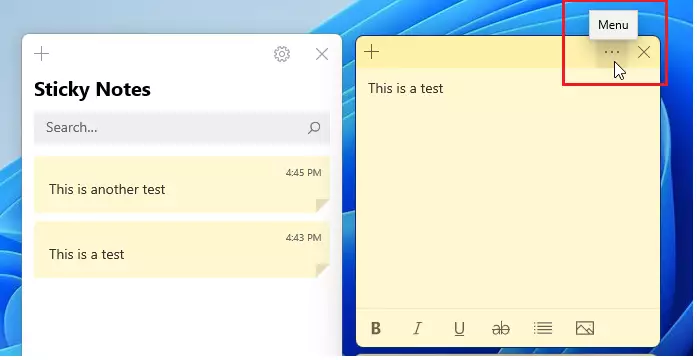
To delete a note, click the same three dots menu and select the trash can icon (Delete note).
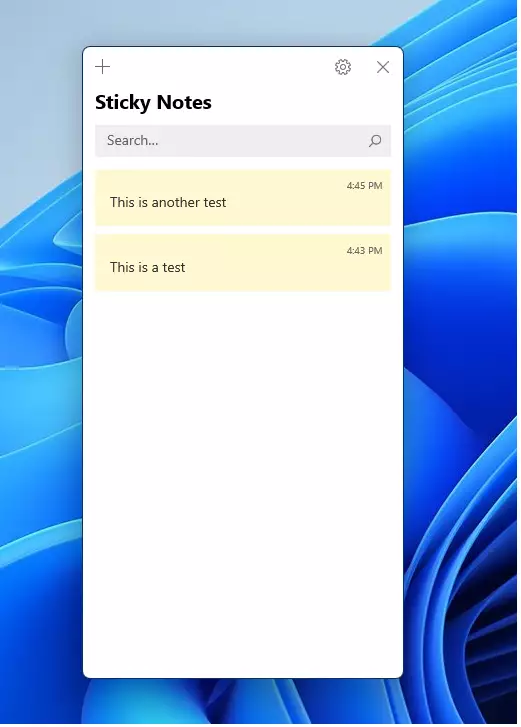
You can move your notes by clicking and dragging the top bar. To resize them, drag the corners. If you click the X on a note, it closes the window, but the note is not deleted. You’ll find all your saved notes in the Sticky Notes hub.
How to Show or Hide All Notes
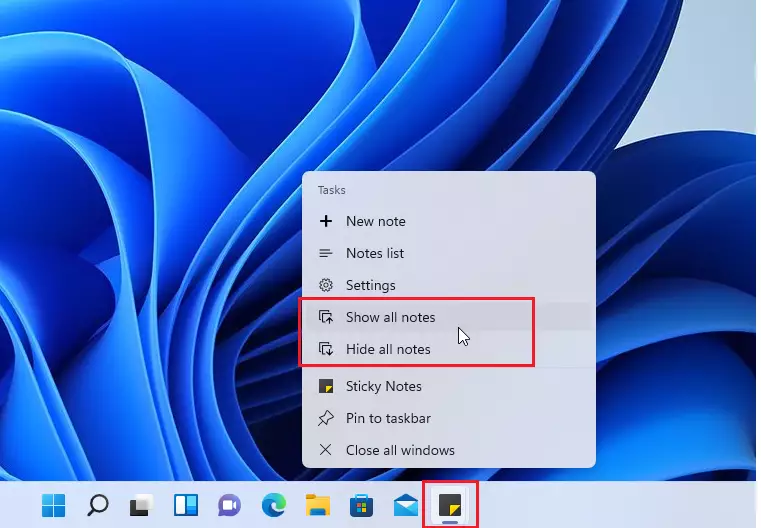
If your screen gets too crowded, you can hide all your notes at once.
Right-click the Sticky Notes icon on your Taskbar and select Show all notes or Hide all notes from the menu.
Summary
Sticky Notes in Windows 11 is a great tool for keeping track of important info. You can quickly jot down text, draw with a pen, and even sync your notes across devices. It’s a simple way to stay organized and make sure you don’t forget anything important.
Was this guide helpful?
100% of readers found this helpful (1 votes)

About the Author
Richard
Tech Writer, IT Professional
Richard, a writer for Geek Rewind, is a tech enthusiast who loves breaking down complex IT topics into simple, easy-to-understand ideas. With years of hands-on experience in system administration and enterprise IT operations, he’s developed a knack for offering practical tips and solutions. Richard aims to make technology more accessible and actionable. He's deeply committed to the Geek Rewind community, always ready to answer questions and engage in discussions.




No comments yet — be the first to share your thoughts!