How to Switch Between Copilot Views in Windows 11

This article explains how to switch between Copilot’s Quick View and Full View on Windows 11.
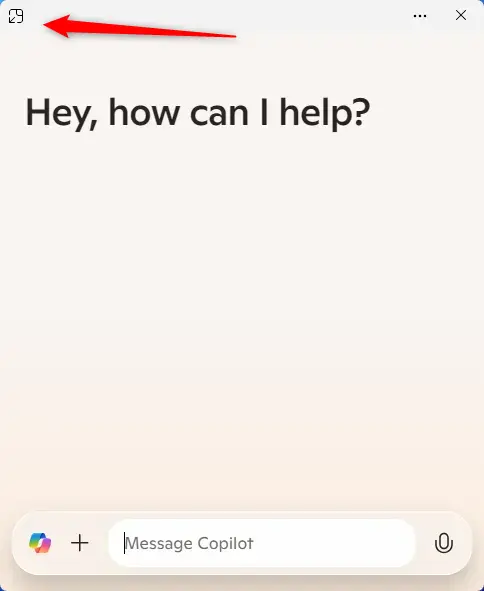
Press Alt+Space on your keyboard to open Copilot in quick view. If you are in quick view, click “Go back to full view” to switch to the larger window.
What is Copilot?
Copilot is a smart assistant built right into Windows 11 that helps you get things done faster by answering questions and completing tasks.
Once Copilot is on your Windows machine, you have a few options: you can enable or disable it, make it launch when Windows starts, pin or unpin its side panel, resize that panel, clear your chat history, or even create a desktop shortcut.
The newest Copilot app (version 1.24112.123.0 and up) has transitioned from a web-based experience to a native application. This means it works better and faster. When you open Copilot, you’ll find it in your system tray at the bottom of your screen.
What Are Quick View and Full View?
Copilot offers two distinct ways to interact with it:
- Quick View: A small window for fast questions and answers.
- Full View: A larger window with more features and options.
You can switch between these two views. Let’s learn how.
How to Open Copilot Quick View
Quick View is perfect when you need a fast answer without opening a large window. Here are two ways to open it:
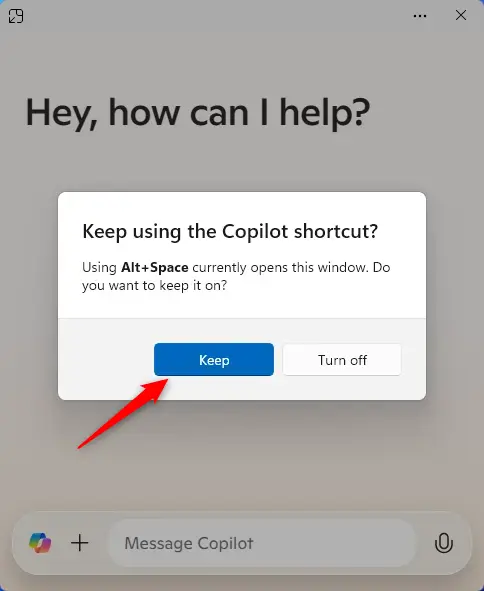
Method 1Use Your Keyboard
- Press
Alt + Spaceon your keyboard. - When asked, click the “Keep” button to save this shortcut.
That’s it! Copilot Quick View is now open.
Method 2Use the Settings Menu
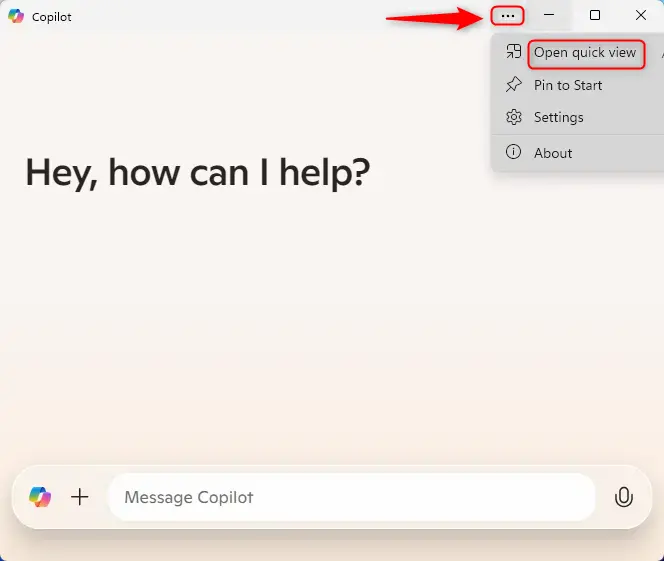
- Open the full view of Copilot.
- Click the Settings and more button (the 3 dots).
- Select “Open quick view.”
How to Open Copilot Full View
Full View gives you more space and more options. When you open Copilot the usual way, it appears in full view by default.
If you’re in Quick View and want to switch back to Full View, look for the “Go back to full view” button and click it.
Summary
You can easily switch between different Windows 11 Copilot views to pick how you want to use it, whether it’s for quick answers or a full chat.
- Quick View: Press
Alt + Spacefor fast access. - Full View: This is the default view when you open Copilot.
- Switch Between Views: Use the buttons in the app to switch back and forth.
- Settings Menu: Click the 3 dots to find more options.
- Better Performance: The new native Copilot app works faster than older versions.
Now you know how to use both views. Choose the one that works best for you!
How to get rid of Copilot preview 🪟 Windows 11?
We’ll go into settings. Over in apps installed apps and sure enough there’s Copilot listed as an app that you can presumably if we click on the ellipses. Uninstall. That’s it the Copilot. App is gone.
How to use Copilot vision in 🪟 Windows 11?
And then search for Copilot. And open up the application. Here I want to share my screen with Copilot. So I can get on screen help and let me wear these headphones.
Was this guide helpful?
0% of readers found this helpful (1 votes)

About the Author
Richard
Tech Writer, IT Professional
Richard, a writer for Geek Rewind, is a tech enthusiast who loves breaking down complex IT topics into simple, easy-to-understand ideas. With years of hands-on experience in system administration and enterprise IT operations, he’s developed a knack for offering practical tips and solutions. Richard aims to make technology more accessible and actionable. He's deeply committed to the Geek Rewind community, always ready to answer questions and engage in discussions.

[…] article explains how to enable or disable the Copilot “Quick View” keyboard shortcut on Windows […]
[…] in full view, toggle the sidebar button to open or close […]
[…] First, open the Copilot app. […]
[…] open the Copilot app on Windows […]
[…] First, open the Copilot app. […]
[…] First, open the Copilot app. […]
[…] For more details on opening Copilot, see this guide. […]