How to Automatically Sync Events from Email to Outlook Calendar


You automatically sync events from your email to your Outlook calendar by enabling a built-in feature that scans for travel, deliveries, and other commitments.
Outlook’s event syncing transforms your inbox into a proactive planner, automatically adding crucial details like flight numbers, hotel reservations, and package tracking information directly to your calendar.
This intelligent automation is available in Outlook 365 and newer versions, helping you stay organized without the tedious task of manual data entry.
With this feature active, you gain a comprehensive, up-to-the-minute view of your schedule, ensuring you never miss an important appointment or shipment.
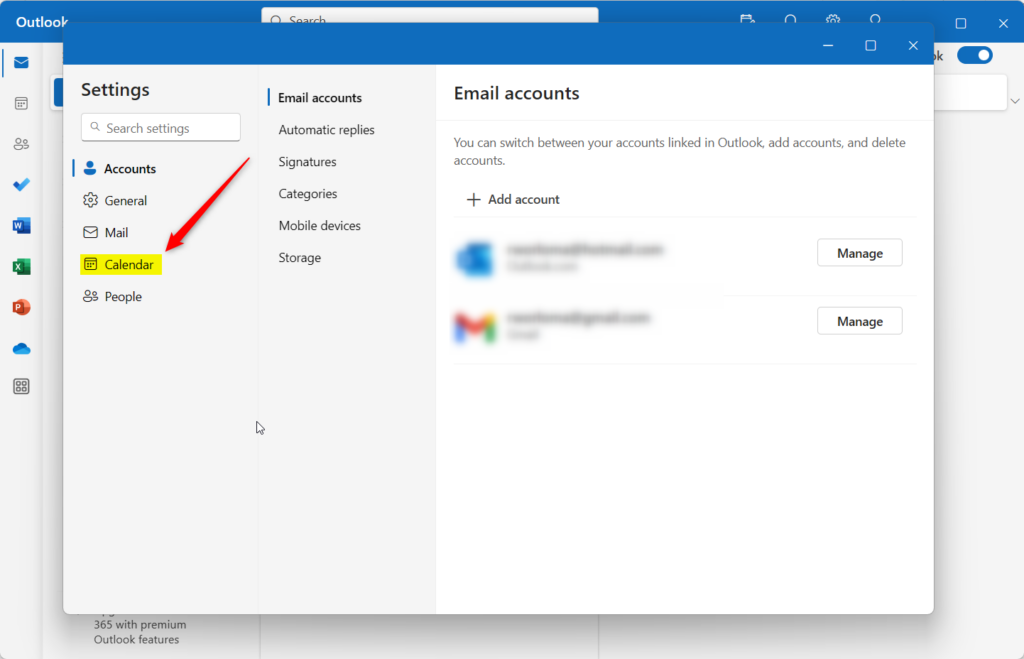
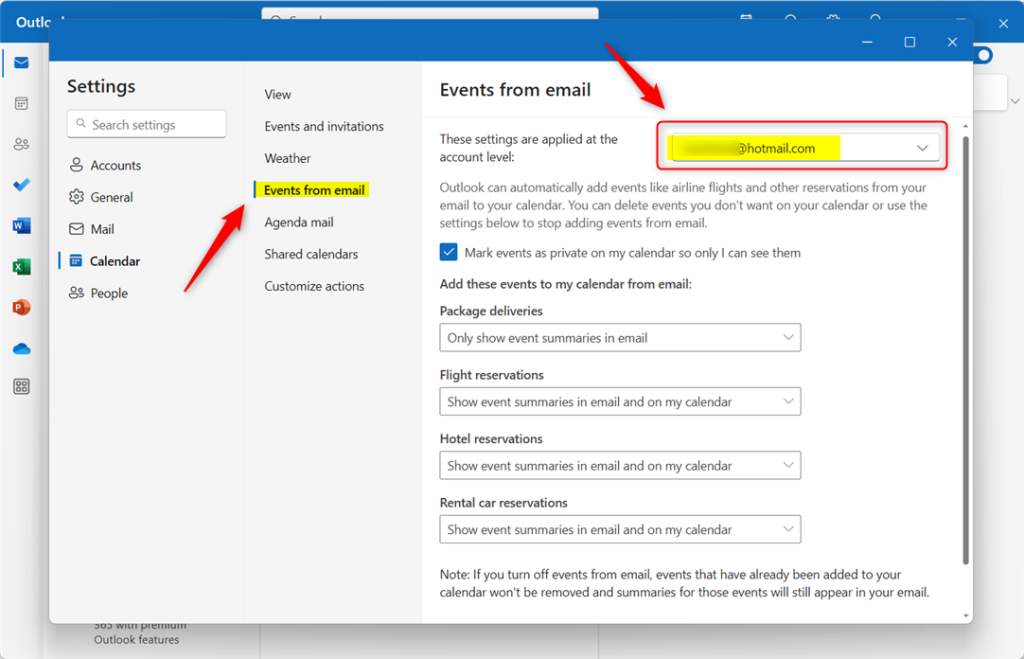
Open Outlook, click the Settings gear, select Calendar, then Events from email. Choose your account and enable toggles for flights, hotels, and package deliveries to automatically add them to your calendar.
Prerequisites
Before you dive in, make sure you have these ready:
- The latest version of the Outlook app installed.
- An active Microsoft 365, Outlook.com, or Gmail account.
- If you are using an external calendar, have your iCal URL or .ics file ready.
How to Sync Events to Outlook
- Open the Outlook app on your computer.
- Click the Settings gear icon in the top right corner.
- Select the Calendar tab.
- Click Events from email.
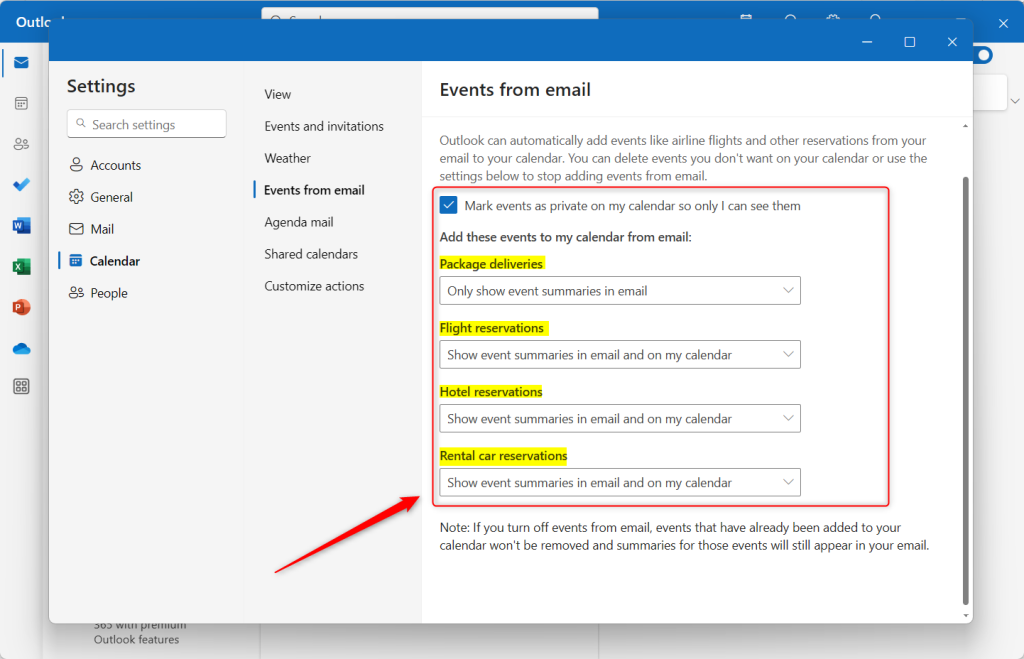
- Choose your account and toggle the settings for Flight reservations, Hotel reservations, and Package deliveries.


Importing vs. Subscribing
Importing an .ics file is a one-time copy. Your calendar won’t update if the original event changes. Subscribing to an iCal URL, however, creates a live link. Your Outlook calendar will then update automatically whenever the source calendar changes. This is the best approach for dynamic schedules.
Using Automation Tools
For complex needs, tools like Zapier or Power Automate can sync events between different platforms. These tools use specific ways (called protocols) to move your calendar information between different apps. Pro-tip: Always check the privacy policy of third-party tools to ensure your data remains secure when granting access to your email and calendar.
Summary
Syncing events to Outlook really simplifies things by automating how you manage your schedule. Whether using built-in email scanning or iCal subscriptions, you can keep your calendar updated across platforms. Always verify your privacy settings when using external tools to protect your personal data.
Does syncing events to Outlook update in real-time?
Yes, when you subscribe to a calendar using an iCal URL, Outlook checks for updates periodically. It might not happen the second a change is made, but your schedule will update to reflect changes from the source provider soon after, so you don’t have to do it yourself.
Can I sync multiple calendars to one Outlook account?
Yes, you can add multiple calendars to your Outlook view. You can subscribe to several external iCal links or add multiple email accounts. Each will appear as a separate layer in your calendar view, allowing you to manage work, personal, and shared schedules in one place.
Is it possible to sync Outlook events to Google Calendar as well?
Yes, you can export your Outlook calendar as an .ics file and import it into Google Calendar. For ongoing sync, you can use the ‘Publish’ feature in Outlook to generate an iCal link, which you can then add to Google Calendar as a subscription.
Was this guide helpful?

About the Author
Richard
Tech Writer, IT Professional
Richard, a writer for Geek Rewind, is a tech enthusiast who loves breaking down complex IT topics into simple, easy-to-understand ideas. With years of hands-on experience in system administration and enterprise IT operations, he’s developed a knack for offering practical tips and solutions. Richard aims to make technology more accessible and actionable. He's deeply committed to the Geek Rewind community, always ready to answer questions and engage in discussions.


[…] week numbers in Outlook calendar, deleting your search history, export your search history, add or remove events from emails to your Calendar, switch to dark mode, link preview, sound alerts for notifications, turn on or off […]
[…] numbers in Outlook calendar, deleting your search history, export your search history, add or remove events from emails to your Calendar, switch to dark mode, link preview, and […]
[…] numbers in Outlook calendar, deleting your search history, export your search history, add or remove events from emails to your Calendar, switch to dark mode, and […]
[…] numbers in Outlook calendar, deleting your search history, export your search history, add or remove events from emails to your Calendar, switch to dark mode, and […]
[…] app has many features, including support for adding or removing events from emails to your Calendar, switching to dark mode, link preview, sounding alerts for notifications, turning on or off […]
[…] app has many features, including support for adding or removing events from emails to your Calendar, switching to dark mode, link preview, sounding alerts for […]