How to Change or Reset Your Windows 11 Password

You change or reset your Windows 11 password by following specific built-in Windows tools or using your Microsoft account online. Knowing how to do this is crucial for maintaining account security and ensuring you can always access your PC.
Changing your password allows you to update to a new, stronger passphrase, enhancing your security. Resetting your password is the key to unlocking your computer if you forget your current one.
For example, if you use a Microsoft account for your Windows 11 login, you can typically reset your password directly through the Microsoft account recovery page online without needing to access your PC.
Change your password through Settings > Accounts > Sign-in options > Password. If you’ve forgotten it, use the Microsoft account recovery page for Microsoft accounts or the “Reset password” link after failed attempts for local accounts.
Change Your Password in 🪟 Windows 11
If you know your current password, changing it is possible via the Settings app.
Step 1 Open Settings
Click the Start menu and select Settings, or press Windows key + I.
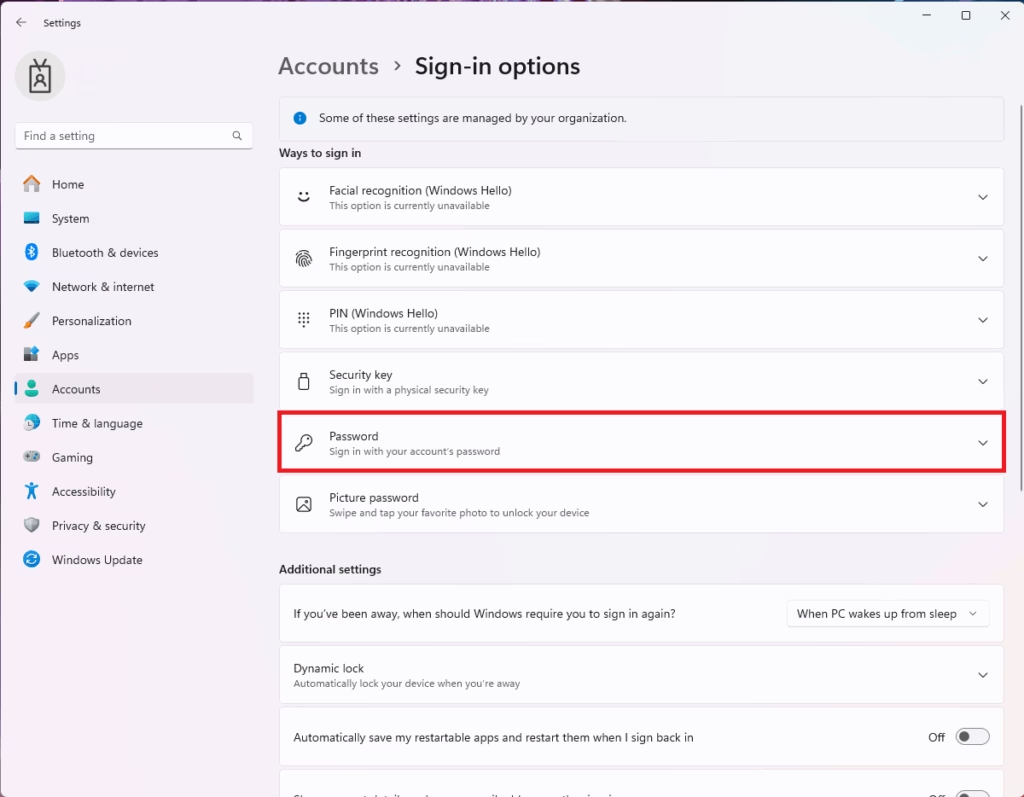
Step 2Go to Sign-in Options
Click Accounts on the left, then select Sign-in options.

Step 3Click Password
Under Ways to sign in, click the Password tile.
Step 4Select Change
Click the Change button.
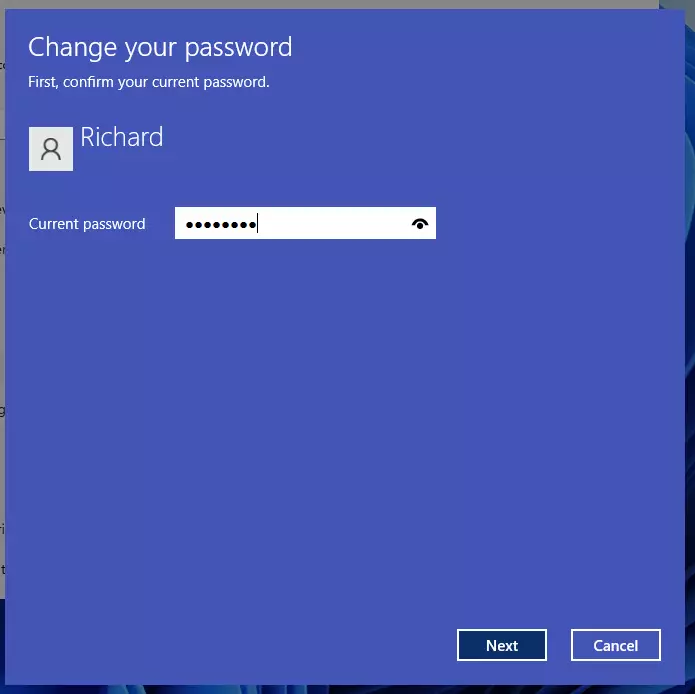
Step 5Verify Identity
Enter your current password. This confirms it’s really you.
Reset Your 🪟 Windows 11 Password
If you are locked out of Windows 11, the method depends on whether you use a Microsoft account or a local account.
If You Use a Microsoft Account
Microsoft accounts are linked to your email. That means you can reset them from any device with internet access. Visit the Microsoft account recovery page to verify your identity and create a new password.
If You Use a Local Account
Local accounts rely on security questions. If you enter the wrong password, a Reset password link appears.
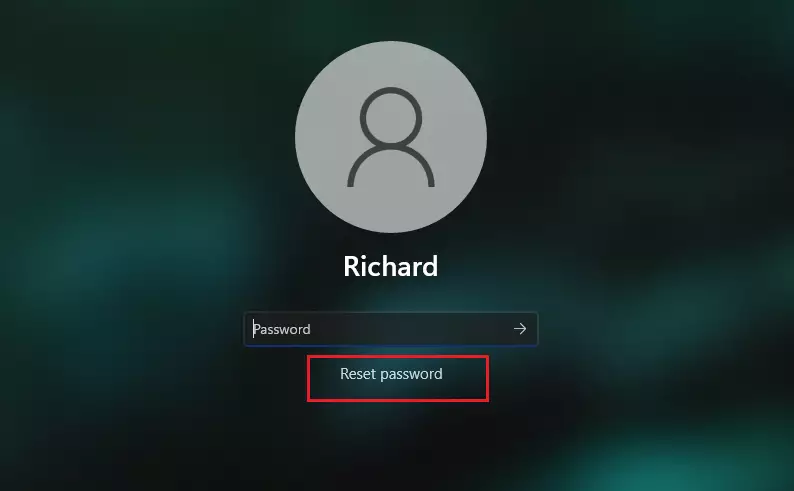
Click it to answer your security questions.
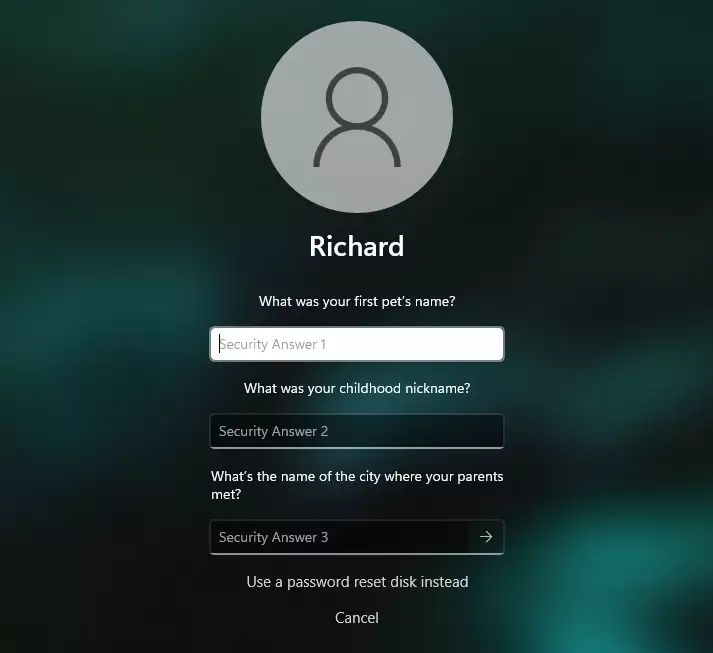
Setting Up Security Questions
To prevent future lockouts, go to Settings > Accounts > Sign-in options > Password > Change. Follow the prompts to set up three security questions that only you can answer.
Advanced Recovery Methods
If you cannot use the standard reset methods, you may need the Windows Recovery Environment (often called WinRE).
The Command Prompt Trick (utilman.exe)
⚠️ Admin Privileges Required
This advanced method involves swapping out the Utility Manager for the Command Prompt. You must boot from a Windows 11 installation media USB. Once in the command prompt, you can use the command net user username newpassword to force a change.
Resetting Your PC
If all else fails, you can reset your PC. Warning: This removes your apps and potentially your files. Go to Settings > System > Recovery > Reset this PC.
Summary
- Use Settings to change your password regularly.
- Microsoft account users should use the online recovery page.
- Local account users should set up security questions immediately.
- Resetting your PC is a last resort that deletes your data.
Can I reset my 🪟 Windows 11 password without losing my files?
Yes. Using the Microsoft account recovery page or answering local account security questions will not delete your personal files. Only choosing the ‘Reset this PC’ option with the ‘Remove everything’ setting will erase your data. Always try the password reset options first to keep your files safe.
What if my PC is not connected to the internet?
If you use a Microsoft account, you must connect to the internet to sync your new password. If you use a local account, you do not need the internet. You can reset your local password offline by answering the security questions you previously configured during your initial Windows setup.
Is there a way to bypass a 🪟 Windows 11 password?
You can’t officially bypass a Windows 11 password for security reasons, but you can reset a forgotten one using the Windows Recovery Environment if you have installation media or admin access.
Was this helpful? [Feedback Widget Placeholder]
Was this guide helpful?

About the Author
Richard
Tech Writer, IT Professional
Richard, a writer for Geek Rewind, is a tech enthusiast who loves breaking down complex IT topics into simple, easy-to-understand ideas. With years of hands-on experience in system administration and enterprise IT operations, he’s developed a knack for offering practical tips and solutions. Richard aims to make technology more accessible and actionable. He's deeply committed to the Geek Rewind community, always ready to answer questions and engage in discussions.


My younger brother keeps accessing my computer through my security questions. Is there a way I can change them or completely disable them? Thanks, Obinna
[…] change a user password using the Command Prompt or Windows Terminal with PowerShell in Windows 11. Windows allows users to change or reset passwords from the Windows Settings app or Control […]
[…] forget it. You can create a password reset disk on a USB drive or a floppy disk and then use it to reset your password if you ever get locked out of your Windows […]