What to Do When Windows 11 Bluetooth Mouse Keeps Lagging or Stuttering

- 51 steps
- Needs administrator rights
- Includes a restart or sign-out
Bluetooth mouse lag in Windows 11 shows up as a cursor that freezes, jumps, or trails behind your hand. It is annoying, but it is rarely a sign of a dead mouse.
The usual causes are power-saving settings, outdated drivers, and wireless interference, often from nearby USB 3.0 devices. This guide starts with the quick checks and moves on to the deeper fixes. Test the mouse after each step so you know which one worked.
When your Windows 11 Bluetooth mouse lags or stutters, start by power-cycling the mouse, checking its batteries, and moving it closer to your PC. If that doesn’t work, remove and re-pair the mouse in Settings Bluetooth & devices, then disable power-saving for your Bluetooth adapter in Device Manager to prevent Windows from putting it to sleep.
Why Your Bluetooth Mouse Lags or Stutters
Wireless interference is the most common reason a Bluetooth mouse lags or stutters on Windows 11. Bluetooth uses the 2.4GHz radio band, which is crowded. Wi-Fi routers, other wireless devices, and USB 3.0 ports and cables all put noise into that same band, and the mouse signal gets disrupted.
Three other causes are common:
- Low batteries. A weak battery gives a weak signal and erratic tracking.
- Old or faulty Bluetooth drivers. These cause dropped or delayed input.
- Power management. Windows can put the Bluetooth adapter to sleep when it looks idle, and the mouse then stutters while the adapter wakes up.
Temporary Windows 11 bugs can also play a part. The steps below take only a few minutes each and are ordered from least to most effort.
Basic Troubleshooting: Quick Fixes to Try First
Start with the basics: power-cycle the mouse, check the battery, and move the mouse closer to the computer. These steps clear temporary connection glitches and force the mouse to build a fresh wireless link with Windows 11. Do them before you change any system settings.
- Turn the mouse off and on. Flip the mouse over and slide the power switch to off. Wait about ten seconds, then switch it back on. The mouse should reconnect on its own, and the pointer should respond within a few seconds.
- Check the battery. Low batteries often cause slow, jumpy movement. Put in a fresh pair of batteries. If the mouse has a built-in rechargeable battery, plug it into a charging cable and let it charge for a while. Some mice work while charging, but not all do.
- Move closer to the computer. Bluetooth has a short range, and metal blocks it. If the PC sits under a desk, behind a metal panel, or far from the mouse, move the mouse closer to the built-in Bluetooth antenna or your USB Bluetooth adapter. Keep a clear line between the two where you can.
If the cursor moves smoothly after any of these, you are done. If not, carry on.
Step-by-Step Fixes for 🪟 Windows 11 Bluetooth Mouse Lag
If the quick fixes did not help, work through these methods in order. Most of them take only a minute or two, and each one can be undone.
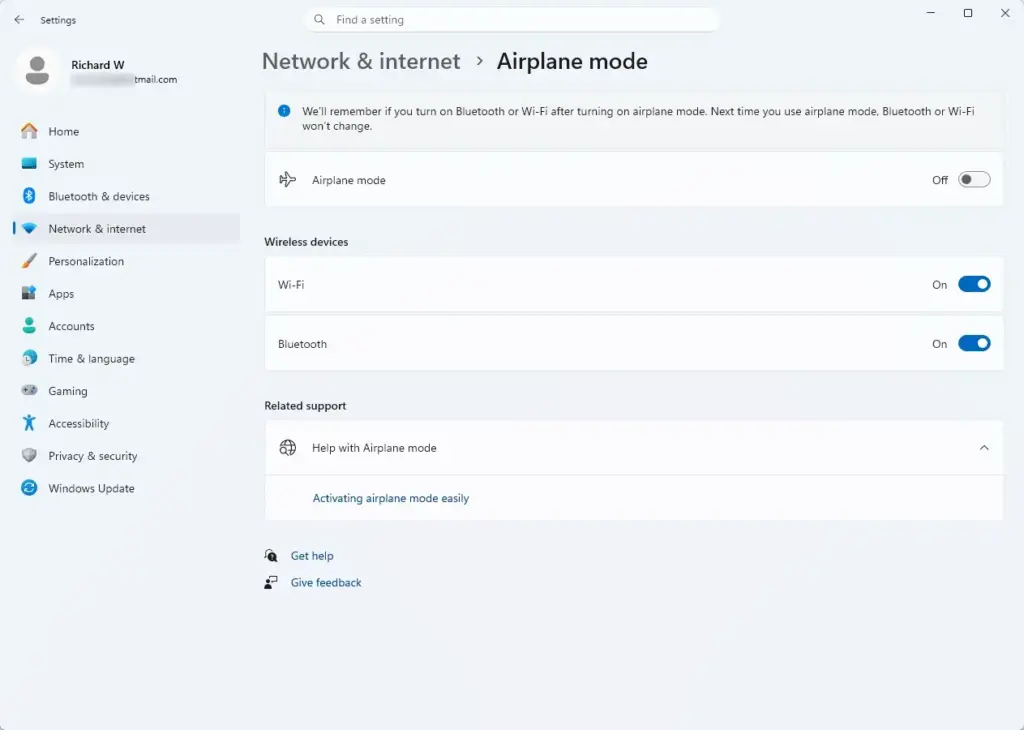
1Remove and Re-Pair the Bluetooth Mouse
Removing and re-pairing the mouse clears out a broken or corrupted connection saved on your computer. Windows then sets up a clean pairing from scratch. You will need to put the mouse back into pairing mode, so keep it within reach. If you do not have a second input device, such as a touchpad, a wired mouse, or the keyboard, you can use the keyboard to navigate Settings with Tab and the arrow keys.
- Open the Start menu and click Settings (the gear icon).

- Click Bluetooth & devices in the left sidebar. Your paired devices appear in a list on the right.
- Find your mouse in the list and click the three dots next to its name.
- Select Remove device, and confirm if Windows asks. The mouse disappears from the list.
- Turn the mouse off and back on.
- Put the mouse into pairing mode. This is usually done by holding a small pairing button on the bottom for a few seconds until a light blinks. Check your mouse manual if the button is not obvious.
- In Settings, on the Bluetooth & devices page, click Add device, then choose Bluetooth.
- Select your mouse from the list. Windows shows it as connected once pairing finishes.
If the mouse does not show up in the list, make sure Bluetooth is switched on at the top of the Bluetooth & devices page, and that the mouse is blinking in pairing mode.
2Prevent Windows from Turning Off Your Bluetooth Adapter to Save Power
Windows can turn off the Bluetooth adapter to save power when it looks idle. That is a common cause of lag, because the mouse stutters while the adapter wakes up. Turning this option off stops it.
- Right-click the Start button and select Device Manager.
- Scroll down the list and click the arrow next to Bluetooth to open the category.
- Find your main Bluetooth adapter. It might be named something like Intel Wireless Bluetooth, Realtek Bluetooth Adapter, or another brand name. Do not pick entries that look like individual devices or services.
- Right-click the adapter and select Properties.
- Click the Power Management tab at the top of the window. If you do not see this tab, your adapter or its driver does not offer the option. Skip to the next section.
- Uncheck Allow the computer to turn off this device to save power.
- Click OK to save your changes.
- If your mouse also appears under Bluetooth or Mice and other pointing devices in Device Manager, repeat these steps for that entry.
The change usually takes effect straight away, though a restart is a good idea if the lag continues. To undo it, go back to the same tab and tick the box again. On a laptop, you may notice slightly shorter battery life.
3Update or Roll Back Your Bluetooth Drivers
Outdated driver software can disrupt the signal between your computer and the mouse. On the other hand, a recent driver update can introduce the problem. Update first. If the stuttering began right after an update, roll back instead.
- Right-click the Start button and open Device Manager.
- Open the Bluetooth category.
- Right-click your Bluetooth adapter and select Update driver.
- Choose Search automatically for drivers. Windows looks for the newest driver it knows about and installs it if it finds one. If it says the best driver is already installed, that only means Windows has nothing newer. Your PC or adapter maker’s support site may still have a newer driver.
- Restart the computer if the installer asks you to.
If the stuttering started right after a driver update, roll the driver back instead:
- In Device Manager, right-click the adapter and select Properties.
- Go to the Driver tab.
- Click Roll Back Driver. If the button is greyed out, Windows has no earlier driver saved, so you cannot roll back.
- Follow the prompts, then restart the PC.
4Install All Pending Windows Updates
Microsoft regularly releases patches and driver improvements through Windows Update, and some of them fix Bluetooth bugs. Installing all pending updates makes sure you have the latest fixes.
- Open the Start menu and click Settings.
- Select Windows Update from the left menu.

- Click Check for updates. Windows lists anything available.
- Let any updates download and install completely. Do not shut the PC down while they install.
- Restart the computer if Windows asks. Some updates only finish after a restart.
You can also look under Windows Update Advanced options Optional updates. Bluetooth driver updates sometimes appear there instead of in the main list.
5Disable Mouse Pointer Trails
Pointer trails are an old visual effect that leaves a ghost trail behind the cursor. They can make the cursor feel laggy or stuttery, even when the mouse connection is fine. They are off by default, but another person or program may have turned them on. Check the setting in the classic Control Panel.
- Open the Start menu, type Control Panel, and press Enter.
- Click Hardware and Sound, then click Mouse. The Mouse Properties window opens. You can also reach it from Settings Bluetooth & devices Mouse Additional mouse settings.
- Click the Pointer Options tab at the top.
- Find the section labeled Visibility.
- Make sure the box next to Display pointer trails is unchecked.
- Click Apply, then click OK.
The change applies immediately, so you can check right away whether the cursor looks cleaner.
Advanced Unique Solutions Competitors Often Miss
Many guides stop at driver updates and power settings. Wireless technology is more complicated than that, and lingering stuttering often comes from the environment around the PC or from how a Windows service is set up. Try these if your mouse still lags.
Check for USB 3.0 Wireless Interference
USB 3.0 ports, and external hard drives plugged into them, give off electronic noise in the 2.4GHz range. Bluetooth uses the same range, so nearby USB 3.0 devices can scramble the mouse signal and cause visible stuttering.
If your computer uses an external USB Bluetooth dongle, take these steps:
- Unplug the dongle from any USB 3.0 port. These ports often have blue plastic inside, although this is not guaranteed.
- Plug the dongle into a USB 2.0 extension cable, then plug the cable into the computer.
- Place the dongle away from the computer case, away from power cords, and away from USB 3.0 storage devices.
- Move the mouse and check whether the cursor is smoother.
This simple change stops the interference for many users. If your PC has only built-in Bluetooth, try moving external drives and USB 3.0 hubs away from the area near the mouse, and keep the Wi-Fi router a little further away if you can.
Adjust Bluetooth Support Service Startup Type
The Bluetooth Support Service runs in the background and handles the connection to Bluetooth devices. By default it starts only when needed (Manual). Setting it to Automatic makes sure it is always running when Windows starts, which can fix lag caused by the service starting late or stopping.
- Press Win+R on your keyboard to open the Run dialog box.

- Type services.msc and press Enter to open the Windows Services manager. A list of services opens in a new window.
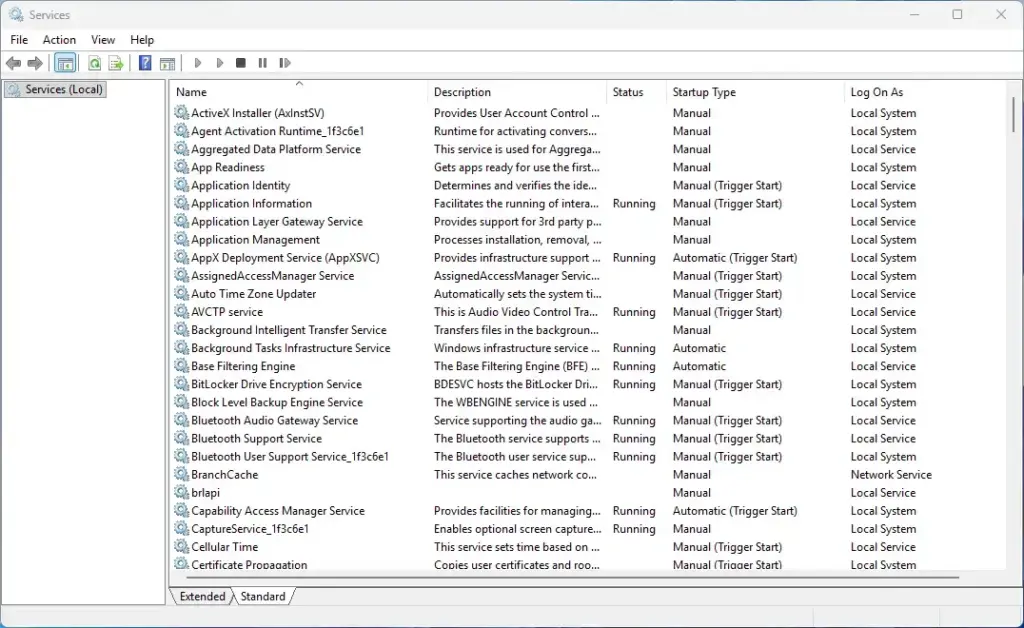
- Scroll down the alphabetical list and look for Bluetooth Support Service.
- Right-click Bluetooth Support Service and select Properties.
- Change the Startup type drop-down menu from Manual to Automatic.
- If the Service status says Stopped, click the Start button.
- Click Apply, then click OK.
- Restart your computer so the change takes full effect.
To undo this, return to the same Properties window and set Startup type back to Manual.
Summary
What to do next
Your cursor should now track smoothly without freezing or jumping across the screen. If it still stutters, try the mouse on another computer. If it lags there too, the mouse itself is the likely problem, and a new one is the next thing to try. If it works fine elsewhere, check that your Windows updates and the Bluetooth driver from your PC maker are up to date, and keep the adapter away from USB 3.0 devices.
Have a question about this guide?
Answered by AI from this guide. Good questions may be added to this page — please don't include personal details.
Did this guide fix your problem?

About the Author
Richard
Tech Writer, IT Professional
Richard is a writer at Geek Rewind who turns complex IT tasks into clear, step-by-step guides. He draws on years of hands-on experience in system administration and enterprise IT operations, focusing on Windows, Linux and WordPress: the problems people actually run into, and the fixes that work. His server and WordPress guides come from systems he runs himself. Richard builds and maintains the platform behind Geek Rewind, from its Ubuntu servers and Nginx configuration to its custom WordPress plugins. Many new tutorials start with readers' questions, and he's always glad to answer them in the comments.
No comments yet — be the first to share your thoughts!