What Is the Get Started App in Windows 11?

- 11 steps
- Needs administrator rights
The Get Started screen in Windows 11 is a setup and tips page. It opens under the heading “Welcome to Windows” after you sign in on a new PC or after a feature update. It suggests ways to finish configuring the device and shows what changed in the release. You can close it at any time, and you can turn it off in Settings System Notifications.
This guide explains what the screen is, why it keeps returning, how it differs from the Tips app, and how to stop it. None of the steps need administrator privileges.
The Get Started screen in Windows 11, titled “Welcome to Windows,” is a built-in setup and tips page that opens after your first sign-in on a new PC or after a feature update. It suggests ways to finish configuring your device and summarizes what changed in the release. You can close it at any time or turn it off in Settings System Notifications.
What the Get Started and Welcome to Windows screen is
“Welcome to Windows” is a built-in page that Windows 11 shows to help you finish setting up your device. It is not a program you install, and it does not change your system when it opens. It is a list of suggestions. Everything on it is optional.
Microsoft’s own labels for this feature vary between builds. You may see “Get Started”, “Welcome to Windows”, or “Windows welcome experience” in different places. They refer to the same idea: a page that appears on first sign-in or after an update, and points you to features and settings. Exact wording and layout depend on your Windows 11 version and on your account type.
For a wider introduction to Windows 11, see Getting Started with Windows 11: A Beginner’s Guide.
When the Welcome to Windows screen appears
Windows shows the screen at two moments: the first sign-in after setup, and the first sign-in after a feature update. A feature update is the large twice-yearly or yearly upgrade, as opposed to the smaller monthly updates. That timing explains why searches for “get started welcome to windows” spike after each major release. Many people see the page without having asked for it and want to know what it is.
The page can also reappear on a new user profile, because each profile has its own settings. A second account on the same PC sees the screen once on its own first sign-in, even if you turned it off for your main account.
What the screen offers
The content changes with the build, the region and whether you sign in with a Microsoft account. That is an account you sign in to with an email address, as opposed to a local account. Typical suggestions include finishing account setup, connecting a phone, backing up folders to OneDrive, and choosing default apps or browser settings. Some builds also show offers for Microsoft services.
Nothing on the page is required for Windows 11 to work. Each item opens its own setup pages, and you can leave any of them at the first screen.
How Get Started differs from the Tips app
The Tips app is a separate, preinstalled app that holds short how-to articles about Windows features. It opens only when you start it. The Welcome to Windows screen opens by itself at set moments.
Open Tips in three steps:
- Select Start.
- Choose All apps.
- Select Tips.
If you cannot find it, type Tips into the Start search box. The Tips app does not create the Welcome to Windows page, and removing or ignoring Tips does not stop it.
Is the Welcome to Windows screen safe
Yes. It is a normal Windows feature, and it does not install software on its own. The offers inside it are suggestions, not changes that happen automatically.
One caution applies. A browser page or pop-up that tells you to call a phone number to “activate” or “fix” Windows is not part of this feature. Close it and run a scan with Windows Security.
How to stop the Welcome to Windows screen from appearing
Turn off the Welcome to Windows page and the related prompts with the steps below. Each step shows the setting name and the box to clear. The steps stop the “get started welcome to windows” screen from opening after updates and sign-ins. The labels shown are the ones in current Windows 11 builds such as 23H2 and 24H2.
- Open Settings. Press Win+I, or right-click Start and select Settings.
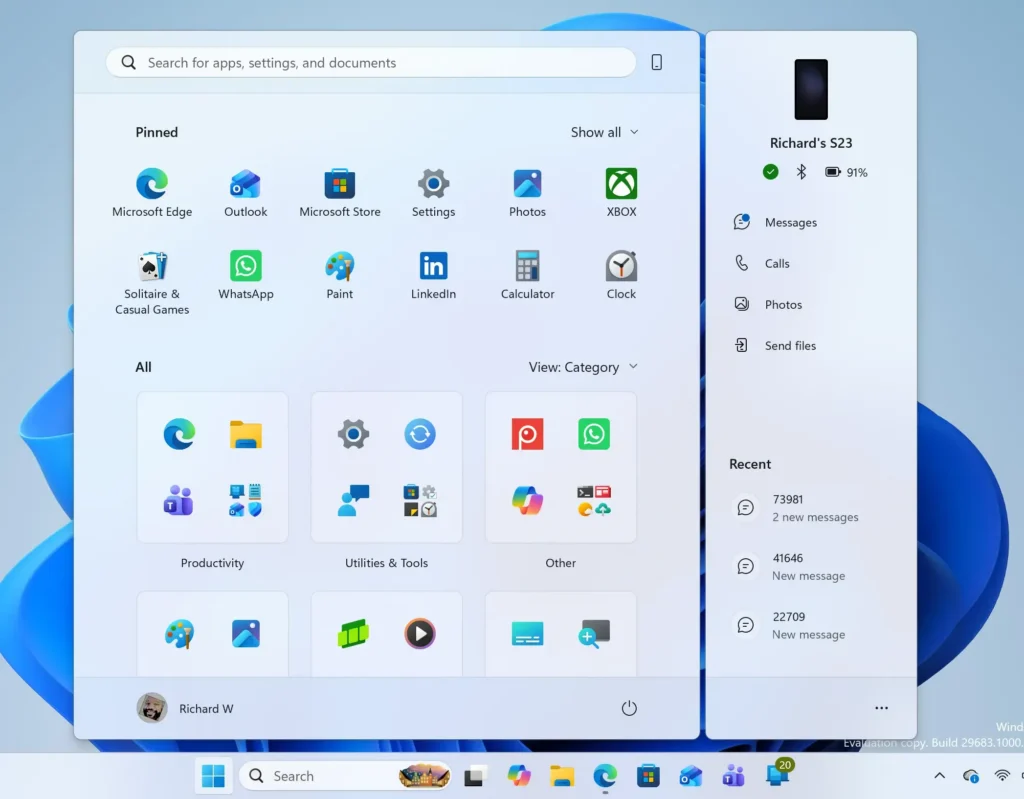
Windows 11 Start menu search panel for opening OpenSSH Client settings - Select System. It is the first item in the left pane. The System page opens on the right.
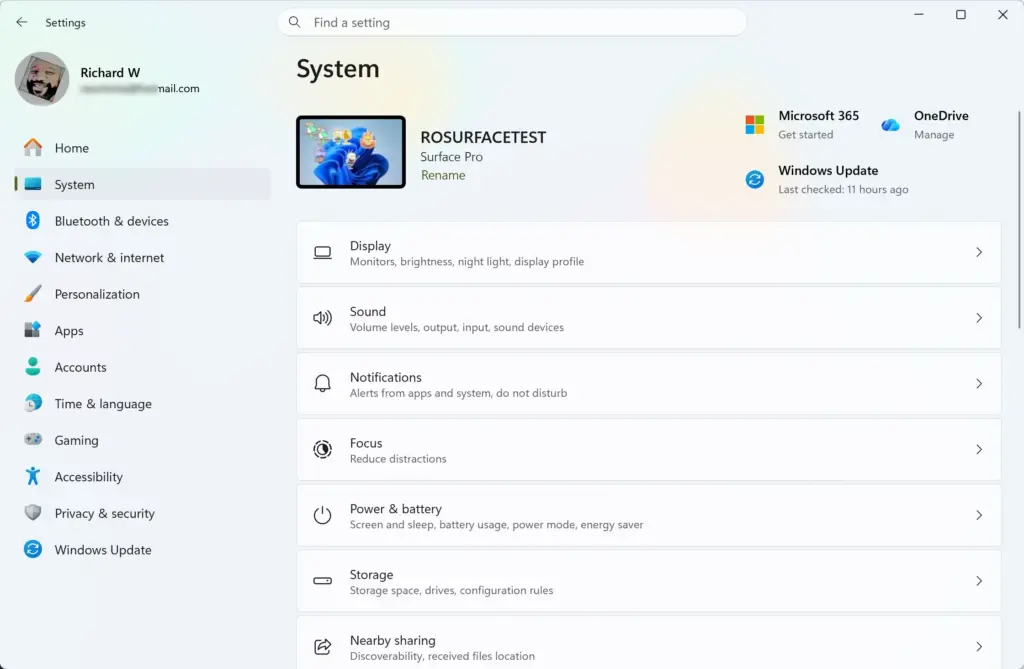
Settings › System - Select Notifications. This is the page that holds notification and suggestion options.
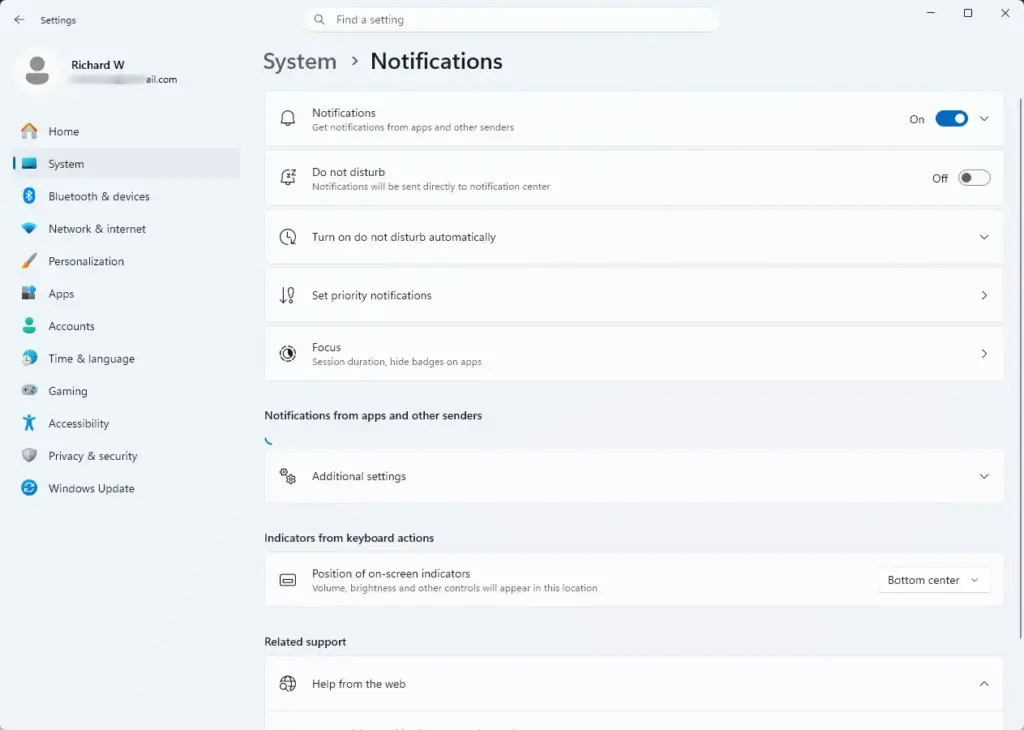
Settings › System › Notifications - Scroll to the bottom and expand Additional settings. Three check boxes appear.
- Clear the box labelled Show the Windows welcome experience after updates and when signed in to show what’s new and suggested. This is the setting that controls the Welcome to Windows screen itself.
- Clear the box labelled Suggest ways to get the most out of Windows and finish setting up this device. This stops the setup suggestions that can appear as notifications and full-screen prompts.
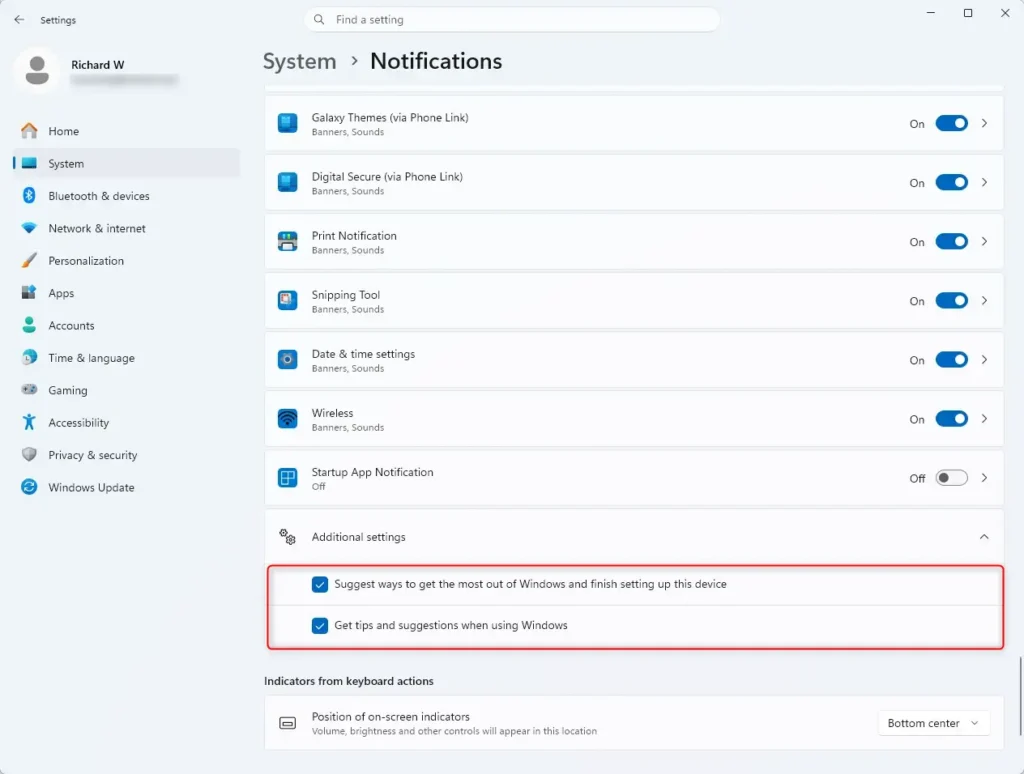
- Clear the box labelled Get tips and suggestions when using Windows. This stops the tip pop-ups that appear while you work.
- Close Settings. The changes apply immediately, and Windows does not ask you to restart.
Clear each box. It should then show as empty. The next feature update should not open the Welcome to Windows page for your account.
To undo this, return to the same page and select the boxes again. Nothing is deleted when you turn them off, so you can reverse the change at any time.
If the options are missing or the screen returns
Several things can make these settings behave differently from the steps above.
- The check boxes are missing or worded differently. Older Windows 11 builds use different labels, and Microsoft changes the text between releases. Look for options that mention “welcome experience”, “suggest ways” or “tips and suggestions” under Additional settings. If Additional settings is missing entirely, check that Windows Update is current.
- The boxes are greyed out or a message says some settings are managed by your organization. A work or school device can have these options controlled by an administrator. You cannot override that from your own account. Ask whoever manages the device.
- The screen comes back after an update. A feature update can reset suggestion settings to their defaults. Repeat the steps above once the update finishes.
- A new user account shows it again. These settings apply per account. Sign in to each account and clear the boxes there.
- Settings will not open or the page is blank. A damaged Settings app can cause this. How to Reset Windows 11 Settings App walks through the repair.
Home and Pro editions both include these Settings options, so the steps are the same on each. Edition only matters if an administrator sets the option through Group Policy, the settings system organizations use to manage their PCs.
Turning the Welcome experience off by other methods
For the registry method and more detail on turning the screen on and off, read How to Disable or Enable Welcome Experience in Windows 11. That post includes the registry steps, so this guide does not repeat them.
What to do next
If you closed the screen but still want to finish setting up the device, start with the items that affect daily use. One example is choosing which apps stay pinned to the Taskbar, covered in How to Choose App Icons for Windows 11 Taskbar. If the screen returns after the next feature update, clear the same boxes again. The steps are listed in the section on how to stop the screen.
Have a question about this guide?
Answered by AI from this guide. Good questions may be added to this page — please don't include personal details.
Did this guide fix your problem?

About the Author
Richard
Tech Writer, IT Professional
Richard is a writer at Geek Rewind who turns complex IT tasks into clear, step-by-step guides. He draws on years of hands-on experience in system administration and enterprise IT operations, focusing on Windows, Linux and WordPress: the problems people actually run into, and the fixes that work. His server and WordPress guides come from systems he runs himself. Richard builds and maintains the platform behind Geek Rewind, from its Ubuntu servers and Nginx configuration to its custom WordPress plugins. Many new tutorials start with readers' questions, and he's always glad to answer them in the comments.
No comments yet — be the first to share your thoughts!