Set a Timer in the Windows 11 Clock App

- 21 steps
- Needs administrator rights
The Clock app in Windows 11 includes a Timer that counts down from any length of time you choose and plays an alert when it reaches zero. To set one, open Clock, select Timer in the left pane, click the plus button, pick a time, and press Play.
The Clock app comes with Windows 11, so you do not need to install anything. It replaced the older Alarms & Clock app, which Windows 10 used, and some Windows 11 builds still show that older name. None of these steps need administrator privileges, and they work the same on Windows 11 Home and Pro.
Below are the full steps and how to run several timers at once. You will also learn how to keep a timer visible while you work and what to check if you never hear the alert.
To set a timer in the Windows 11 Clock app, open Clock from the Start menu, select Timer in the left pane, and click the plus button. Set hours, minutes, and seconds, optionally name the timer, click Save, then click Play on the tile. The Clock app comes preinstalled, so no download is needed.
Timer, Alarm, Stopwatch: Which One Do You Need?
The Clock app holds several tools that look alike, so it helps to pick the right one first. Each answers a different question.
- Timer counts down from a length of time, such as 12 minutes. Use it for cooking, breaks, and short tasks.
- Alarm goes off at a set time of day, such as 7:30 AM. If you would rather read alarm times in 24-hour format, see how to change the clock to 24-hour format in Windows 11.
- Stopwatch counts up from zero and records laps. It measures how long something takes.
- Focus sessions (a tool that alternates work periods with breaks) combine a timer with work and break intervals. It is a separate tool from Timer.
If you need a countdown to a fixed length of time, Timer is the right choice.
How to Set a Timer in the 🪟 Windows 11 Clock App
Follow the numbered steps below to set a timer, name it, and start the countdown. The whole process takes under a minute.
- Open the Start menu. Click the Start button on the taskbar, or press the Win.

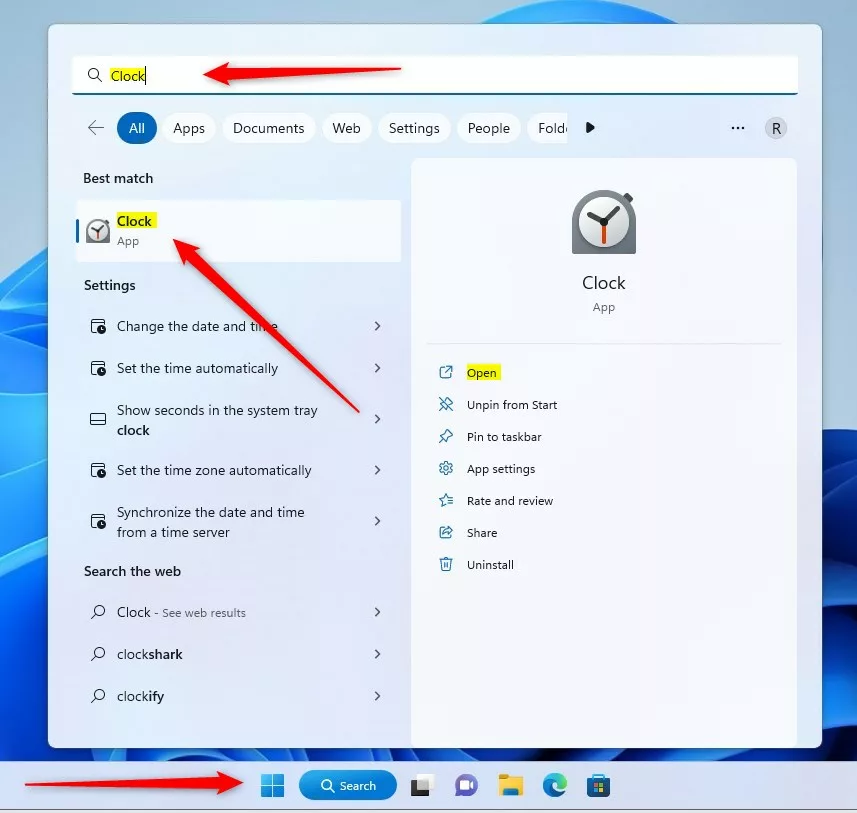
Start Menu - Type Clock to search for the app. Clock appears at the top of the results. Click Clock or press Enter. If you see only Alarms & Clock, open that instead. It is the same app under its older name.
windows search for clock app on start menu - Select Timer in the left pane. The pane lists Focus sessions, Timer, Alarm, Stopwatch, and World clock. The Timer page opens on the right. If the pane is collapsed to icons, click the three-line menu button at the top to expand it.
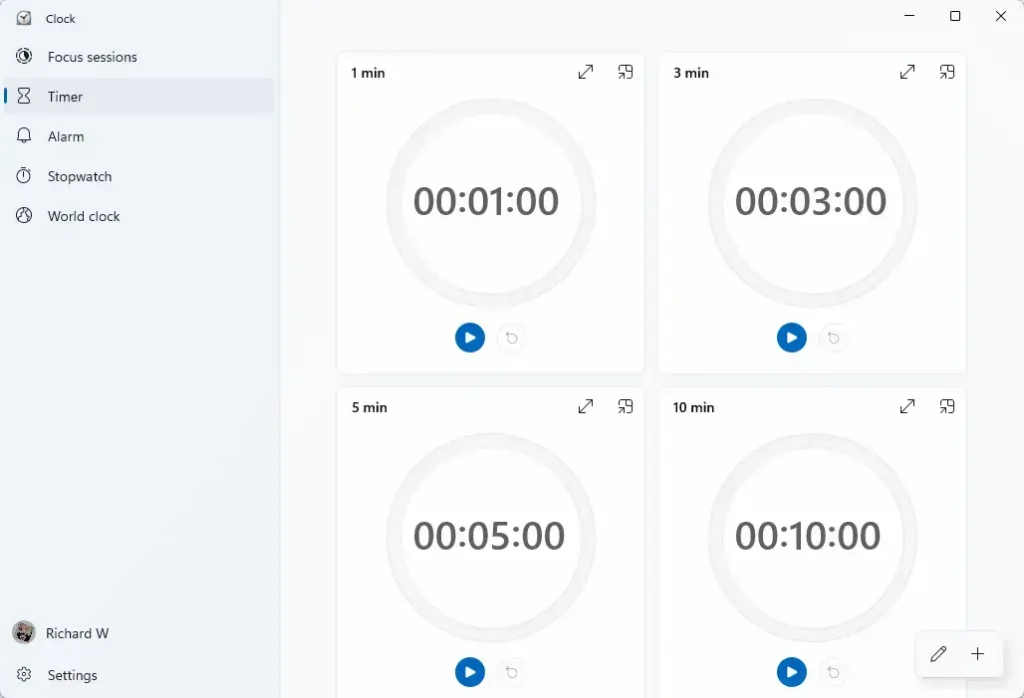
- Click the plus button to add a timer. It sits at the bottom right of the Timer page and is labeled Add new timer when you hover over it. A new timer screen opens with three number boxes.
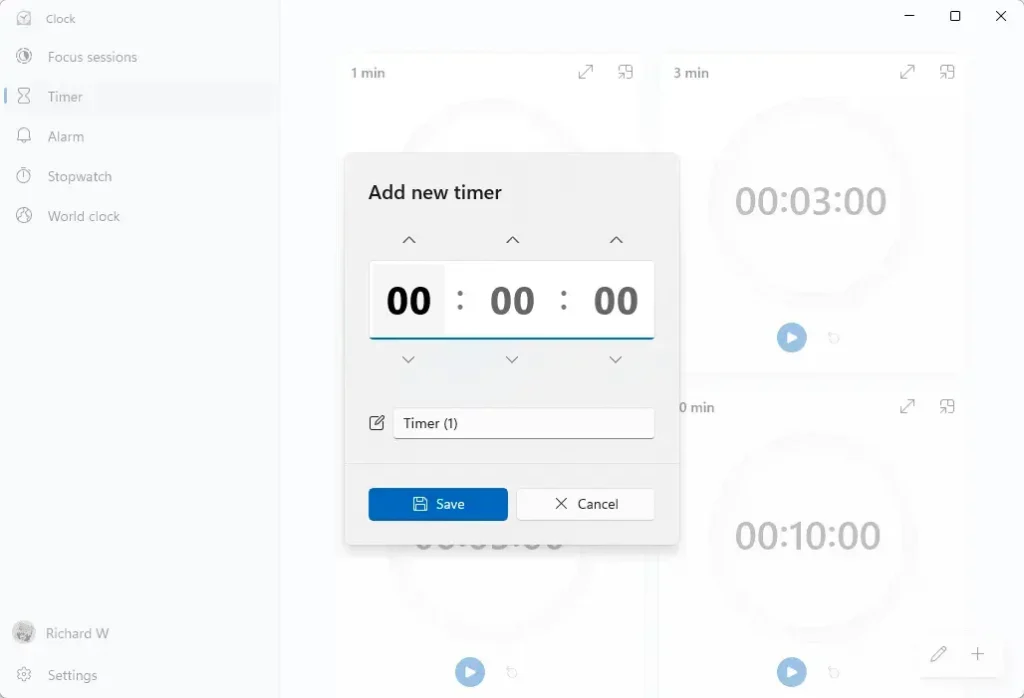
- Set the hours, minutes, and seconds. Click the up and down arrows in each box, scroll with the mouse wheel while the pointer is over a box, or click a box and type a number. For a 15-minute timer, leave hours at 0, set minutes to 15, and leave seconds at 0.
- Enter a name for the timer. Click the name box and type a label such as Tea or Break. This step is optional, but a name matters once you run more than one timer.
- Click Save. The new timer appears as a tile on the Timer page, showing the time you chose and a name if you gave one.
- Click the Play button on the timer tile. The countdown starts, and the numbers tick down each second.
- Wait for the alert, then click Dismiss. When the time reaches zero, Windows shows a notification and plays a sound. Click Dismiss to stop it. If the notification offers a snooze option, you can use it to repeat the timer.
If the Clock app does not open in step 2 or the search finds nothing, see the section on a missing or broken Clock app further down.
Pause, Reset, Edit, or Delete a Timer
Each timer tile has its own controls, so changing one timer does not affect the others.
Pause and resume a timer
Click the Pause button on the tile while the timer runs. The countdown freezes at the current time. Click the same button, which changes to Play, to continue from where it stopped.
Reset a timer
Edit a timer
To change a saved timer’s length or name, follow the steps below. Your Clock app version may place buttons in a different spot, so read the labels as you go.
- Open the Timer page. Select Timer in the left pane of the Clock app.
- Click the Edit timers button. It shows a pencil icon near the plus button. The tiles switch to edit mode.
- Click the timer you want to change. The same screen you used to create it opens, with its current values filled in.
- Change the time or name, then click Save. The tile updates with the new values.
Delete a timer
Deleting a timer removes it from the page. It removes only that timer, and nothing else on your PC changes.
- Click the Edit timers button. The tiles switch to edit mode, as in the steps above.
- Click the delete (trash can) icon on the timer you no longer need. The tile disappears from the Timer page.
- Click the Done or Cancel button, or the Edit timers button again, to leave edit mode. The other timers stay as they were.
Run More Than One Timer at the Same Time
The Timer page holds several timers, and each runs on its own. Click the plus button again, set a second time, give it a different name, and click Save. Press Play on each tile when you want it to start.
Give each timer a clear name. When two timers finish near each other, the notification shows the name you chose, so you know which task it belongs to. A tile labeled Pasta is clearer than two tiles that both read 10 minutes.
You can pause one timer and leave the others running. You can also start them at different moments, so you can use the plus button for tasks that start at different times.
Keep the Timer Visible While You Work
A timer does you no good if you cannot see it. Here is how to keep it on screen while you work. The Clock app can show a timer in a small window that stays on top of other apps, so it remains visible even when you click into another app. The button for this appears on the timer tile, and its icon usually looks like two overlapping boxes or arrows pointing outward. If you do not see it, update the Clock app through the Microsoft Store, because older versions may not include it.
Click that button and the timer moves into a compact window. Drag it to a corner of the screen. Click the same button in the compact window to return to the full app.
If you prefer not to use the compact window, you can minimize the Clock app instead. Minimizing does not stop a running timer. The alert still appears when the time is up, as long as notifications are on. Keep your PC awake while a timer runs. A PC in sleep mode may not sound the alert on time.
Check the Timer Alert if You Do Not See or Hear It
A silent or invisible alert is the most common problem. If you miss the alert, check these causes in order, starting with the volume.
- Check the volume. Click the speaker icon at the right of the taskbar and confirm the system volume is not muted or set very low. Also check that the right output device (speakers or headphones) is selected.
- Open Settings. Press Win+I.
- Go to the notification settings. Select System Notifications. Confirm that Notifications is switched on at the top.
- Find Clock in the app list. Scroll to Notifications from apps and other senders and look for Clock (or Alarms & Clock on some builds). Turn its switch on. Click the app name to see its banner and sound options.
- Check Do not disturb. On the same Notifications page, look at the Do not disturb switch. When it is on, Windows can hide banners and mute sounds. Turn it off and test the timer again. Windows may also turn it on automatically during certain activities, so check this if the problem returns.
After each change, run a short test timer of 10 seconds. A 10-second test shows the result right away, so you do not wait through a long countdown.
Clock App Missing, Not Opening, or Not Working
The Clock app is installed on every standard Windows 11 PC, but it can be removed, or it can break after an update. Use the fix that matches what you see.
The app does not appear in search. Open the Microsoft Store, search for Windows Clock, and click Install or Get. Reinstalling restores the app. Your old timers will not come back, so you start from scratch.
The app opens and closes, or the Timer page is blank. Resetting the app clears its data and often fixes this. Be aware that a reset deletes your saved timers and alarms, and you cannot get them back. Our guide on how to reset an app to default in Windows 11 covers the Repair option, which tries to fix the app while keeping its data, and the Reset option, which clears it, step by step.
The app is out of date. Open the Microsoft Store, click Library, and choose Get updates. Newer versions of Clock can add features and fix bugs.
What to Know About Timers in the Clock App
- Timers are saved in the app, so they remain on the Timer page after you close it. Reset a timer to run it again.
- The Timer works the same on Windows 11 Home and Pro. No edition limits apply.
- The Timer does not need a Microsoft account or an internet connection.
- A timer counts down only. For a time of day, use the Alarm tab instead.
- Menu labels and icons can change slightly between Clock app updates. If a button looks different on your PC, point at it to see its label. Screen reader users can hear the button name when the button is selected.
What to Do Next
If a timer still does not alert you after the notification checks above, reset the Clock app and test with a 10-second timer. To keep track of the time somewhere else while you work, add a clock for another time zone in Windows 11. To see 24-hour time across Windows, follow the 24-hour format guide linked in the Alarm section.
Have a question about this guide?
Answered by AI from this guide. Good questions may be added to this page — please don't include personal details.
Did this guide fix your problem?

About the Author
Richard
Tech Writer, IT Professional
Richard is a writer at Geek Rewind who turns complex IT tasks into clear, step-by-step guides. He draws on years of hands-on experience in system administration and enterprise IT operations, focusing on Windows, Linux and WordPress: the problems people actually run into, and the fixes that work. His server and WordPress guides come from systems he runs himself. Richard builds and maintains the platform behind Geek Rewind, from its Ubuntu servers and Nginx configuration to its custom WordPress plugins. Many new tutorials start with readers' questions, and he's always glad to answer them in the comments.
No comments yet — be the first to share your thoughts!