Follow

#Windows 11

Windows 2 min read
How to Turn On or Off Scheduled Night Light in Windows 11

This guide explains how to enable the Night Light feature on Windows 11, which reduces blue light for better eye comfort and sleep. Users can set it to activate automatically by choosing "Sunset to sunrise" or custom hours. The guide also includes simple steps to turn the feature on or off.

March 9, 2026 Read more →
Windows 3 min read
How to Turn On or Off File History in Windows 11

Windows 11 features File History, an automatic backup tool that protects important files by saving copies from various user folders and OneDrive. Users can easily turn File History on or off for individual accounts or all users through the Control Panel, Local Group Policy Editor, or Registry Editor, ensuring data safety and ease of recovery.

Windows 2 min read
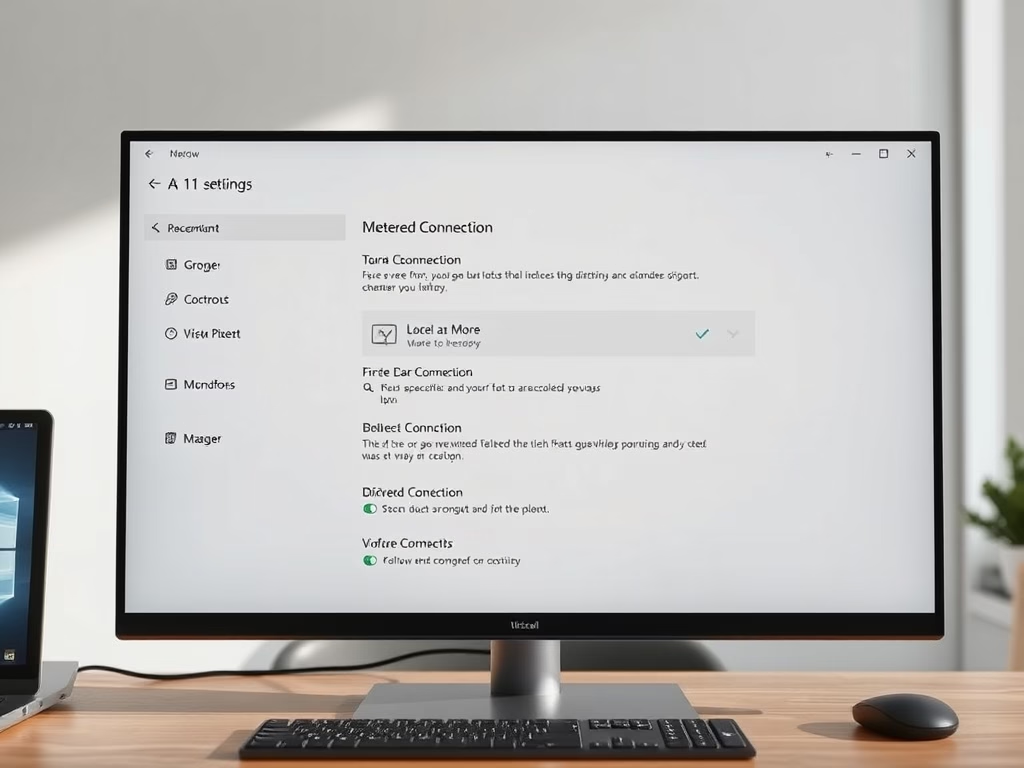
How to Turn On or Off Metered Connection for Wi-Fi in Windows 11

This guide explains how to manage your Wi-Fi connection as metered or non-metered in Windows 11, aiding in data control. Metered connections limit data usage and prevent automatic downloads. Instructions are provided for making changes through Settings or Command Prompt, helping users avoid unexpected charges on their internet bill.

Windows 4 min read
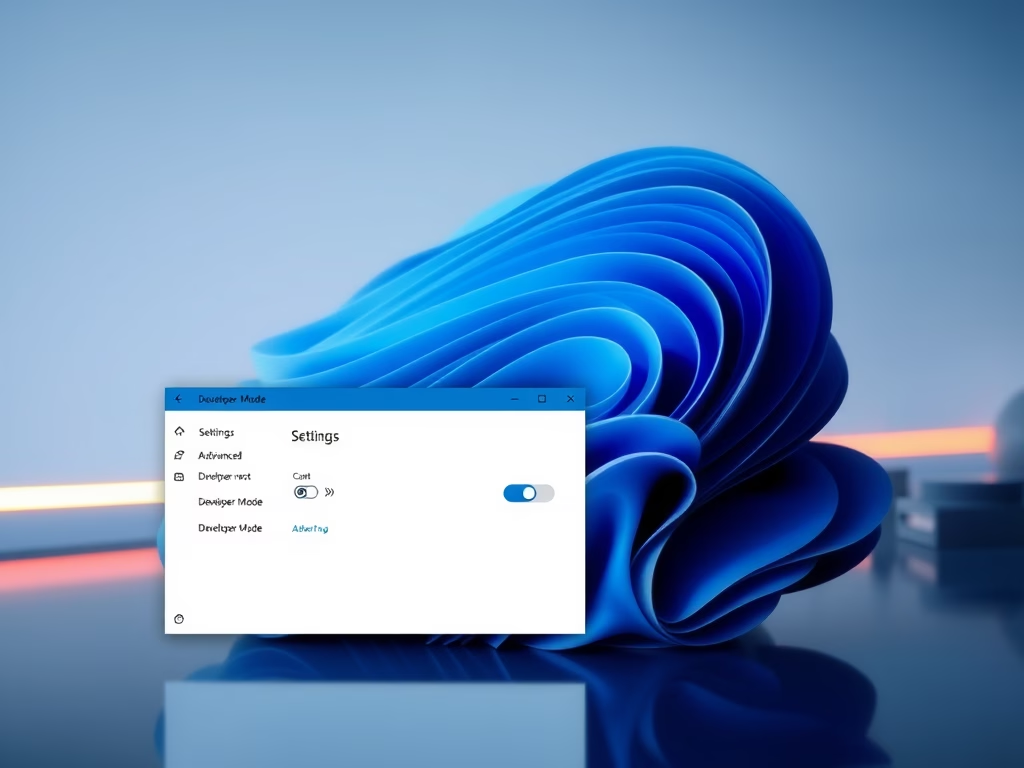
How to Enable or Disable Developer Mode in Windows 11

This guide explains how to enable or disable Developer Mode on Windows 11. Developer Mode allows users to install apps outside the Microsoft Store, facilitating debugging and remote services. It’s primarily for developers. Options to toggle it include Windows Settings, Registry Editor, and Local Group Policy Editor, requiring administrator access.

Windows 2 min read
How to Turn On or Off Set Time Automatically in Windows 11

This guide explains how to enable or disable the automatic time setting feature in Windows 11. Users can adjust this through the Settings menu, requiring administrator access. Additionally, advanced users may edit the Registry for more control. Accurate timekeeping is vital for file organization and scheduling.

Windows 2 min read
How to Enable or Disable Game Mode in Windows 11

Windows 11's Game Mode enhances gaming by prioritizing resources, preventing updates and restarts during gameplay for smoother performance. Users can easily enable or disable it via Settings under the Gaming menu, or through the registry for advanced users. For more details, additional support is available on the Xbox website.

Windows 3 min read
How to Change Date in Windows 11

This guide provides four methods to change the date on a Windows 11 computer: using Windows Settings, Control Panel, Command Prompt, or PowerShell. Users must be signed in as an administrator to make changes. Each method includes step-by-step instructions for selecting and saving a new date.

Windows 3 min read
How to Change the Time on Your Windows 11 PC

This guide explains how to change the time on a Windows 11 computer, emphasizing the importance of accurate timekeeping for files and tasks. Users can adjust the time through Windows Settings, Control Panel, Command Prompt, or PowerShell, provided they have administrative access. It also highlights the need to verify the correctness of the new time.

Windows 2 min read
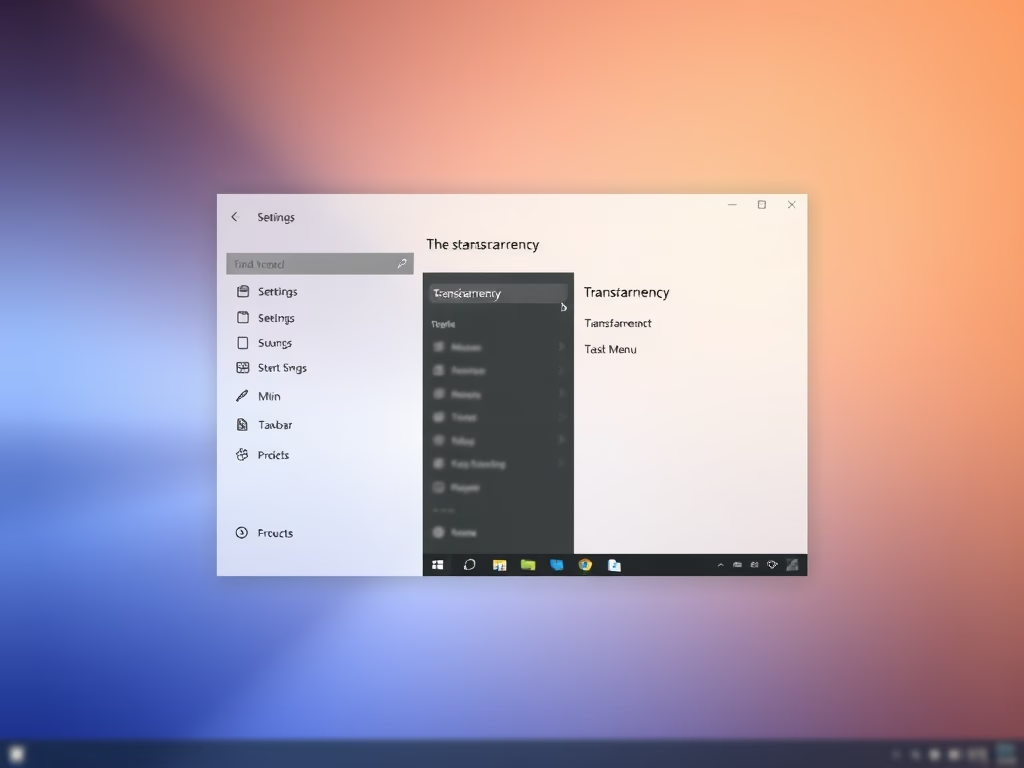
How to Enable or Disable Transparency Effects in Windows 11

This guide explains how to enable or disable transparency effects on Windows 11, enhancing the desktop's modern appearance with features like acrylic and mica. Users can adjust these settings via Personalization or Accessibility options, or by editing the Registry. High Contrast mode automatically disables these effects for better visibility.

March 7, 2026 Read more →
Windows 3 min read
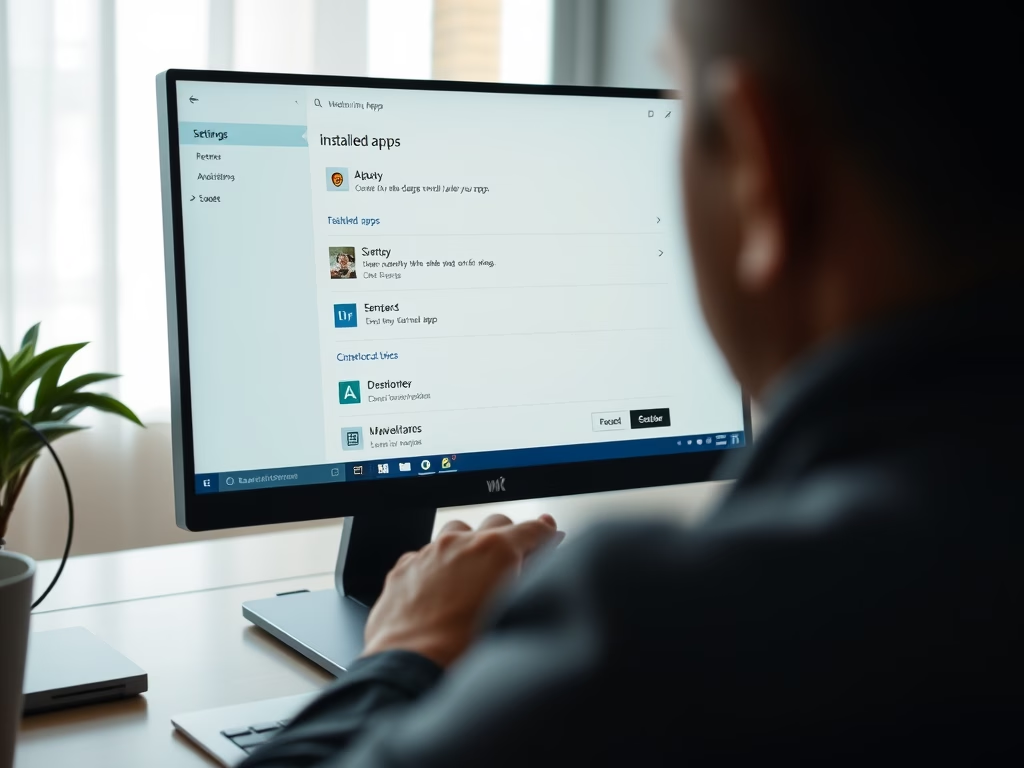
How to Reset an App to Default in Windows 11

To resolve issues with apps on Windows 11, you can either repair or reset them. Repairing maintains your data, while resetting deletes settings and data, restoring the app to its original state. Resetting can be done through Settings, the Start menu, or PowerShell commands for efficiency.

Windows 3 min read
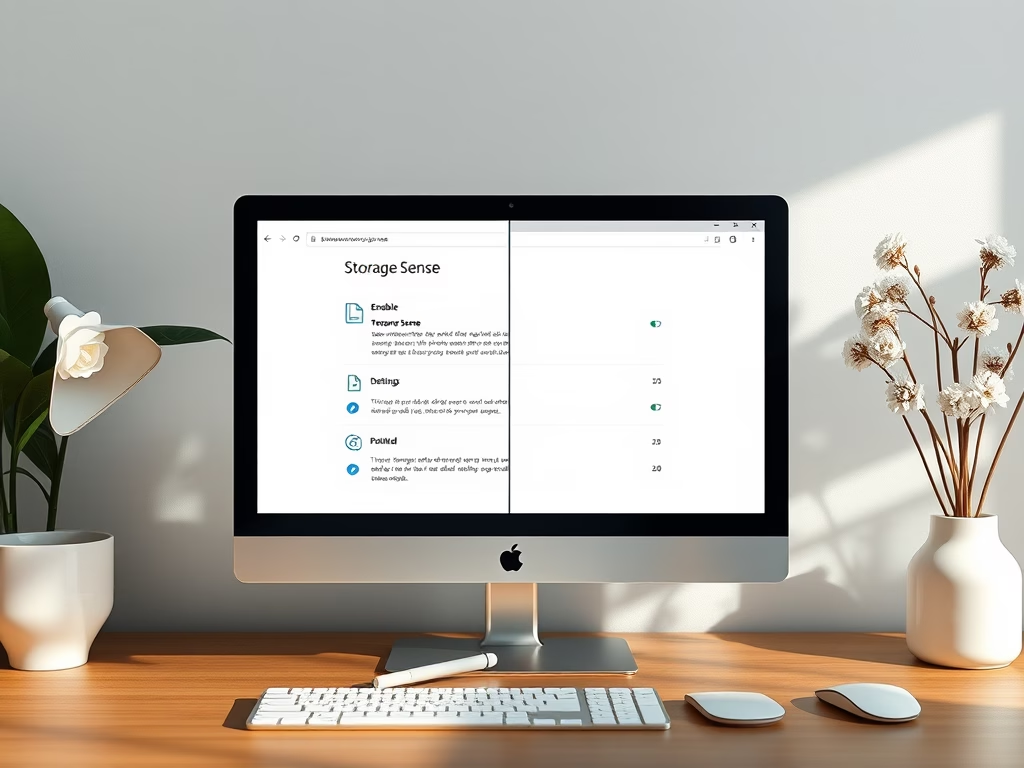
How to Enable or Disable Storage Sense in Windows 11

This guide explains how to enable or disable Storage Sense in Windows 11, a feature that automatically clears unnecessary files to free up disk space. Administrators can control its settings via the Local Group Policy Editor or the Windows Registry. Storage Sense is off by default but can enhance PC performance by managing storage efficiently.

Windows 2 min read
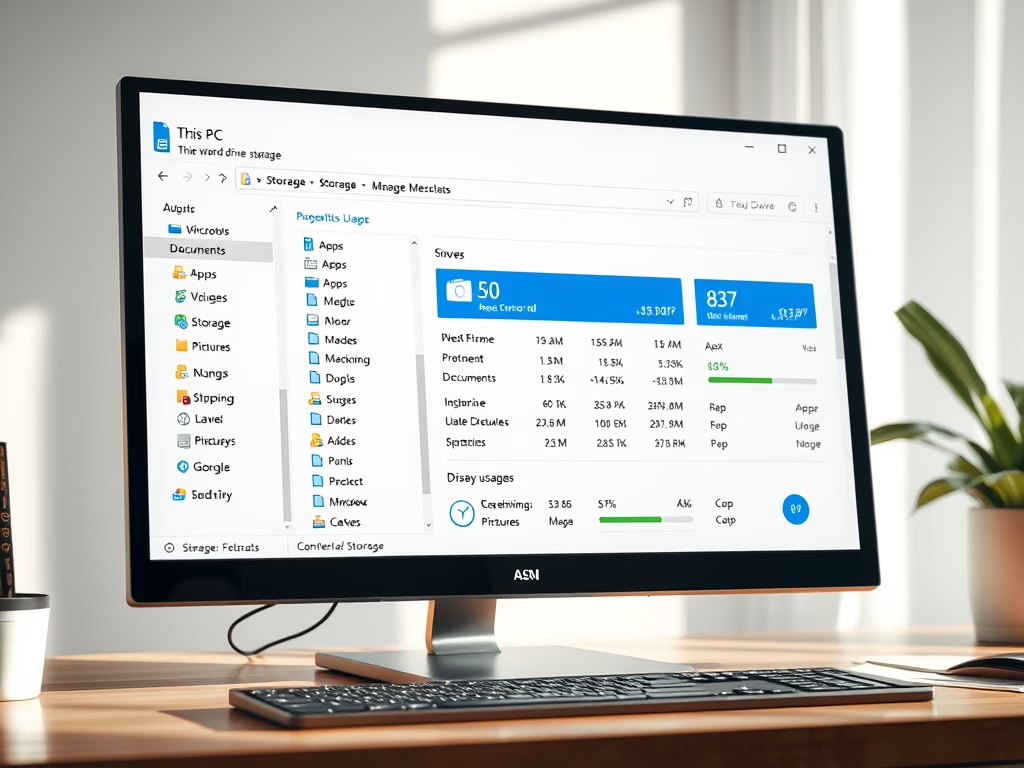
How to Check Your Drive’s Storage Space in Windows 11

This guide explains how to check storage usage on Windows 11 and manage files to free up space. Users can check storage via File Explorer or Settings, easily identify large files and apps, and maintain system performance. Regularly clearing unnecessary files is emphasized for optimal computer function.

Windows 3 min read
How to Enable or Disable Snap Windows in Windows 11

Snap windows in Windows 11 helps users organize open apps by automatically arranging them on the screen. It can be activated or deactivated easily through the Settings app, Control Panel, or Registry. This feature enhances multitasking but can be turned off for manual arrangement if preferred.

March 6, 2026 Read more →