Permanently Delete Files Without the Recycle Bin in Windows 11

- 36 steps
- Needs administrator rights
- Includes a restart or sign-out
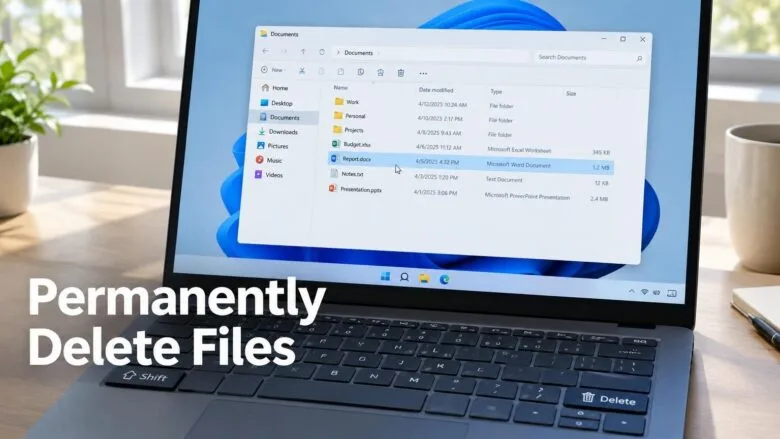
Permanently deleting files without the Recycle Bin in Windows 11 removes them in one step, with no second trip to empty the bin. The quickest method is to select the file in File Explorer and press Shift+Del.
The Recycle Bin is a holding folder that keeps deleted files so you can restore them. Skipping it frees space immediately, but Windows no longer keeps a copy for you to recover. This post covers the Shift+Del shortcut, a setting that skips the bin for a whole drive, Command Prompt and PowerShell commands, and what to do when deletion fails. All of it works on Windows 11 Home and Pro, and none of it needs a restart.
To permanently delete files without the Recycle Bin in Windows 11, select the file in File Explorer and press Shift+Del, then click Yes in the confirmation box. The file is removed at once and does not go to the Recycle Bin, so Windows cannot restore it.
Know What “Permanent” Means Before You Delete
A file deleted without the Recycle Bin is gone from File Explorer right away, and Windows gives you no Undo for it. Specialist recovery software can sometimes find the data afterward, but success is never guaranteed. On a solid-state drive (SSD), it is usually far lower, because the drive clears freed space on its own.
Files on USB flash drives, most external drives and network shares are deleted straight away. A file larger than the Recycle Bin’s maximum size also skips it, and Windows warns you before it does. If you are unsure about a file, copy it somewhere safe first.
For files in a OneDrive folder, deleting on your PC also removes them from the cloud copy. OneDrive keeps its own online recycle bin, so check there before you assume a file is lost.
Permanently Delete Files Without the Recycle Bin Using Shift + Delete
Shift+Del is the fastest way to bypass the Recycle Bin for a single deletion. It leaves your Recycle Bin settings untouched, so the next normal delete still goes to the bin.
These steps permanently delete files without the Recycle Bin in Windows 11:
- Open File Explorer . Press Win+E, or click the folder icon on the taskbar .

File Explorer - Go to the folder that holds the file. The file list on the right shows its contents.
- Click the file to select it. To pick several files, hold Ctrl while you click each one, or press Ctrl+A to select everything in the folder.
- Hold Shift and press Del. Use the Delete key, not Backspace. A box appears asking “Are you sure you want to permanently delete this file?” For several items, it shows the number of items instead.
- Click Yes. The files disappear from the folder and do not appear in the Recycle Bin .
If you click No, nothing is deleted. If the box never appears and the file disappears at once, a confirmation setting has been turned off. See the Recycle Bin Properties section below.
The shortcut also works on desktop icons. It does not work on items in the Recycle Bin itself, where Delete already removes a file for good.
Make 🪟 Windows 11 Skip the Recycle Bin for a Drive
This is a per-drive setting, so you must set it for each drive separately. It carries real risk, because one accidental keypress then deletes a file for good.
Use these steps to turn off the Recycle Bin for a drive:
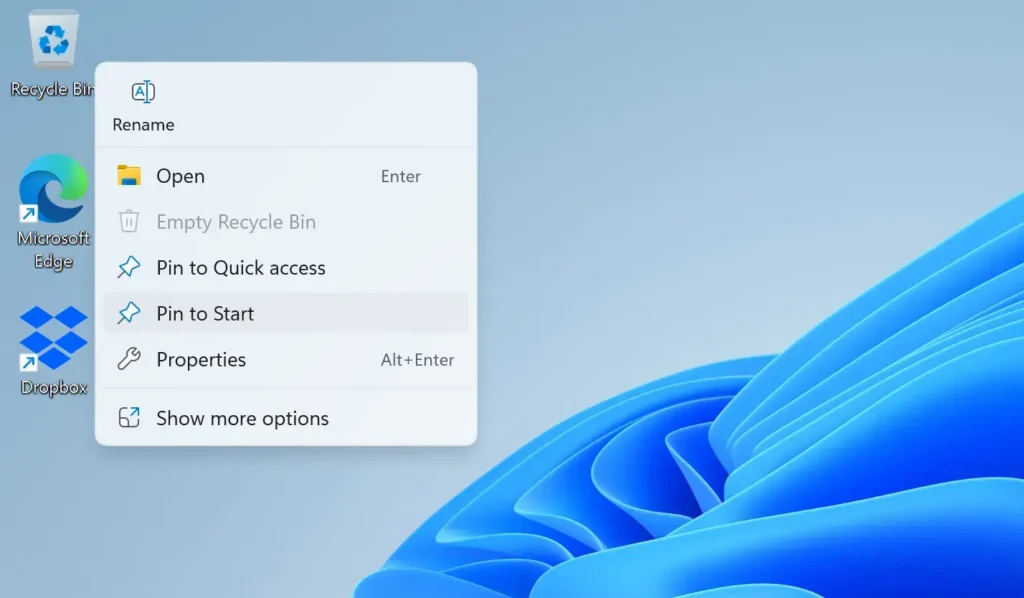
- Right-click the Recycle Bin icon on your desktop. A menu opens.
- Click Properties. The Recycle Bin Properties window opens on the General tab.
- Select the drive in the Recycle Bin Location list. A typical choice is Local Disk (C:).
- Select Don’t move files to the Recycle Bin . Remove files immediately when deleted. The Custom size box turns grey.
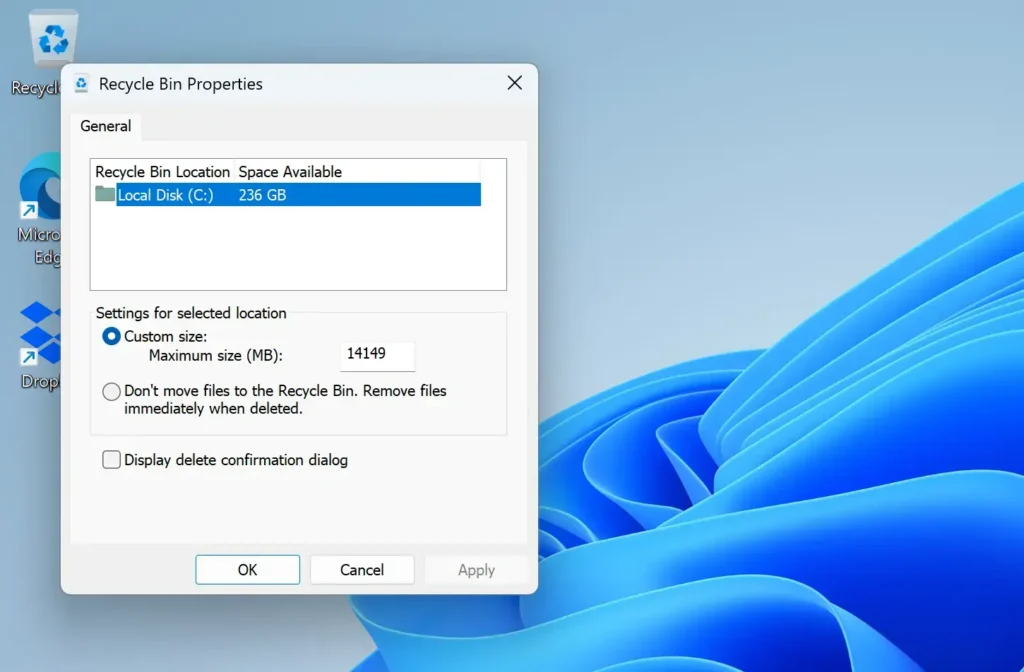
- Click Apply, then click OK. Files you delete on that drive now skip the bin.
The window also has a Display delete confirmation dialog checkbox. Keep it ticked while you test this setting. Windows then asks before every delete, which is a useful safety net.
Files already in the Recycle Bin stay there until you empty it. The guide on how to empty the Recycle Bin in Windows 11 covers that step. For another walkthrough of this setting, see how to bypass the Recycle Bin on Windows 11.
Undo the Setting
To bring the Recycle Bin back, repeat the first three steps above. Select Custom size instead, then click Apply and OK. Windows resumes saving deleted files for that drive. Files you deleted while the setting was on do not come back.
If you want the bin back but with less space, resizing the Recycle Bin on Windows 11 lets you set a smaller maximum.
If the Recycle Bin Icon Is Missing From Your Desktop
The Recycle Bin Properties window opens from the desktop icon, so you need the icon first. A fresh Windows 11 install usually shows it, but some PCs and updates hide it. The Settings app can restore it.
- Open Settings . Press Win+I.
- Click Personalization in the left menu.
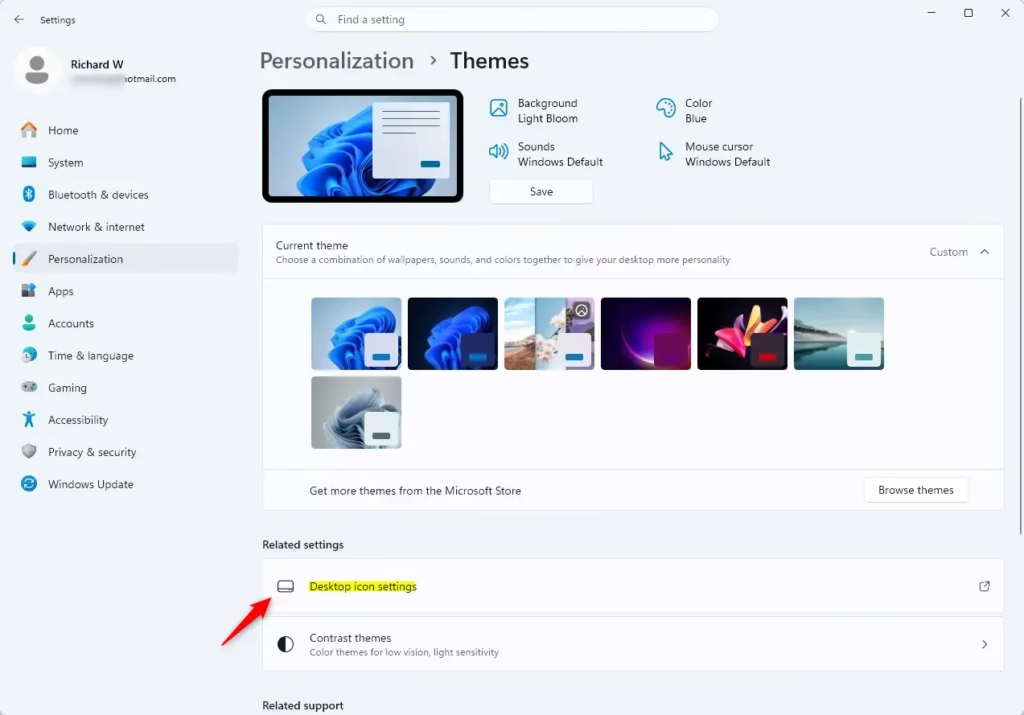
- Click Themes. The page lists your themes and related settings.
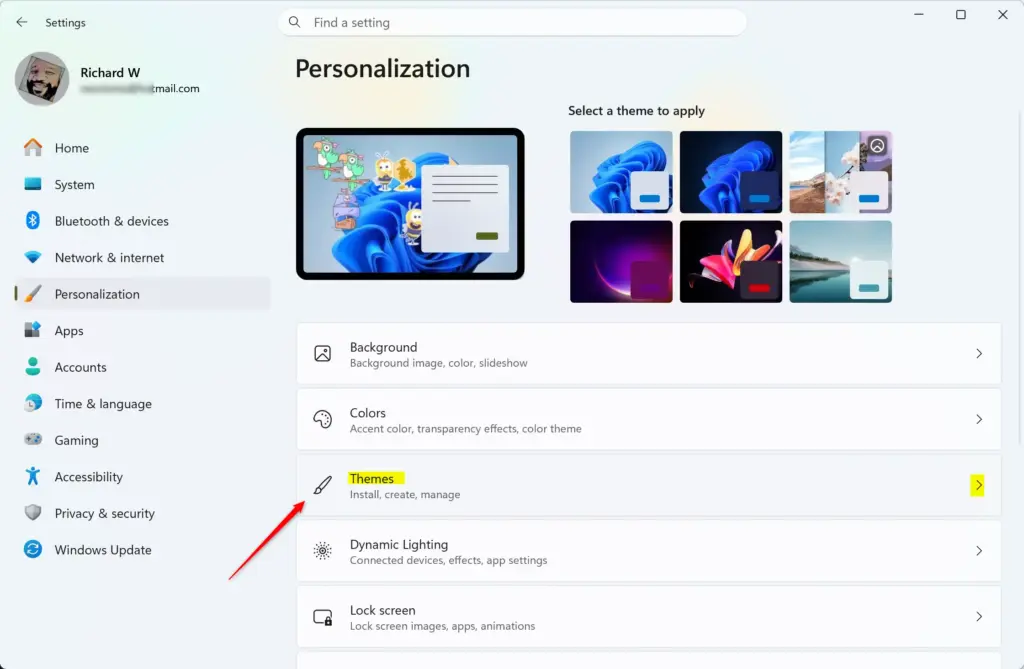
Settings › Personalization › Themes - Click Desktop icon settings. A small window opens.
- Tick the Recycle Bin checkbox.
- Click Apply, then OK. The icon appears on your desktop.
You can also pin the Recycle Bin to File Explorer. The guides on adding or removing the Recycle Bin in Windows 11 File Explorer and adding the Recycle Bin to This PC show how.
Permanently Delete Files With Command Prompt or PowerShell
Command-line deletion never uses the Recycle Bin. It suits scripts, locked-down PCs and folders that File Explorer struggles with. There is no confirmation box and no Undo, so check each path twice before you press Enter.
Delete With Command Prompt
The del command removes files and the rd command removes folders. Administrator privileges are only needed for files in protected locations, such as inside 📁C:\
- Open the Start menu and type Command Prompt. To delete protected files, right-click the result and choose Run as administrator (administrator privileges required).
- Type the delete command for one file. Replace the path with your own:Command Prompt
del /f /q "C:\Users\USERNAME\Documents\old-report.docx"The
/fswitch forces deletion of read-only files, and/qturns off the confirmation prompt. - Press Enter. The prompt returns with no message. That means the file is gone.
- To remove a whole folder and everything inside it, type this command instead:Code
rd /s /q "C:\Users\USERNAME\Documents\Old Project"The
/sswitch deletes all files and subfolders, and/qskips the prompt. - Press Enter. The folder disappears from File Explorer .
Keep the quotation marks around any path that contains a space. Without them, the command fails or targets the wrong item. If you see “The system cannot find the file specified”, check the path for typos.
Delete With PowerShell
PowerShell uses the Remove-Item command (a cmdlet, which is a built-in PowerShell command). It can preview what it would delete before you commit, which Command Prompt cannot do.
- Open the Start menu and type PowerShell. For protected files, right-click the result and choose Run as administrator (administrator privileges required).
- Preview the deletion first:Code
Remove-Item -Path "C:\Users\USERNAME\Documents\old-report.docx" -WhatIfPowerShell prints a line starting “What if:” and deletes nothing.
- Remove
-WhatIfand add-Forceto run it for real:CodeRemove-Item -Path "C:\Users\USERNAME\Documents\old-report.docx" -Force - Press Enter. PowerShell returns to the prompt with no message when it succeeds.
- For a folder, add
-Recurseso PowerShell also removes its contents:CodeRemove-Item -Path "C:\Users\USERNAME\Documents\Old Project" -Recurse -Force
Run the -WhatIf version of any folder deletion first. A typo in a folder path with -Recurse can remove far more than you intend.
Empty the Recycle Bin Automatically With Storage Sense
Storage Sense (a built-in tool that cleans up temporary files) does not skip the Recycle Bin. It empties the bin on a schedule, so deleted files are still recoverable for a set period. This is a gentler option if you want the bin to clear itself but still want a safety window.
- Open Settings. Press Windows + I.
- Click System in the left menu.
- Click Storage. Windows takes a moment to scan your drive.
- Click Storage Sense under Storage management. The Storage Sense page opens.
- Turn on Automatic User content cleanup. The cleanup options below it become active.
- Open the Delete files in my recycle bin if they have been there for over list. Choose a period such as 1 day, 14 days or 30 days.
Labels on this page differ slightly between Windows 11 versions, but the Recycle Bin option has the same purpose in each. Choose Never to stop Storage Sense from touching the bin. The same page has a Run Storage Sense now button if you want a cleanup straight away.
When Permanent Deletion Fails
Most failures come down to a handful of causes. Match what you see to the list below.
- "File in use" or "The action can't be completed because the file is open in another program." Close the program that has the file open. If you cannot find it, restart the PC and try again before any app opens.
- "You need permission to perform this action." The file belongs to another account or to the system. Try Command Prompt or PowerShell as administrator. Do not force-delete files inside C:\Windows unless you know what they do.
- Shift + Delete does nothing. Click the file once to make sure it is selected, then try again. Some keyboards need the Shift key on the left side.
- A delete setting is greyed out or reverts. If the PC belongs to a school or employer, an administrator may control this setting. Ask your IT department. I do not list policy names here because I cannot confirm them for every Windows 11 version.
- The file is still there after deletion. A OneDrive or other cloud folder may be syncing it back. Check the sync app for errors, and look in File Explorer's address bar to confirm the folder you are in.
Make Deleted Files Harder to Recover
Deleting a file removes its entry from the drive's index, but the data can stay on the disk until Windows writes something over it. For ordinary clutter, this does not matter. For tax records, old work files or anything sensitive on a PC you plan to sell or give away, it does.
The cipher command writes over the free space on a drive, which wipes data from files you already deleted. It only affects free space, so your current files are safe. It can take hours on a large drive.
- Delete the sensitive files first. Use Shift + Delete or one of the command-line methods above.
- Open Command Prompt from the Start menu.
- Type this command, replacing
C:\with the drive you want to wipe:Codecipher /w:C:\ - Press Enter. Windows shows messages as it passes over the free space. Leave the window open until it finishes.
On an SSD, this process gives less certainty than on a hard drive, because the drive moves data internally. If you are disposing of a PC, a full reset of Windows 11 with the data-cleaning option is a stronger choice than any single-file deletion.
Can You Get Back a File You Deleted Permanently?
Sometimes, but treat it as a long shot. Stop saving files to that drive straight away, because new data can overwrite the deleted file for good. Then check, in this order, whether a copy already exists elsewhere:
- The online recycle bin of OneDrive or any other cloud service that syncs the folder.
- A backup, such as File History or a backup you made to an external drive.
- A previous version: right-click the folder that held the file, choose Properties, and open the Previous Versions tab. It only has entries if Windows saved restore points or File History was on.
Third-party file recovery tools are the last resort. They work best on hard drives when you act quickly.
What to Do Next
Pick the method that matches how you work. Shift + Delete suits the occasional file. The Recycle Bin Properties setting suits a drive where you never want a safety net, such as a drive for temporary downloads. If you later want the safety net back, select Custom size in Recycle Bin Properties for that drive. To clear what is already in the bin, follow the guide on emptying the Recycle Bin in Windows 11.
Have a question about this guide?
Answered by AI from this guide. Good questions may be added to this page — please don't include personal details.
Did this guide fix your problem?

About the Author
Richard
Tech Writer, IT Professional
Richard is a writer at Geek Rewind who turns complex IT tasks into clear, step-by-step guides. He draws on years of hands-on experience in system administration and enterprise IT operations, focusing on Windows, Linux and WordPress: the problems people actually run into, and the fixes that work. His server and WordPress guides come from systems he runs himself. Richard builds and maintains the platform behind Geek Rewind, from its Ubuntu servers and Nginx configuration to its custom WordPress plugins. Many new tutorials start with readers' questions, and he's always glad to answer them in the comments.
No comments yet — be the first to share your thoughts!