How to Bypass the Recycle Bin on Windows 11


Bypassing the Recycle Bin in Windows 11 deletes files permanently in one step. Normally a deleted file goes to the Recycle Bin, where it keeps using disk space until you empty the bin or restore the file. When you bypass the bin, Windows removes the file right away.
There are two ways to do it. Pressing Shift+Del removes the selected files immediately, one deletion at a time. Or you can change your drive settings so Windows skips the bin for every deletion on that drive. Both work the same on Windows 11 Home and Pro.
You can bypass the Recycle Bin by holding Shift while pressing Delete to permanently remove a file. Alternatively, access Recycle Bin Properties, select your drive, and check “Don’t move files to the Recycle Bin” to delete all files immediately.
Pro Tip: The Shift+Delete Shortcut
Use this method when you want to delete one file or folder permanently without changing any settings.
- Open File Explorer , or go to your desktop, and select the file or folder you want to delete. You should see it highlighted.
- Press Shift+Del on your keyboard. A box appears asking whether you’re sure you want to permanently delete the item.
- Click Yes. The file disappears and does not go to the Recycle Bin .
You can select several files at once with Ctrl or Shift and click, and the same shortcut deletes them all. If you change your mind, click No in the box and nothing is deleted.
Why bypass the Recycle Bin?
Skipping the Recycle Bin instantly removes files from your computer’s view. However, this does not securely delete the data. Data recovery software can still find these files, as long as other data hasn’t overwritten them.
You can’t undo a permanent deletion from the Recycle Bin, and Ctrl+Z won’t bring the file back in this case. If you deleted something by mistake, stop using that drive as much as you can. Every new file you save raises the chance that the old data gets overwritten. If you need the data to be unrecoverable, a normal delete isn’t enough. You need a dedicated secure-erase tool.
Method 1Using the Recycle Bin Properties
Changing your Recycle Bin settings lets you bypass the Recycle Bin in Windows 11 so files delete permanently right away. The setting is saved for each drive, so you choose it separately for every drive you want to change. Once it is on, a plain press of Delete behaves like Shift+Del.
The steps below open the Recycle Bin Properties window, choose a drive, and turn the option on. You can open the window from the desktop icon or from inside the Recycle Bin itself.
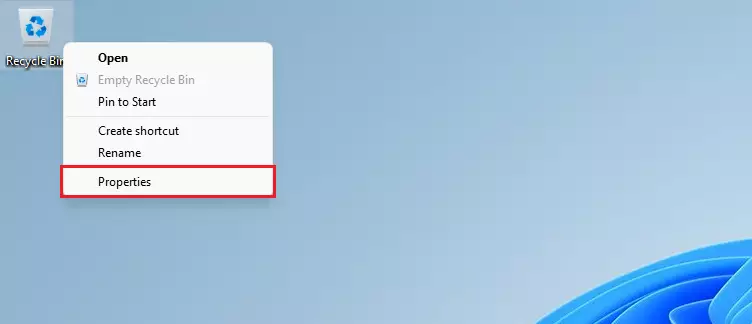
- Right-click the Recycle Bin icon on your desktop. A context menu appears. If the icon isn’t on your desktop, use the alternative method further down.
- Select Properties. The Recycle Bin Properties window opens and lists your drives.
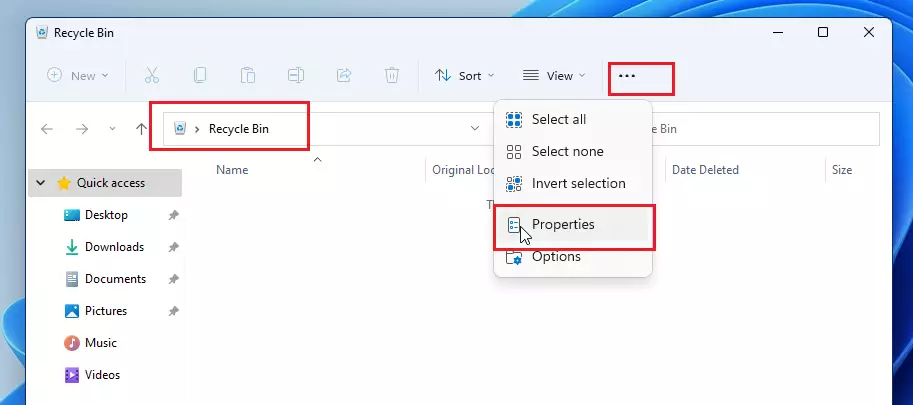
Alternatively, open the Recycle Bin, click the three dots in the top menu, and select Properties. This opens the same window, and it’s handy when the desktop icon is hidden.
In the Recycle Bin Properties window, select your drive in the list. Then check the box “Don’t move files to the Recycle Bin. Remove files immediately when deleted”. When you check it, the size settings for that drive turn grey, because the drive no longer uses the bin.
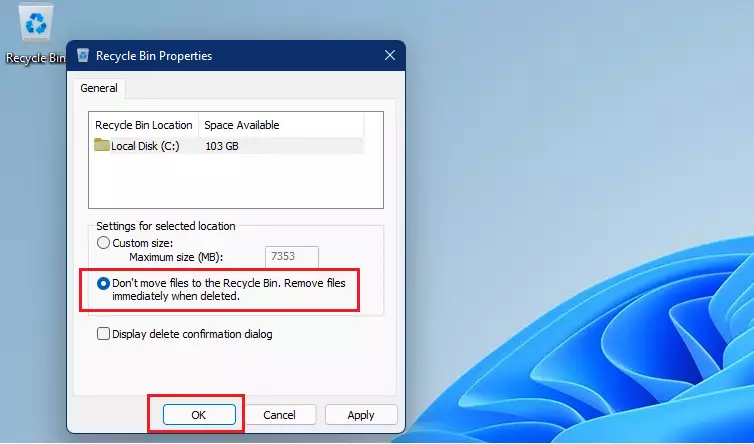
Click OK to save the change. Repeat the steps above for every drive on your system that you want to change. Drives you skip will keep sending files to the Recycle Bin.
To undo this, open the same window, select the drive, clear the checkbox, and click OK. No restart is needed in either direction. Files you deleted while the option was on stay gone.
Automated Storage Management with Storage Sense
Storage Sense is a Windows 11 tool that automatically frees up disk space. It clears the Recycle Bin and temporary files so you don’t have to do it manually. It does not bypass the bin. Deleted files still go there first, and Storage Sense empties the bin on the schedule you choose. Use it if you’d rather have the bin cleaned for you than skip it entirely.
How to enable Storage Sense:
- Open Settings. You can press Win+I to get there quickly.
- Go to System Storage You should see how much space is used on your drives.
- Toggle Storage Sense to On. Depending on your Windows 11 version, this switch sits under Storage management.
- Click Storage Sense to set how often it empties the Recycle Bin . A settings page opens where you can choose how long files stay in the bin before they are removed, and how often the cleanup runs. Exact wording differs a little between Windows 11 versions.
Important Considerations
When you bypass the Recycle Bin in Windows 11, the disk space is freed up immediately because files aren’t stored temporarily. This helps most when you delete large files, such as videos, installers or disk images, from a drive that is nearly full. With the bin, that space isn’t returned until you empty it.
Summary
Bypassing the Recycle Bin in Windows 11 lets you delete files permanently and instantly without keeping them in storage. Use Shift + Delete for single deletions, or change your drive properties so every deletion on that drive is permanent. Storage Sense is a gentler option if you'd rather have the bin emptied on a schedule.
Always make sure you don't need the files before using these methods, because they will be gone for good. If you only want the safety net back, clear the checkbox in the Recycle Bin Properties window.
Have a question about this guide?
Answered by AI from this guide. Good questions may be added to this page — please don't include personal details.
Did this guide fix your problem?

About the Author
Richard
Tech Writer, IT Professional
Richard is a writer at Geek Rewind who turns complex IT tasks into clear, step-by-step guides. He draws on years of hands-on experience in system administration and enterprise IT operations, focusing on Windows, Linux and WordPress: the problems people actually run into, and the fixes that work. His server and WordPress guides come from systems he runs himself. Richard builds and maintains the platform behind Geek Rewind, from its Ubuntu servers and Nginx configuration to its custom WordPress plugins. Many new tutorials start with readers' questions, and he's always glad to answer them in the comments.
No comments yet — be the first to share your thoughts!