How to Run Microsoft Defender Offline Scan on Windows 11

This guide will show you an easy way to run an offline scan using Microsoft Defender Antivirus on your Windows 11 PC.
Open Windows Security, go to Virus & threat protection, click Scan options, select Microsoft Defender Offline scan, and then click Scan now. Your PC will restart and perform the scan.
What is Microsoft Defender Antivirus?
Microsoft Defender Antivirus is the free security program that comes with Windows 11. It works quietly in the background to protect your computer from viruses and harmful software, acting as your main defense against online dangers.
It usually works in the background to protect your PC all the time (real-time protection) and can also scan your computer when you ask it to or on a set schedule (scheduled and on-demand scans).
Microsoft Defender also has special features like cloud protection, tamper protection, and blocks unwanted apps. You can learn more about these here:
What is an Offline Scan?
A Microsoft Defender offline scan is a special check that runs on your computer before Windows fully loads. This helps find and remove tough malware that might be hiding when your PC is running normally, giving you extra security.
You might want to use an offline scan if:
- Your PC has a virus that is hard to remove.
- Malware is stopping Microsoft Defender from working properly.
- You want to double-check your PC is clean.
How to Run Microsoft Defender Offline Scan on 🪟 Windows 11
Running a Microsoft Defender offline scan on Windows 11 is an easy way to catch tricky threats. This scan runs before Windows loads, so it can find malware that might hide from regular checks. To start, open the Windows Security app by clicking the Start button and typing 'Windows Security', then press Enter.
- Open the Windows Security app: Click the Start button (Windows icon) and type
Windows Security, then press Enter. Or click this link to learn how: Open Windows Security app - Click on Virus & threat protection: This will open the section where you manage your antivirus scans.
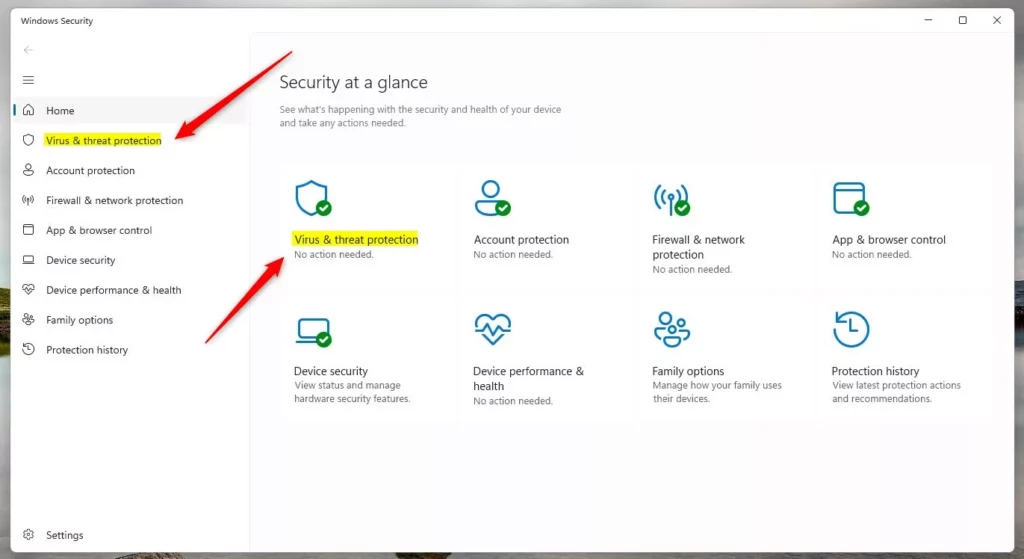
Windows Security Virus and threat protection - Click Scan options under the Current threats section:

Microsoft Defender Antivirus scan options in Windows 11. - Select Microsoft Defender Offline scan: This option lets Defender scan your PC before Windows fully starts. It helps remove tough malware.
- Click Scan now to start the offline scan: Your PC will restart. The scan will begin automatically. This can take some time, so be patient.

Microsoft Defender antivirus scan options offline
After the scan finishes, your PC will restart again. You can log in as usual. Microsoft Defender will show you if any threats were found and removed.
Summary
Microsoft Defender Antivirus is your built-in shield against PC viruses. Its offline scan is a powerful tool for finding and removing stubborn malware. Running this scan before Windows starts helps ensure your system is clean from even the most persistent threats.
- Microsoft Defender Antivirus protects your PC from viruses and malware all the time.
- The offline scan is a powerful way to find and remove hard-to-get viruses by scanning before Windows fully starts.
- Following these simple steps helps you keep your Windows 11 PC safe and clean.
If you have questions or want to share your experience, please leave a comment below!
How to tell if Windows Defender offline scan found anything?
You can tell if your Windows Defender offline scan found anything by checking the threat history in Windows Security or looking at the specific log file created by the scan.
Where is the Windows Defender offline scan?
Select the radio button Microsoft Defender Offline scan and select Scan now. The process starts from C:\ProgramData\Microsoft\Windows Defender\Offline Scanner .
Was this guide helpful?

About the Author
Richard
Tech Writer, IT Professional
Richard, a writer for Geek Rewind, is a tech enthusiast who loves breaking down complex IT topics into simple, easy-to-understand ideas. With years of hands-on experience in system administration and enterprise IT operations, he’s developed a knack for offering practical tips and solutions. Richard aims to make technology more accessible and actionable. He's deeply committed to the Geek Rewind community, always ready to answer questions and engage in discussions.


No comments yet — be the first to share your thoughts!