How to Update Device Drivers in Windows 11

Device drivers are software programs that let Windows 11 communicate with your computer hardware like graphics cards and Wi-Fi adapters. Updating your drivers fixes bugs, stops random crashes, and keeps your PC running well.
You can update these programs in just a few clicks using the built-in Device Manager or by downloading the latest files straight from your hardware maker.
Open Device Manager, right-click your device, and select “Update driver,” then choose “Search automatically for drivers.” If that fails, download the driver from the manufacturer’s website and select “Browse my computer for drivers.” Restart your computer after installation.
How to Update Drivers in 🪟 Windows 11
Windows 11 usually handles updates automatically. Sometimes, you need to step in to fix a specific issue.
Step 1Open System Settings
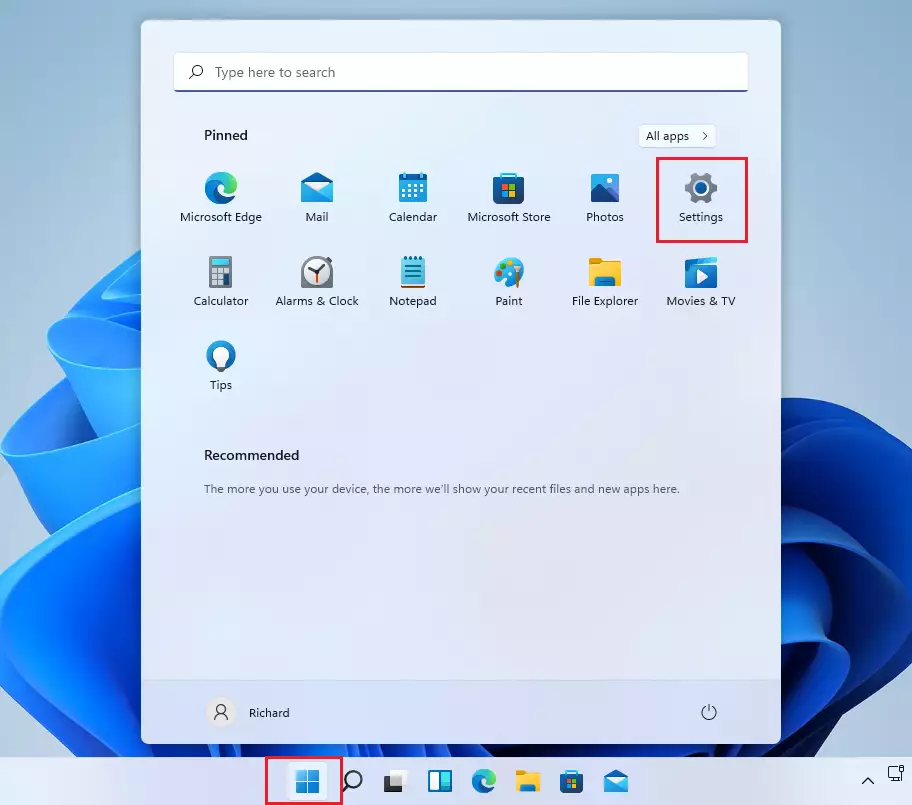
Press Win+I to open Settings, or click the Start button and select the gear icon.
Step 2Navigate to Device Manager
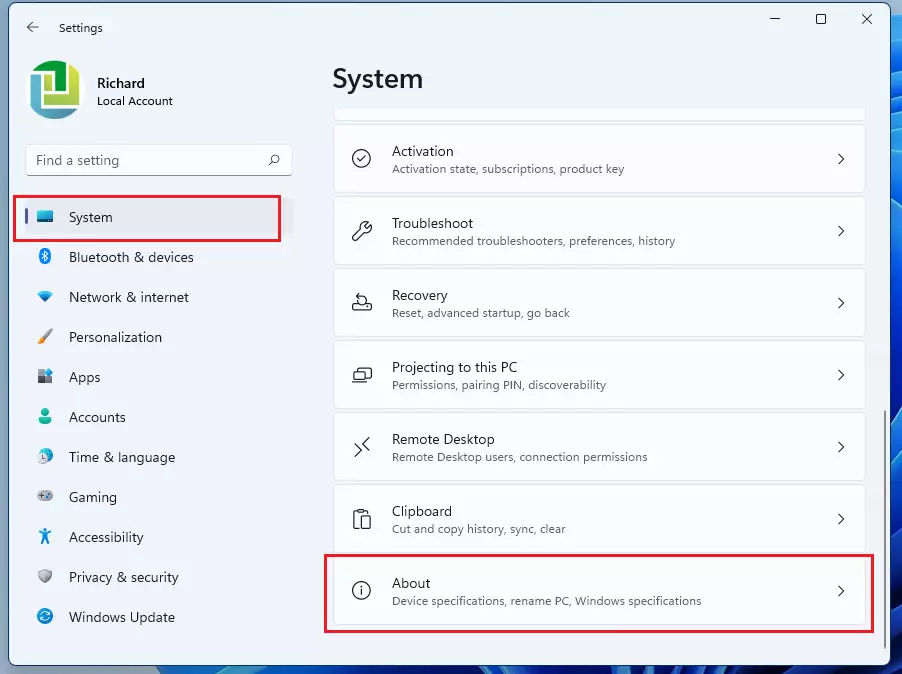
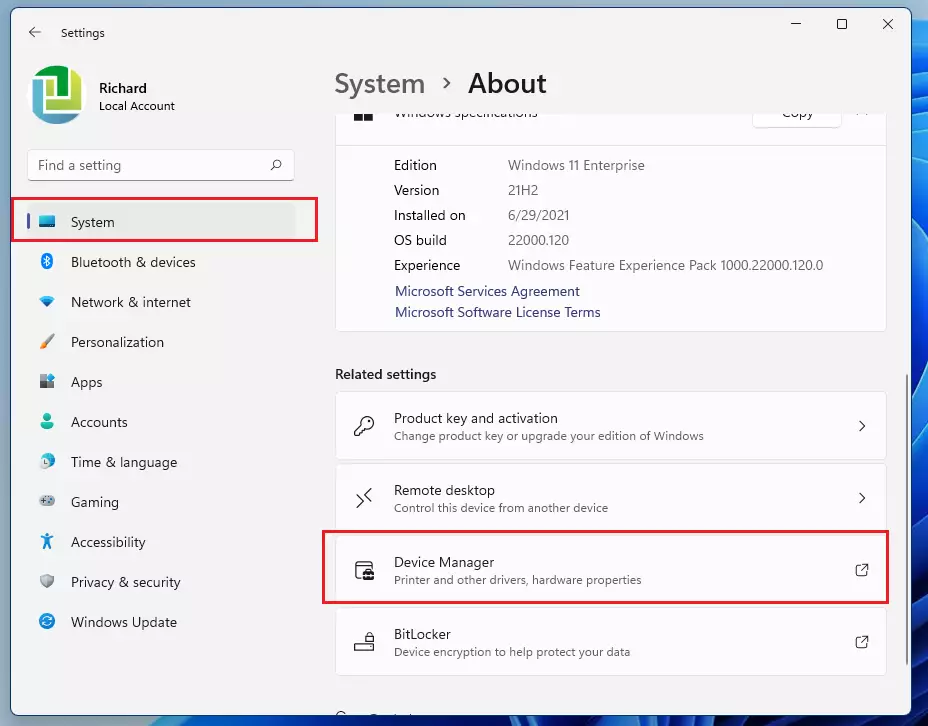
Open the Start menu , type Device Manager in the search bar, and select the best match from the results. Note: You must be signed in as an administrator to complete this step.
Step 3Find Your Device
Look through the list for your hardware. Click the arrow to expand a category.
Step 4Search for Updated Drivers
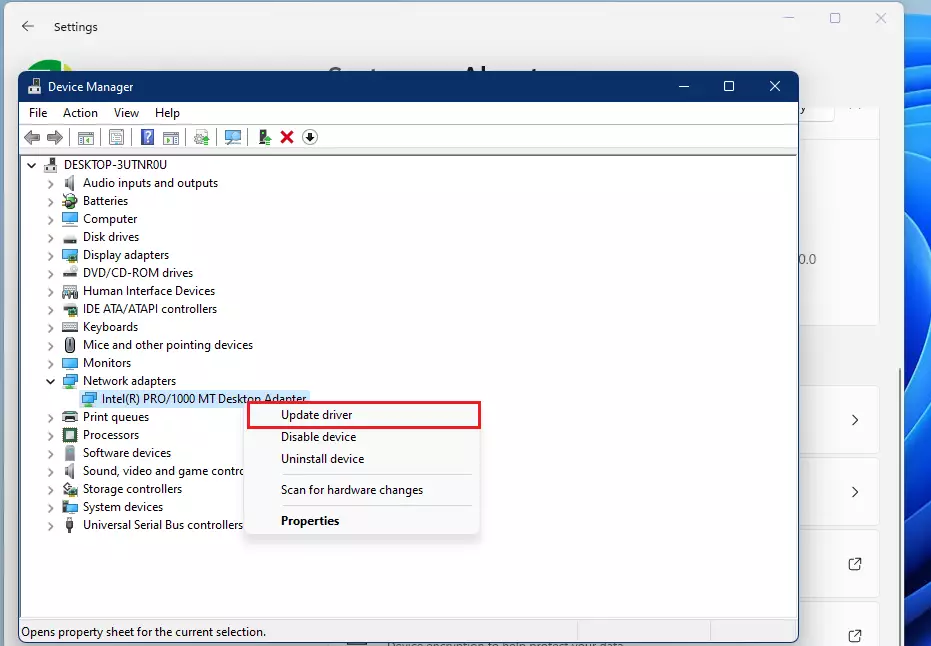
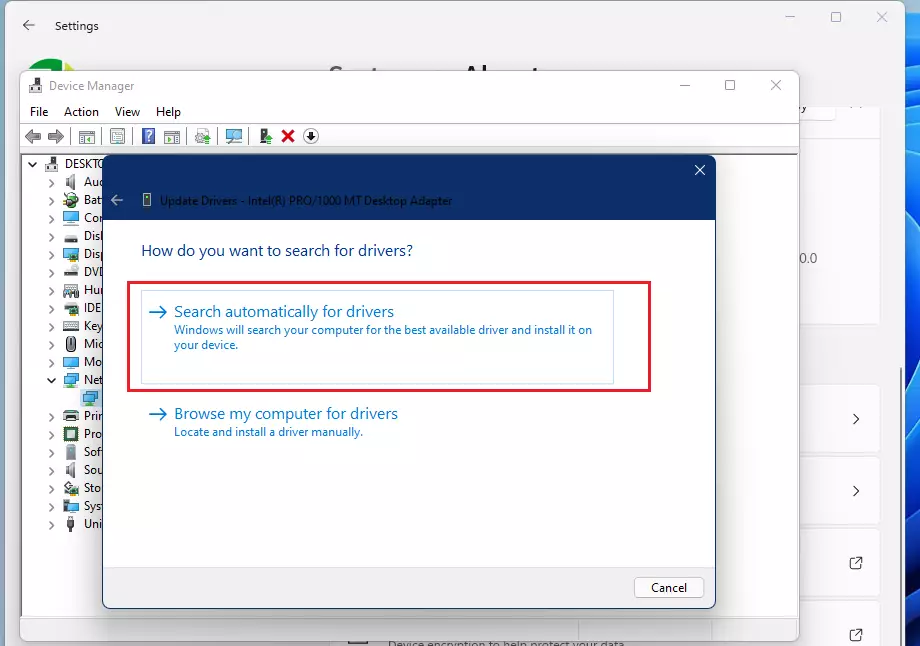
Right-click your device and select Update driver. Choose Search automatically for drivers. Windows will then search its database for a matching driver.
Step 5Install Drivers from the Manufacturer
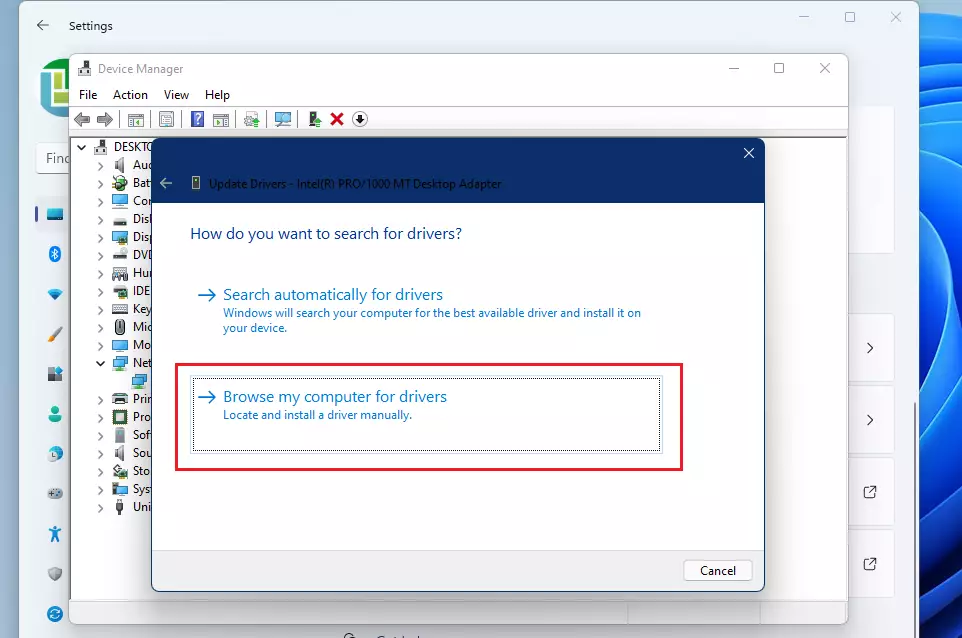
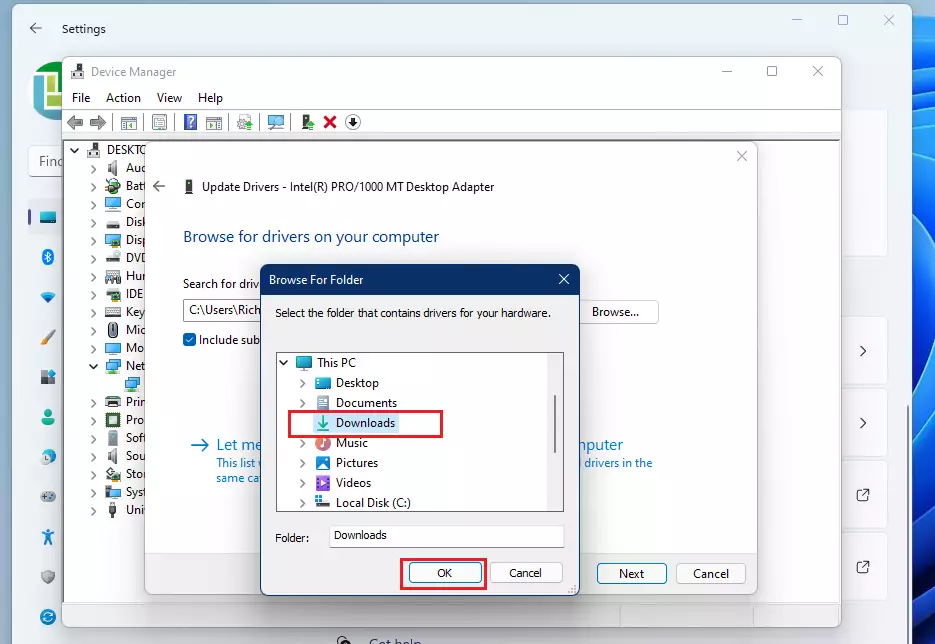
If Windows can't find a driver, you'll need to get it directly from the manufacturer. Visit the official support page for your device's manufacturer, download the driver file, and then return to Device Manager. Select 'Browse my computer for drivers' and navigate to your download folder.
Step 6Restart Your Computer
Always restart to ensure the new driver files replace the old ones correctly.
Troubleshooting: What If an Update Fails?
Fixing a bad update in Windows 11 starts with Device Manager (a tool for managing hardware). Open Device Manager, right-click the device causing trouble, select Properties, open the Driver tab, and click Roll Back Driver to put the old working version back. If that button is greyed out, uninstall the device completely and install the previous driver manually from the manufacturer's website.
Windows Update vs. Device Manager
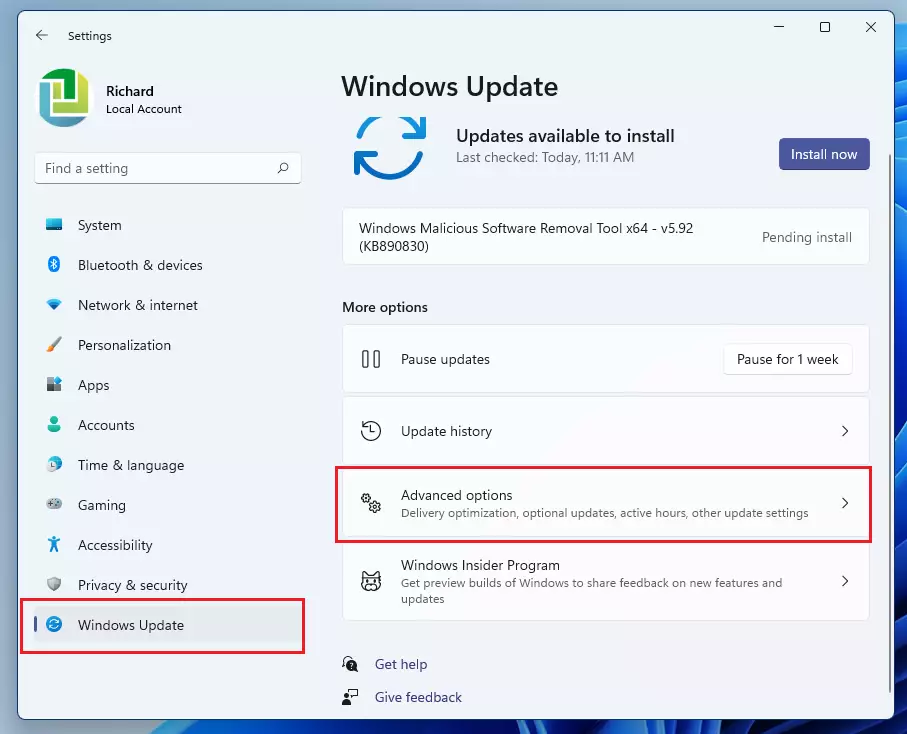
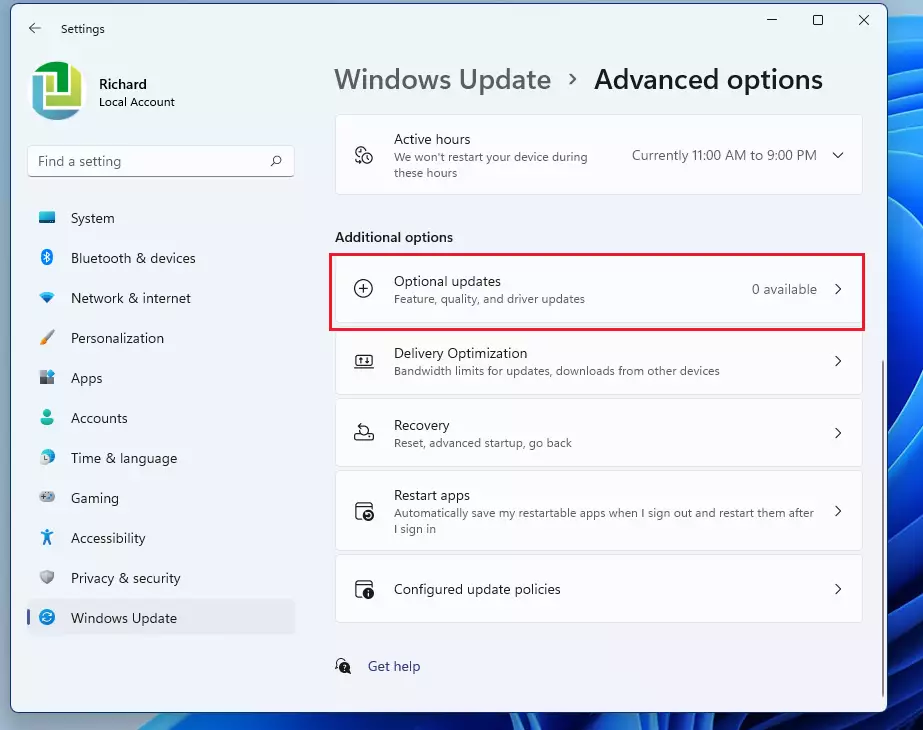
Windows Update is the most efficient way to update device drivers in Windows 11, automatically finding many updates.
Summary
Staying on top of driver updates keeps Windows 11 hardware running without a hitch.
Was this guide helpful?

About the Author
Richard
Tech Writer, IT Professional
Richard is a writer at Geek Rewind who turns complex IT tasks into clear, step-by-step guides. He draws on years of hands-on experience in system administration and enterprise IT operations, focusing on Windows, Linux and WordPress: the problems people actually run into, and the fixes that work. His server and WordPress guides come from systems he runs himself. Richard builds and maintains the platform behind Geek Rewind, from its Ubuntu servers and Nginx configuration to its custom WordPress plugins. Many new tutorials start with readers' questions, and he's always glad to answer them in the comments.


[…] How to update device drivers in Windows 11 […]
[…] How to update device drivers in Windows 11 […]
[…] Display adapter driver update issues […]
[…] For example, there might be system update issues, starting up many programs when Windows boots, system drivers issues, and many […]
[…] How to install device drivers in Windows 11 […]
[…] Update device drivers in Windows 11 […]
[…] First, open the Device Manager. […]
[…] How to install device drivers on Windows 11 […]
[…] Device Manager by searching for it in the Start […]
[…] After extracting, you can install drivers using Device Manager. For a simple guide on installing drivers, check out this post: How to install device drivers in Windows 11. […]
[…] Press Windows + R, type devmgmt.msc, and press Enter to open Device Manager. […]