How to Manage Windows Hello Facial Recognition in Windows 11


Windows Hello offers a secure alternative to standard passwords using your PIN, a security key, or facial recognition. You can configure or remove facial recognition as a sign-in option and User Account Control (UAC) credential provider.
Open Registry Editor and navigate to the specified path. Create or modify the “Disabled” DWORD value; set it to 1 to disable facial recognition or delete it to enable it. Restart your computer for changes to take effect.
Windows offers various ways to sign into your device. A more secure method is Windows Hello. It provides a more personal and secure way to sign into Windows using a PIN, facial recognition, fingerprint, passkey, and more.
Users can also use a security key. This is a hardware device, usually a small USB key, that you can use instead of your username and password to sign in on the web.
Using a password is a less secure method.
Although Windows Hello facial recognition technology is more secure, it may not be compatible in all scenarios. Some environments can remove Windows Hello facial recognition as a sign-in option and UAC credential provider. This will disable the ability to use facial recognition to sign in to Windows on the Sign-in screen and as a UAC credential provider.
For several reasons, someone might want to add or remove facial recognition as a sign-in option in Windows. Facial recognition can be a more secure and convenient way to sign in to your device. By using Windows Hello facial recognition, you can quickly and easily log in without entering your password every time.
However, there may be situations where facial recognition is not compatible or practical. For instance, facial recognition may not work reliably if you wear a mask or other facial covering that obscures your face. Additionally, some organizations or environments may have security policies that prohibit using facial recognition as a sign-in option. In these cases, it may be necessary to remove facial recognition as a sign-in option and use another method, such as a password or a security key, to log in to your device.
How to add or remove Facial Recognition as a Sign-in option
If you want to prevent users from signing in with their faces, or if you need to standardize the Windows sign-in process across multiple accounts, you can remove the ability to use facial recognition. Here's how to do it.
First, open Windows Registry Editor.
Navigate to the following registry key.
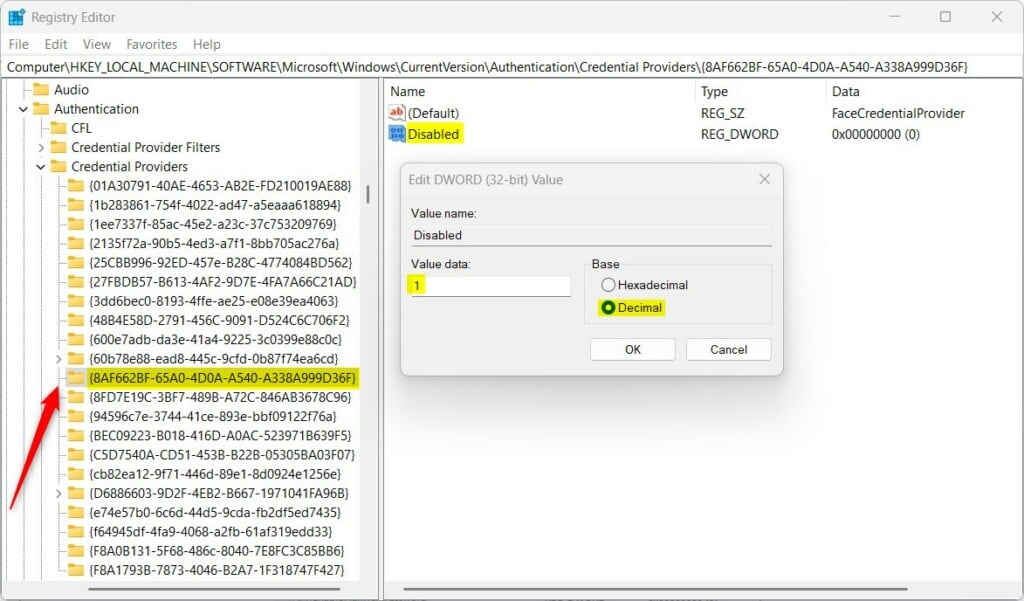
ComputerHKEY_LOCAL_MACHINESOFTWAREMicrosoftWindowsCurrentVersionAuthenticationCredential Providers{8AF662BF-65A0-4D0A-A540-A338A999D36F}
Double-click the Disabled (REG_DWORD) entry in the right-hand pane of the Explorer key to open its properties. Enter `1` to disable users from using facial recognition in Windows.
To allow facial recognition again, delete the Disabled value.
If you don't see the 'Disabled 'item, right-click an empty space in the right pane and select 'New' > 'DWORD (32-bit) Value'. Name this new entry 'Disabled '.
You may have to restart your computer for the changes to take effect.
Reference:
Conclusion:
- Windows Hello facial recognition provides a secure and convenient sign-in option for Windows users, allowing quick and easy access to devices without entering a password every time.
- However, compatibility or practicality issues may arise in certain scenarios, such as using facial coverings that obscure recognition or conforming to organizational security policies.
- Following the steps outlined in this article, users can easily add or remove the ability to use Windows Hello facial recognition as a sign-in option and UAC credential provider, providing flexibility and control over the Windows sign-in process.
- Users are encouraged to leave feedback or additional insights in the comments section to enhance the information provided in this article.
Was this guide helpful?

About the Author
Richard
Tech Writer, IT Professional
Richard, a writer for Geek Rewind, is a tech enthusiast who loves breaking down complex IT topics into simple, easy-to-understand ideas. With years of hands-on experience in system administration and enterprise IT operations, he’s developed a knack for offering practical tips and solutions. Richard aims to make technology more accessible and actionable. He's deeply committed to the Geek Rewind community, always ready to answer questions and engage in discussions.



No comments yet — be the first to share your thoughts!