How to Enable Full Screen Experience in Windows 11

- 13 steps
- Needs administrator rights
- Includes a restart or sign-out
The full screen experience in Windows 11 replaces the desktop with a controller-friendly Xbox home screen that shows your game library and launchers in one place. On supported devices, the quickest way to turn it on is Settings Gaming Full screen experience, followed by a restart.
Microsoft built it for handheld gaming PCs, and the option may not appear on every device. This guide covers the Settings route, why the option can be missing, how to switch it off again, and what to know about third-party Xbox full screen experience tools.
Open Settings Gaming Full screen experience and switch on Enter full screen experience on startup, then restart the PC. This works only on supported devices, so first update Windows and the Xbox app. After the restart, the Xbox home screen replaces the desktop at sign-in. If the Full screen experience entry is missing, the option is not available on your device.
What the full screen experience does
The full screen experience (also called the Xbox full screen experience) is a console-style shell, meaning the screen you see after you sign in. Instead of the desktop, taskbar and Start menu, you get a home screen built for a controller or touch. Microsoft’s stated aim is to cut background activity so more of the device’s resources go to the game.
Your PC still runs Windows 11. Your games, launchers and files stay where they were. You are changing the interface that loads at sign-in, not installing a different operating system.
Before you start
Check three things first. Each one is a common reason the option does not appear.
- Windows version. Use a currently supported Windows 11 version, which is 25H2 or 26H2. Older versions such as 23H2 and 24H2 Home and Pro are out of support and may not receive the feature.
- Windows updates. Microsoft often delivers the option through a cumulative update (a bundle of recent fixes and changes) or a staged rollout (a release that reaches a small group of devices first). A fully updated PC is more likely to show it.
- The Xbox app. The experience depends on the Xbox app, so keep it current through the Microsoft Store.
Microsoft’s documentation that I could confirm does not list which devices qualify. The Settings page is therefore the test. If the page is there, your device offers the feature.
How to enable full screen experience in Windows 11
These steps turn on the full screen experience from the Settings app, with no registry edit or command needed. Complete the whole list in order, because the update steps decide whether the setting appears.
- Check your Windows version. Press Win+R, type
winver, and press Enter. The About Windows window opens and shows your version, such as 25H2. Close it when you have noted the number.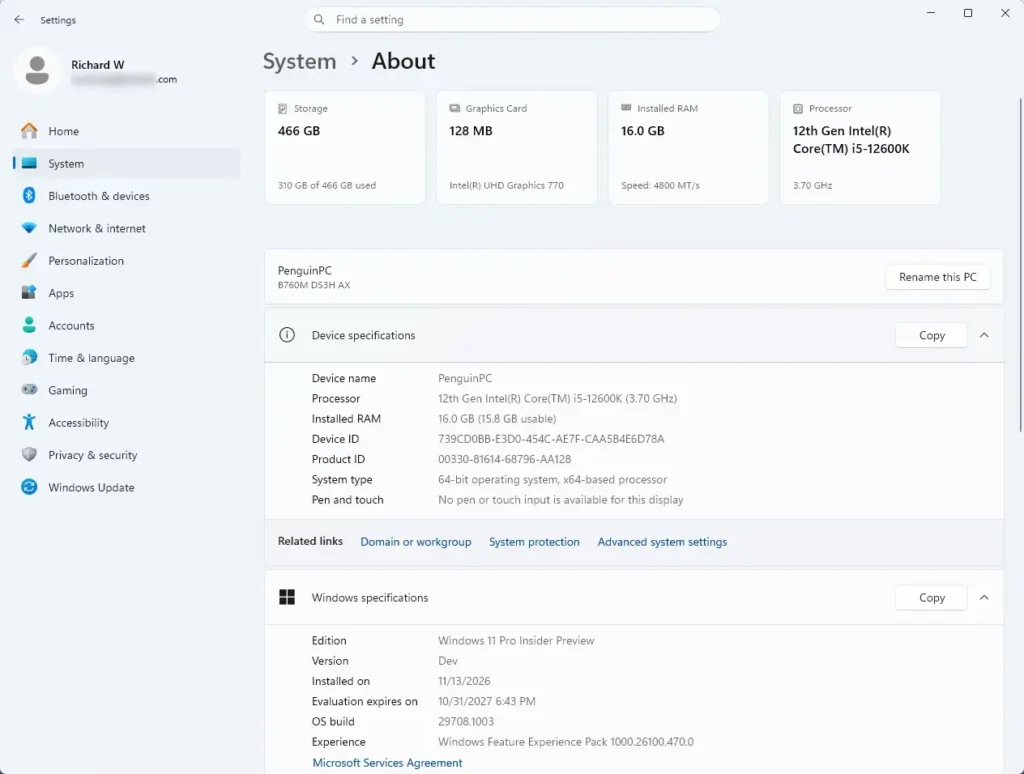
Settings > System > About - Open Settings. Press Win+I. The Settings app opens on the System page.
Windows 11 Start menu search panel for opening OpenSSH Client settings - Select Windows Update. It is at the bottom of the left-hand list.
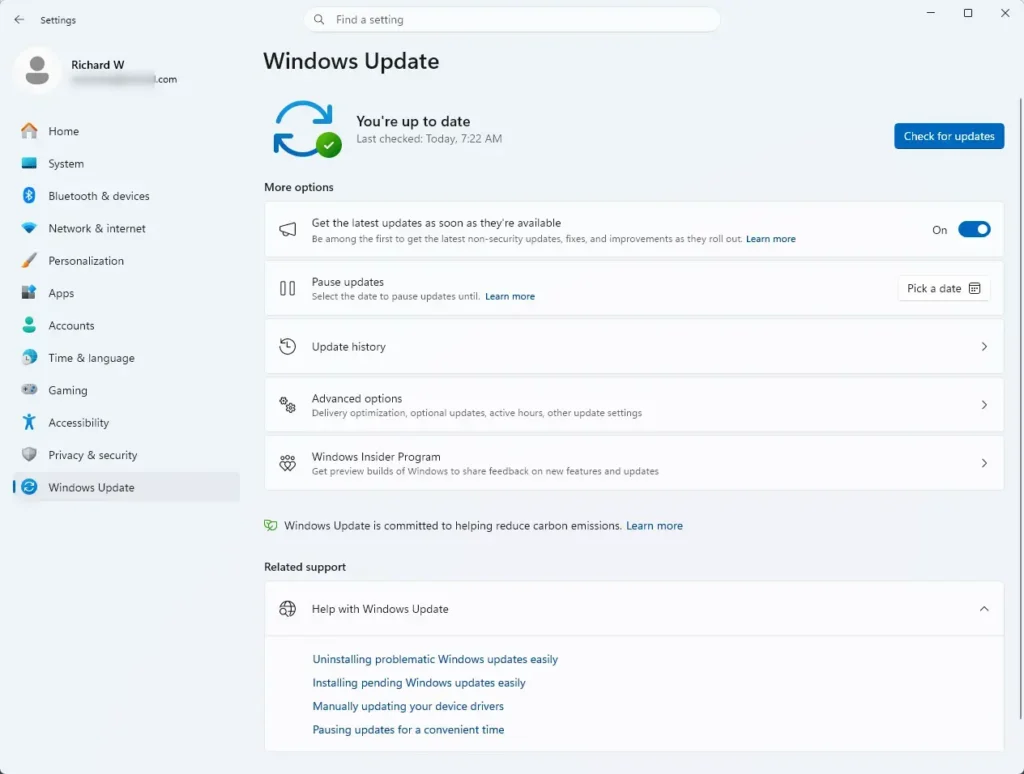
Settings > Windows Update - Select Check for updates. Windows searches for and downloads available updates. If it offers an optional update, review it, but you do not have to install optional previews.
- Restart the PC if prompted. Select Restart now when the button appears. Updates finish installing during the restart, and sign-in can take longer than usual.
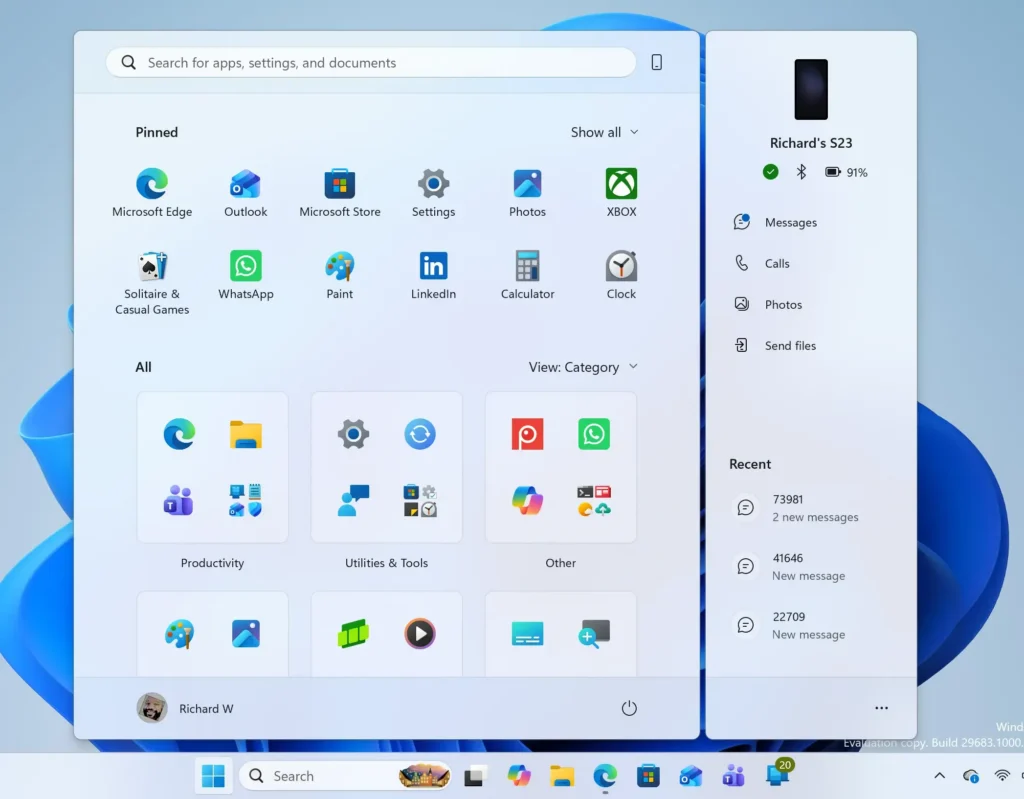
- Open the Microsoft Store. Select Start, type Microsoft Store, and press Enter.
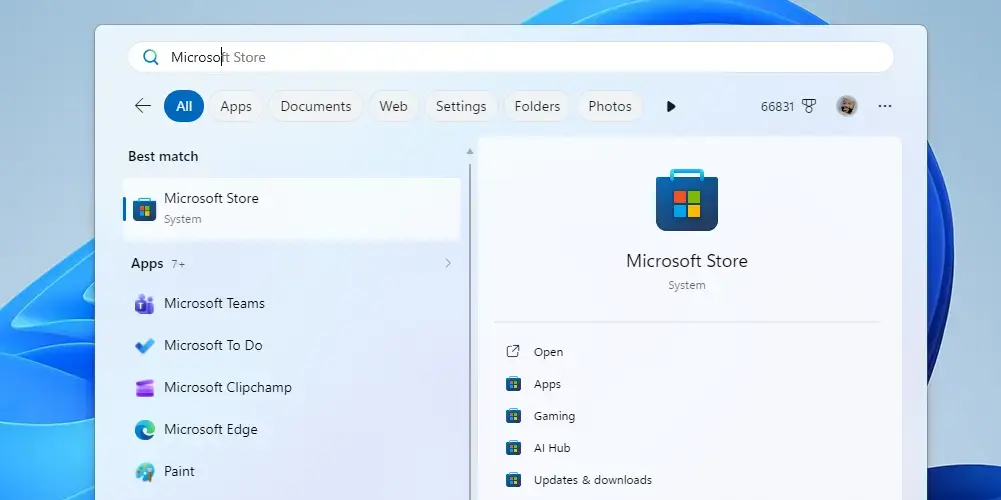
Start Menu - Select Library. It is in the left-hand column of the Store window.
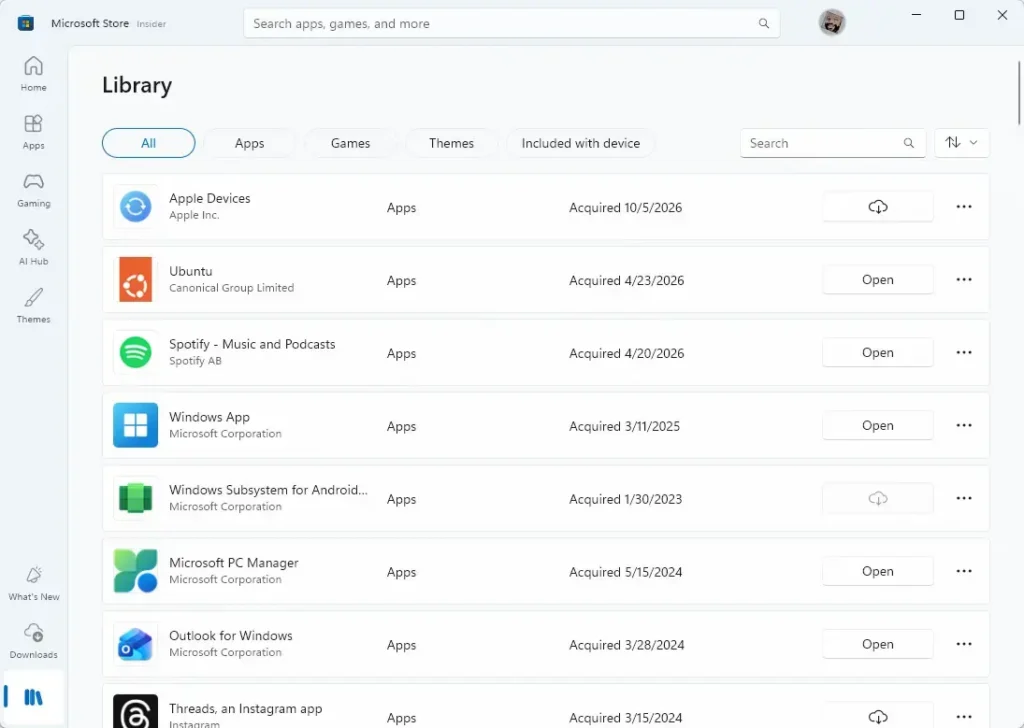
- Select Get updates. The Store updates your installed apps, including the Xbox app. Wait until the list shows no pending items.
- Return to Settings. Press Win+I again.
- Select Gaming. It is in the left-hand list. The Gaming page opens with entries such as Game Bar and Game Mode.
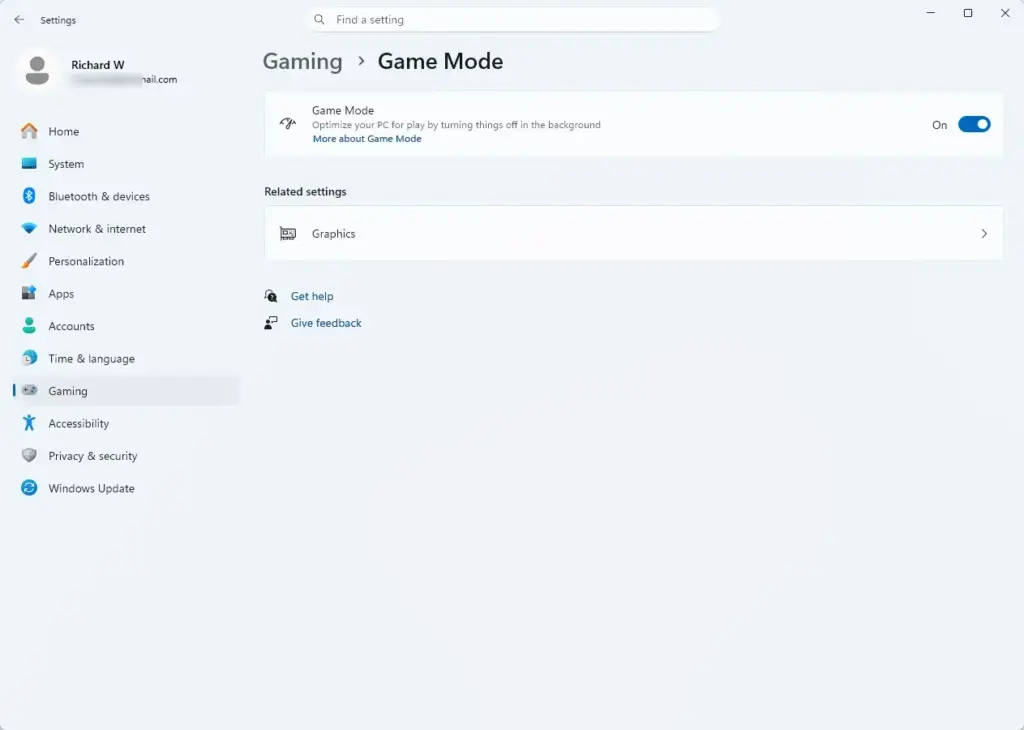
Settings › Gaming › Game Mode - Select Full screen experience. The page for this feature opens. If the entry is missing, go to the “If the Full screen experience option is missing” section below.
- Turn on Enter full screen experience on startup. The toggle switches to On. If your build labels the toggle differently, choose the setting that loads this experience at sign-in.
- Restart the PC. Select Start Power Restart. After you sign in, the Xbox full-screen home screen appears in place of the desktop.
If you see the normal desktop after the restart, return to Settings Gaming Full screen experience and confirm that the toggle is still on. If the toggle has switched itself off, install any pending updates and try again.
If the Full screen experience option is missing
A missing entry is the most common problem, and it usually has one of four causes.
Your Windows version does not include it yet
Check your Windows version again with winver and compare it with the supported list above. If you are on 23H2 or 24H2, move to a supported version through Settings Windows Update. Microsoft ships feature updates in waves, so the offer may take days or weeks to arrive.
The Xbox app is out of date
Open the Microsoft Store, go to Library, and select Get updates. Restart the PC afterwards and check Settings Gaming again.
Your device is not in the rollout
Staged rollouts mean two identical PCs can show different Settings pages on the same day. Check for updates again later rather than forcing the setting through a workaround. Microsoft has not published a device list, so you cannot check whether your model is included.
Windows edition
There is no known difference between Windows 11 Home and Pro for this feature, so do not assume your edition is the cause. Rule out the version, updates and the Xbox app first.
Xbox full screen experience tools from third parties
Searches for “xbox full screen experience tool” lead to community utilities that claim to switch on the experience for PCs where Settings does not show it. Many of these rely on ViVeTool, a command-line tool that turns hidden Windows features on or off by ID number. Features hidden this way are unfinished, so they can behave unpredictably.
- Download it only from the author’s official page, and scan the file before you run it.
- Expect to need administrator privileges, because these tools change system-level settings.
- Create a restore point first. Select Start, type Create a restore point, open the result, select Create on the System Protection tab, and name the point.
- Note every change the tool makes so you can reverse it later.
Microsoft does not support a feature you enable this way. A cumulative update or feature update can remove it, change it or break it without warning.
How to turn off the full screen experience
If the console-style home screen is not what you want, switch off the startup option. This returns Windows to the desktop at the next sign-in.
- Open Settings. Press Win+I. If you are inside the full screen experience and cannot reach Settings, use its own menu to open Settings or exit. The exact label depends on your build, and I cannot confirm it.
- Select Gaming. Choose it from the left-hand list.
- Select Full screen experience. The feature’s page opens.
- Turn off Enter full screen experience on startup. The toggle moves to Off.
- Restart the PC. The desktop, taskbar and Start menu load again after you sign in.
Settings people confuse with it
Several display options sound similar but do different things. None of them turns on the Xbox home screen.
- Full screen optimizations. This is a per-app compatibility setting for how a single game draws to the screen. Read how to adjust full screen optimization settings in Windows 11 Advanced App Properties if one game stutters or flickers, and what breaks when you turn off full screen optimizations before you change it.
- Screen resolution. The full screen experience does not replace your display settings. If text or game menus look too small or too large, follow how to change your screen resolution in Windows 11.
- Main display. With several monitors, set the display you want as primary before you switch the experience on. The guide on changing your main screen in Windows 11 shows how.
- Split screen. Snapping two windows side by side is a desktop feature. Use how to split screen in Windows 11 for that; it is separate from the full screen experience.
What to expect after you switch
The change affects how Windows starts, so the first sign-in after the restart may take longer than usual. Your games remain installed and your accounts stay signed in as before. Controller navigation works across the home screen, and touch works on devices with a touchscreen.
Update behaviour is the main thing to watch. After a large Windows update, return to Settings Gaming Full screen experience and confirm the toggle is still on. A feature update can reset the option or change where it appears.
If this didn’t work
If Settings Gaming still has no Full screen experience entry after you update Windows and the Xbox app, check for updates again in a few days. The rollout may not have reached your device yet. If the toggle is on but the desktop still loads, restart once more and confirm that no pending update is waiting in Settings Windows Update. If you need to get back to a normal desktop at any point, turn off Enter full screen experience on startup and restart.
Frequently asked questions
How to make Copilot full screen?
Open the Copilot app, then press Win+↑ arrow to maximize its window so it fills the screen. Press Win+↓ arrow to return it to a smaller window. If Copilot opens as a sidebar instead of a separate window, the shortcut may not work, so check the app's own view options.
How to print screen in Windows 11?
Press Win+PrtSc to capture the whole screen. Windows saves the image as a PNG file in the Screenshots folder inside Pictures. To capture only part of the screen, press Win+Shift+S and drag over the area you want. That copies the image to the clipboard, and a notification lets you open and save it.
Still have a question?
Answered by AI from this guide. Good questions may be added to this page — please don't include personal details.
Did this guide fix your problem?

About the Author
Richard
Tech Writer, IT Professional
Richard is a writer at Geek Rewind who turns complex IT tasks into clear, step-by-step guides. He draws on years of hands-on experience in system administration and enterprise IT operations, focusing on Windows, Linux and WordPress: the problems people actually run into, and the fixes that work. His server and WordPress guides come from systems he runs himself. Richard builds and maintains the platform behind Geek Rewind, from its Ubuntu servers and Nginx configuration to its custom WordPress plugins. Many new tutorials start with readers' questions, and he's always glad to answer them in the comments.
No comments yet — be the first to share your thoughts!