What Breaks When You Turn Off Full Screen Optimizations in Windows 11 Advanced App Properties

Turning off full-screen optimizations in Windows 11 stops Windows from running games in a hybrid windowed mode. Microsoft introduced this feature to give you the speed of an exclusive full-screen game while letting you switch to other apps instantly.
Disabling the setting forces that game back to the older exclusive full-screen behavior. This can sometimes raise frame rates or fix mouse stutter in older titles, but it often breaks modern PC features. The setting applies to one program at a time, so you only affect the game you change.
Here is what you can lose in that game:
- The Xbox Game Bar and on-screen overlays such as volume sliders.
- Smooth streaming and capture with tools like Discord and OBS.
- Quick alt-tabbing. It can take much longer, or the screen can go black and the game or desktop can crash.
Turning off full-screen optimizations in Windows 11 disables game overlays from Discord and Steam, breaks fast alt-tabbing between windows, and stops Night Light from working in that game. The monitor can go black for several seconds when you switch apps, and alt-tabbing may freeze the game entirely.
How to Access Advanced App Properties and Change Full-Screen Optimizations
You change this setting from the game’s Properties window. Right-click the game icon or shortcut, open Properties, and switch to the Compatibility tab. Here is the full sequence.
- Find the shortcut or the main program file (the .exe file) for your game on your desktop or in File Explorer . If you only have a launcher shortcut and no Compatibility tab appears later, right-click the shortcut, choose Open file location, and work with the .exe in that folder instead.
- Right-click the program icon to open the menu.
- Click Properties at the bottom of the menu. The Properties window opens.
- Click the Compatibility tab at the top of the window. If you do not see this tab, you are probably looking at a Store app or a web-style shortcut, which does not have it. Go to the real .exe file instead.
- Look in the Settings section for the full-screen optimizations option.
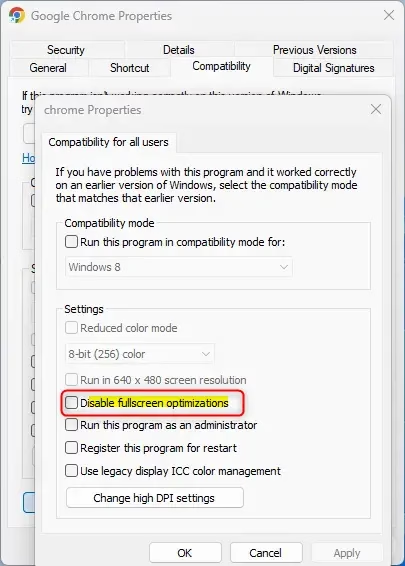
The option is labeled Disable fullscreen optimizations. Now turn it on and save.
- Check the box next to Disable fullscreen optimizations to turn the feature off.
- Click Apply, and then click OK to save your changes. If Windows asks for administrator permission, approve it. Games installed under Program Files sometimes need it.
Close the game completely and start it again. A running game will not pick up the change. No full restart of Windows is needed.
What Actually Breaks When You Turn Off Full Screen Optimizations
Your computer falls back to an older exclusive display mode, which stops modern Windows features from interacting properly with the running game.
1Game Overlays and Instant Messaging Pop-Ups
Game overlays and instant messaging pop-ups stop working because these programs rely on Windows to draw chat menus and notifications directly over your game. When you disable the optimization, software like Steam, Discord, and Xbox can no longer render those notifications on your screen while you play.
If an overlay only fails in one game, check whether you disabled the setting for that game's .exe at some point. That is the first thing to rule out.
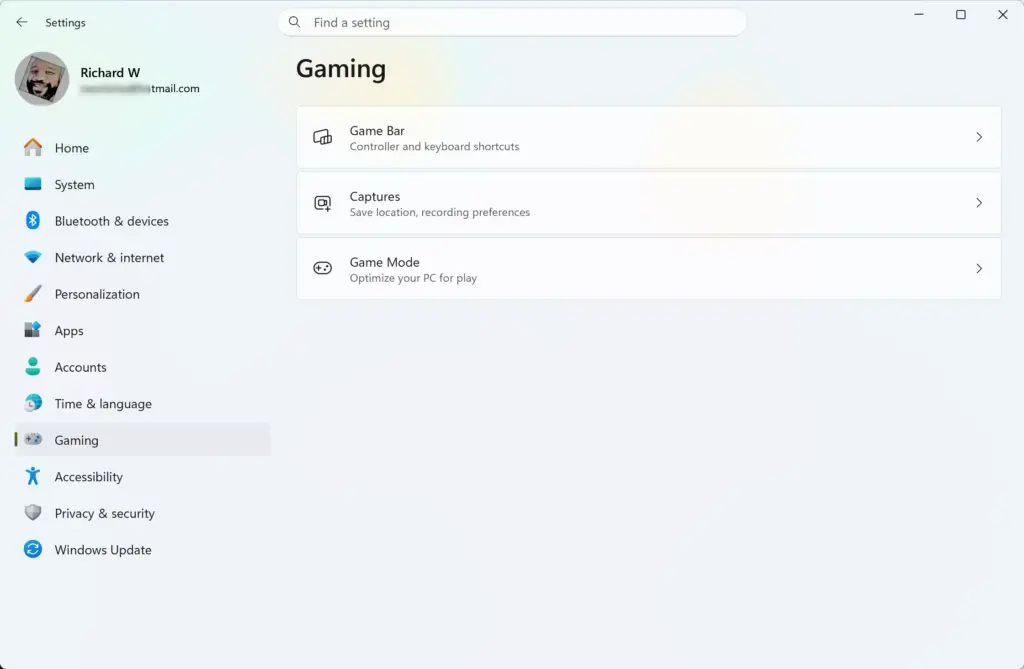
2Fast Alt-Tabbing and Multitasking
Fast alt-tabbing and multitasking become much slower because your computer switches back to older exclusive full-screen behavior. The game has to give up the display completely each time you leave it. Your monitor can go black for several seconds whenever you switch to a web browser or another app, and the game can even freeze.
This is most noticeable on a setup with more than one monitor, because the second screen also flickers or blanks during the switch.
3Automatic Brightness and Night Light Features
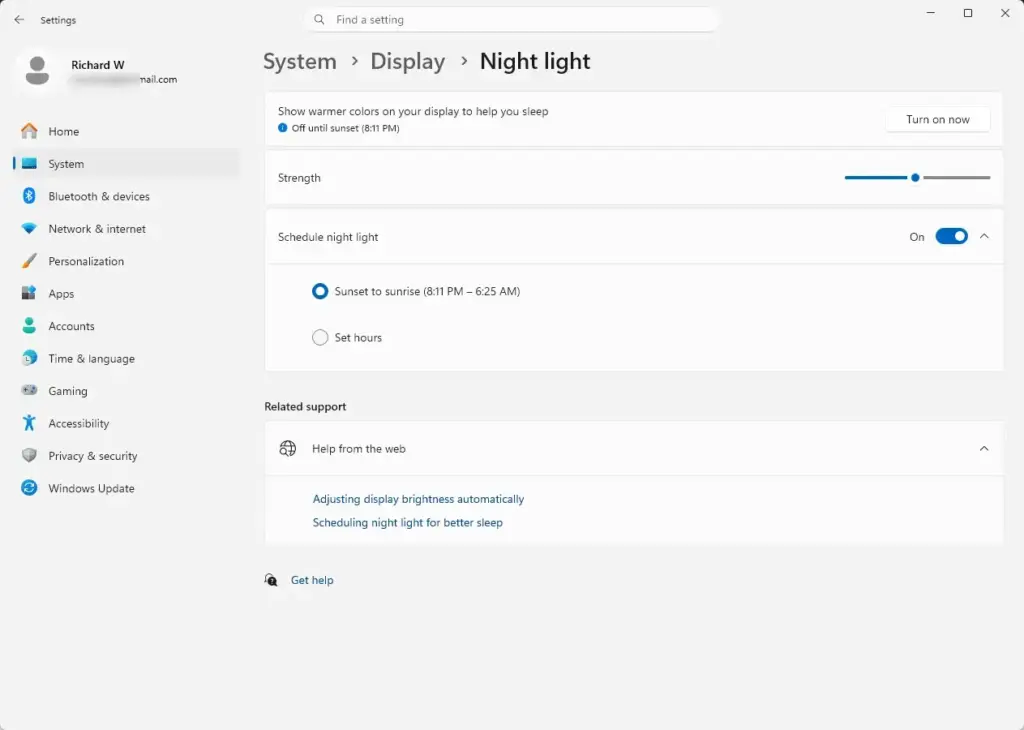
Automatic brightness and Night Light features often stop working correctly inside games when you turn off full-screen optimizations. Games running in exclusive full-screen mode tend to ignore Windows color filters. Your screen might suddenly show full-strength blue light at night, bypassing your custom display settings.
If your eyes notice this, the quick test is to turn the setting back on for that game and see whether Night Light returns.
4Screen Recording and Broadcasting Tools
Screen recording and broadcasting tools can fail or record a black screen because streaming software relies on Windows desktop composition to capture gameplay. Without that feature active for the game, built-in tools like the Xbox Game Bar struggle to capture the game window. You can end up with frozen images or severe video stuttering.
OBS and similar tools have their own capture modes, and some of them cope better than others. Even so, the most reliable fix is usually to restore the Windows default for that game.
How to Fix Issues Caused by Turning Off Full Screen Optimizations
To fix problems caused by turning the setting off, reverse it in the same game properties window. This restores the default behavior.
- Locate the shortcut or program file (.exe) of the game that is acting strangely.
- Right-click the program file and select Properties.
- Click the Compatibility tab.
- Uncheck the box next to Disable fullscreen optimizations to turn the feature back on. The box should now be empty.
- Click Apply and then click OK.
- Restart your game for the changes to take effect.
If your game still has problems after turning the setting back on, restart your computer. You can also update your graphics card drivers through your manufacturer's software. If the game was misbehaving before you touched this setting, the cause is probably somewhere else, such as the drivers.
Summary
It breaks game overlays, alt-tabbing, and recording tools. Some guides suggest changing this setting to fix lag, and it may help one stubborn older game. Treat it as a per-game workaround, not a general tweak. Leaving it on everywhere else keeps your multitasking and everyday experience intact.
Have a question about this guide?
Answered by AI from this guide. Good questions may be added to this page — please don't include personal details.
Did this guide fix your problem?

About the Author
Richard
Tech Writer, IT Professional
Richard is a writer at Geek Rewind who turns complex IT tasks into clear, step-by-step guides. He draws on years of hands-on experience in system administration and enterprise IT operations, focusing on Windows, Linux and WordPress: the problems people actually run into, and the fixes that work. His server and WordPress guides come from systems he runs himself. Richard builds and maintains the platform behind Geek Rewind, from its Ubuntu servers and Nginx configuration to its custom WordPress plugins. Many new tutorials start with readers' questions, and he's always glad to answer them in the comments.
No comments yet — be the first to share your thoughts!