Fix Mouse Not Working in Windows 11

- 19 steps
- Needs administrator rights
- Includes a restart or sign-out
Start with the cable or USB receiver, then check the Bluetooth pairing (the link between the mouse and the PC), the Mouse settings page and the driver in Device Manager. Most dead pointers come down to a loose connection, a drained battery, a dropped Bluetooth pairing or a driver that needs a reset.
Device Manager is the built-in Windows tool that lists every piece of hardware and the driver (the software that lets Windows talk to a device) behind it. Because you cannot click while the mouse is dead, this guide gives keyboard shortcuts for every step.
If your mouse is not working in Windows 11, first unplug it and try a different USB port directly on the PC, then check the battery or power switch on a wireless mouse. If the pointer still does not move, restart with Win+X, then U, then R, and check Settings Bluetooth & devices for a stale pairing.
Use the keyboard to get around when the mouse is dead
- Win+I opens Settings.
- Win+X opens the Quick Link menu. With the Quick Link menu open, press M to open Device Manager.
- Ctrl+Shift+Esc opens Task Manager.
- Tab and Shift+Tab move between buttons and fields. The arrow keys move within lists. Enter selects, and Space flips a toggle or ticks a checkbox.
- Alt+Tab switches between open windows. Alt+F4 closes the active one.
If a touchpad works on your laptop, use it for the steps below. If nothing works, the keyboard is enough for every step in this article.
Fix mouse not working in 🪟 Windows 11
These steps fix a mouse that is not working in Windows 11, starting with the quickest hardware checks and ending with driver resets. Stop as soon as the pointer moves.
- Unplug the mouse and plug it into a different USB port. Use a port directly on the PC, not a hub or a monitor’s USB port. A wired mouse and the USB receiver of a wireless mouse both need a stable connection. Wait a few seconds. Windows plays a connection sound and the pointer should appear.
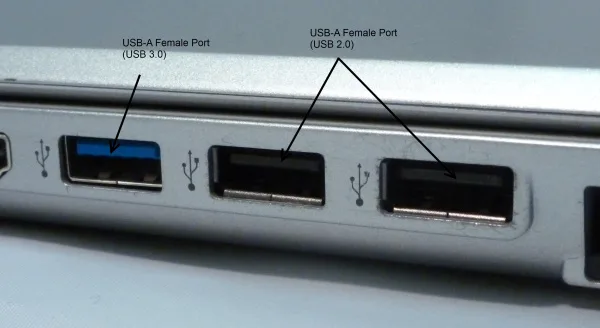
Settings > Bluetooth & devices > USB - Check the battery and power switch on a wireless mouse. Many mice have a small power switch on the underside. Replace the batteries, or charge the mouse if it has a built-in battery. A weak battery often causes a pointer that freezes or lags before it dies completely.
- Test the mouse on another computer. If it fails there too, the mouse itself is faulty. Replace it and skip the rest of this list. If it works there, the problem is in your PC’s settings, port or driver.
- Restart the PC from the keyboard. Press Win+X, then U, then R. Choose Restart, not Shut down. With Fast Startup (a feature that saves part of the system state to speed up boot), shutting down does not fully reload drivers, but a restart does.
- Open Settings. Press Win+I. The Settings window opens with the left-hand menu focused. Use the Down Arrow key to reach Bluetooth & devices and press Enter.
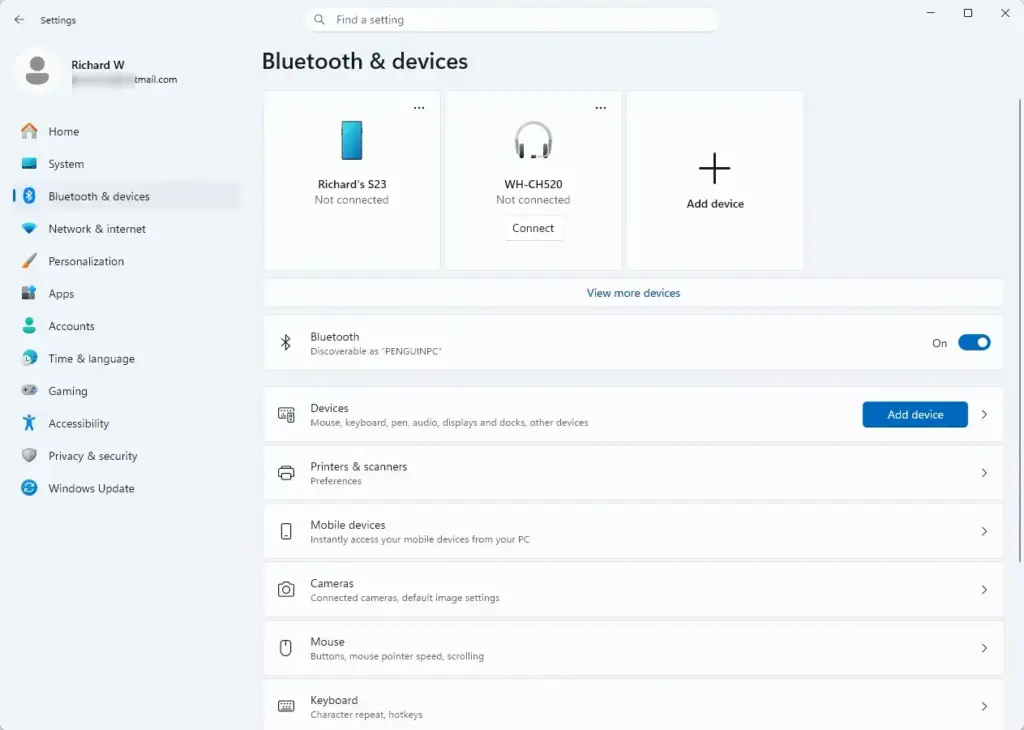
Windows Settings menu highlighting the Bluetooth and devices option for printers - Turn on Bluetooth for a Bluetooth mouse. At the top of Settings Bluetooth & devices, press Tab until the Bluetooth toggle is selected. Press Space if it reads Off. If the toggle is missing, Windows does not detect a Bluetooth adapter. Skip ahead to the Device Manager steps. On a work PC, an organization policy can also block Bluetooth, so ask your IT team.
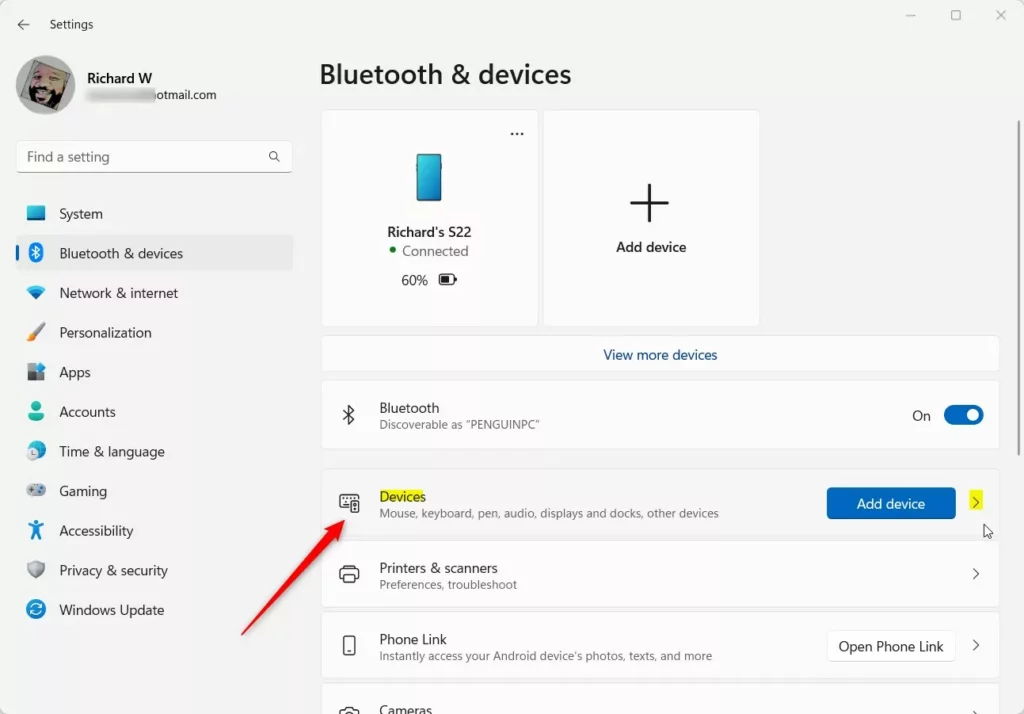
- Remove the mouse from the Devices list. Go to Settings Bluetooth & devices Devices. Tab to your mouse, open More options (the three-dot menu) and select Remove device. Confirm if prompted. This clears a pairing that has gone stale.
Windows Settings menu highlighting the Bluetooth and devices option for printers - Put the mouse in pairing mode. The method varies by model, but it is usually a button on the underside that you hold until a light blinks. Check the mouse’s manual if nothing blinks.
- Select Add device and choose Bluetooth. On the Devices page, Tab to Add device and press Enter. Choose Bluetooth. When your mouse appears in the list, select it. Windows reports that the device is ready to go, and the pointer should move.
Windows 11 Bluetooth and devices settings with add device option. - Check the Mouse settings page. Go to Settings Bluetooth & devices Mouse. Confirm that Primary mouse button is set the way you expect. Check that Mouse pointer speed is not set to its lowest value. The pointer can seem frozen at the minimum speed.
- Open Device Manager. Press Win+X, then M. A list of hardware categories appears with the first entry selected.
- Expand Mice and other pointing devices. Press the Down Arrow key until you reach this category, then press Right Arrow. Your mouse appears below, often as HID-compliant mouse or under the maker’s name. A Bluetooth mouse can also appear under Bluetooth.
- Enable the mouse if it is disabled. Administrator privileges required. Select the mouse entry, press Alt+A to open the Action menu and look for Enable device. If you see Disable device instead, the mouse is already enabled. Choose Yes on the User Account Control prompt if one appears. Press Alt+Y or use the arrow keys and Enter.
- Update the mouse driver. Administrator privileges required. With the mouse entry selected, press Alt+A and choose Update driver. Select Search automatically for drivers. Windows installs a newer driver if it finds one, or tells you the best driver is already installed.
- Roll back the driver if the problem started after an update. Administrator privileges required. With the mouse entry selected, press Enter to open its properties. Open the Driver tab and select Roll Back Driver. This button is greyed out when Windows has no earlier driver stored, so skip this step in that case.
- Uninstall the mouse device. Administrator privileges required. Select the mouse entry, press Alt+A and choose Uninstall device. Confirm the prompt. This removes only the driver entry, not the mouse. The device is not harmed, and Windows rebuilds it at the next start.
- Restart the PC again. Press Win+X, then U, then R. Windows detects the mouse on startup and reinstalls its driver. The pointer should move once you reach the sign-in screen or the desktop.
- Turn off USB power saving. Administrator privileges required. In Device Manager, expand Universal Serial Bus controllers. Open the properties of each USB Root Hub entry. On the Power Management tab, clear Allow the computer to turn off this device to save power, then select OK. Windows can switch off idle USB ports and sometimes fails to wake them. Not every entry has a Power Management tab.
- Check for Windows updates. Open Settings Windows Update and select Check for updates. Install anything that appears, including optional driver updates if they are listed, then restart. A pending update can also leave input devices in a bad state until the PC restarts.
If the pointer returns at any step, leave the later steps alone. Each driver step changes only the mouse’s entry in Device Manager, so you can repeat it later if the problem comes back.
If the pointer moves but clicks do nothing or work backwards
A pointer that moves but misbehaves points to a setting, not a hardware fault. Open Settings Bluetooth & devices Mouse and check Primary mouse button. If it is set to Right, left-clicking acts like a right-click. Change it back to Left.
The post on swapping mouse buttons in Windows 11 Mouse settings explains the option, and the guide to configuring your mouse for left-handed use covers the related choices.
If the pointer feels sluggish or jumps unpredictably, the problem is pointer speed or acceleration (a setting that makes the pointer move farther when you move the mouse quickly), not a dead mouse. Five Windows 11 mouse settings that fix cursor speed walks through the options. Disabling mouse acceleration in Windows 11 covers the setting that makes the pointer travel farther when you move quickly.
If the mouse stops working at random
A mouse that works, drops out and returns usually has a power or wireless problem. Move the USB receiver closer to the mouse, or plug it into a port on the front or back of the PC instead of through a hub. Keep the receiver away from other wireless gear, which can interfere.
Replace the batteries even if the mouse still turns on, because weak batteries cause dropouts. Turning off USB power saving, in the step of that name in the numbered list earlier in this article, also fixes many cases of a mouse that goes to sleep and does not wake.
If the pointer appears on a black screen after sign-in
A black desktop after sign-in looks like a dead mouse, but it is a separate problem. Microsoft documents a known issue where some devices show a black screen after sign-in because the desktop fails to load. The issue started after the August 2026 non-security preview update KB5120998 and later updates. It mostly affected virtual desktop servers (Azure Virtual Desktop hosts) that use FSLogix (a profile container technology for virtual desktops).
Microsoft says the issue is resolved in Windows updates released on and after October 13, 2026, such as KB5127648. As a temporary workaround, press Ctrl+Shift+Esc to open Task Manager.
Select Run new task and enter explorer.exe. The desktop should then load. If your PC is a personal one and is not a virtual desktop host, the cause is more likely one of the steps above.
Use Mouse Keys until the mouse is fixed
Mouse Keys is a Windows accessibility feature that moves the pointer with the number pad on your keyboard. Press Left Alt+← Shift + Num Lock to switch it on. Windows may ask you to confirm. Once it is on, the number pad moves the pointer.
Open Settings Accessibility Mouse to adjust or turn it off. The guide on how to move the pointer with Mouse Keys in Windows 11 covers the setup and the speed options. It is a stopgap that lets you keep working while you replace the mouse or wait for a driver.
What to do next
If the pointer still does not move after the driver steps and a test on a second computer, there are more checks to try. Read what to do when your mouse stops working entirely in Windows 11 for them. If the mouse works on another PC but not on yours, try a different USB port, or a different Bluetooth adapter if the mouse pairs wirelessly. Once the pointer moves again, check Settings Bluetooth & devices Mouse to set the speed and buttons the way you like them.
Have a question about this guide?
Answered by AI from this guide. Good questions may be added to this page — please don't include personal details.
Did this guide fix your problem?

About the Author
Richard
Tech Writer, IT Professional
Richard is a writer at Geek Rewind who turns complex IT tasks into clear, step-by-step guides. He draws on years of hands-on experience in system administration and enterprise IT operations, focusing on Windows, Linux and WordPress: the problems people actually run into, and the fixes that work. His server and WordPress guides come from systems he runs himself. Richard builds and maintains the platform behind Geek Rewind, from its Ubuntu servers and Nginx configuration to its custom WordPress plugins. Many new tutorials start with readers' questions, and he's always glad to answer them in the comments.
No comments yet — be the first to share your thoughts!