Why Does My Mouse Scroll the Wrong Way in Windows 11

A mouse that scrolls the wrong way in Windows 11 usually has a reversed scroll direction in the touchpad settings, the mouse maker’s software, or one app. Check three places first: the touchpad settings, the mouse maker’s software, and any single app. If the wheel still misbehaves, reinstall the driver. If it also fails on another PC, the sensor inside is dirty or worn.
Scroll direction sets which way the page moves when you turn the wheel. Windows 11 has no direction option for a mouse on the Settings Bluetooth & devices Mouse page It does have one for touchpads, and most mouse makers add their own in a companion app.
The steps below run from the quickest checks to hardware fixes. Stop as soon as the wheel behaves.
A mouse that scrolls the wrong way in Windows 11 usually has its scroll direction reversed in the touchpad settings, the mouse maker’s software, or a single app. Check the touchpad under Settings Bluetooth & devices Touchpad, then the mouse maker’s companion app, then the app you are using. If the wheel still misbehaves, reinstall the mouse driver.
Why Does My Mouse Scroll the Wrong Way in 🪟 Windows 11?
Scroll direction flips for a handful of reasons, and each one needs a different fix. Knowing which one applies saves you from changing settings that have nothing to do with the problem.
- The touchpad setting is reversed. On a laptop, the touchpad and the mouse are separate devices. One can scroll “naturally” (like a phone) while the other scrolls the traditional way, so switching between them feels backwards.
- The mouse maker’s software reversed it. Apps from Logitech, Razer, Microsoft and others can override the direction for their own mice.
- One app has its own scroll setting. Some apps and browser extensions change how the wheel behaves only inside that app.
- The driver or a device setting changed. A driver reinstall, a new mouse model, or a leftover setting from an old device can leave the direction flipped.
- The wheel hardware is failing. Dust or wear on the wheel’s sensor (the part that counts how far the wheel turned) can make the page jump or scroll backward at random.
Windows 11 Home and Pro behave the same way here. None of the fixes below depend on your edition.
Find Out Where the Problem Happens
This check shows whether Windows, one app, or the mouse itself causes the problem. Scroll the same page in another app, such as Notepad, and see whether the problem follows the mouse. It changes nothing on your PC.
- Open a long web page in Microsoft Edge and turn the wheel away from you. Note which way the page moves.
- Open a long folder in File Explorer , or a long document in Notepad, and turn the wheel the same way. The page should move the same way as it did in the browser.
- Unplug the mouse and plug it into a different USB port. If it is wireless, move the receiver to another port, or turn the mouse off and on.
- If you have a second mouse, connect it and repeat step 1. A second mouse that scrolls correctly points to the first mouse or its software. A second mouse that scrolls wrongly points to a Windows setting.
Read the results like this:
- Wrong in one app only: go to the app-specific section below.
- Wrong everywhere, with every mouse, on a laptop: check the touchpad setting.
- Wrong everywhere with one mouse only: check the mouse maker’s software, then the driver and hardware.
Check the App You Are Using
Some apps have their own scroll or zoom settings that ignore the Windows setting. Remote desktop clients, virtual machine windows, and drawing or design programs are common examples. Look in the app’s Preferences or Options menu for a setting named something like scroll direction or wheel behavior. The wording varies by app.
Browser extensions can also change how the wheel works on web pages. If the wrong direction shows up only in your browser, open the extensions page, turn off any extension related to scrolling or gestures, and test again. Turn them back on one at a time to find the cause.
Fix Touchpad Scrolling Direction in 🪟 Windows 11
Windows 11 stores the touchpad direction separately from the mouse, so changing it never affects the mouse wheel.
- Press Win+I to open Settings.

- Click Bluetooth & devices on the left, then click Touchpad. The path is Settings Bluetooth & devices Touchpad
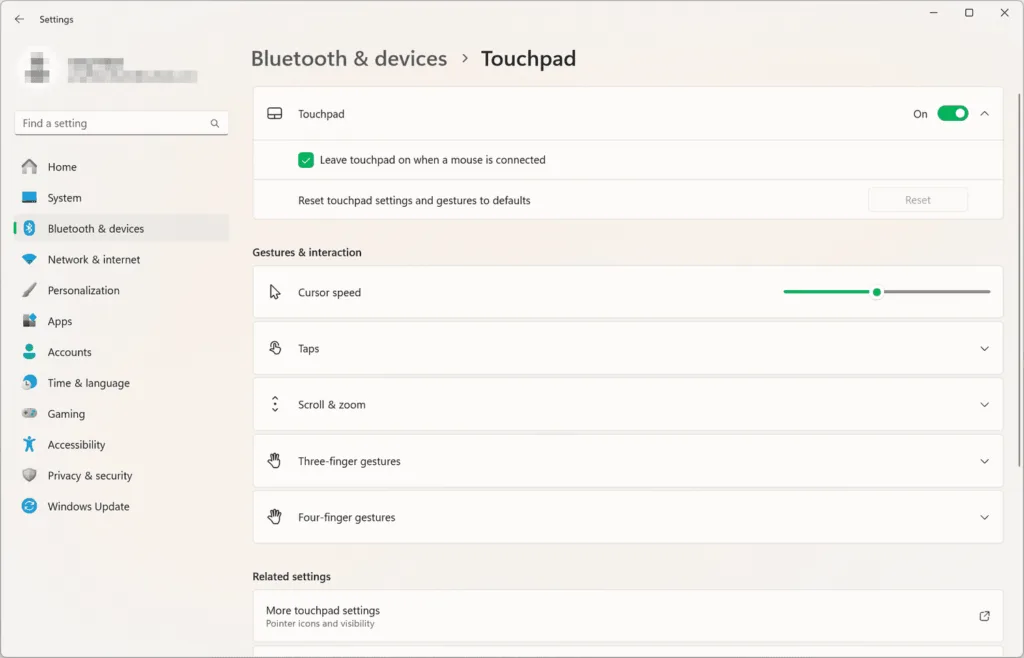
Settings › Bluetooth › Touchpad - Expand the Scroll & zoom section by clicking its heading. The touchpad scrolling options appear.
- Open the Scrolling direction list. It has two choices: Down motion scrolls down and Down motion scrolls up.
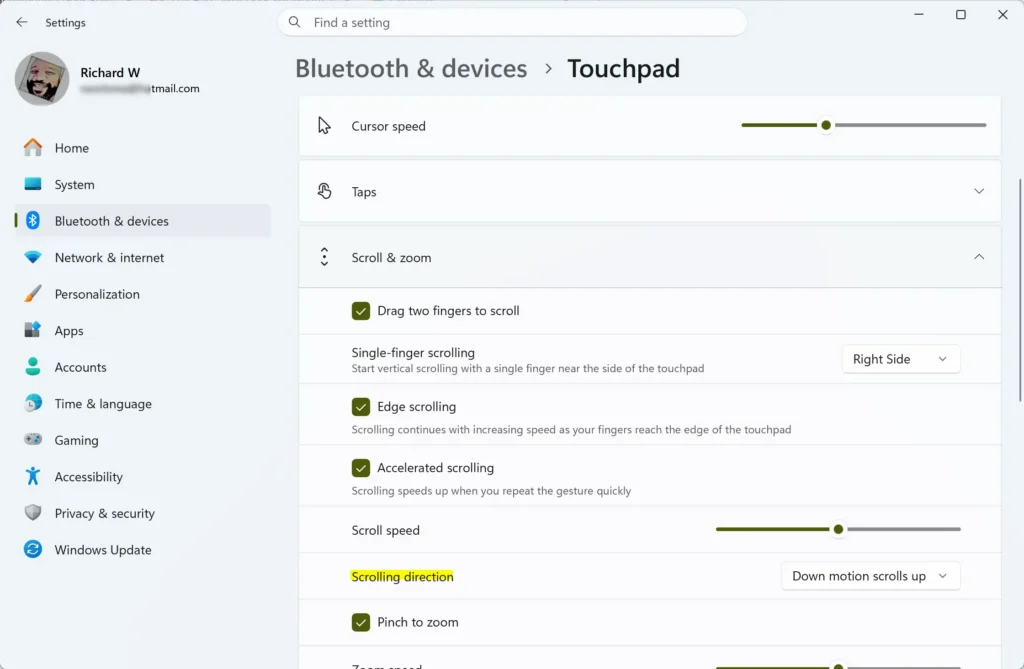
- Pick the other choice from the one currently selected, then test two-finger scrolling on a web page. The change applies immediately, with no restart.
To undo the change, go back to the Touchpad page and choose the original direction.
If the Touchpad Page Is Missing
The Touchpad page appears only when Windows detects a touchpad. A desktop PC with no touchpad does not show it, so skip this section. On a laptop where the page is missing, the touchpad driver may be absent or disabled.
Open Device Manager and expand Mice and other pointing devices. Look for a touchpad entry. A down arrow on the icon means the device is turned off.
If the mouse works but the touchpad stops responding whenever you plug it in, a separate setting controls that. The post on turning the touchpad off when a mouse is connected in Windows 11 covers it.
Check Your Mouse Maker’s Software
Many mice from Logitech, Razer, Microsoft and other brands come with a companion app that stores settings on the mouse or in the app. If the direction is reversed there, Windows settings will not fix it. Installed apps may include Logitech Options+, Razer Synapse, or Microsoft Mouse and Keyboard Center.
- Open the Start menu and type the name of your mouse brand. If an app appears, such as one of the three above, open it.
- Select your mouse in the app’s device list.
- Find the wheel or scrolling options. Look for a setting named something like scroll direction, reverse scrolling, or natural scrolling. The exact wording and location differ by brand and app version.
- Change the direction, then test the wheel on a web page.
If the app shows no direction option, your model may not support it. Check the maker’s support page for your exact model before assuming it is missing.
No app installed? You do not need one for the steps above to work. Without it, the mouse uses the default Windows driver and behaves as Windows describes.
Reverse the Mouse Wheel Direction in 🪟 Windows 11 Itself
Windows 11 Settings has no switch for reversing a mouse wheel. Open Settings Bluetooth & devices Mouse, and you will find scroll options such as Mouse scrolling and Lines to scroll at a time, but none of them changes direction. They change how much the page moves, not which way.
A method that edits the registry, the database where Windows keeps its settings, can reverse the direction for each mouse. [Verification Required: registry path and value should be confirmed for your Windows version before publishing.] Do not copy values from a forum post without confirming them for your Windows version, because the registry stores the setting per device and wrong edits are hard to trace. A better route for most people is the mouse maker’s app described above.
Update or Reinstall the Mouse Driver
A damaged or mismatched driver can cause odd scrolling. Reinstalling it makes Windows load a fresh copy of the driver, the small program that lets Windows talk to the mouse. This step needs administrator permission, and Windows asks for it if you are not already signed in as an administrator. A reinstall can also reset settings stored with the old driver, so note your current setup first.
Update the Driver
- Right-click the Start button and select Device Manager.
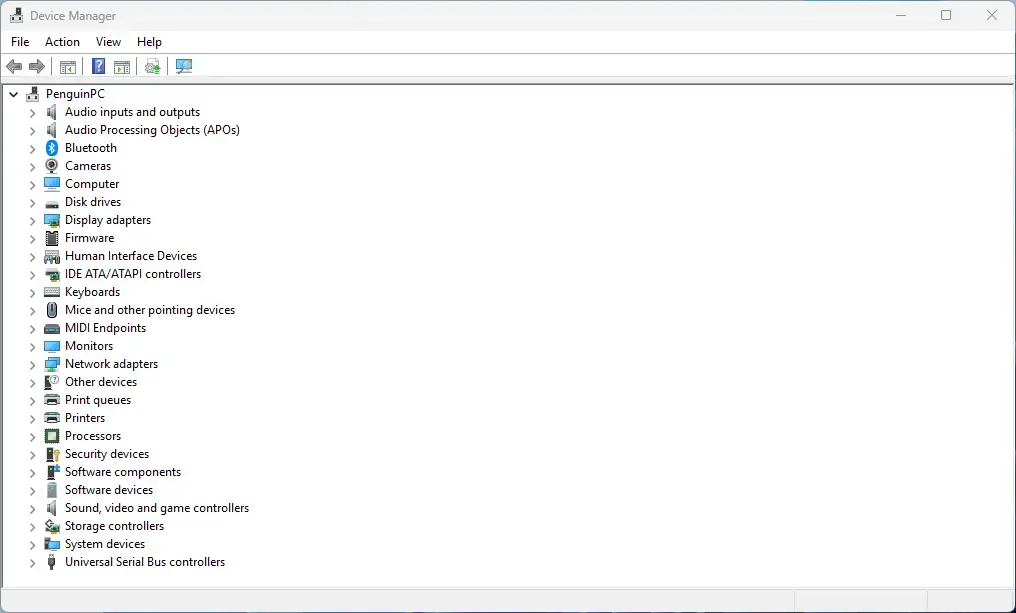
Device Manager - Expand Mice and other pointing devices by clicking the arrow next to it.
- Right-click your mouse and select Update driver. A mouse often appears as HID-compliant mouse.
- Select Search automatically for drivers. Windows searches and tells you if a newer driver is available or if the best one is already installed.
If Windows says the best driver is already installed, skip to the reinstall steps below.
Reinstall the Driver
- In Device Manager, right-click the mouse again and select Uninstall device.
- Click Uninstall in the confirmation box. The mouse may stop responding for a moment. Use the keyboard or touchpad if needed.
- Restart the PC. Windows detects the mouse on startup and reinstalls the default driver.
- Test the wheel on a web page.
If the mouse has its own driver or app from the maker, install that again afterward, then re-check its scroll direction setting.
Check the Mouse Hardware
If the page jumps, scrolls the wrong way only now and then, or reverses when you turn the wheel slowly, the cause is likely physical. Windows reads the wheel's pulses. Worn or dirty parts send the wrong signals, so Windows reads the wheel movement incorrectly.
- Test the mouse on another PC. If the same fault appears, the mouse itself is the cause, not Windows.
- Replace the batteries if the mouse is wireless. Low power can cause erratic behavior.
- Unplug the mouse and turn it over. Turn the wheel while blowing short bursts of compressed air into the wheel gap, which clears dust and lint.
- Test again on a web page. Turn the wheel slowly, then quickly, in both directions.
If the fault stays after cleaning, the wheel mechanism is probably worn. Replacing a basic mouse costs less than repairing it. For an expensive mouse, check the warranty first. Avoid spraying oil or lubricant into the wheel, since it can attract more dust.
Scroll Settings That Are Not About Direction
Some problems feel like the wrong direction but come from a different setting. Check these before concluding the direction is reversed.
- The page scrolls too far or too little. This is a speed problem. See how to change mouse scroll speed in Windows 11, or a second walkthrough on changing mouse wheel scroll speed.
- The wrong window scrolls. Windows 11 scrolls whichever window your pointer hovers over, even if that window is not active. The post on turning scroll inactive windows on or off explains the setting.
- The pointer, not the page, behaves oddly. Pointer speed that changes with how fast you move the mouse is mouse acceleration. See how to turn off mouse acceleration in Windows 11.
- Scrolling needs to be easier to control. Windows has accessibility options for it. Read the guide on adjusting mouse scroll settings in the Accessibility settings.
Why the Direction Might Change Back
A fixed scroll direction can flip again later. Common causes are a driver reinstall, a Windows feature update that replaces the mouse driver, connecting a different mouse, or a companion app that updates and restores its own defaults. If this happens, recheck the setting in the same place you changed it.
A new Windows user profile starts with default settings too. Touchpad direction is stored per account, so a new account on the same laptop may show a different direction from yours.
What to Do Next
If the wheel still scrolls the wrong way after these checks, test with a second mouse. A second mouse that works normally confirms the first mouse needs replacing, and one that fails the same way sends you back to the touchpad and driver steps. Once the direction is right, adjust how far each wheel click moves the page. The scroll speed guides linked above explain how.
Have a question about this guide?
Answered by AI from this guide. Good questions may be added to this page — please don't include personal details.
Did this guide fix your problem?

About the Author
Richard
Tech Writer, IT Professional
Richard is a writer at Geek Rewind who turns complex IT tasks into clear, step-by-step guides. He draws on years of hands-on experience in system administration and enterprise IT operations, focusing on Windows, Linux and WordPress: the problems people actually run into, and the fixes that work. His server and WordPress guides come from systems he runs himself. Richard builds and maintains the platform behind Geek Rewind, from its Ubuntu servers and Nginx configuration to its custom WordPress plugins. Many new tutorials start with readers' questions, and he's always glad to answer them in the comments.
No comments yet — be the first to share your thoughts!