How to Enable Remote PC Controls on Windows 11

Remote PC controls in Windows 11 let you run your computer from your phone when you are away from your desk. This built-in feature uses the Phone Link app, so you can lock your screen, open apps, and check your PC status from your mobile device.
You can turn on these controls in the Mobile devices settings on Windows 11 version 23H2 or newer. Your computer and your phone must both be signed in to the exact same Microsoft account, or the connection will not work. If you are not sure which account each device uses, check that first. A mismatch is the most common reason this feature does not show up.
Open Settings , go to Bluetooth & devices, select Mobile devices, click Manage devices, find your phone, and switch Remote PC controls On. Your phone and PC must be signed in to the same Microsoft account and running Windows 11 version 23H2 or newer.
How to Turn On Remote PC Controls on 🪟 Windows 11
Remote PC controls let you manage your computer directly from your phone or another device. To turn them on, open Settings, go to Bluetooth & devices, select Mobile devices, and turn on the toggle so your phone can send commands and move files to your computer.
The whole process takes a couple of minutes and does not need a restart.
- Open the Settings app : Click the Start menu (the Windows icon) and select Settings. Or press Win+I on your keyboard. The Settings window opens with the list of categories on the left.

Windows 11 Bluetooth and devices settings page - Find Bluetooth & devices: In the Settings window, click Bluetooth & devices on the left side. The right pane now shows your Bluetooth toggle and the devices connected to your PC.

Windows 11 Mobile devices tile - Select Mobile devices: On the right, find and click Mobile devices. If you do not see it, your Windows 11 build is probably older than 23H2. Run Windows Update , restart if asked, and look again.

Windows 11 mobile devices manage devices - Click Manage devices: Click the Manage devices button under “Allow this PC to access your mobile device”. You should now see a list of phones linked to your Microsoft account.
- Find your phone: Look for your phone listed under My devices and click to expand it. If your phone is missing, open Phone Link on both devices and confirm they are signed in to the same Microsoft account.
- Enable Remote PC controls: Look for the Remote PC controls option and switch it On to allow your phone to control your PC. If the option is missing or greyed out, update Phone Link on your PC and phone, and check that the phone is connected. Availability can depend on your phone and on how far the feature has rolled out to your device.
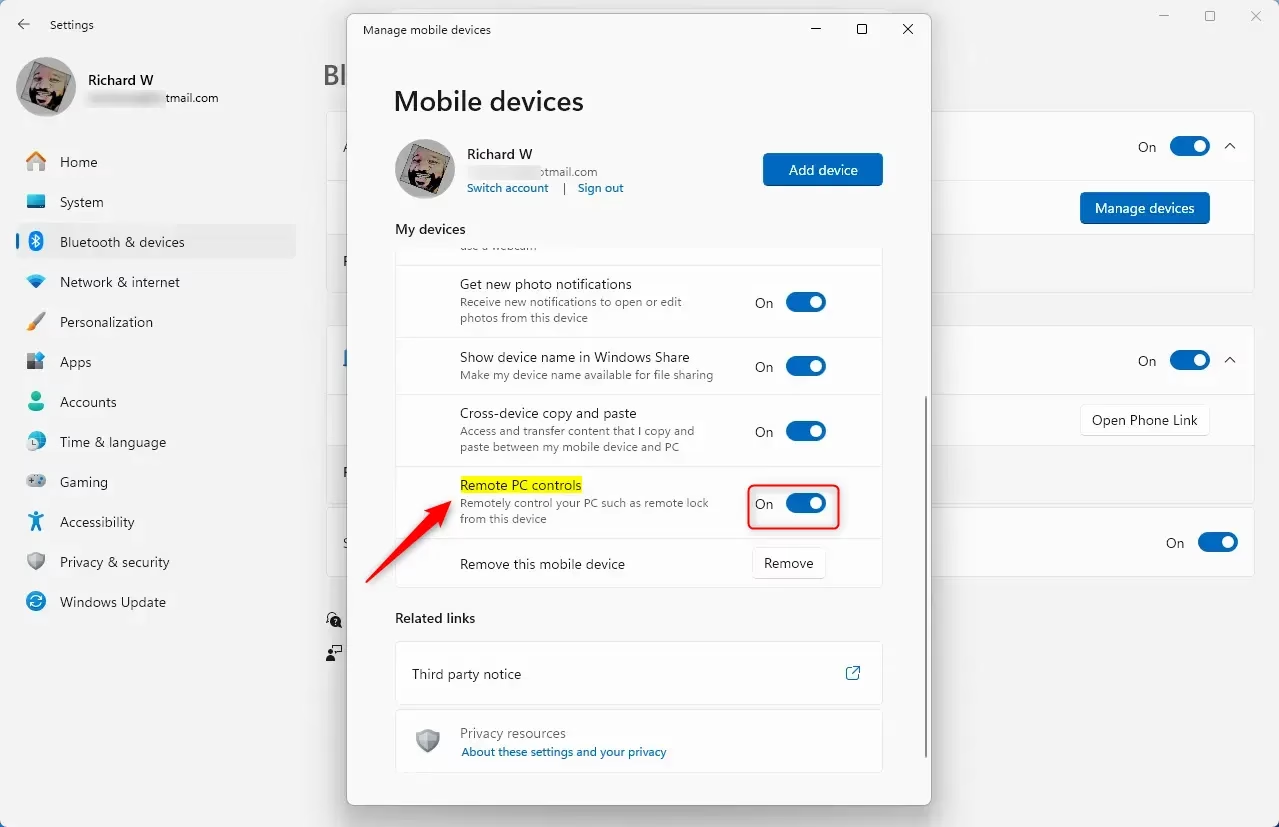
Remote PC controls via Windows 11
If you want to turn it off later, you can reverse the change at any time:
- Open Settings and go to Bluetooth & devices, then Mobile devices.
- Click Manage devices and expand your phone under My devices.
- Switch Remote PC controls to Off.
The change takes effect right away. You can switch it back on whenever you need it.
Why Use Remote PC Controls?
- Easy Access: Control your PC from your phone without needing to be near your computer. This helps when the PC is in another room or you need something from it while you are away.
- File Transfers & Messaging: Quickly move files and send texts while you work on your PC, so you do not have to keep picking up your phone.
- Remote Security: Lock your PC remotely if you walk away and forget to secure it. This is worth having on a shared or office computer.
- Simple Setup: Turn this feature on or off anytime from the Settings app. There is nothing to install beyond Phone Link, and no restart is needed.
- Stay Safe: Make sure your phone is connected securely to prevent unwanted access. Anyone who can unlock your phone can use these controls, so protect it with a PIN, fingerprint, or face unlock. If you lose the phone, turn Remote PC controls off.
Remote PC controls give you a fast way to manage your computer from your phone without sitting at your desk. You can use them to transfer files, send text messages, and lock your screen from another room, which makes everyday tasks easier when you are away from your keyboard.
For more tips on using Windows 11, visit Geek Rewind Windows 11 Guides.
Summary
Setup takes just a few clicks in the Settings app under Bluetooth & devices, and it only works when both devices use the same Microsoft account. Keep your phone locked and secure, and turn the feature off if you no longer need it.
Have a question about this guide?
Answered by AI from this guide. Good questions may be added to this page — please don't include personal details.
Did this guide fix your problem?

About the Author
Richard
Tech Writer, IT Professional
Richard is a writer at Geek Rewind who turns complex IT tasks into clear, step-by-step guides. He draws on years of hands-on experience in system administration and enterprise IT operations, focusing on Windows, Linux and WordPress: the problems people actually run into, and the fixes that work. His server and WordPress guides come from systems he runs himself. Richard builds and maintains the platform behind Geek Rewind, from its Ubuntu servers and Nginx configuration to its custom WordPress plugins. Many new tutorials start with readers' questions, and he's always glad to answer them in the comments.
No comments yet — be the first to share your thoughts!