Dropbox on Windows 11: Setup and Sync Without Errors

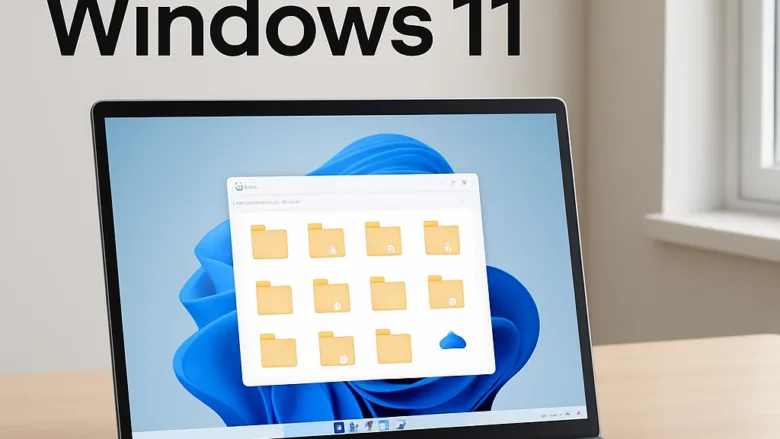
Dropbox on Windows 11 keeps your files in cloud storage (online space that holds a backup of your data) and syncs them to your PC. By default, it can download every file in your account to your hard drive. On a small drive, that fills it quickly and can cause sync errors when Windows runs out of free space.
You can avoid this by changing a few settings so files stay online until you open them. This guide covers how to keep free space on your drive, pause syncing when you need your bandwidth, choose which folders reach your PC, and check which devices can reach your account. Menu names can differ slightly between Dropbox versions and plans, and I point that out where it is likely.
Dropbox on Windows 11 syncs your cloud files to your PC, but by default downloads everything to your hard drive. You can change files to online-only mode by right-clicking them in File Explorer and choosing Make online-only, which keeps them in the cloud and frees up disk space until you open them.
Control Where and How Your Files Store
Decide which files stay on your computer and which ones live only in the cloud. Files you use every day should be available offline. Archives, old projects, and large media files are usually better kept online-only. The guides below show how to manage your storage space and keep important documents ready when you have no internet connection.
Manage Syncing and Performance
Large uploads and downloads can slow down the rest of your computer and your network. These steps show you how to pause syncing, choose specific folders to download, and speed up transfers over your home network. None of these changes needs a restart of Windows, and you can reverse each one later.
Manage Account Security and Extra Features
Reviewing your devices now and then is a good habit, especially after you sell, give away, or replace a computer. The guides below cover securing your account and customizing your daily workspace.
More on Dropbox on 🪟 Windows 11
Common questions
Why is Dropbox filling up my 🪟 Windows 11 hard drive?
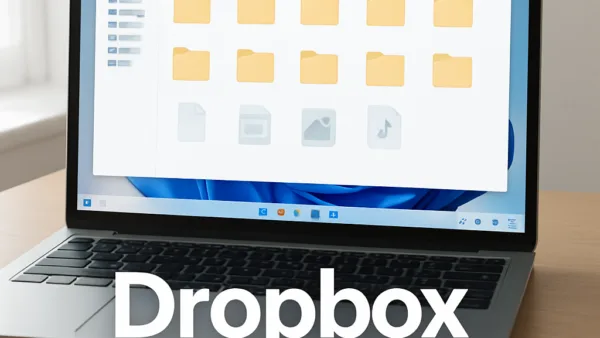
Dropbox often downloads all your cloud files to your computer by default so you can open them instantly. You can change this so files are online-only. They then stay in the cloud, show in File Explorer with a cloud icon, and download only when you double-click them. Online-only files take almost no space on your drive.
- Click the Dropbox icon in the Windows taskbar. If you do not see it, click the Show hidden icons arrow (^) next to the clock first.
- Open the Dropbox folder in File Explorer, then find the file or folder you want to free up.
- Right-click it and choose Make online-only. The wording may be slightly different in older versions, where it sits under a Smart Sync submenu.
- Check the status icon next to the item. A cloud icon means it is now online-only, and the space on your drive is freed.
If you do not see this option, check that you are signed in to the Dropbox desktop app and that it is up to date. Online-only files can depend on your Dropbox plan, so if the option is still missing, check your plan on the Dropbox website. To undo it, right-click the item and choose Make available offline. Dropbox will download it again. Remember that online-only files need an internet connection to open.
How do I stop Dropbox from syncing temporarily?
You can pause syncing right from the Dropbox menu in your Windows taskbar. This is useful when you need your full internet connection speed for video calls or gaming. Pausing only stops uploads and downloads. Your files are not deleted, and any changes you make while paused are synced when you resume.
- Click the Dropbox icon in the taskbar notification area. Use the Show hidden icons arrow (^) if it is hidden.
- Click the sync status or pause button in the Dropbox window.
- Choose how long to pause, or choose Pause syncing if no time options appear. The icon changes to show that syncing is paused.
Do not leave syncing paused for days. Files you edit will not be backed up online until you resume, and this is a common cause of "my file is missing on my other computer" problems.
What is selective sync in Dropbox?
Selective sync (a feature that hides chosen cloud folders from your local drive) lets you pick specific folders from your cloud account to keep off your computer entirely. The files stay safe online and you can still reach them on the Dropbox website. They will not take up any space on your hard drive. Unlike online-only files, these folders do not show up in File Explorer at all.
- Click the Dropbox icon in the taskbar, then click your profile picture or initials.
- Choose Preferences.
- Open the Sync tab.
- Click Selective sync. A list of your Dropbox folders appears.
- Clear the check box next to each folder you want to keep off this PC.
- Click Update and confirm if Dropbox asks. The unchecked folders disappear from your local Dropbox folder, and the space they used is freed.
To bring a folder back, return to the same list, tick its box, and click Update. Dropbox will download it again, so make sure you have enough free space first.
How do I see what devices are logged into my Dropbox?
You can view all connected computers, phones, and tablets by checking the security settings on the Dropbox website. This helps you remove old devices that you no longer use, or spot one you do not recognize.
- Sign in at the Dropbox website in your browser.
- Click your profile picture or initials in the top right corner, then choose Settings.
- Open the Security tab and scroll down to the Devices section. You will see each linked device with its name and when it was last active.
- Click the trash can or unlink icon next to any device you no longer use, and confirm.
Unlinking a device stops it from syncing with your account. It does not delete your files from Dropbox. If you see a device you do not recognize, unlink it and change your password right away.
Have a question about this guide?
Answered by AI from this guide. Good questions may be added to this page — please don't include personal details.
Did this guide fix your problem?

About the Author
Richard
Tech Writer, IT Professional
Richard is a writer at Geek Rewind who turns complex IT tasks into clear, step-by-step guides. He draws on years of hands-on experience in system administration and enterprise IT operations, focusing on Windows, Linux and WordPress: the problems people actually run into, and the fixes that work. His server and WordPress guides come from systems he runs himself. Richard builds and maintains the platform behind Geek Rewind, from its Ubuntu servers and Nginx configuration to its custom WordPress plugins. Many new tutorials start with readers' questions, and he's always glad to answer them in the comments.
No comments yet — be the first to share your thoughts!