How to Customize Windows Terminal for Your Workflow

- 23 steps
- Needs administrator rights
Windows Terminal combines PowerShell, Command Prompt, and Windows Subsystem for Linux (WSL, a feature that lets you run Linux environments on Windows) into a single app with tabs and custom color schemes. Press Ctrl+, (Control-Comma) inside the app to open the settings menu. From there you can change your default shell, background images, or font sizes.
You can edit the settings.json configuration file by hand or change options through the graphical menu. The menu is the safer choice if you’re new to the app, because it won’t let you break the file’s syntax. Customizing these settings helps you move between command line tools faster and makes long coding sessions easier on your eyes.
Most changes save the moment you click Save at the bottom of the settings page, and they apply right away. You don’t need to restart Windows. The settings menu in the current Windows 11 build of Terminal is the layout described here. Older or preview builds may word some options slightly differently.
Press Ctrl+, inside Windows Terminal to open the settings menu. From there, change your default shell, background images, font sizes, and color schemes through the graphical interface or by editing settings.json. Most changes save and apply immediately without restarting Windows.
Make Windows Terminal Appear Just Right
Separate guides help control how and where the terminal window appears on the screen. Launch behavior, screen positioning, and quick dismissals all fall under this category.
Most of the launch options live on the Startup page of the settings menu. To get there:
- Open Windows Terminal and press Ctrl+,.
- Select Startup in the left-hand list. You should see options such as the default profile and the launch mode.
- Change the option you want, then click Save.
If an option you expect is missing, update Windows Terminal from the Microsoft Store. Newer options only appear in newer builds.

Personalize Your Terminal's Look and Feel
Command-line interfaces require a strong balance of readability and organization. Themes alter the overall appearance, while individual elements like tab colors provide better clarity during long coding sessions.
A practical approach is to change the app-wide look first, then adjust individual profiles. That way PowerShell, Command Prompt, and each WSL distribution can look different, and you can tell at a glance which tab you’re in. This is especially useful when you have several tabs open and one of them points at a production server.
Fine-Tune Terminal Behavior and Security
Advanced configurations push past basic cosmetics to change how the application interacts with the underlying operating system. These menus handle vital functionalities like clipboard access and security indicators.
Common questions
How do I change the colors in Windows Terminal?
Built-in themes or custom color schemes overhaul the background, text, and accent colors through the application preferences.
Terminal separates the app theme (light, dark, or system) from the color scheme, which controls the colors inside the console. To change the app theme:
- Press Ctrl+, to open the settings.
- Select Appearance.
- Choose a value under Theme. The window frame and tab row should change immediately.
- Click Save.
To change the colors inside the console, open Color schemes in the left-hand list and pick a built-in scheme or edit one. Then open the profile you want under Profiles, go to its Appearance page, and choose the scheme there. To apply it to every profile, use Defaults under Profiles instead. To undo a change, pick the previous scheme again.
Can Windows Terminal start automatically when I turn on my computer?
Configure Windows Terminal to launch automatically at system startup through the application preferences.
- Press Ctrl+, inside Windows Terminal.
- Select Startup.
- Turn on Launch on machine startup.
- Click Save.
Terminal will now start the next time you sign in to Windows. To undo this, turn the same switch off. If the option does nothing, check Settings Apps Startup in Windows. A startup entry can be disabled there, and a policy on a work PC can also block it.
How do I copy and paste text in Windows Terminal?
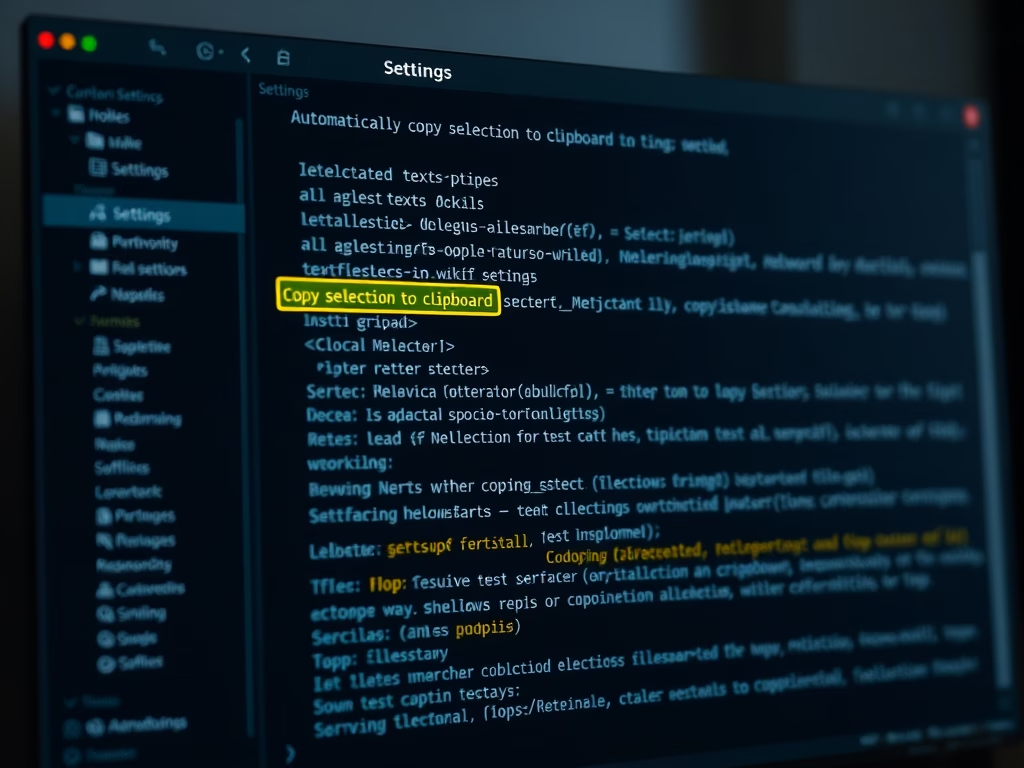
Selecting text and pressing Ctrl+C copies it by default, and the clipboard works as you’d expect in most setups. The separate option that copies a selection the moment you highlight it is a different setting, and it usually has to be switched on manually. You’ll find it in the settings under the Interaction page. Related key bindings are on the Actions page.
- Press Ctrl+, to open the settings.
- Select Interaction.
- Turn on Automatically copy selection to clipboard.
- Click Save.
Once it’s on, selecting text with the mouse copies it right away. Turn the switch off to go back to copying manually. The exact wording of the option can vary slightly between Terminal versions.
Can I hide the Windows Terminal window?
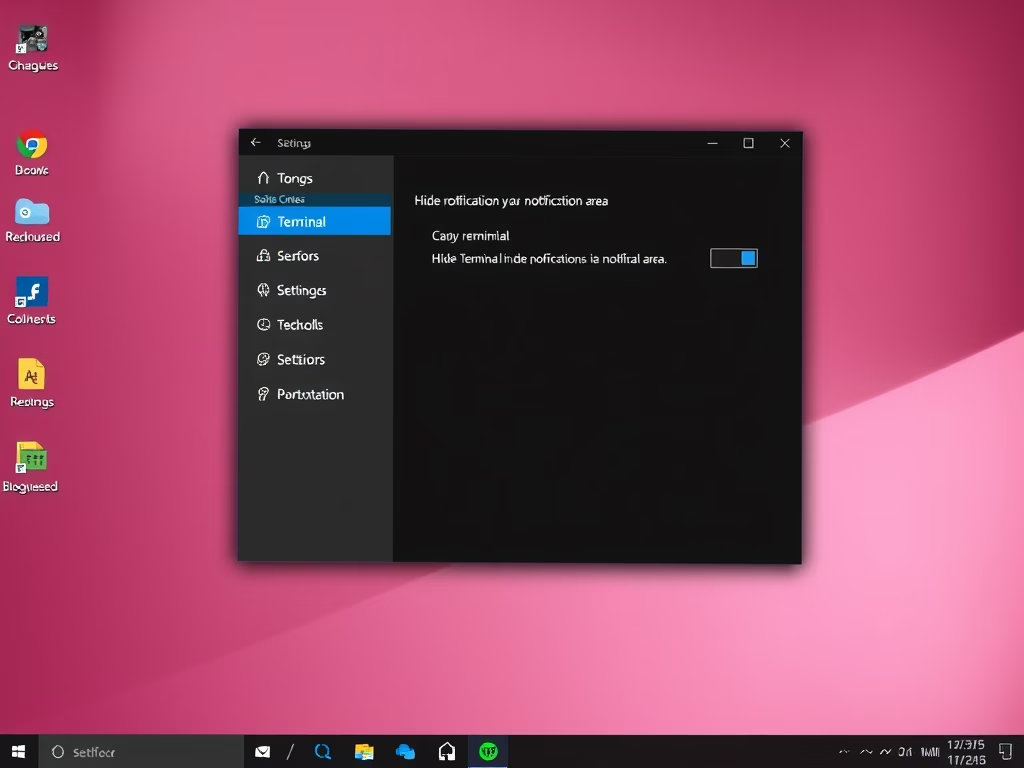
Background hiding features tuck the application away into the notification area when idle, keeping desktop clutter to a minimum.
- Press Ctrl+, to open the settings.
- Select Appearance.
- Look for the notification area options, such as Hide Terminal in the notification area when it is minimized and Always display an icon in the notification area. Turn on the one you want.
- Click Save.
When the window is hidden, look for its icon in the notification area at the right end of the taskbar. You may need to click the up arrow to see hidden icons. Click the icon to bring the window back. If you can’t find these options, you may be on an older build, so update Terminal first.
What is the shield icon in Windows Terminal?
The shield icon flags elevated processes running with administrator privileges. Toggling this visual indicator on or off happens directly inside the settings menu.
- Press Ctrl+, to open the settings.
- Select Appearance.
- Find the shield option, which is worded along the lines of Display a shield in the title bar when Windows Terminal is running as Administrator, and turn it on or off.
- Click Save.
Have a question about this guide?
Answered by AI from this guide. Good questions may be added to this page — please don't include personal details.
Did this guide fix your problem?

About the Author
Richard
Tech Writer, IT Professional
Richard is a writer at Geek Rewind who turns complex IT tasks into clear, step-by-step guides. He draws on years of hands-on experience in system administration and enterprise IT operations, focusing on Windows, Linux and WordPress: the problems people actually run into, and the fixes that work. His server and WordPress guides come from systems he runs himself. Richard builds and maintains the platform behind Geek Rewind, from its Ubuntu servers and Nginx configuration to its custom WordPress plugins. Many new tutorials start with readers' questions, and he's always glad to answer them in the comments.
No comments yet — be the first to share your thoughts!