How to Change Windows Terminal Themes

Windows Terminal themes change how the app looks, and its color schemes control the background, text and cursor colors inside your command windows. You can pick from the built-in color schemes, such as Campbell, One Half Dark and Solarized Dark, to make the screen easier to read. Schemes like Monokai are popular too, but they are not part of the default list. You add those yourself as custom schemes.
Customizing these colors helps you personalize your workspace and reduce eye strain during long typing sessions. Every change below can be undone from the same screen, so feel free to experiment.
Open Windows Terminal, press Ctrl +, to open Settings, click Appearance on the left, then select your theme from the Theme dropdown on the right. Choose from Dark, Light, or Use Windows Theme. The change applies immediately without restarting.
What is Windows Terminal?
Windows Terminal is an app that brings different command tools like Command Prompt, PowerShell and WSL together into one window. Each tool opens in its own tab, and you can split a tab into panes to run several command lines side by side. On current Windows 11 builds it is installed by default and is usually the app that opens when you launch a command line.
You can customize Windows Terminal themes to change the colors and background style to match how you like to work. If you do not see the app on an older Windows 11 install, you can get Windows Terminal for free from the Microsoft Store.
Windows Terminal offers many customization options, including language settings, the window size it opens at, and startup behavior. You can also change the terminal’s colors or theme for better readability or just for looks.
Two settings are easy to mix up, so it helps to know the difference:
- Application theme: changes the Terminal window itself, such as the tab bar and title bar, between dark, light, or following Windows.
- Color scheme: changes the colors inside a terminal tab, meaning the background, text and cursor. It is set per profile, for example PowerShell or Command Prompt.
This tutorial focuses on the application theme. The color scheme options are covered briefly in the summary below.
Why Change the Theme?
Windows Terminal gives you three application theme choices:
- Dark Mode: Great if you work at night or in a dark room because it reduces eye strain.
- Light Mode: Better for bright rooms or if you prefer a lighter screen.
- Use Windows Theme: Matches the Terminal to whatever light or dark mode you use in Windows 11, so everything looks consistent. If you switch Windows between light and dark, Terminal follows.
Changing your Windows Terminal theme helps reduce eye strain and makes the text easier to read in different lighting. You can use dark mode for dim rooms and light mode for bright offices. Or you can set the app to follow your main Windows color settings so the whole desktop stays consistent.
The theme only changes the app's frame. If the text area itself is too bright or too dark, change the color scheme as well (see the summary section below).
How to Change the Terminal Theme
Menu wording can differ slightly on older Terminal releases. You do not need to restart Windows or the app for the theme to apply.
- Open Windows Terminal: Click the Start button (the Windows icon on the taskbar), type
Terminalin the search box, then click Windows Terminal in the results.
Open the Windows Terminal app A Terminal window opens with a tab for your default shell, usually PowerShell.
- Open Settings: In the top bar, click the small down arrow next to the tabs. In the menu that appears, click Settings. You can also press
Ctrl + ,(Control and comma keys) to open it faster.
Open the Windows Terminal Settings A Settings tab opens inside the Terminal window, with a list of sections on the left.
- Choose Appearance: On the left side of the Settings window, click Appearance.
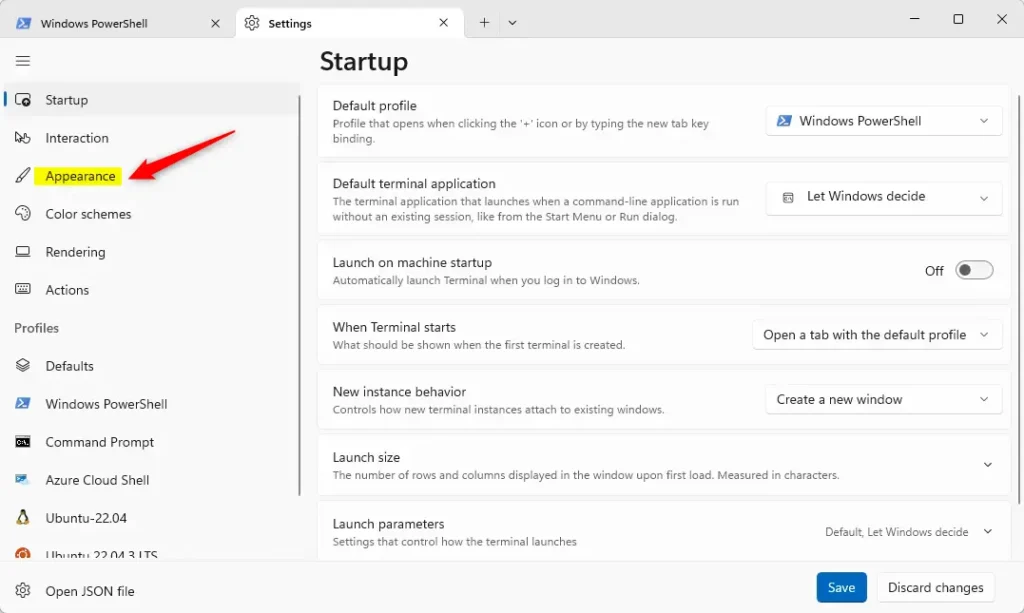
Terminal Appearance menu 💡TipThe theme options appear on the right side.If you do not see them, make sure you picked Appearance under the general settings and not under a profile such as PowerShell, which has its own Appearance page.
- Select Your Theme: On the right side, find the theme dropdown (labeled Theme in current builds, or "Application Theme" in some versions). Click the dropdown menu and select one of these:
- Dark (the default on many installs)
- Light
- Use Windows theme (matches your Windows 11 colors)
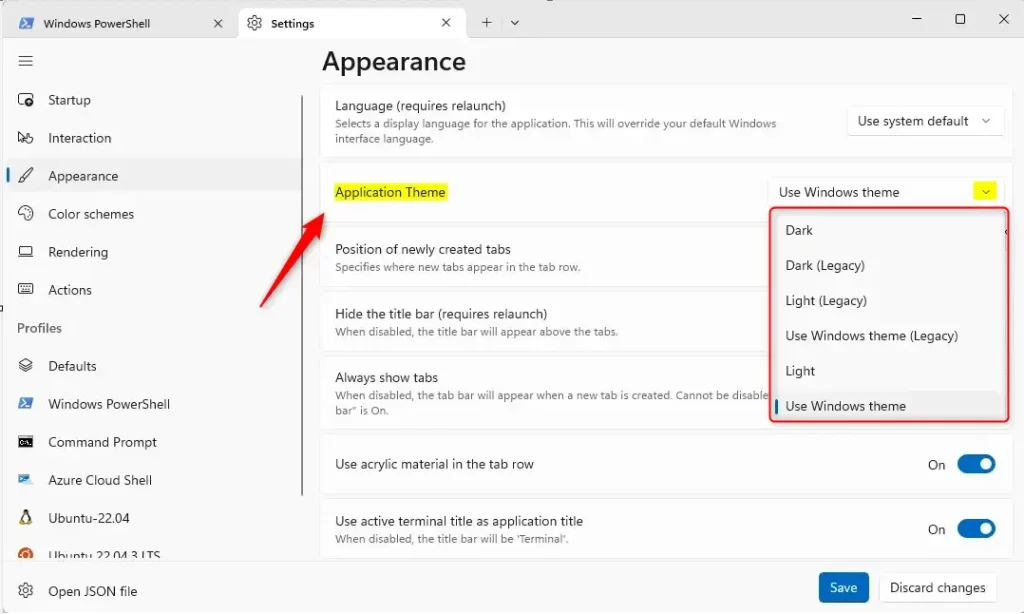
Select Terminal Application theme Newer Terminal releases may already default to Use Windows theme, so the current choice may differ from what you expect. The window usually changes as soon as you pick an option. To undo, open the same dropdown and choose your previous theme.
- Save Your Changes: Scroll down to the bottom of the page and click the Save button to apply your new theme. If you change your mind, click Discard changes instead.
After saving, the new theme stays in place the next time you open Terminal.
Changing Windows Terminal themes is a quick job you do inside the app's Settings page. For the window theme, go to Appearance. To change the colors inside a tab, open the Color schemes page, or open a profile (or Defaults), go to its Appearance page and choose a Color scheme. You can pick from the built-in options or add your own custom color codes.
Setting a color scheme under Defaults applies it to every profile. Setting it on one profile changes only that shell, which is handy for telling tabs apart.
Summary
- Changing the theme can help protect your eyes, especially in very dark or very bright places. Pick whichever mode gives the best contrast in the room where you work.
- It makes using multiple Terminal windows easier by helping you tell them apart. Giving a profile its own color scheme makes it obvious which shell you are typing into, such as production versus test.
- Matching the Windows theme keeps your computer looking consistent and neat, with no manual switching when Windows changes between light and dark.
Updating your Windows Terminal theme gives you a comfortable workspace that cuts glare and matches the rest of your system. It takes a few seconds, and it makes long coding or troubleshooting sessions easier to handle. If it does not look right, go back to Appearance and pick a different option.
How to Open Command Prompt in Windows 11
How to Open PowerShell in Windows 11
How to Change Windows 11 Themes
You can customize the Windows Terminal app's appearance by changing its themes. A personal look makes the app easier on the eyes and more pleasant to use, and the setting is always one trip back to Settings away if you want to change it again.
Did this guide fix your problem?

About the Author
Richard
Tech Writer, IT Professional
Richard is a writer at Geek Rewind who turns complex IT tasks into clear, step-by-step guides. He draws on years of hands-on experience in system administration and enterprise IT operations, focusing on Windows, Linux and WordPress: the problems people actually run into, and the fixes that work. His server and WordPress guides come from systems he runs himself. Richard builds and maintains the platform behind Geek Rewind, from its Ubuntu servers and Nginx configuration to its custom WordPress plugins. Many new tutorials start with readers' questions, and he's always glad to answer them in the comments.
No comments yet — be the first to share your thoughts!