How to Launch Windows Terminal in the Center of Your Screen (Windows 11)

Windows Terminal is the app that puts Command Prompt, PowerShell and Linux shells in one window. In Windows 11 it often opens off to the left side of the screen instead of in the middle. On a large monitor that gets annoying, because your eyes have to hunt for the window every time you launch it.
One setting in Windows Terminal fixes this by opening the window in the center of the screen every time. You do not need any extra tools. It works the same on Windows 11 Home and Pro, and it takes less than a minute.
Launch Windows Terminal in the center by opening Settings, navigating to Appearance, expanding Launch parameters, and toggling on “Center on launch.” Save your changes to make it the default.
How to Make Windows Terminal Open in the Center
Step 1Open Windows Terminal
First, open Windows Terminal.
- Click the Start button on the taskbar .
- Type Windows Terminal in the search box.
- Select Windows Terminal from the search results.
A Terminal window opens with a tab for PowerShell or whichever profile you use by default. If nothing shows up in the search , check that the app is installed. Windows 11 22H2 and later include it, and on older builds you can get it from the Microsoft Store.

Step 2Open Terminal Settings
Next, open the Terminal settings.
- Look at the top bar of the Terminal window and find the small down arrow (˅) next to the plus (+) new-tab button.
- Click the arrow.
- Choose Settings from the menu.
The Settings page opens in a new tab inside the Terminal window, with a list of categories down the left side. The keyboard shortcut is Ctrl + , (comma). Hold Ctrl when you press the comma key, because the comma alone only types a comma into the shell.

Step 3Find the Launch Settings
Now find the option that controls where the window opens.
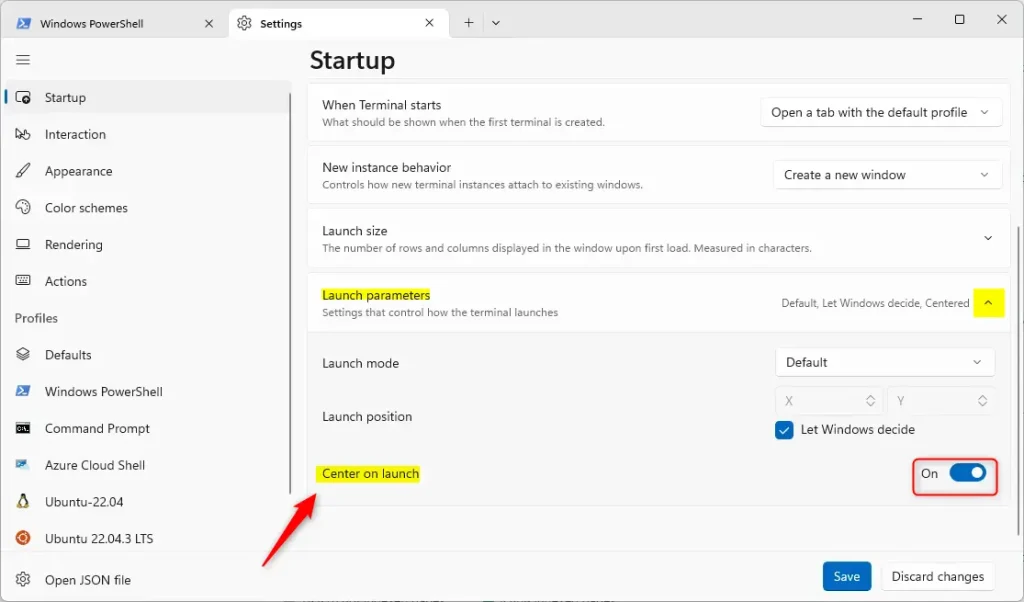
- In the left sidebar of the Settings tab, click Appearance if your version lists the launch options there. In many current versions of Windows Terminal, the same options are on the Startup page, so click Startup if you do not see them under Appearance.
- Find the section called Launch parameters and expand it if it is collapsed.
- Look for the Center on launch option in that section.
If you cannot find it, your Terminal may be out of date. Update Windows Terminal from the Microsoft Store and reopen Settings.
Step 4Turn on "Center on launch"
The Center on launch setting places the window in the middle of the display when Terminal starts.
- Turn on the toggle switch next to Center on launch.
- Check that the switch now reads On.
This option only affects the window's position. It does nothing if the Launch mode setting is Maximized or Full screen, because those modes already fill the screen. Leave Launch mode on Default if you want a centered window. Any manual position you set in the launch position fields is ignored while centering is on.
Step 5Save Your Changes
Finally, save the change.
- Scroll to the bottom of the Settings page.
- Click the Save button.
- Close Windows Terminal completely, then open it again.
The new window should now appear in the middle of the display. You do not need to restart Windows. The setting only applies when Terminal starts, so a window that is already open stays where it is.
To undo the change, go back to the same page, turn Center on launch off, and click Save again.
Why Center the Terminal Window?
- It makes your screen look neat and organized.
- It's easier to find and use the Terminal, especially if you have a large monitor.
- You can quickly access commands without hunting for the window on the side.
Summary
Turning on this one setting keeps your desktop tidy. Once Terminal opens in the center of the screen, you never have to look around for it. If the window ever opens somewhere unexpected again, check that Center on launch is still on and that Launch mode has not been changed to Maximized or Full screen.
Have a question about this guide?
Answered by AI from this guide. Good questions may be added to this page — please don't include personal details.
Did this guide fix your problem?

About the Author
Richard
Tech Writer, IT Professional
Richard is a writer at Geek Rewind who turns complex IT tasks into clear, step-by-step guides. He draws on years of hands-on experience in system administration and enterprise IT operations, focusing on Windows, Linux and WordPress: the problems people actually run into, and the fixes that work. His server and WordPress guides come from systems he runs himself. Richard builds and maintains the platform behind Geek Rewind, from its Ubuntu servers and Nginx configuration to its custom WordPress plugins. Many new tutorials start with readers' questions, and he's always glad to answer them in the comments.
No comments yet — be the first to share your thoughts!