How to Enable Clipboard Copying in Windows Terminal

Automatic clipboard copying in Windows Terminal (version 1.10 and newer) copies highlighted text to your clipboard the moment you select it. You don’t press extra keys or right-click to grab command output or code. You select it, then paste it anywhere with Ctrl+V.
The setting is a single switch in the Terminal settings, and you can turn it off again whenever you like. This guide covers both directions. Windows 11 includes Windows Terminal on current builds, and the steps are the same on Home and Pro.
Enable clipboard copying by opening Terminal settings, navigating to Interaction, and toggling “Automatically copy selection to clipboard” to On. This makes highlighted text automatically available for pasting.
What is Windows Terminal?
Windows Terminal has a lot of customization options, from window size and startup profile to colors and default behavior. Automatic copying is one of the quickest to change. The whole process takes about a minute, and no restart is needed.
Why Use Automatic Copy?
With automatic copying on, any text you highlight goes straight to the clipboard. That saves time when you move code snippets, file paths or command results between the terminal and other apps.
The downside is that selecting text always overwrites whatever was on your clipboard. If you highlight a password or a private key just to point at it, it is now on your clipboard too. Turning the feature off gives you manual control back.
Turn it OFF if you want more control over what gets copied. This is a good choice when you work with passwords, API keys or other sensitive information, or when you want to keep something on the clipboard while you select other text.
How to Turn On or Off Automatic Copy in Windows Terminal
The switch lives in the Terminal settings. Here is the short version before the full steps:
- Open Windows Terminal, click the down arrow at the top of the window, and choose Settings.
- Click Interaction on the left side.
- Find Automatically copy selection to clipboard and switch it on or off.
- Open Windows Terminal: Click the Start button (the Windows icon). Type Terminal in the search box. Click Windows Terminal in the results. A terminal window opens with a tab at the top, usually running PowerShell. If Terminal does not appear in the search results, it may not be installed. You can get it from the Microsoft Store.

You should now see the Windows Terminal window with a command prompt waiting for input. Keep it open for the next step.
- In the Terminal window, click the down arrow next to the tabs at the top. Choose Settings. (Or press
Ctrl + ,on your keyboard.) A new Settings tab opens inside the Terminal window, with a list of categories on the left.

The Settings tab is part of Terminal itself, not the Windows Settings app. If you opened the wrong one, close it and use the down arrow inside Terminal.
- In the Settings window, click Interaction in the left menu. The page on the right changes to show the options for selection and copying.
- Find the option called Automatically copy selection to clipboard. It sits among the other selection and copy options on the Interaction page, and you may need to scroll a little to see it.
- Switch the toggle On to enable it or Off to disable it. The label next to the toggle changes to match your choice.
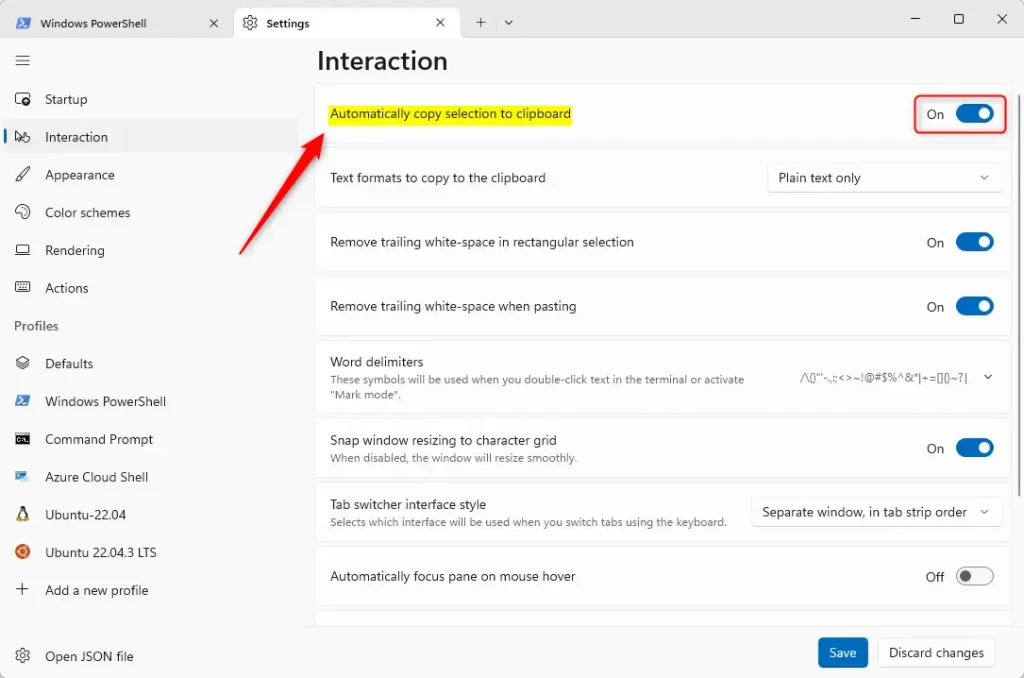
Check that the toggle shows the state you want before moving on. Nothing is applied until you save in the next step.
- After you make your choice, click the Save button at the bottom to apply your changes. The new behavior takes effect right away, with no restart. To test it, highlight some text in a terminal tab, then paste it into Notepad with Ctrl+V.
Text now moves between Terminal and other applications faster. You select it, switch windows and paste, with no extra keystrokes in between. If the text does not paste, go back to the Interaction page and confirm the toggle is on and that you clicked Save.
Summary
You can choose between instant automatic copying and traditional manual copying. You can switch between them at any time on the Interaction page of the Terminal settings. Pick automatic copy to move text faster, or turn it off to keep strict control over what goes onto your clipboard.
Disabling the feature ensures that data reaches the clipboard only when you decide it should. This is the safer choice on shared machines and when you handle credentials.
To change the rule later, open the Terminal Settings again and select the Interaction tab. This page controls whether selected text is copied automatically. Flip the toggle, click Save, and the change applies immediately. That is also how you undo the setting if it does not suit your workflow.
Questions and tips are always welcome in the comments section below.
Did this guide fix your problem?

About the Author
Richard
Tech Writer, IT Professional
Richard is a writer at Geek Rewind who turns complex IT tasks into clear, step-by-step guides. He draws on years of hands-on experience in system administration and enterprise IT operations, focusing on Windows, Linux and WordPress: the problems people actually run into, and the fixes that work. His server and WordPress guides come from systems he runs himself. Richard builds and maintains the platform behind Geek Rewind, from its Ubuntu servers and Nginx configuration to its custom WordPress plugins. Many new tutorials start with readers' questions, and he's always glad to answer them in the comments.
No comments yet — be the first to share your thoughts!