How to Hide Windows Terminal in Notification Area

Hiding Windows Terminal in the notification area takes its icon off the main taskbar when you minimize it. The icon moves to the notification area (the system tray) near the clock. Your taskbar stays clean, and your command windows keep running in the background. This works on Windows 10 and Windows 11.
You can still open the app with a single click on its tray icon. The setting takes effect as soon as you save it, with no restart of Windows needed. It only exists in reasonably current versions of Windows Terminal. If you can’t find it, update the app from the Microsoft Store first.
Open Windows Terminal, go to Settings , then Appearance. Toggle “Hide Terminal in the notification area when it is minimized” to On. Click Save to apply the change.
What is Windows Terminal?
Windows Terminal is a Microsoft app that brings command-line tools like Command Prompt, PowerShell, and Windows Subsystem for Linux (a feature that lets you run Linux software on Windows) into one tabbed window. You can run several command environments side by side, each in its own tab or pane. You can also change how the window behaves, including what happens to its icon when you minimize it.
Windows Terminal has many options, including language, window size, and startup behavior. One of them lets you hide the Terminal icon in the notification area when you minimize the window. This option is off by default, so a minimized Terminal stays on the taskbar until you turn the setting on. It is a single switch, and you can flip it back at any time.
Why Hide Windows Terminal in the Notification Area?
- Keep your taskbar clean: When you minimize Terminal, its icon moves to the notification area instead of staying on the taskbar . This helps if you already have many apps pinned or open.
- Keep Terminal running quietly: You can leave Terminal open in the background, with a long script or a remote session still running, and it won’t take up space on the taskbar .
- Access Terminal when needed: You can still open Terminal from the notification area whenever you want to use it again. On Windows 11 the icon may sit behind the small up arrow (Show hidden icons) next to the clock, so check there if you don’t see it right away.
The notification area is the corner of your taskbar near the clock. Moving the minimized Terminal icon there keeps the taskbar tidy. Command-line tools keep running in the background, and the app stays one click away. Nothing is closed or stopped by this setting. Only the place where the icon shows up changes.
How to Hide Terminal in the Notification Area When Minimized
The change takes just a few clicks inside the Terminal settings. You open Settings from the down arrow at the top of the window, go to the Appearance page, and turn on the option that hides Terminal in the notification area when it is minimized. The steps below walk through it.
- Open Windows Terminal. Click the Start button (the Windows icon) on the taskbar, type Terminal in the search box, then click Windows Terminal in the results. A Terminal window opens with a tab for your default shell, usually PowerShell.

Open the Windows Terminal app - Click the down arrow ▼ in the tab bar near the top of the window, then click Settings. You can also press
Ctrl + ,on your keyboard. The Settings page opens in a new tab, with a list of categories on the left.

Open the Windows Terminal Settings - In the left menu of Settings, click Appearance. The page shows options for how the Terminal window looks and behaves.
- Find the option labeled Hide Terminal in the notification area when it is minimized. If you don't see it, your Terminal is probably out of date. Update it from the Microsoft Store and open Settings again.
- Turn the switch On to enable hiding, or Off to disable it. The label next to the switch changes to match its position.
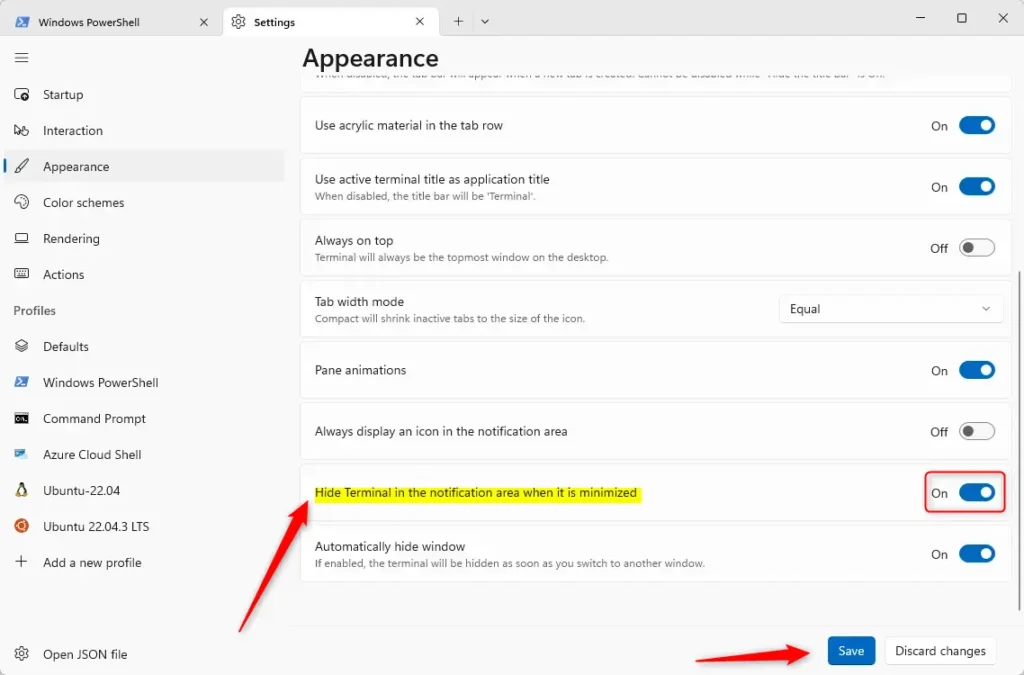
Hide Terminal in notification area when minimized - Click the Save button at the bottom of the page to keep your change. Then close the Settings tab. If you click Discard changes instead, the switch goes back to its previous position.
That's it. Minimize Windows Terminal to test it. The window disappears and its icon no longer shows on the taskbar. Look near the clock for the Terminal icon, or click the up arrow there if it is in the hidden icons. Click the icon to bring the window back.
Summary
The notification area setting keeps your desktop tidy by moving minimized Terminal windows into the system tray. It clears space on the taskbar while your background tools keep running and stay ready to use.
Minimizing and closing are not the same thing. Minimizing keeps Terminal and its sessions running. Closing the window ends them, so save your work and let any running commands finish first. To open Terminal again after closing it, use the Start menu search or a taskbar pin.
With the setting on, Terminal continues to run in the background and stays reachable from the tray at any time. You get a cleaner workspace, and nothing you were running is interrupted.
You can change this setting anytime. Go to Settings Appearance, switch the option on or off, and click Save. No restart is needed.
These guides cover more ways to customize Windows Terminal and change its settings.
How to Change Windows Terminal Language
Was this guide helpful?

About the Author
Richard
Tech Writer, IT Professional
Richard is a writer at Geek Rewind who turns complex IT tasks into clear, step-by-step guides. He draws on years of hands-on experience in system administration and enterprise IT operations, focusing on Windows, Linux and WordPress: the problems people actually run into, and the fixes that work. His server and WordPress guides come from systems he runs himself. Richard builds and maintains the platform behind Geek Rewind, from its Ubuntu servers and Nginx configuration to its custom WordPress plugins. Many new tutorials start with readers' questions, and he's always glad to answer them in the comments.



No comments yet — be the first to share your thoughts!