Change the Mouse Cursor Image in Windows 11

- 23 steps
- Needs administrator rights
To change the cursor image in Windows 11, open Settings Bluetooth & devices Mouse Additional mouse settings. Select the Pointers tab, pick a scheme or browse to a .cur or .ani file, and click Apply. The change takes effect immediately and needs no restart.
A cursor image is the picture Windows shows for each pointer state, such as the arrow, the busy circle, or the text I-beam. Windows stores these pictures as .cur files (static pointers) and .ani files (animated pointers). The same steps work on Windows 11 Home and Pro.
This guide covers the built-in schemes, how to swap a single pointer, how to install a downloaded cursor pack, and how to undo everything.
To change the cursor image in Windows 11, open Settings Bluetooth & devices Mouse Additional mouse settings, then select the Pointers tab. Pick a scheme or click Browse to choose a.cur.ani file for a single pointer, then click Apply. The change takes effect immediately, with no restart needed.
Before You Start: Which Cursor Settings Do You Need?
Windows 11 has two places for cursor settings, and they do different jobs. Picking the right one saves time.
- Settings Accessibility Mouse pointer and touch changes the pointer style (White, Black, Inverted, or Custom color) and its size. It does not load new images. For size and color changes, see customizing pointer appearance and cursor thickness, which covers that page.
- Mouse Properties Pointers changes the actual image for each pointer. This is the place to use a custom .cur or .ani file, and it is what the rest of this guide uses.
If you only want a bigger or higher-contrast arrow, the Accessibility page is faster. If you want a different design, continue below.
Change the Cursor Image in 🪟 Windows 11
These steps change the cursor image by opening Mouse Properties, then applying a built-in scheme (a saved set of pointer images) or your own file. You do not need administrator rights for this method, as long as the cursor file sits in a folder your account can read.
To change the cursor image:
- Open Settings. Press Win+I, or right-click Start and choose Settings. The Settings window opens.

Start Menu - Click Bluetooth & devices in the left menu. The list of connected devices appears.

Windows Settings menu highlighting the Bluetooth and devices option for printers - Click Mouse. The page shows your primary button, pointer speed, and scrolling options.
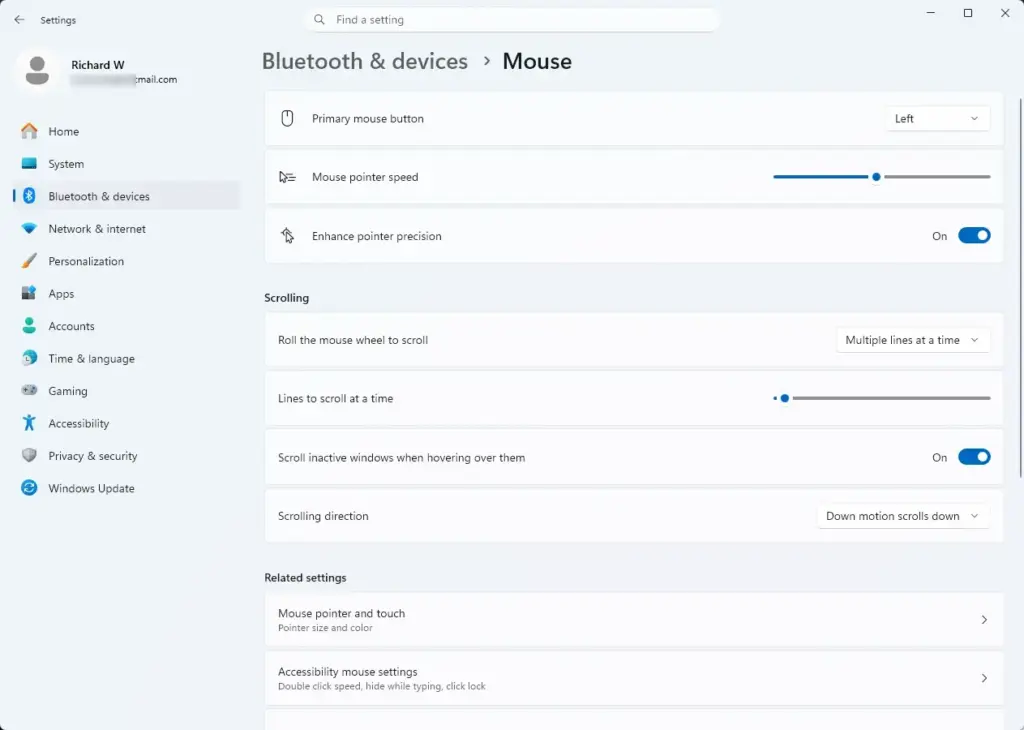
Settings › Bluetooth › Mouse - Click Additional mouse settings under Related settings. A window titled Mouse Properties opens. As a shortcut, press Win+R, type
main.cpl, and press Enter.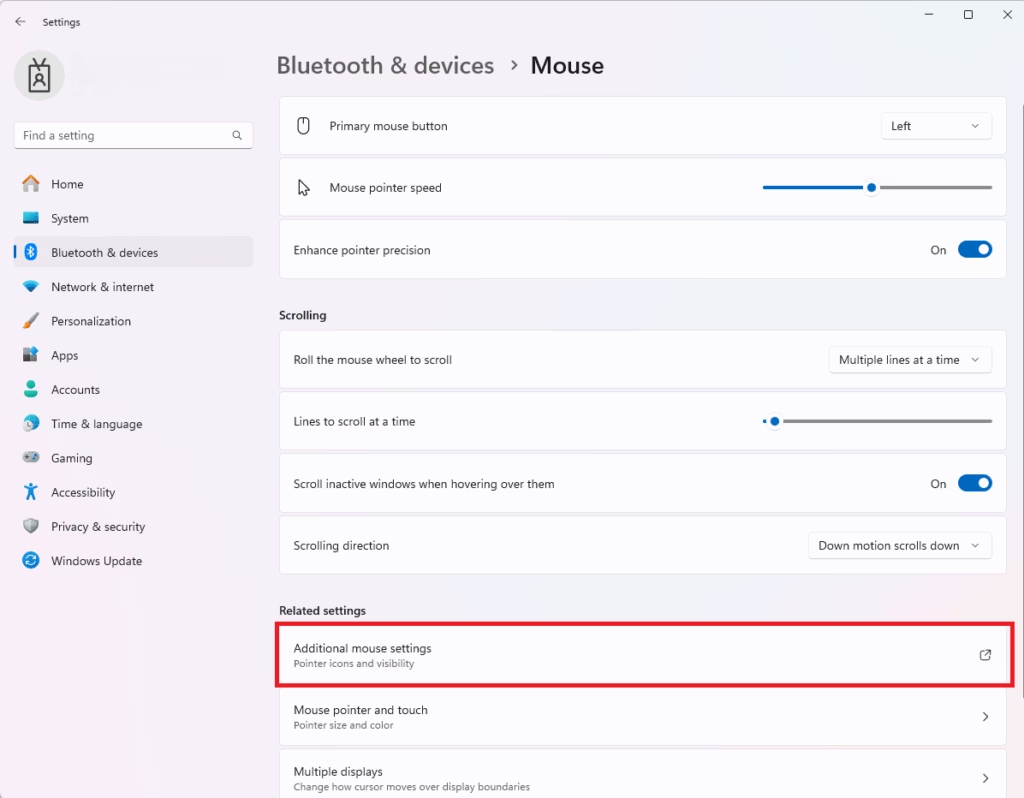
Mouse Properties window with Additional mouse settings visible. - Click the Pointers tab. You see a Scheme drop-down and a Customize list showing each pointer, such as Normal Select, Busy, and Text Select.
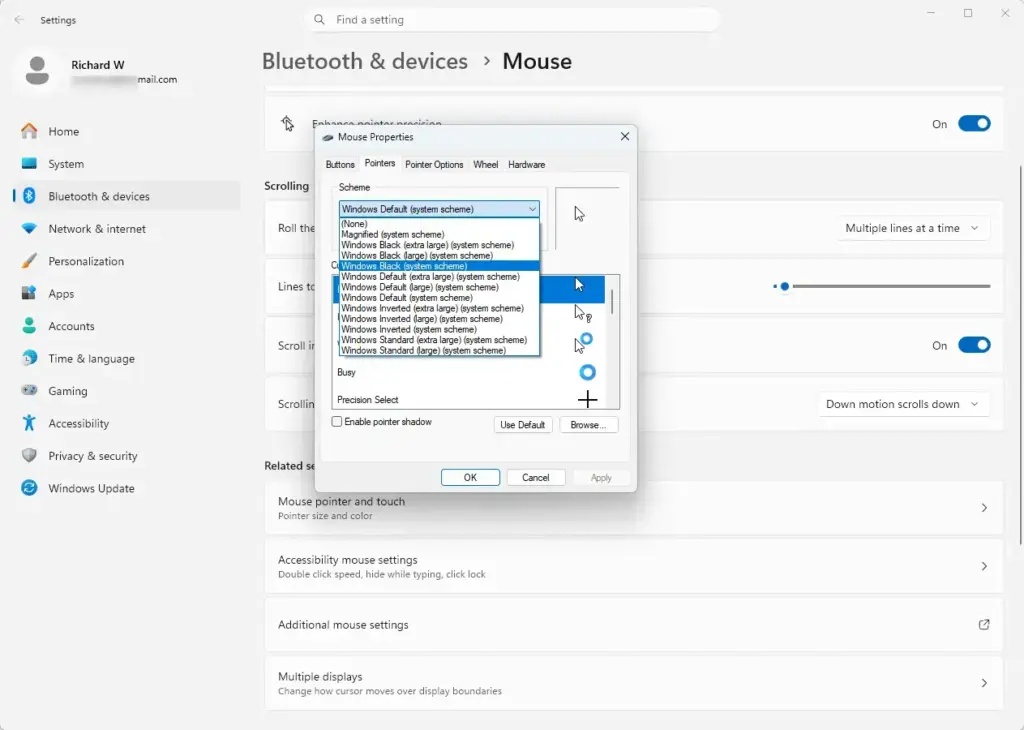
- Open the Scheme drop-down to use a built-in set. Choose an option such as Windows Black (system scheme) or Windows Inverted (system scheme). The Customize list updates with a preview of each pointer. Skip to the Apply step if you are happy with a built-in scheme.
- Select a pointer in the Customize list to replace a single image. Start with Normal Select, the standard arrow. The preview box on the right shows the current image.
- Click Browse. A file dialog opens, usually in
C:\Windows\Cursors, and lists only .cur and .ani files. - Select your cursor file and click Open. The preview and the list icon change to the new image. If the file is missing from the list, see the troubleshooting section below.
- Repeat the select, Browse, and Open steps for any other pointer you want to replace. Pointers you skip keep their current image.
- Click Save As if you want to keep this set. Type a name in the box, such as
My Cursors, and click OK. The set now appears in the Scheme drop-down. - Click Apply. Move the mouse over the desktop. The pointer changes right away.
- Click OK to close Mouse Properties.
Which Pointer Should You Replace First?
You see two or three pointers constantly, so change those first. Normal Select is the arrow, Text Select is the I-beam over text boxes, and Busy is the circle that appears while an app loads.
Other items in the list appear less often. Link Select is the hand over links, Precision Select is the crosshair, and the resize entries show when you drag a window edge. Replacing all of them gives a consistent look, but a mixed set works fine.
Turn the Pointer Shadow On or Off
The Enable pointer shadow check box sits under the Customize list on the Pointers tab. It adds a soft shadow under the pointer. Some custom images already include their own shadow, and a second one can make the pointer look smudged. Clear the box and click Apply if that happens.
Install a Downloaded Cursor Pack
Cursor packs usually arrive as a ZIP file containing many .cur and .ani files, often with an .inf file (a setup file Windows reads to register the set). Installing from the .inf adds the whole pack to your Scheme list in one go, which beats browsing for 17 pointers by hand.
Installing a pack may need administrator approval. If Windows asks, approve the prompt with an administrator account.
- Right-click the downloaded ZIP file and choose Extract All. Click Extract to unpack it into a new folder.
- Open the extracted folder and find the file ending in .inf. If the pack has no .inf file, use the Browse method from the previous section instead.
- Right-click the .inf file and choose Install. On Windows 11, choose Show more options first if you do not see Install. A short prompt may appear, then it closes.
- Open Mouse Properties and click the Pointers tab, as in the earlier steps.
- Open the Scheme drop-down and choose the new pack by name. The Customize list fills with the pack’s images.
- Click Apply, then OK. The new pointers are active.
If the pack does not appear in the drop-down, the .inf file may not have installed. Run the .inf install again. Keep the .cur and .ani files in the same folder as the .inf file while it runs.
Make Your Own Cursor Image
Windows does not accept PNG, JPG, or ICO files as pointers. The Browse dialog lists only .cur and .ani, so you need to convert artwork first. A cursor editor or an online cursor converter can turn a PNG with a transparent background into a .cur file.
Two details matter when you convert:
- Hotspot. The hotspot is the single pixel Windows treats as the click point. Set it at the tip of the arrow. A hotspot in the wrong place makes clicks land away from where the pointer appears to be.
- Size. Keep the image small. A 32 x 32 pixel image is a common size for a standard pointer, and large images can look blurry or get cut off. Test the result at your usual screen size setting (set under Settings System Display Scale) and adjust.
Use a transparent background so the pointer has no white box around it. Save the file in a permanent folder, such as one inside Documents, then load it with the Browse steps above.
Undo the Change and Restore the Default Cursor
You can reverse any cursor change in Mouse Properties. Nothing here deletes your custom files, so you can switch back later.
To restore the default pointers:
- Open Mouse Properties. Press Win+R, type
main.cpl, and press Enter. - Click the Pointers tab.
- Open the Scheme drop-down and choose Windows Default (system scheme). The Customize list shows the standard images again.
- Click Apply, then OK. The standard arrow returns.
To reset only one pointer, select it in the Customize list and click Use Default, then click Apply. To remove a scheme you saved, select it in the Scheme drop-down and click Delete. That removes the saved set only, not the image files.
Why Your Cursor Image Won’t Change or Keeps Resetting
Most problems come down to the file type, a theme setting, or an app that draws its own pointer. Check these in order.
The Browse Dialog Does Not Show Your File
The dialog lists only .cur and .ani files. If your file ends in .png, .jpg, or .ico, convert it to .cur first. If the file is a .cur but still missing, open the folder it is in and check that the name ends in .cur and not .cur.txt. File extensions are hidden by default, so choose View Show File name extensions in File Explorer to see them.
The Pointer Resets After You Change the Theme
A Windows theme can replace your pointers with its own set. Open Mouse Properties, go to the Pointers tab, and clear the Allow themes to change mouse pointers check box. Click Apply. After that, switching themes in Settings Personalization Themes leaves your cursor alone.
You can also reach the Pointers tab from Settings Personalization Themes by clicking Mouse cursor.
The Pointer Reverts to the Default Arrow Later
This usually means Windows can no longer find the file. It happens when you move, rename, or delete the .cur or .ani file after selecting it, or when the file lived on a removable drive that is now unplugged. Put the file back in its original location, or select it again with Browse from a permanent folder.
The Pointer Looks Wrong in One App or Game
Some games and full-screen apps draw their own pointer and ignore the Windows setting. Change the pointer inside that program’s options if it has one. The Windows setting still applies everywhere else.
The Pointer Has a Box Around It or Clicks Land in the Wrong Spot
A box means the image has a solid background instead of transparency. A click that lands off target means the hotspot sits in the wrong pixel. Both are fixed in the cursor editor, not in Windows, so reopen the source file, correct it, and export a new .cur.
Where Windows Keeps Your Choice
For reference, Windows stores your pointer choices in the registry (a settings database) under 🗝️HKEY_CURRENT_USER\
What to Do Next
If the new image is too small or hard to see, adjust size and color on the Accessibility page, as described in how to customize pointer appearance and cursor thickness. On a touchscreen, the touch cursor feedback bubbles have their own settings. If the pointer looks right but moves or scrolls awkwardly, see how to adjust mouse scroll settings in Windows 11. If you share one mouse across several computers, PowerToys Mouse Without Borders is the next tool to try.
Frequently asked questions
How to change mouse cursor?
Open Settings, go to Bluetooth & devices Mouse Additional mouse settings, and select the Pointers tab. Pick a scheme from the Scheme list, or click Browse to choose a .cur or .ani file for a single pointer. Click Apply, then OK. The new cursor appears right away, with no restart needed.
How to change your cursor?
Change your cursor in Settings under Bluetooth & devices Mouse Additional mouse settings. On the Pointers tab, choose a built-in scheme from the Scheme list, then click Apply. You can also replace one pointer at a time with Browse. Changes take effect immediately, and you can undo them by picking the default scheme again.
How to get a custom mouse cursor?
Download a cursor pack from a trusted site and extract its .cur or .ani files to a folder you can find. Open Settings Bluetooth & devices Mouse Additional mouse settings, then select the Pointers tab. Click Browse, pick the file for each pointer you want to change, and click Apply.
How do you change your mouse cursor?
Open Settings and select Bluetooth & devices, then Mouse, then Additional mouse settings. Pick the Pointers tab, choose a scheme from the drop-down list, and click Apply. To change a single pointer, select it in the list and click Browse. Your new cursor shows up immediately.
How to change my cursor icon?
Open Settings Bluetooth & devices Mouse Additional mouse settings and select the Pointers tab. Select the pointer you want to change, such as Normal Select, click Browse, and choose a new .cur or .ani file. Click Apply to save. To get the original back, click Use Default.
Still have a question?
Answered by AI from this guide. Good questions may be added to this page — please don't include personal details.
Did this guide fix your problem?

About the Author
Richard
Tech Writer, IT Professional
Richard is a writer at Geek Rewind who turns complex IT tasks into clear, step-by-step guides. He draws on years of hands-on experience in system administration and enterprise IT operations, focusing on Windows, Linux and WordPress: the problems people actually run into, and the fixes that work. His server and WordPress guides come from systems he runs himself. Richard builds and maintains the platform behind Geek Rewind, from its Ubuntu servers and Nginx configuration to its custom WordPress plugins. Many new tutorials start with readers' questions, and he's always glad to answer them in the comments.
No comments yet — be the first to share your thoughts!