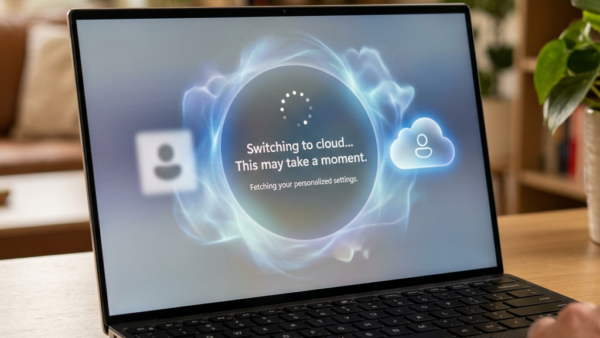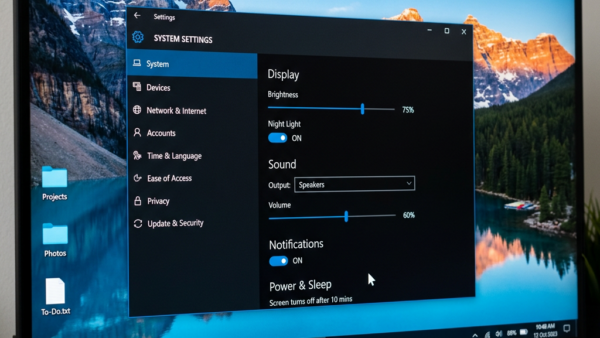
Windows 11 allows users to add Widgets to the Lock screen, providing quick access to information like weather and sports scores without logging in. Currently available in select European countries, users can enable or disable this feature using the ViVeTool or the Registry Editor, with a backup advised for the latter method.
Windows
Windows 11 allows users to customize their Lock screen by adding or removing widgets for quick access to information like weather and calendar events. To manage these widgets, users can navigate to the Lock screen settings in the Windows Settings app, where they can easily add or remove desired widgets.
This guide explains how to enable the background running feature in Windows Terminal, allowing users to keep command-line tasks active even when the app window is closed. It outlines steps to access settings, toggle the feature, and emphasizes benefits such as uninterrupted script execution and customization options for improved workflow.
This guide explains how to change tab colors in Windows Terminal, enhancing organization and personalization. Users can select from preset or custom colors for better distinction between tabs. The feature, introduced in version 1.23, simplifies managing command-line tasks, enabling quicker navigation and improved productivity.
Windows 11 allows users to connect their mobile devices to share files, send messages, and receive notifications from their PC. A feature named "Show Device Name in Windows Share" enhances file sharing by displaying the mobile device's name. Users can toggle this feature on or off through the Settings app for convenience and privacy.
This guide explains how to manage Microsoft subscriptions like Office 365 and Xbox Game Pass. Users should sign in to their Microsoft account to view, change payment methods, or cancel subscriptions through the Subscriptions page. The process is straightforward, allowing for easy management of recurring payments and plans.
This guide outlines the installation process for XAMPP on Windows 11, a free tool for running a web server locally. It includes downloading, installing, and setting up Apache and MariaDB for testing websites offline. The XAMPP Control Panel simplifies server management and offers web tools for PHP and database management.
This guide explains how to install WordPress on a Windows 11 computer using XAMPP, a local web server software. It covers installing XAMPP, creating a database, downloading and setting up WordPress, and running the installation through a web interface. Users can experiment with WordPress offline, without an internet connection.
This guide explains how to set up Drupal on a Windows 11 PC using XAMPP without an internet connection. It covers the installation of XAMPP, creating a database, downloading Drupal, configuring Apache, and completing the installation. Following these steps allows users to build and test their websites locally.
This guide outlines the process of installing Joomla on a Windows 11 PC using XAMPP. It covers XAMPP installation, database creation using command line or phpMyAdmin, downloading Joomla, setting it as the homepage, and completing the installation via a browser. Users can build and test websites locally with ease.
This guide explains how to remove old or unused mobile devices from your Microsoft account on Windows 11. By utilizing the Settings app, navigate to Bluetooth & devices, then Mobile devices to manage your linked devices. This simple process enhances organization and account security. Ensure your Windows 11 is updated for optimal features.
Windows 11 introduces a drag-and-drop sharing feature that simplifies file sharing. Users can drag files from File Explorer to a sharing tray that appears at the top of the screen, displaying compatible apps. This feature is available in special Insider Builds and requires enabling via the ViVeTool command.
This guide explains how to prevent apps from being installed or moved to drives other than the main Windows drive (C:) in Windows 11. It covers two methods: using the Group Policy Editor for easier access and the Registry Editor for advanced users. Restarting the PC is necessary to apply changes.
Windows Hello enables secure sign-in via face, PIN, or fingerprint, featuring anti-spoofing to prevent unlocking by fake images. Users can toggle this feature through Settings, Group Policy Editor, or Registry Editor. Enhanced anti-spoofing may complicate sign-in on unsupported devices. Always back up systems before making changes.
Windows 11 offers action suggestions based on the apps you use, primarily for Copilot+ PCs. Users can customize which apps provide these recommendations by adjusting settings. This feature enhances task efficiency and provides user control, with broader availability anticipated in future updates. Key steps for management are included.