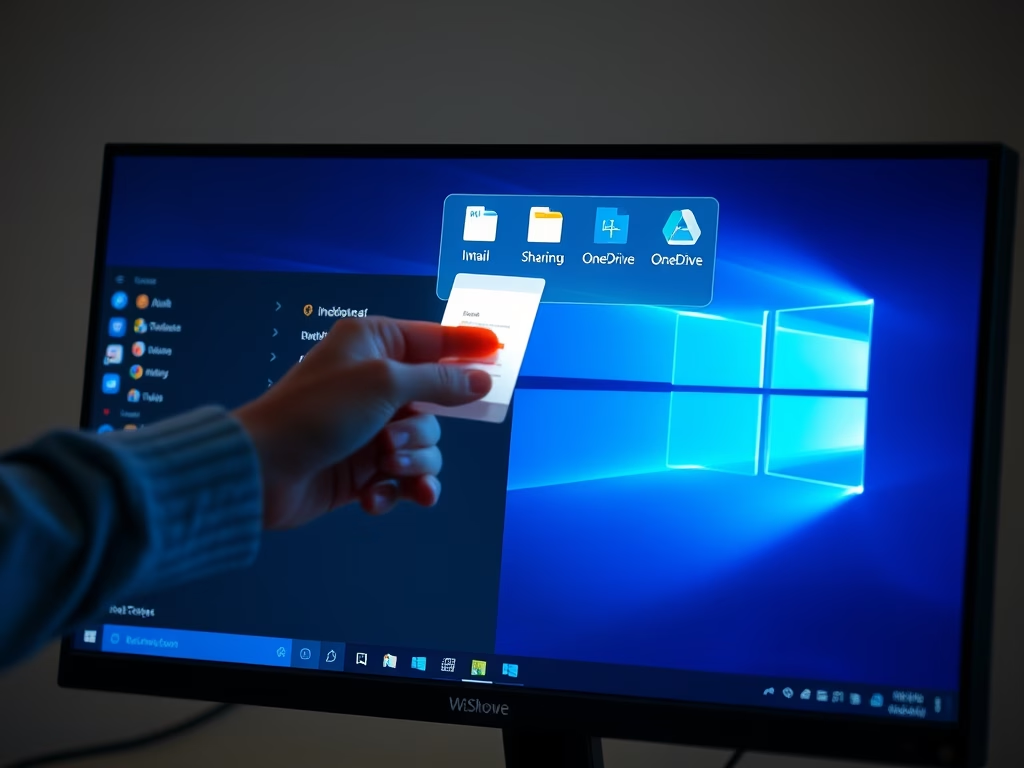
The post provides steps to manage the Share across Devices feature in Windows 11, which facilitates app sharing among various devices connected to a user's Microsoft account. This feature offers three settings - Off, My devices only, and Everyone nearby. The post also offers a guide on accessing and altering these settings in the System Settings pane.
Windows
The post guides users on how to turn on or off the suggested content feature in Windows 11. Suggested content can provide relevant recommendations within the Settings app, which helps discover useful features, new content, and apps. While this feature is beneficial for beginners, it may be unnecessary and distracting for advanced users.
The text provides a guide for Windows 11 users on how to improve system performance. It explains how to allow Windows to automatically manage the system page file size, which is used like memory. The guide details steps to revert from manual to automatic page file size management, including navigating system settings and restarting the PC.
This post provides a guide for students and users on how to turn app launch tracking on or off in Windows 11. This feature improves Start and search results by tracking app usage, plus organizes frequently used apps for easy access. With step-by-step instructions for disabling and enabling, users can customize this feature via the System Settings pane.
The post guides Windows 11 users on how to display or hide the 'Most used apps' list in the Start menu. It details sections of the Start menu, including Pinned, All apps, and Recommended, and instructs on extending each section to include more apps. It further provides procedures to turn on/off the list, accessed in the 'All apps' section, under System Settings, utilizing Windows' centralized configurations.
The article is a tutorial on how to change or reset a user password in Windows 11. It provides instructions for changing the password via the Windows Settings app and Control Panel. Alternatively, it offers more advanced methods using Command Prompt or Windows Terminal with PowerShell. The reasons for password changes include compromised accounts or maintaining security. The tutorial also provides steps for resetting a Microsoft account password, implying the process differs from local accounts.
The post details how to manage taskbar app behavior in Windows 11 with multiple displays. Users can choose between showing tasks on all taskbars or only on the main display. Three options allow users to manipulate how apps are displayed between multiple taskbars. Guidance is given on how to reach and adjust these settings within Windows' centralized System Settings.
This article instructs on managing the Windows Welcome Experience in Windows 11, a feature that highlights new and suggested content post-update. The article provides step-by-step instructions on turning the feature off or on using System Settings. By adjusting a single setting in the Notifications pane, users can control their exposure to highlighted updates.
The post guides users on managing app badge notifications on the Windows 11 Taskbar, including turning them off to maintain privacy. The settings are adjustable via the System Settings pane and involve navigations through Personalization and Taskbar sections. If disabled and required again, the process is simply reversible.
The article provides steps on how to turn on or off system protection for drives in Windows 11. System Protection feature allows the creation of restore points for recovering to previous working states in case of issues. Drives can be added or removed from System Protection individually, with Windows automatically purging older restore points. System Protection is advised as part of a robust backup plan. The article includes a visual guide on enabling and disabling system protection from the System Settings pane of Windows 11.
The post provides a guide on how to enable or disable Memory compression in Windows 11. This feature compresses system memory to enhance performance and reduce physical memory use. While it promotes efficient memory use and better user experience, it may potentially slow CPU processing due to additional resources required for compression and decompression operations.
The post outlines steps to set DuckDuckGo as the default search engine in various browsers (Microsoft Edge, Google Chrome, Firefox, etc.) in Windows 11. Stating that DuckDuckGo provides privacy protection, it presents instructions to install different browsers on Windows 11 and configure DuckDuckGo as the default search engine, differentiating steps for Chromium-based browsers and Firefox.
The post provides steps for checking and viewing video RAM (vRAM) in Windows 11. vRAM speeds up computer graphic processes, holding data for the graphics processing unit (GPU). Checking vRAM may help understand performance issues related to graphics-intensive games or video editing tasks. The post also suggests how to increase vRAM through system BIOS or purchasing an advanced GPU. It helps users decide if they need to upgrade or add more RAM to their GPU.
The post details how to locate and use the Videos folder in Windows 11, a default system folder used to store video content and other recordings. The folder can be found in the user's profile and accessed through the Start menu or File Explorer. Its location can be changed by administrators. The post also explains how to add the Videos folder shortcut to the Start menu for easy access.
The post details how to verify the Windows Subsystem for Linux (WSL) version installed on a system. It discusses the two major WSL versions available and states that checking is accomplished by running specific commands in the Command Prompt. It also mentions that WSL2, the newer version, delivers performance enhancement and complete system call compatibility.