How to Use Windows 11 Narrator Speech Recap

Windows 11 Narrator Speech Recap is a built-in feature that shows a written copy of everything Narrator reads aloud on your screen. It first appeared in Windows 11 preview builds such as Dev build 26200.5516 and Beta build 26120.3653. It helps you catch words you missed.
Narrator is the screen reader that turns on-screen text into spoken audio for people with reading or vision difficulties. Speech Recap opens a small popup window that shows the spoken text whenever you want a second look at what you just heard.
Note: The feature started in preview builds. If you do not see it on your PC, check which Windows 11 build you are running and whether Windows Update has anything pending.
To open Windows 11 Narrator Speech Recap, turn on Narrator, then press the Narrator key, Alt and X together. The Narrator key is usually Caps Lock or Insert. A popup window opens showing the text Narrator has spoken, and it updates live as new speech plays. The feature appears only in preview builds, so check your build if nothing happens.
What Can Speech Recap Do?
Speech Recap keeps a live, on-screen history of what the screen reader says. You can read along with the speech, go back over details you missed, and copy the last spoken sentence to the clipboard so you can paste it into another app.
In practice it gives you three things:
- A view of the last things Narrator said
- Live text that follows the speech as it happens
- A way to copy the last spoken sentence and use it somewhere else
How to Open the Narrator Speech Recap
The Speech Recap window opens as soon as you press the Narrator key, Alt and X together. Hold all three keys down at the same time. A window then appears showing the text of recent spoken words.
These are the Narrator shortcuts that go with this feature:
Control + Windows key + Enter: Turn Narrator on or offNarrator key + X: Hear the last thing Narrator said againNarrator key + Control + X: Copy the last spoken textNarrator key + Alt + X: Open the Speech Recap window with history and live transcription
Follow these steps to open Speech Recap:
- Verify that Narrator is turned on. If Narrator is not running, the shortcut will not do anything.
- Press the Narrator key, Alt and X together. The Speech Recap window should now appear on your screen.
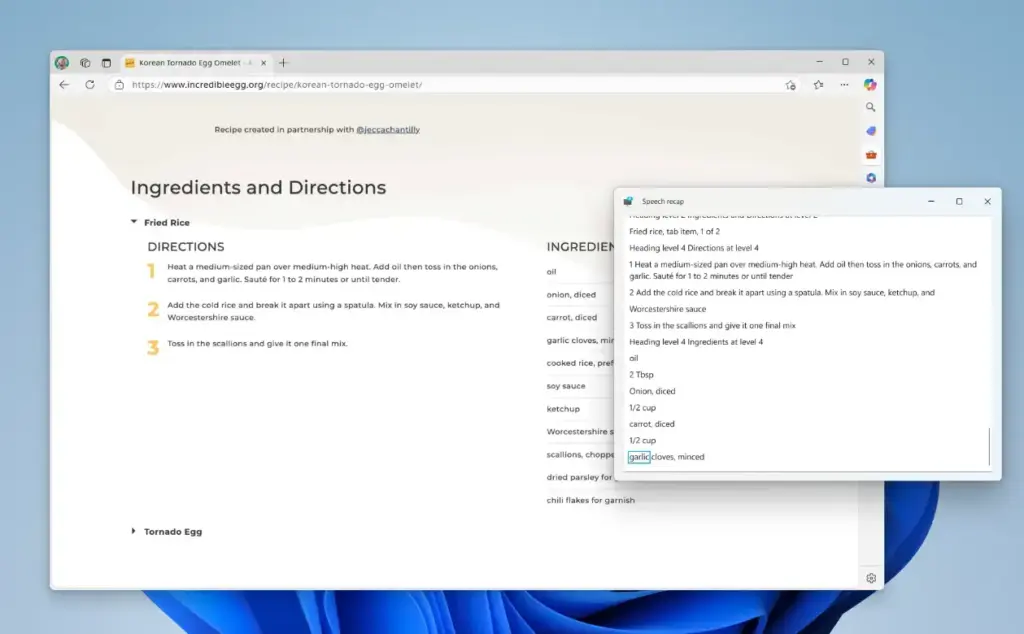
The Speech Recap window appears on the right side of the screen. It shows the text Narrator just spoke. It updates on its own while Narrator reads new content, so you do not need to refresh it.
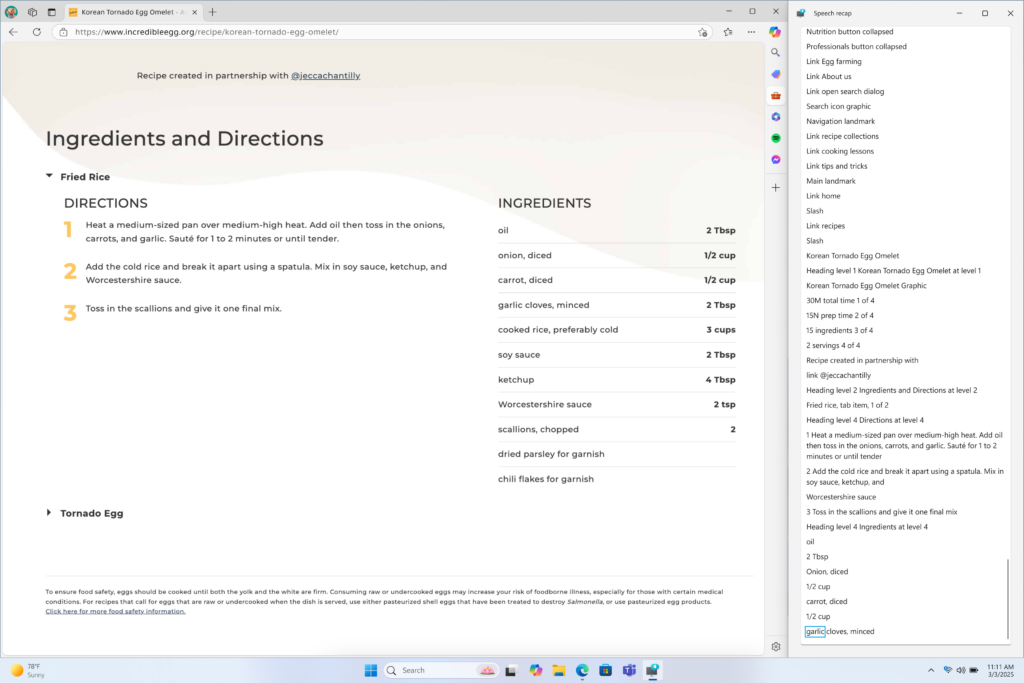
If you want to keep the window in view while you work, snap it to one side of the screen. That way you can read the transcript beside the app you are using. Press the same shortcut again or close the window when you no longer need it. You can turn Narrator off with its own shortcut from the list above.
You are now ready to use Speech Recap.
Summary
Windows 11 Narrator Speech Recap is a built-in accessibility tool that helps you review text your computer reads aloud. It shows a visual history of the spoken words. That makes the screen reader easier to use if you want to double-check information or follow along at your own pace.
- Built-in HelpNarrator is already part of Windows and reads text aloud to help people with vision difficulties.
- Speech RecapThis new feature lets you see and review what Narrator said, so you do not lose anything you missed.
- Easy ShortcutsSimple key combinations turn Narrator on and off, replay speech, copy text and open the recap window.
- Clear ViewThe Speech Recap window shows live text. You can read along or check earlier speech.
Together, these features make Windows 11 easier to use and more accessible for everyone.
References:
Microsoft Windows Insider Preview Announcements
Have a question about this guide?
Answered by AI from this guide. Good questions may be added to this page — please don't include personal details.
Did this guide fix your problem?

About the Author
Richard
Tech Writer, IT Professional
Richard is a writer at Geek Rewind who turns complex IT tasks into clear, step-by-step guides. He draws on years of hands-on experience in system administration and enterprise IT operations, focusing on Windows, Linux and WordPress: the problems people actually run into, and the fixes that work. His server and WordPress guides come from systems he runs himself. Richard builds and maintains the platform behind Geek Rewind, from its Ubuntu servers and Nginx configuration to its custom WordPress plugins. Many new tutorials start with readers' questions, and he's always glad to answer them in the comments.
No comments yet — be the first to share your thoughts!