How to Schedule Out-of-Office Replies in Microsoft Teams

Out-of-office replies in Microsoft Teams send an automatic message to coworkers who contact you while you are away for a meeting, holiday, or day off. You set a start and end time, and the status turns off on its own when you return to work.
You can turn this on directly inside the Microsoft Teams desktop or mobile app, with no extra tools. The feature needs a work or school account. It is also linked to your Outlook automatic replies, so the message you write in Teams shows up there too, and a change in one place carries over to the other.
Open Microsoft Teams, click your profile picture in the top-right corner, select Settings, click General, find Out of Office, and click Schedule. Turn on the toggle, write your message, set your start and end dates and times, then click Save. Your automatic reply is now active during those dates.
Steps to Schedule Your Out-of-Office Reply in Teams
Setting up an out-of-office reply in Microsoft Teams takes a few clicks. The short version is this: open Teams, click your profile picture at the top right, select Set status message, and click Schedule out of office at the bottom. From there, type your message, turn on the reply switch, and pick the dates and times you want it to run.
The steps below follow the Settings route. If you don’t see the Out of Office option there, use the profile picture route above, which leads to the same screen.
- Open Microsoft Teams
Click the Start menu on your computer (the Windows icon at the bottom-left), then find and open Microsoft Teams from the list of apps. You can also type “Teams” into the Start menu to find it faster.
The Teams window should open and show your chats or your last open channel.

Microsoft Teams in Start menu
- Or open Teams from your Taskbar
If you use Teams often, its icon may be pinned to your Taskbar (the bar at the bottom of your screen). Click this icon to open Teams quickly. If Teams is already running, the click brings its window to the front.
Use either this step or the previous one, not both.

Microsoft Teams icon on Taskbar
- Go to Settings
In the Teams window, look for your profile picture in the top-right corner. Click the three dots (…) next to it, then select Settings from the dropdown menu. In newer versions of Teams, the three dots are labeled Settings and more.
The Settings window should open on top of Teams.

Microsoft Teams Settings button
- Find the Out of Office settings
In the Settings window, click General in the list on the left. On the right side, find the Out of Office section and click the Schedule button.
The out-of-office screen should open. If you can’t find the section, close Settings, click your profile picture, select Set status message, and click Schedule out of office at the bottom. If it is missing there too, your account may not support it, so check with your IT admin.
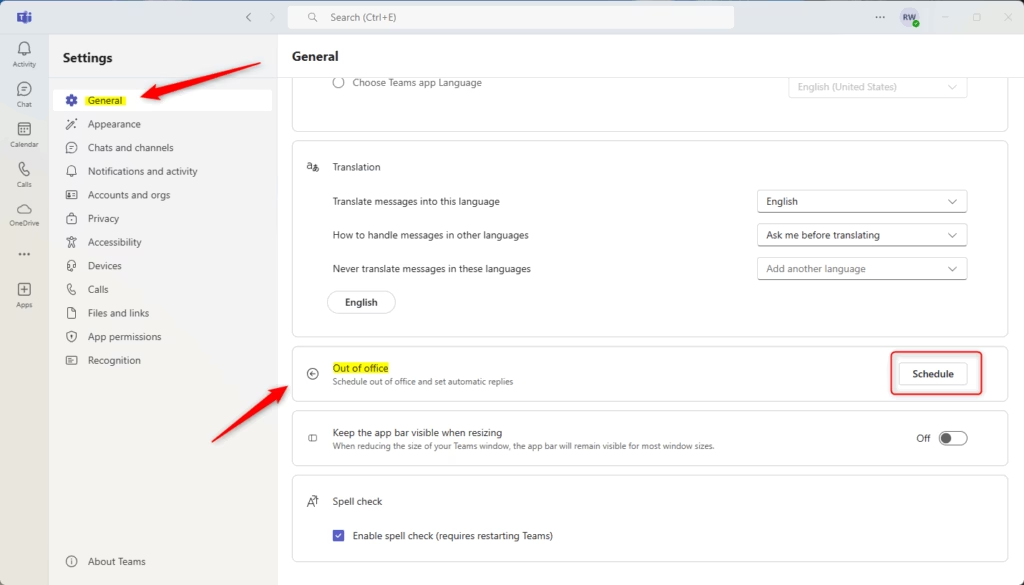
Out of Office schedule button in Teams
- Turn on your automatic replies
On the next screen, toggle the switch to turn on automatic replies. Then write a message to let people know you’re away. Say when you’ll be back and who to contact for urgent issues.
If you want, choose whether the message should also go to people outside your company.
Set the start and end dates and times for your time away. Don’t skip this part, because the dates decide when the reply turns on and off.
When everything looks good, click the Save button.
The reply is now scheduled. To cancel it early, come back to this screen, turn the switch off, and save again. You don’t need to restart Teams.
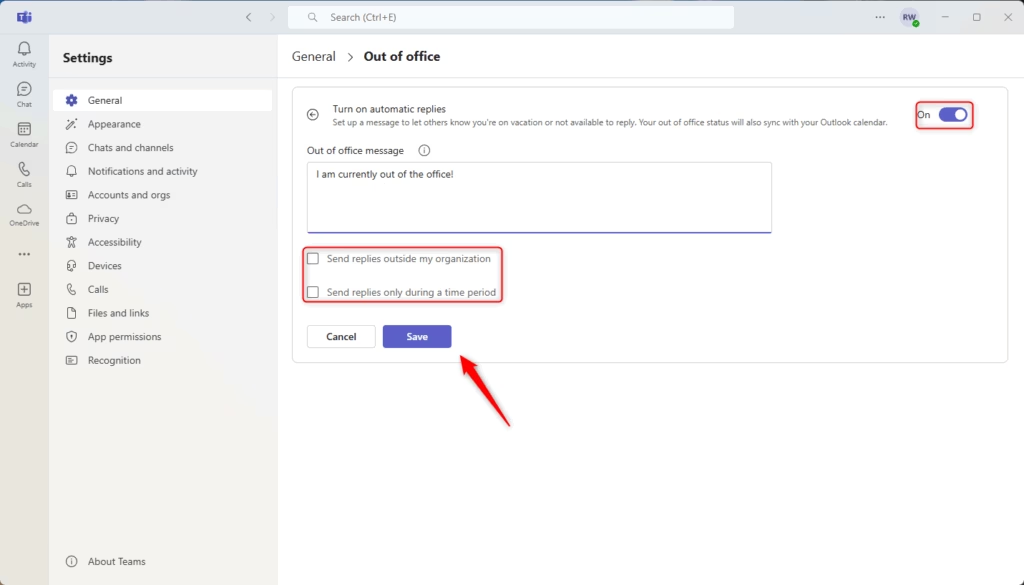
Out of office message settings in Teams
Your Microsoft Teams out-of-office reply is now active. Say you are away from December 20th to January 2nd. If someone sends you a message in that period, Teams automatically sends them the reply you prepared. This lets colleagues know you are unavailable.
After you return, open the screen again to confirm the switch is off, in case you set an end date that was too late.
Why Use Out-of-Office Replies?
- It lets people know you’re not available and when you’ll be back.
- You can share important info, like who to contact while you’re away.
- It helps manage expectations so coworkers won’t expect an immediate reply.
- Keeping your communication clear and professional improves teamwork.
An out-of-office reply helps manage expectations by telling your coworkers when you are away and when you plan to return. It stops people from expecting an immediate answer. It also shares details such as alternative contacts for urgent issues, and keeps your team communication clear while you are out.
Need more help? Visit Geek Rewind for tips and tutorials on using Microsoft Teams and other apps.
Have a question about this guide?
Answered by AI from this guide. Good questions may be added to this page — please don't include personal details.
Did this guide fix your problem?

About the Author
Richard
Tech Writer, IT Professional
Richard is a writer at Geek Rewind who turns complex IT tasks into clear, step-by-step guides. He draws on years of hands-on experience in system administration and enterprise IT operations, focusing on Windows, Linux and WordPress: the problems people actually run into, and the fixes that work. His server and WordPress guides come from systems he runs himself. Richard builds and maintains the platform behind Geek Rewind, from its Ubuntu servers and Nginx configuration to its custom WordPress plugins. Many new tutorials start with readers' questions, and he's always glad to answer them in the comments.
No comments yet — be the first to share your thoughts!